


Why We Built the New Library
We redesigned the GemPages Library with one simple intention: to help you find the templates and sections that truly fit your business, faster and more effortlessly.
The new Library makes it easier to explore content that feels relevant to what you’re building — whether that’s based on your industry or use case you want to optimize. We also focused on improving personalization, so you can quickly find templates that are already optimized for CRO and ready to perform.
At its core, the new Library reflects what GemPages aims to deliver:
a smarter, more personalized, value-driven building experience that empowers every user to design better and grow faster.
What it does
The Library is a comprehensive design toolkit providing pre-built templates and sections by GemPages. It helps users create high-converting pages quickly, without starting from scratch, while still allowing full customization to best match your branding.
Why it matters
Library V2 empowers users to design with confidence. Key benefits include:
Effortless Discovery: The Library offers advanced filtering options to help you quickly find templates that match your needs:
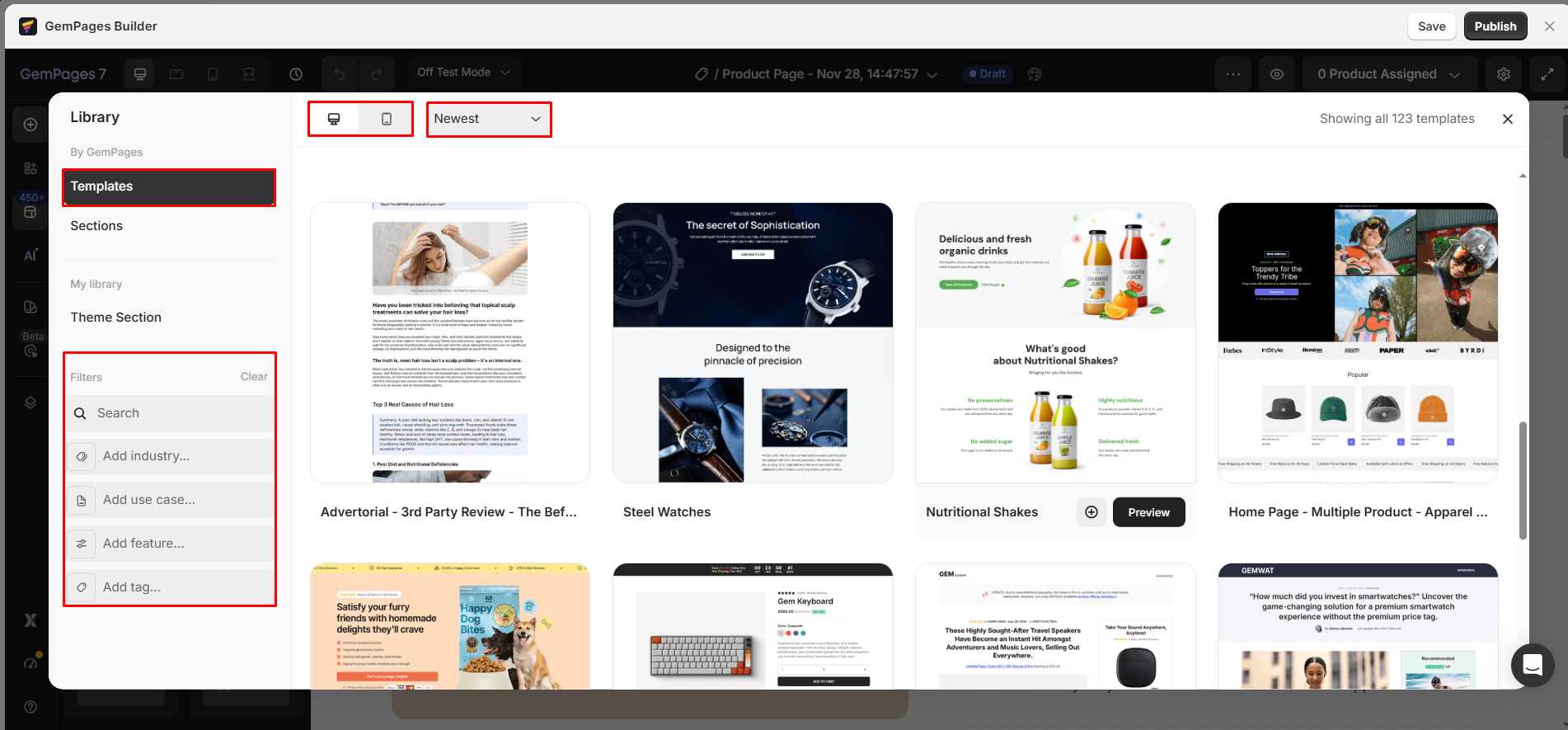
- Filter by industry: Surface templates that align with your type of business, making it easier to find layouts with the right structure, tone, and content direction for your niche.
- Filter by use case: Explore templates built for specific page types such as homepage, quiz page, advertorial page, seasonal landing page, subscription page, and more, so you can start from a layout designed for your exact purpose.
- Filter by features: Use feature-based filters as helpful add-ons to find templates that include the elements or design styles you need, such as before-and-after sections, countdown timers, or stock counters, etc.
High-Converting Templates: Every template is built on proven CRO best practices and infused with real-world conversion tactics such as urgency triggers, social proof, and strategic CTAs. These templates are high-converting engines designed to boost your store’s performance.
Unique Customization: Users can select only the sections they want from any template, creating a unique layout that aligns perfectly with their brand. Enjoy full control and true customization, giving you the flexibility to design pages exactly the way you envision.
Library Structure: Tabs Overview
Library V2 is organized with a sidebar containing multiple tabs, each serving a different type of content.
1. Library sidebar
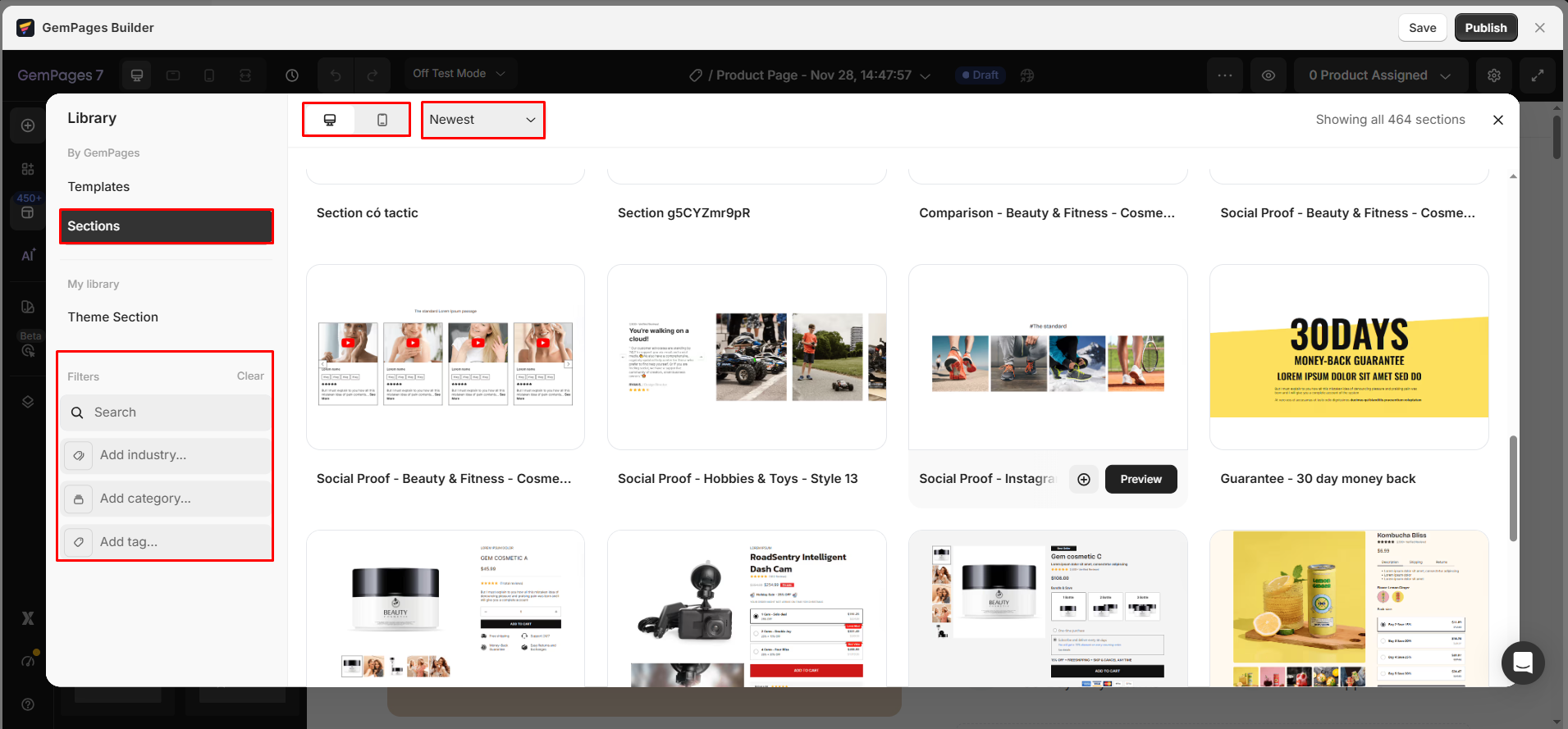
Library navigation with corresponding filters and sort options.
| Library navigation | Filter |
| Template |
|
| Library navigation | Filter |
| Section |
|
| Library navigation | Filter |
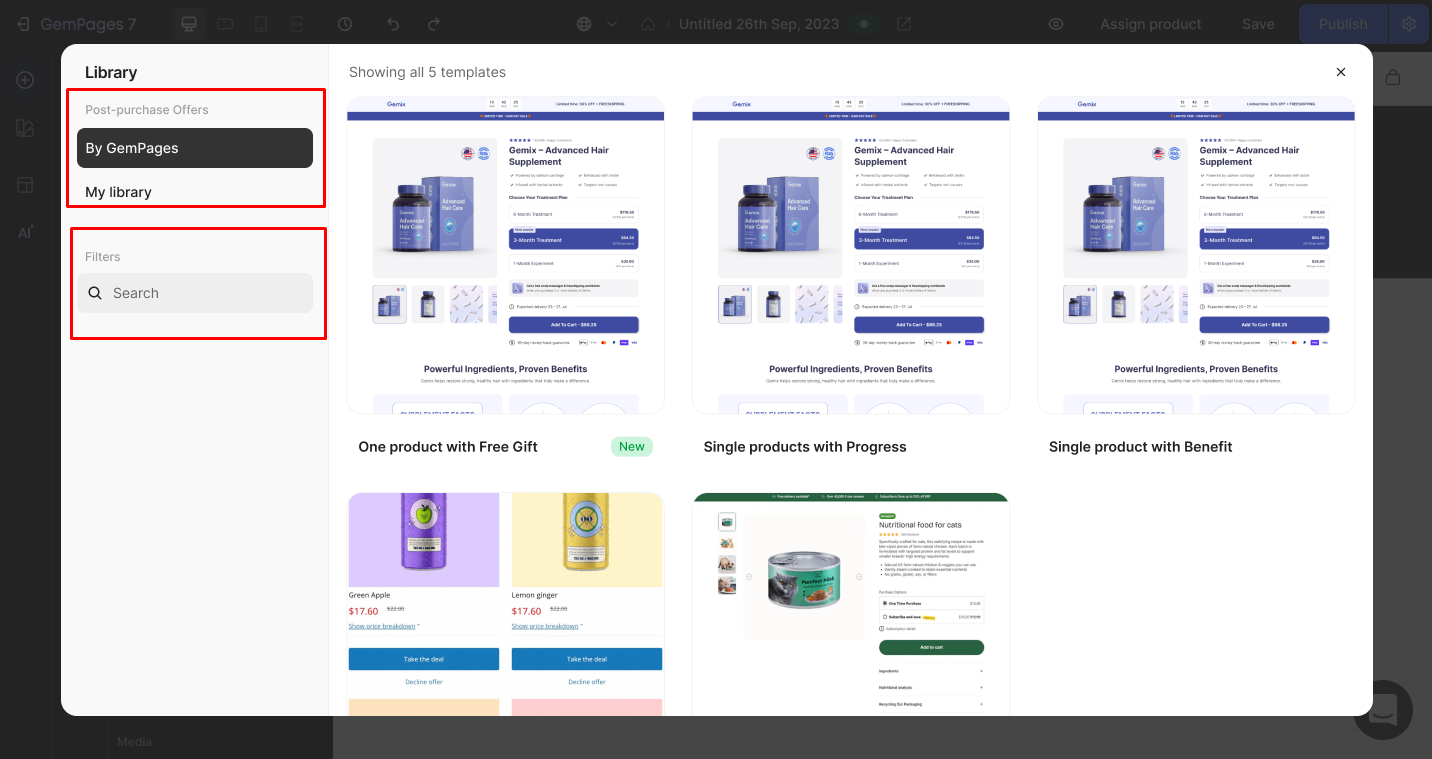
| Post-purchase Offers/By GemPages
(Only shown when editing an Upsell Page) |
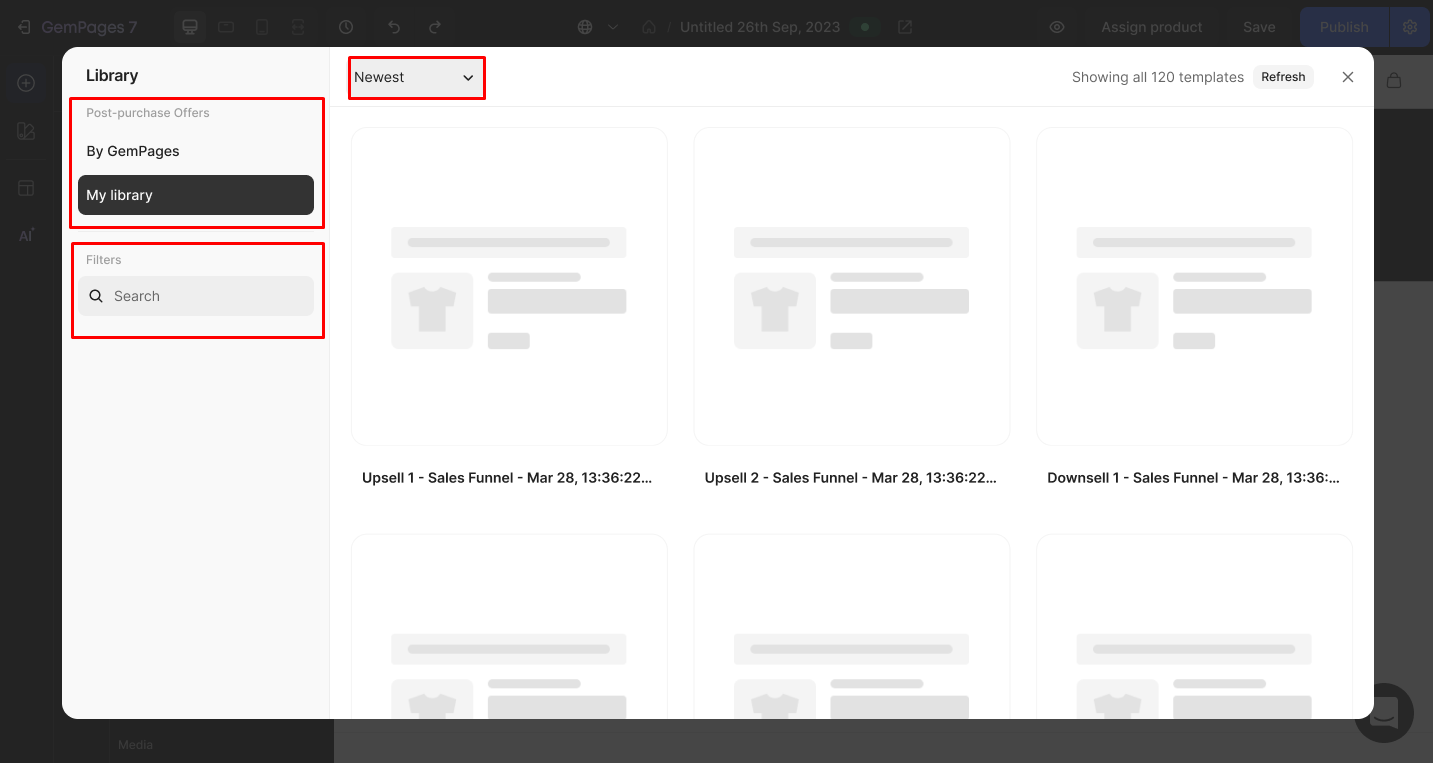
This tab includes two main navigators: pre-built post-purchase offer templates created by GemPages and saved post-purchase offer templates created by the user.
|
| Library navigation | Filter |
| Post-purchase Offers/My library (Only when editing Upsell Pages) |
|
| Library navigation | Filter |
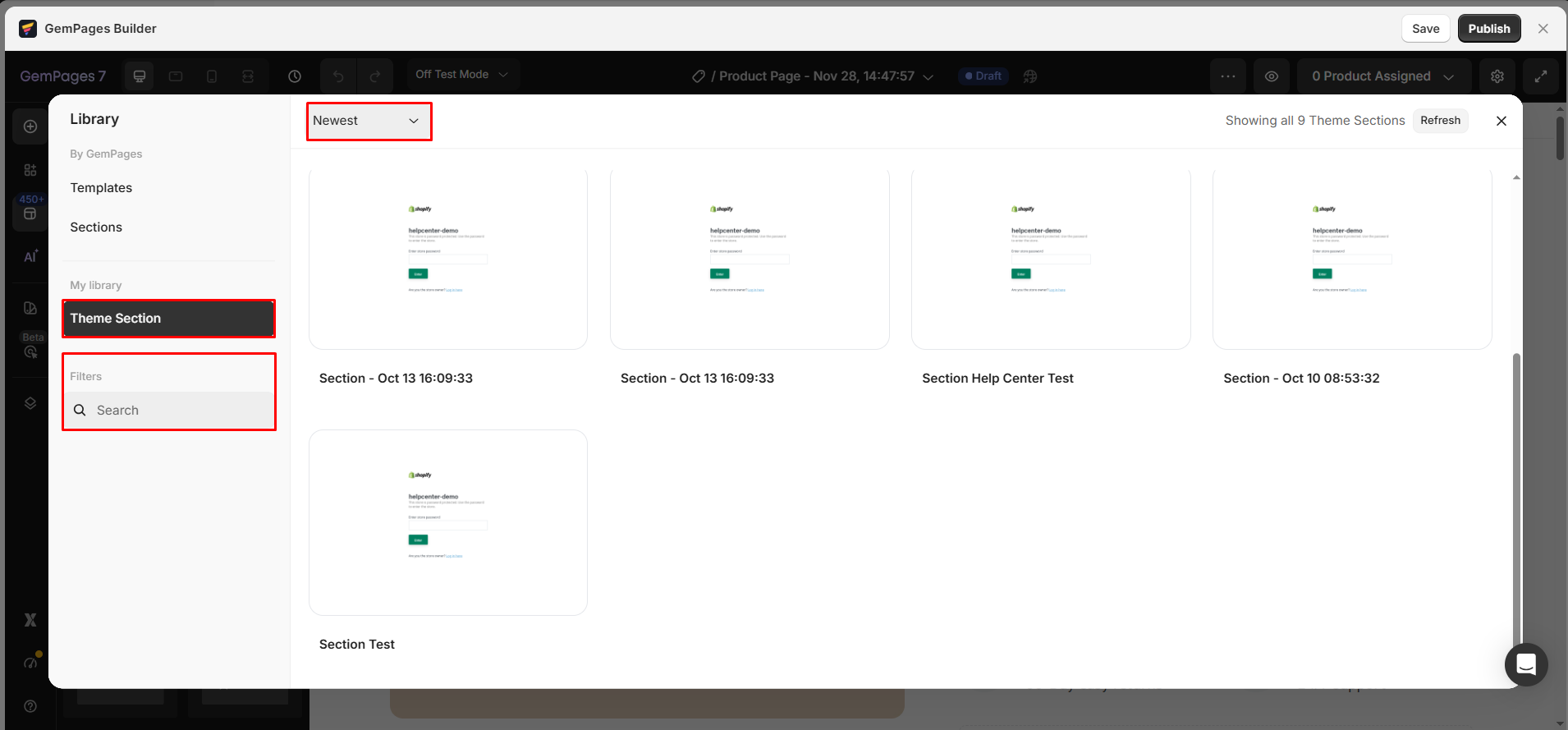
| Theme Section (Theme sections created by users with GemPages) |
|
| Library navigation | Filter |
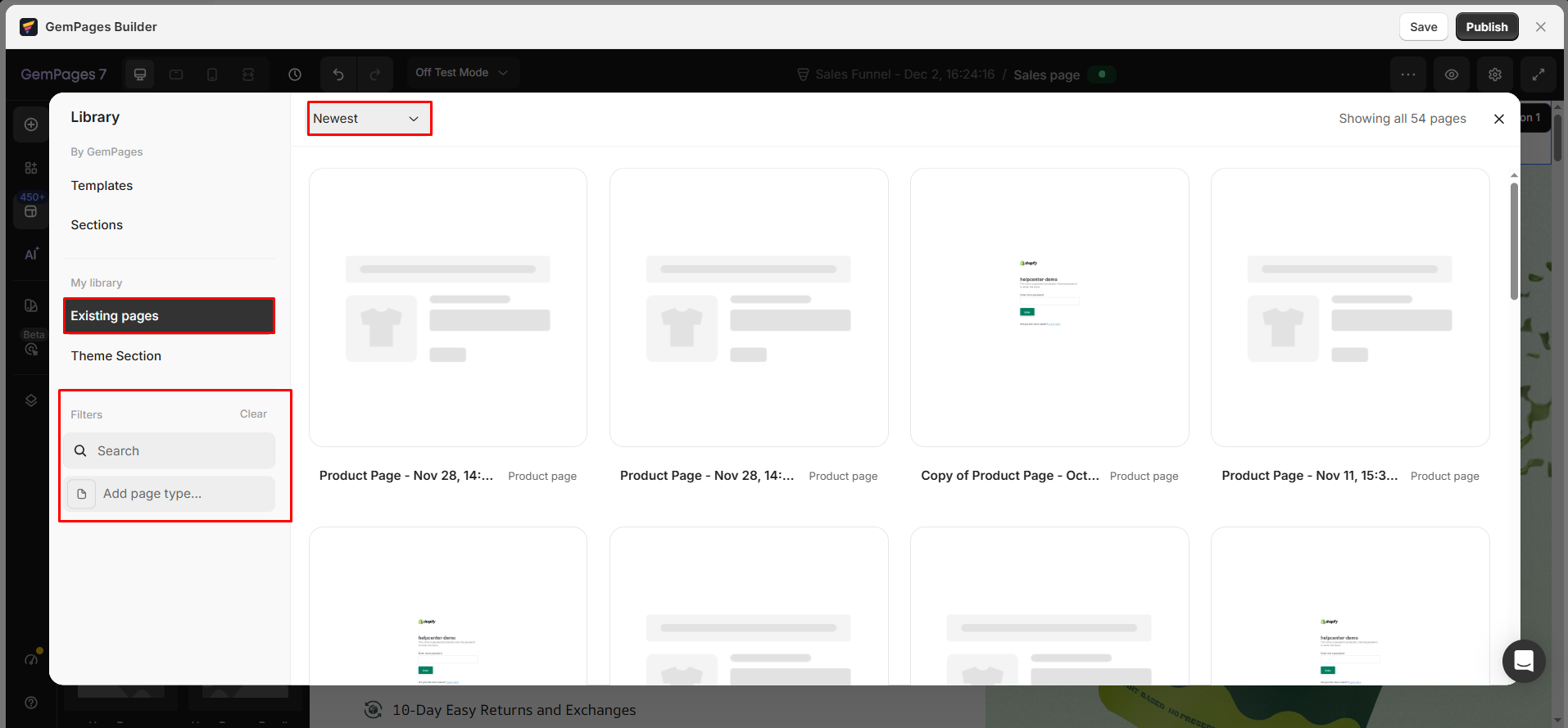
| Existing Pages (The Existing Pages library is available only when you open the Library from a Pre-sales or Sale Page in your sales funnel.) |
|
2. View mode
- Mobile View (new): Optimized for mobile-first design, allowing you to quickly scan and evaluate how each template or section performs on smaller screens.
- Desktop View: A full desktop preview to review the overall layout and structure before inserting it into your page.
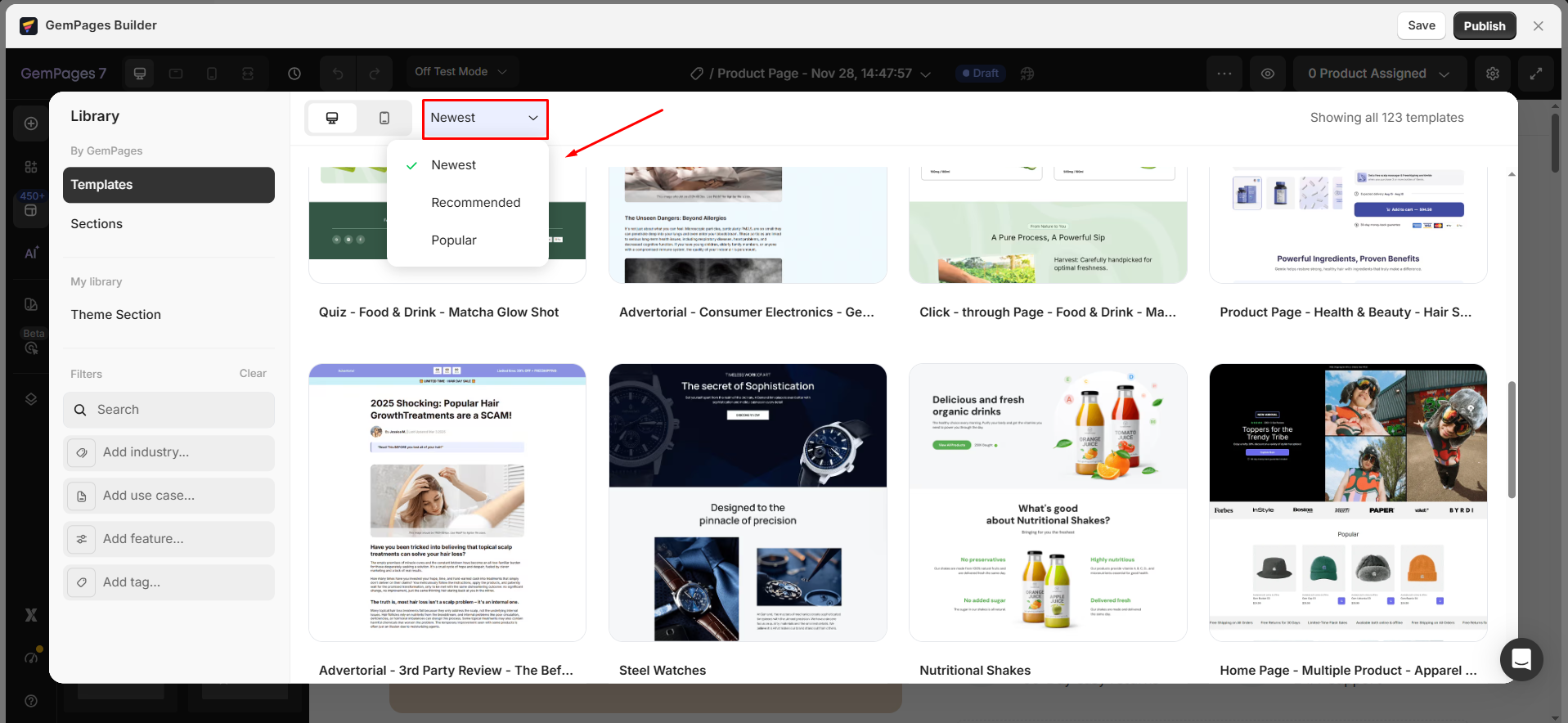
3. Sorting Options
- Newest: Displays the latest templates in the Library, helping you stay up to date with new and relevant options.
- Popular: Shows templates that many users genuinely love and use often, making it easy to spot layouts that consistently work well for real stores.
- Recommended: Highlights templates recommended by GemPages for their high-converting, CRO-focused structure, guiding you toward layouts optimized for better results.
- Name A-Z: Sorts templates alphabetically by name, making it easier to find specific templates and browse the library in a clean, organized order.
4. Template/ Section Listing
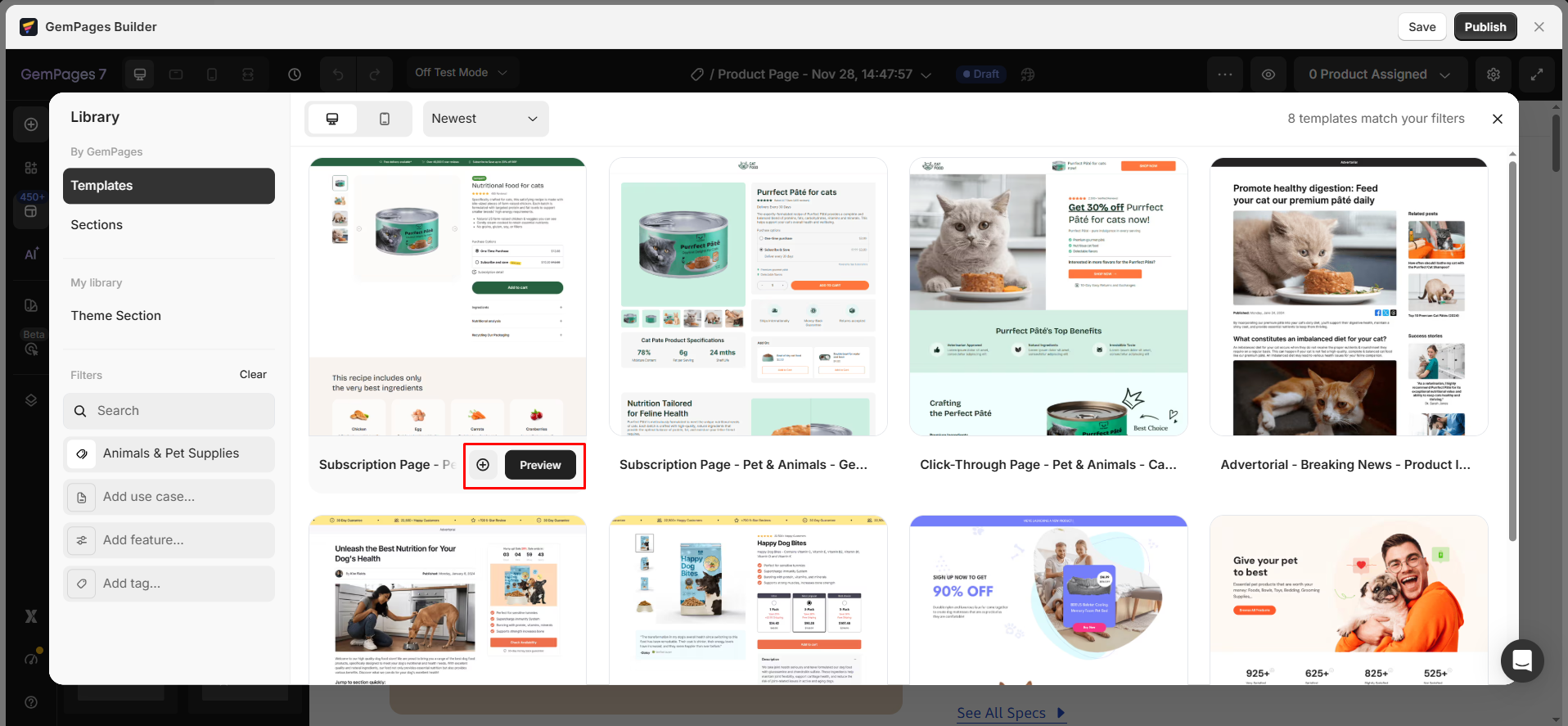
In the Template/Section listing area, you will see a list of available templates. Templates and Sections will be displayed based on the filters or sorting options you select (if any).
Each template or section includes two main actions:
- Add to page – Instantly insert the template or section into your current page.
- Preview – View a live preview before adding it to your page.
5. Preview detail a template/section
To preview a template or section, click the Preview button. In the preview screen, you will see:
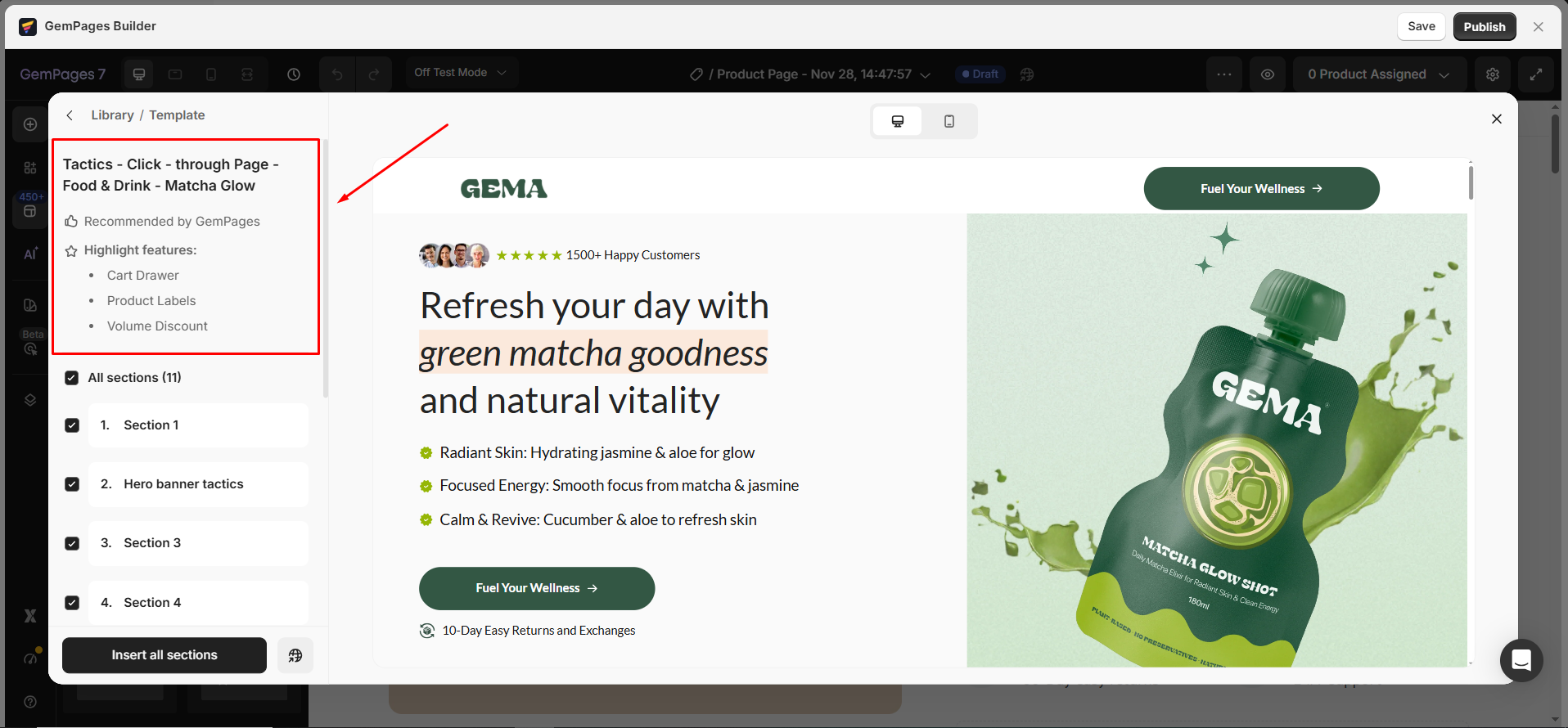
- Template Information
Each template displays trusted by…, highlighted features, and conversion insights, helping users quickly assess its value.
- Template Structure & Interaction
The sidebar and preview area are interactive, making it easier for you to locate the section you’re viewing and quickly jump to any section you want to explore in more detail.
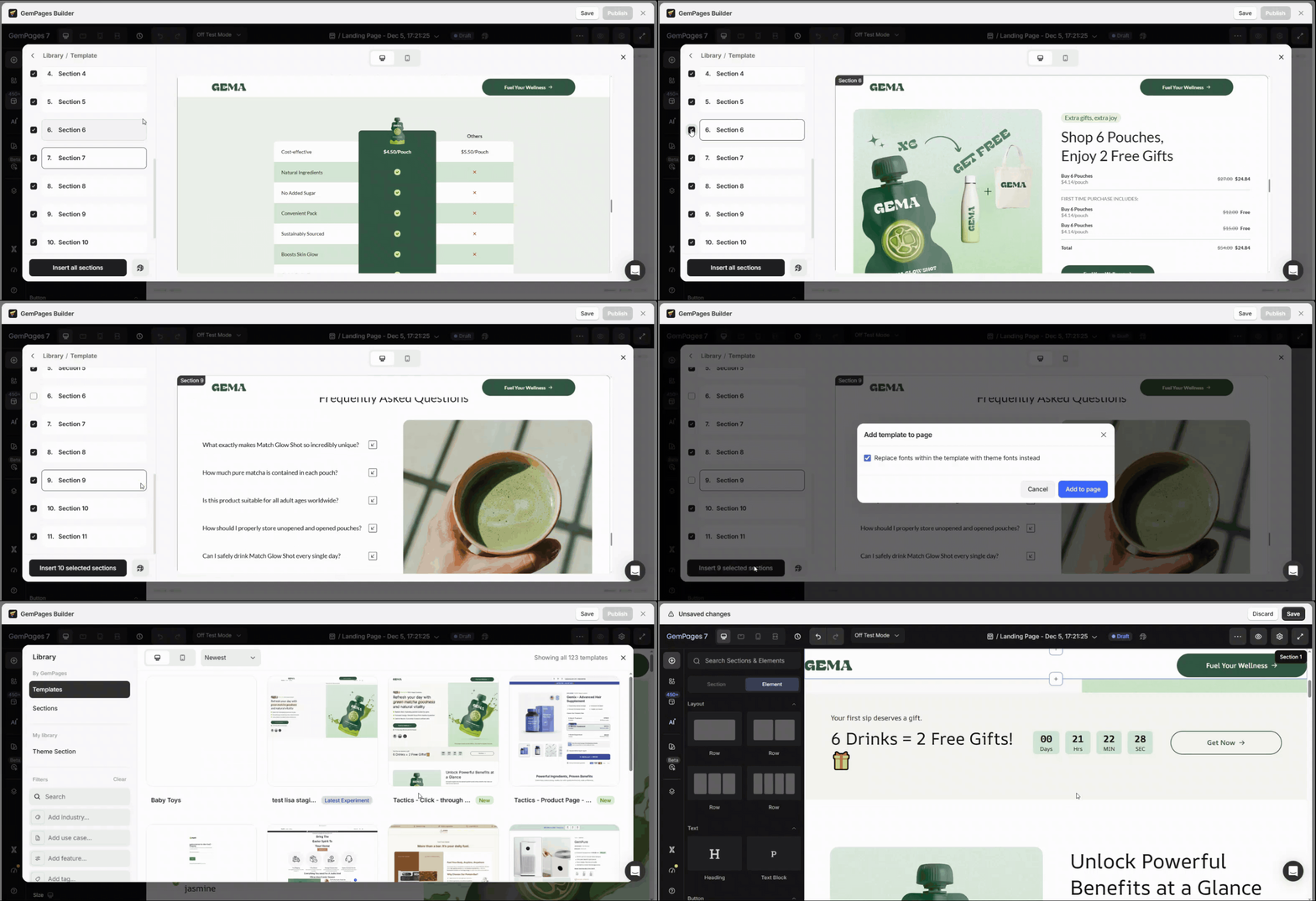
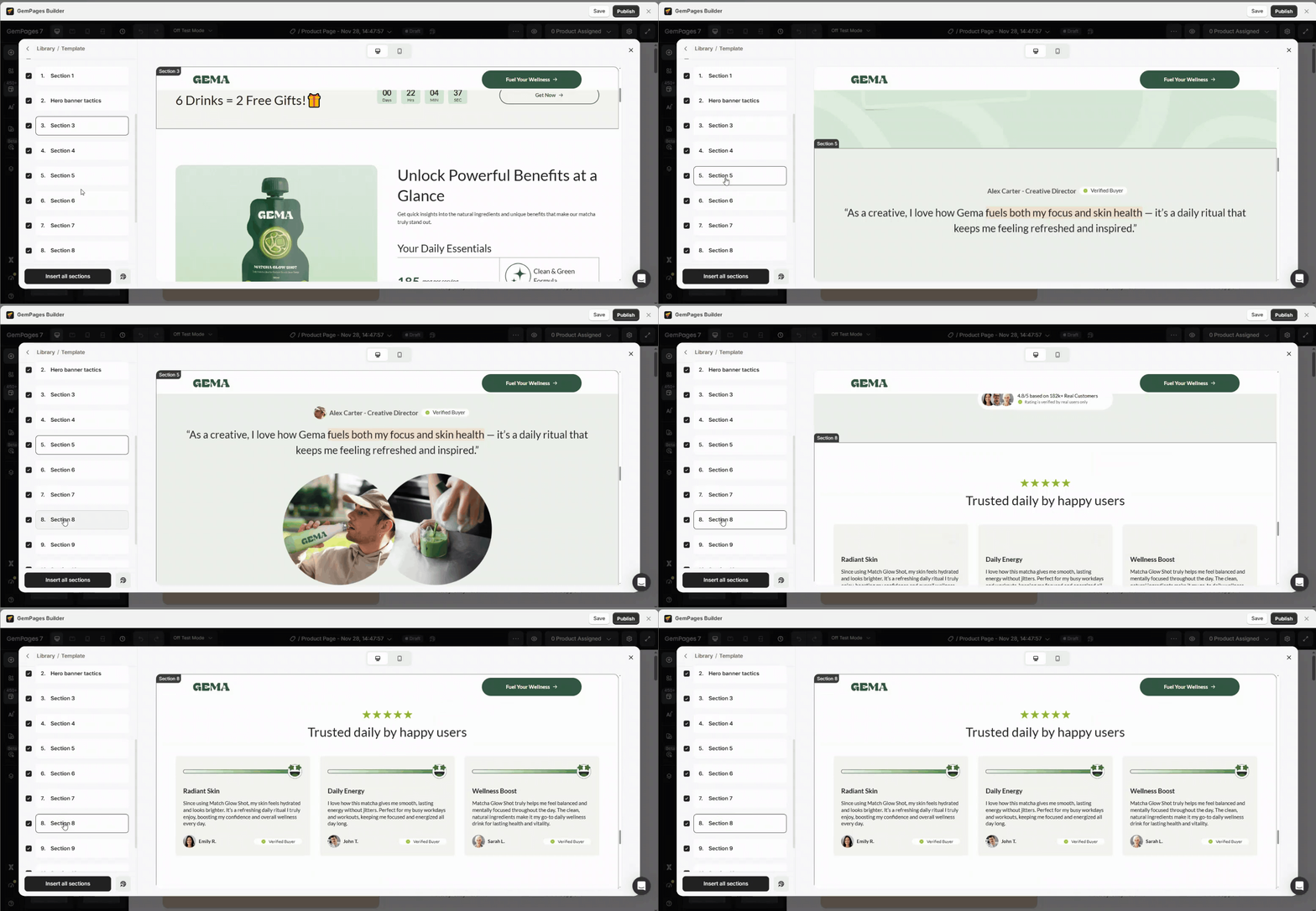 Instead of importing the full template, users can pick specific sections and add them directly to their page. It helps them reuse high-performing layouts, speed up page creation, and maintain consistency across different pages without unnecessary content.
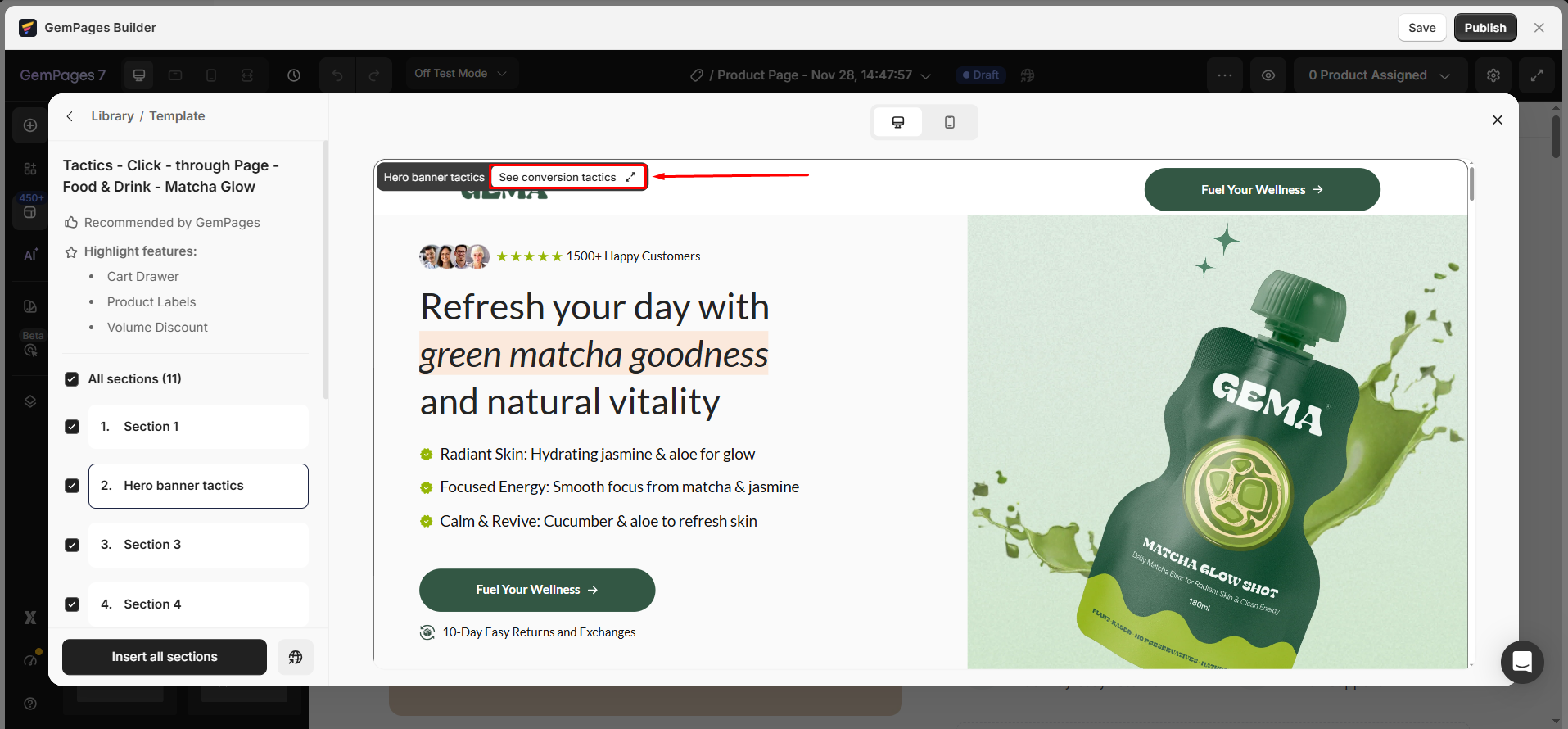
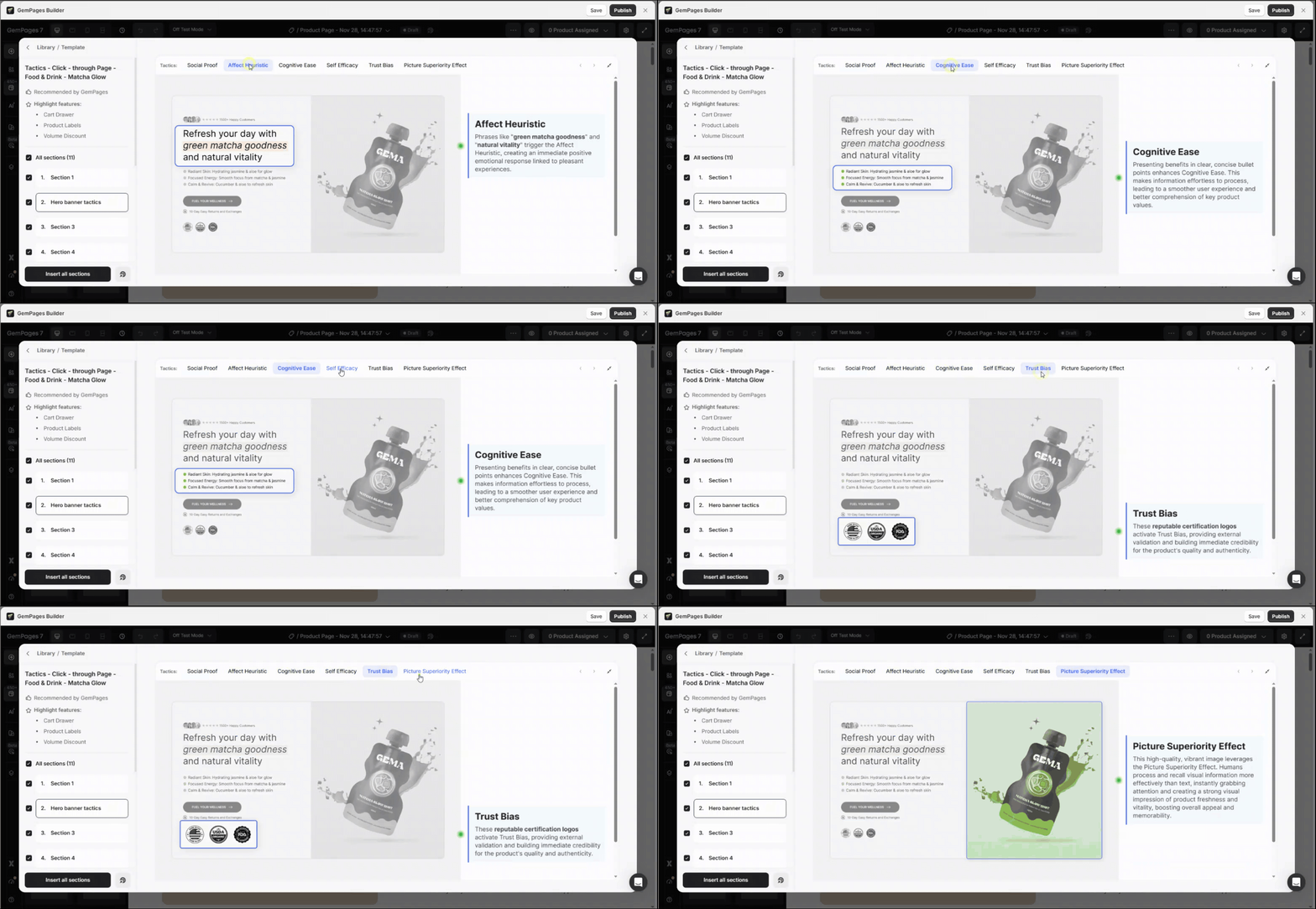
- Sections with Conversion Tactics
Each section may contain conversion tactics that are proven from CRO best practices and real-world examples. It provides insight into how each section improves conversions, enabling users to apply tactics across other pages.


Thank you for your comments