


Understanding Image Delivery and LCP
Understanding Image Delivery and Largest Contentful Paint (LCP) is essential if you want to improve page speed.
What is Image Delivery?
Image Delivery refers to a system or infrastructure designed to efficiently optimize, transform, and deliver images to end users across different devices and network conditions.
An image delivery system typically combines:
- A Content Delivery Network (CDN) for global caching and fast delivery
- On-the-fly image processing (resize, compression, format conversion)
- Device- and viewport-aware optimization
Images often account for 50–70% of a page’s total payload size. When images are not properly optimized, they become one of the main causes of:
- Slow page load time
- Poor Core Web Vitals scores
- High bandwidth consumption
- Reduced user engagement
- Lower conversion rates
Effective image delivery ensures that users download only the image size necessary for their device and viewport, without sacrificing visual quality.
What is Largest Contentful Paint (LCP)?
Largest Contentful Paint (LCP) is one of Google’s Core Web Vitals metrics. It measures the time from page navigation until the largest visible element within the viewport is fully rendered.
In most cases, the LCP element is:
- A hero banner image
- A large product image
- A featured promotional block
- A large text block
Because the LCP element is frequently an image, inefficient image handling such as large file sizes, missing preloading, delayed requests, or lack of compression will directly increase LCP time.
Optimizing image delivery plays a critical role in:
- Improving perceived loading speed
- Achieving better search rankings
- Increasing user engagement
- Driving higher conversions
How to Optimize Image Delivery & LCP
There are two main ways to optimize Image Delivery and improve LCP in GemPages: adjusting image quality at the element level and configuring page-level loading behavior. Below, we will go through each method step by step.
1. Configure Image Element Setting in the Editor
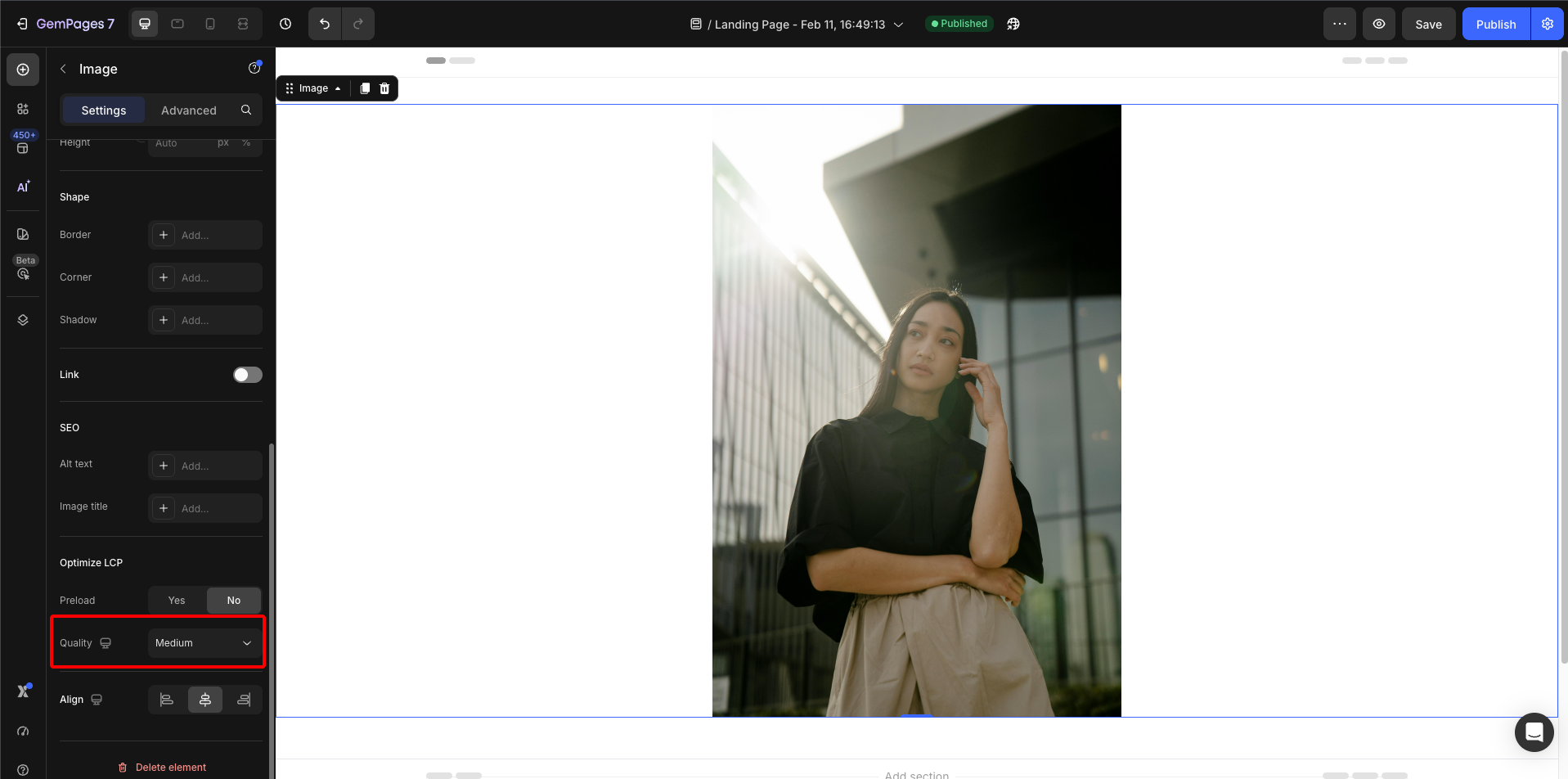
GemPages provides a Quality setting that allows you to control how image files are rendered and delivered on the live page. This setting is part of the Optimize LCP section inside the element settings panel.
To access it:
- Open your page in the GemPages Editor
- Select an image-related element
- Go to the left sidebar
- Scroll down to the Optimize LCP section
This configuration directly affects the size of the image variant requested by the browser, which impacts image delivery performance and LCP.
Please note that the Quality setting only works under the following conditions:
- The image must be hosted on Shopify CDN (meaning it was uploaded via Shopify).
- The element used must be one of these:
- Image
- Product Image
- Image Comparison
How the Quality Setting works:
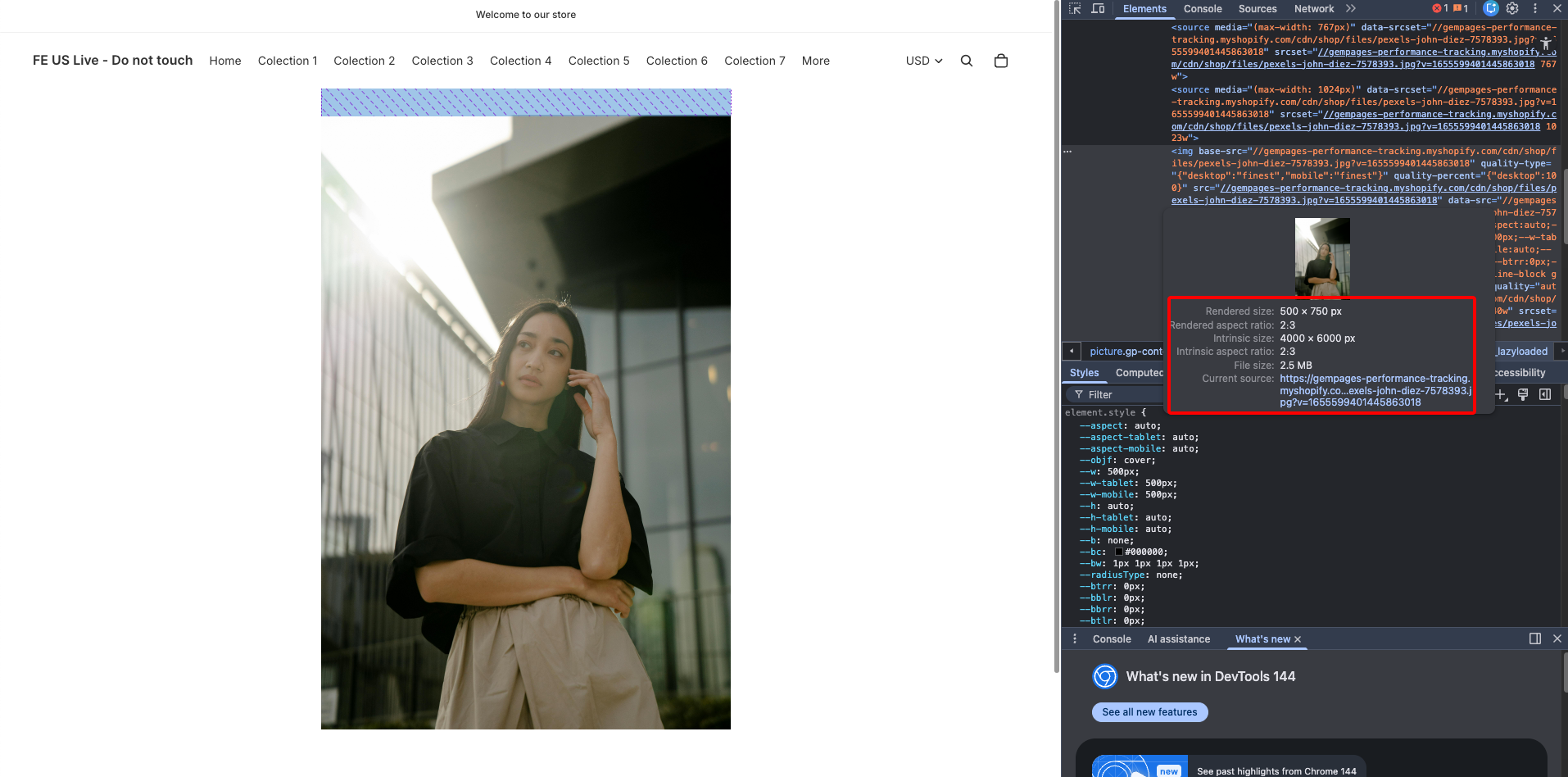
The Quality setting determines the width of the image variant that will be requested based on the element’s viewbox width (the actual width at which the image is displayed within your page layout).
Available options:
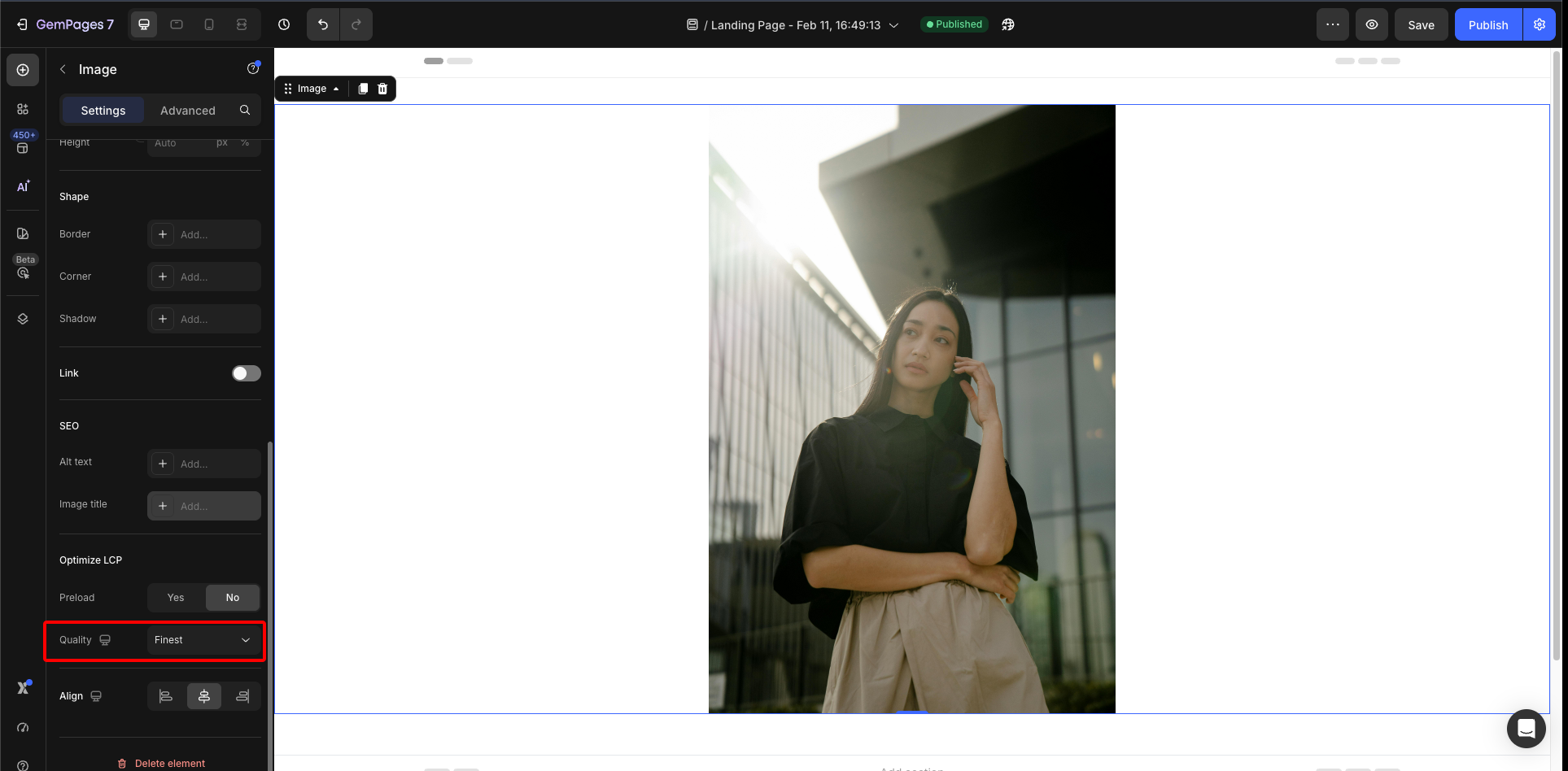
- Finest: The system loads the original uploaded image file without resizing.
- High: The system requests an image variant sized at 1.5 × the viewbox width.
- Medium: The system requests an image variant sized exactly at 1 × the viewbox width.
- Custom: The system calculates the requested image size using this formula: Viewbox width × X% (user-defined ratio; default recommended 100%).
For example, you uploaded image = 2000px width, Viewbox = 400px width. The requested image size will differ depending on the selected option:
- Finest => load the original image file (2000px)
- High => Loads an image variant with width = 400 × 1.5 = 600px
- Medium: Loads an image variant with width = 400 × 1 = 400px
- Custom: 200% → Loads an image variant with width = 400 × 2 = 800px
Note: Limitation
- The Quality setting only runs when Preload is turned off. When Preload is set to “Yes,” the Quality setting is hidden.
- The quality of an image cannot exceed its original size, regardless of the quality ratio set by the user. When the configured quality exceeds the original image size, the actual intrinsic size of the image is still limited by the original dimensions.
Example:
- Original image size: 736 x 1104. Displayed width on UI: 500px
- If the user sets the quality to 200%, the expected intrinsic size would be 1472 x 2208.
- However, due to the original size limitation, the actual intrinsic size remains 736 x 1104.
Case 1: In the editor, select element Image, in the left side bar, scroll down to the Optimize LCP, set Quality = finest, both desktop & mobile mode:
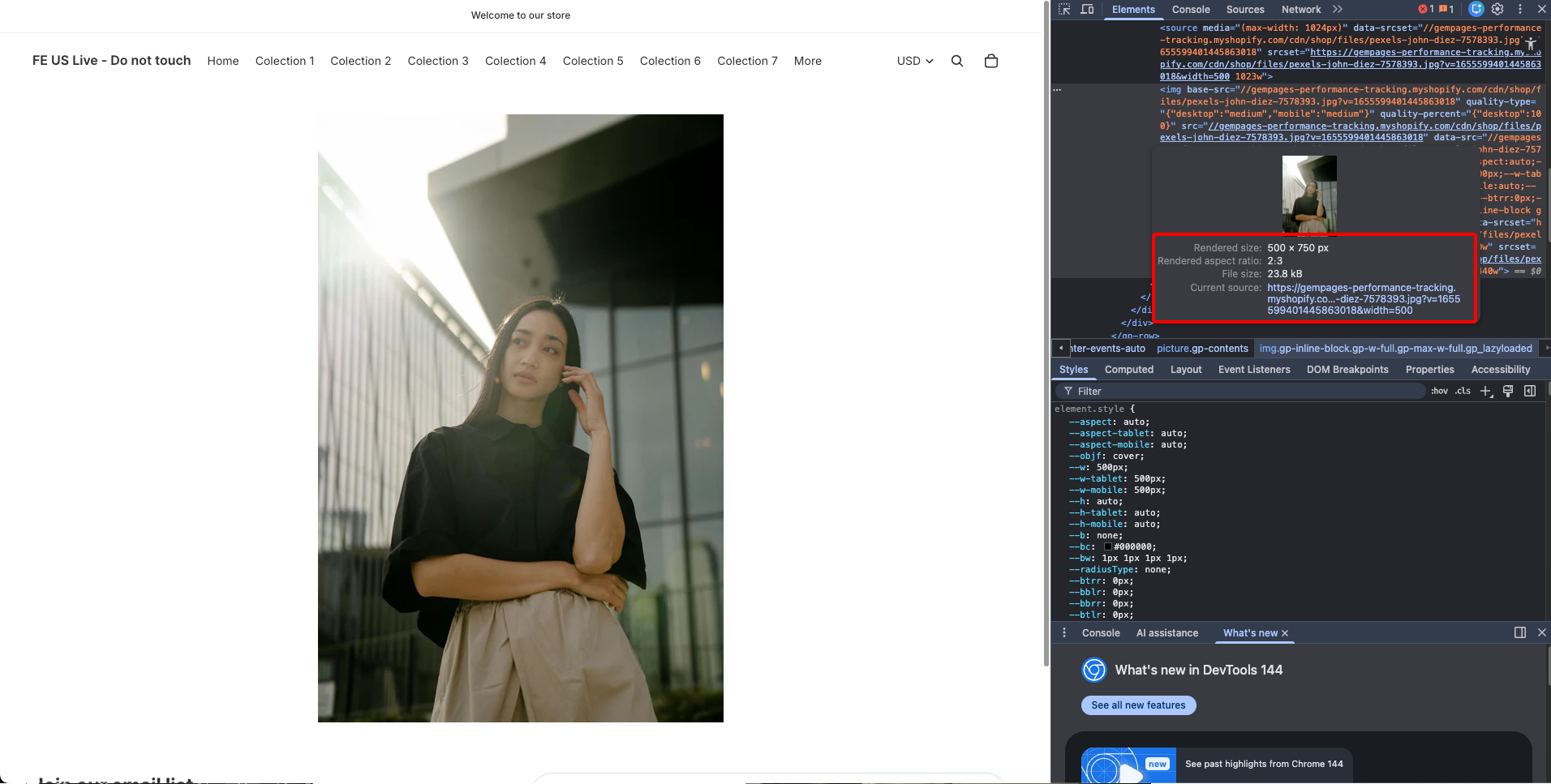
Live page: Load the original image file
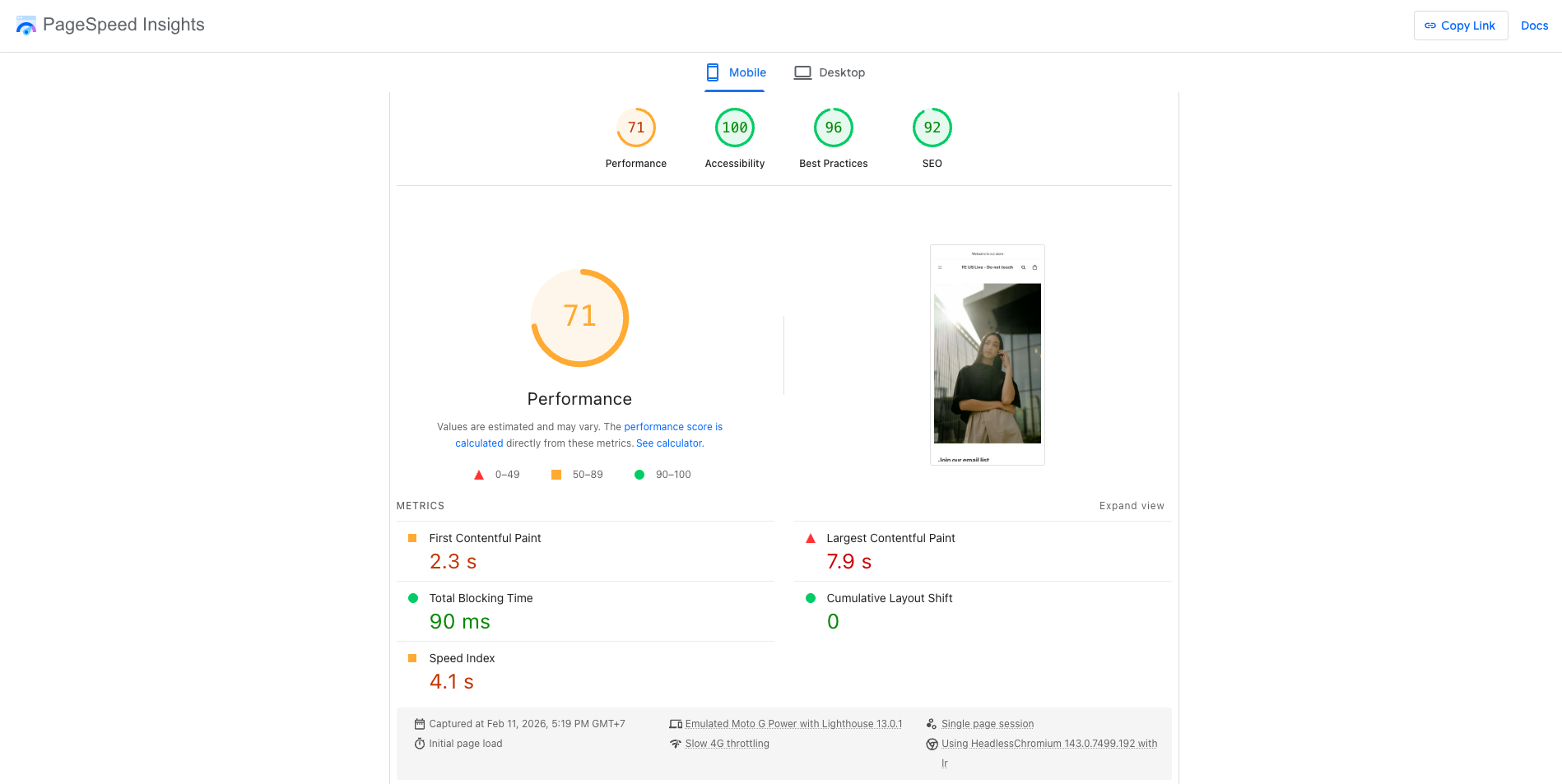
We test the performance of this page, and the result is:
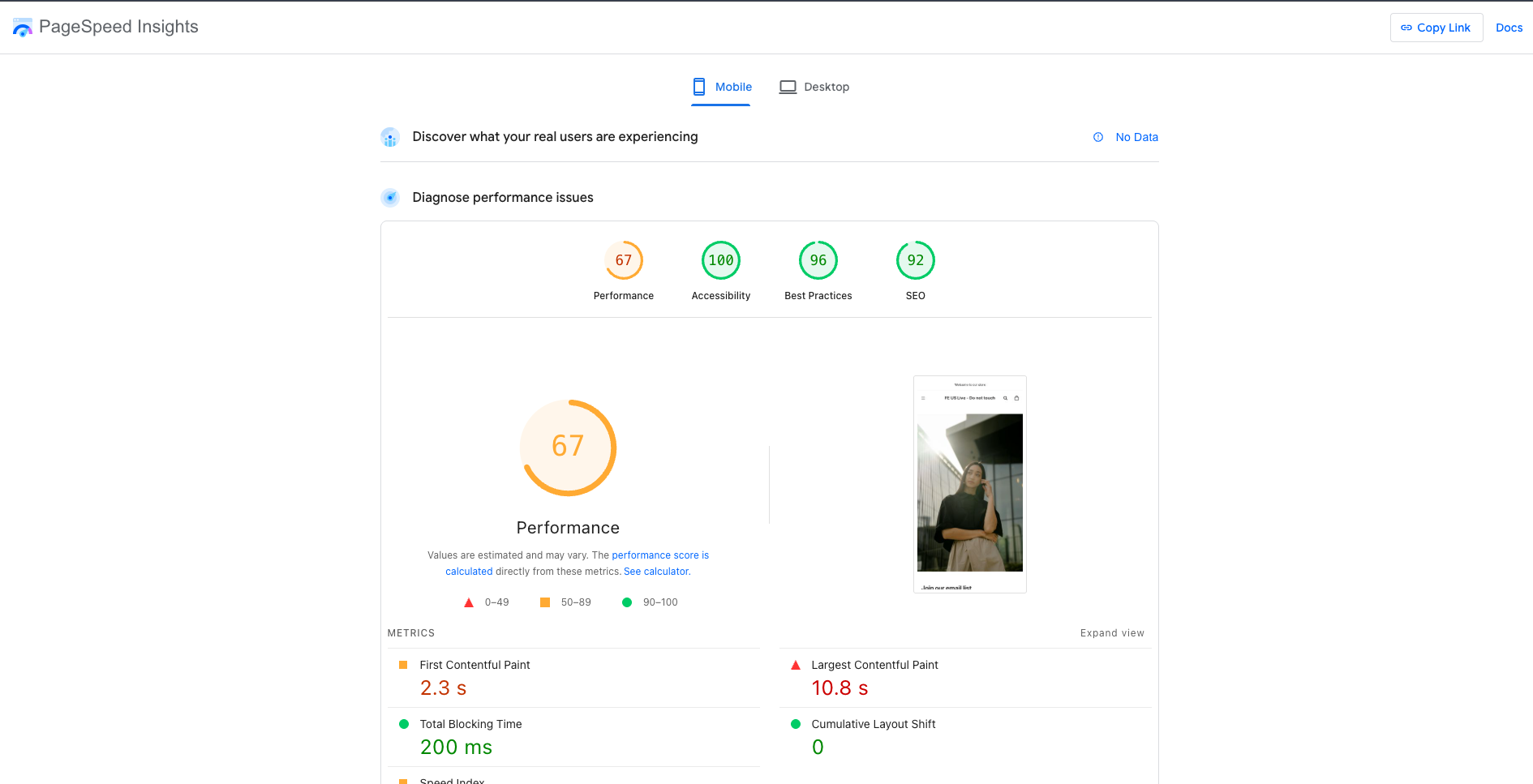
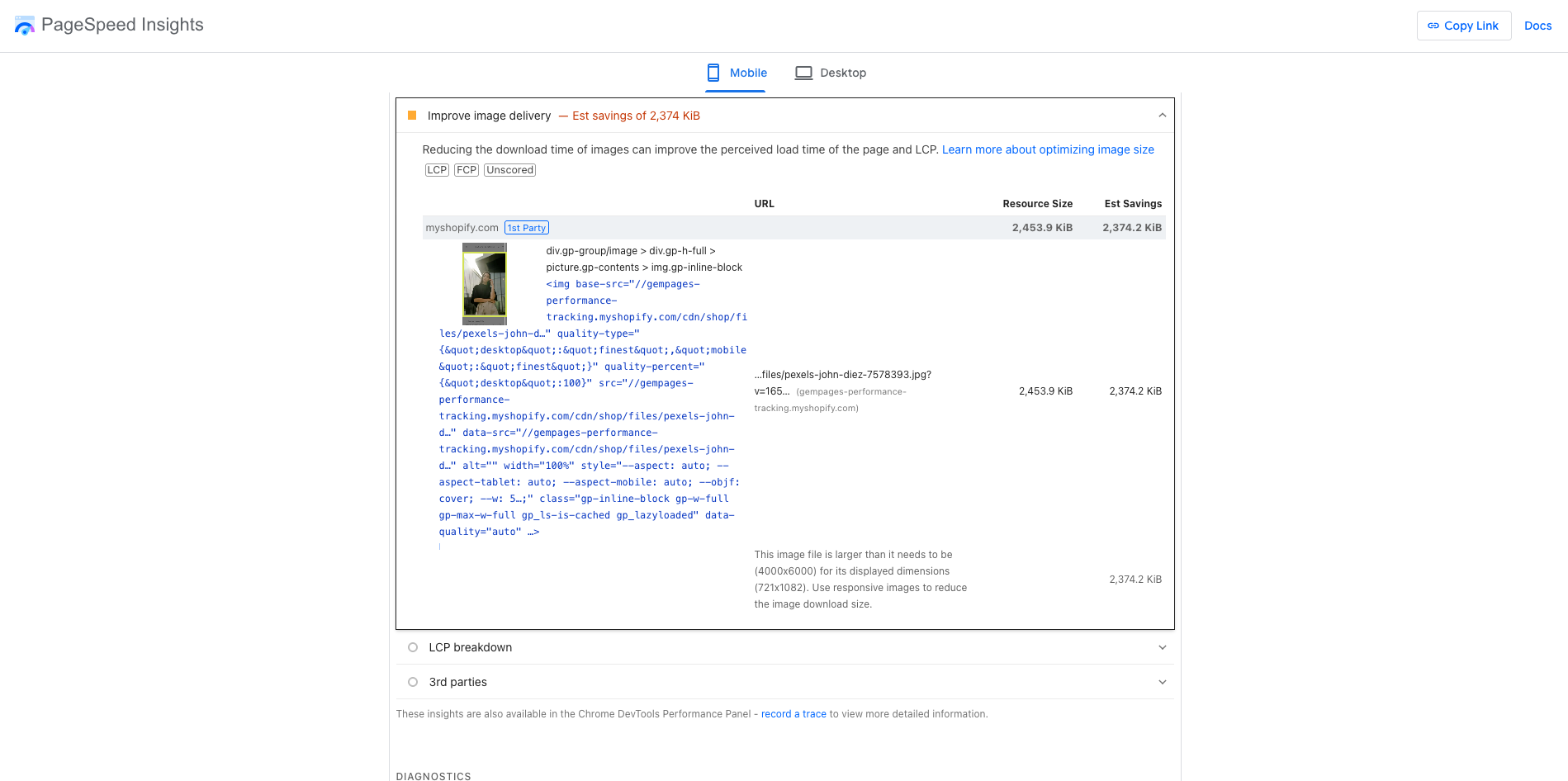
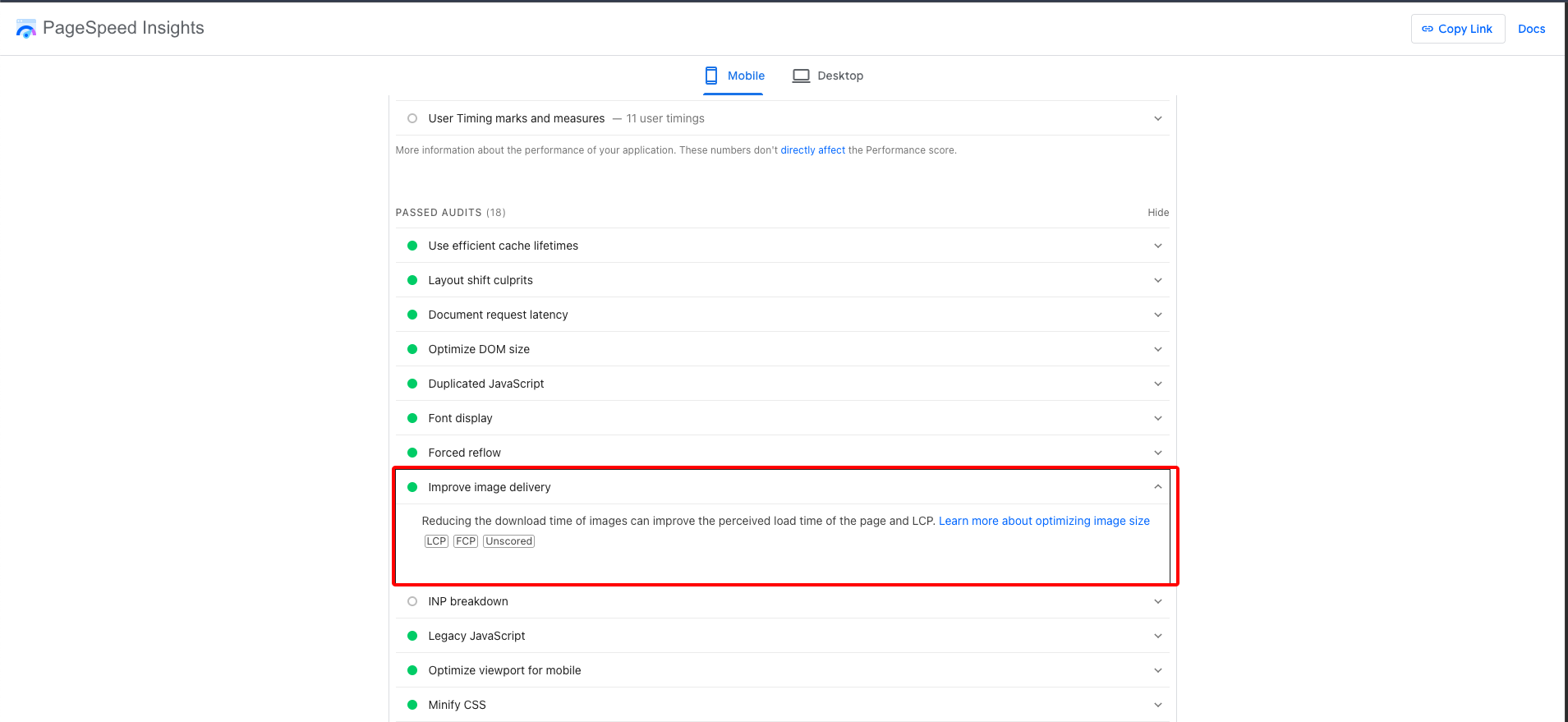
Image delivery needs to be improved:
Case 2: In the editor, select element Image, in the left side bar, scroll down to the Optimize LCP, set Quality = Medium, both desktop & mobile mode:
Live page: Loads an image variant with width = 500px * 1 = 500px
Then we test the performance of this page, the result is updated with a higher performance point, and the image delivery is improved:
What can we learn from this?
Loading the original image file may increase file size unnecessarily, especially when the display size is much smaller than the uploaded image.
Setting the Quality to a reasonable Custom ratio ensures that the image size matches the actual display width. This reduces file size, improves loading speed, and helps optimize LCP without affecting visual quality.
The setting Optimize LCP is configured in the same way for the Product Image and Image Comparison elements.
2. Other Configurations
Besides adjusting the Optimize LCP setting at the element level, you can further improve Image Delivery and Largest Contentful Paint (LCP) by controlling how images are loaded during the initial page render.
These optimizations focus on when and how critical images are requested by the browser.
Turning Off “Lazyload Image”
What is Lazy Load?
Lazy loading is a technique that delays loading images until they are close to entering the user’s viewport (the visible area of the screen). Instead of loading all images immediately when the page starts rendering, the browser only loads images as the user scrolls.
👉 You can learn more about Lazy Load in this article: Publish Settings – Lazyload Image
Disabling lazyload for critical images ensures that:
- Images inside the initial viewport are requested immediately
- The browser prioritizes fetching the LCP image
- Rendering of hero banners or featured product images is not delayed
This is particularly important because in most eCommerce or landing pages, the LCP element is typically:
- A hero banner image
- A large product image
- A featured promotional block
If such images are lazy loaded, the browser waits until layout calculation is complete before initiating the request, which directly delays LCP.
Turning On “Lazyload Section”
What is Lazy Load Section?
Lazy Load Section is a performance setting that delays the rendering of entire sections that are outside the initial viewport (below the fold).
Instead of controlling image loading individually, this setting works at a structural level — meaning the whole section (including its images, text, scripts, and layout structure) is deferred until the user scrolls near it.
👉 You can read more in our Help Center article here: Enable Lazyload and Preload Your Section and Image
When enabled:
- Sections outside the initial viewport are not rendered or requested during first load
- DOM size at initial render is reduced (Document Object Model – represents the structured tree of HTML elements that the browser builds when loading a page).
- Fewer network requests compete for bandwidth
- Main thread workload decreases
This improves:
- Time to First Paint (FCP): visible content appears sooner
- LCP stability: critical elements are not competing for resources
- Overall page responsiveness: smoother initial interaction
In simple terms:
- We keep visible content loading immediately
- We defer below-the-fold complexity
This method ensures that the browser prioritizes what users see first, while postponing content that is not immediately needed.
Enabling “Preload Section”
What is Preload Section?
Preload Section is a performance setting that tells the browser to prioritize loading sections that are visible within the initial viewport. For more information, please refer to: Page Optimization Feature
When Preload Section is enabled:
- All sections inside the viewport (not just the very first section) are prioritized
- The browser starts fetching their critical resources earlier
- Desktop and mobile viewport differences are properly handled
Without preload logic, browsers typically prioritize only the first section. Other sections that are still visible above the fold may be requested later, after layout and rendering steps are completed. This can delay image loading and directly impact LCP.
This is especially important for responsive layouts where:
- Desktop viewport may contain 2–3 sections above the fold
- Mobile viewport structure differs significantly
- Preloading ensures that viewport-aware content is treated as high priority across breakpoints.
Why This Combination Works
The goal is not to disable or enable everything at once. Performance optimization works best when loading behavior is coordinated strategically.
An effective approach includes:
- Do not lazy load critical images → protect LCP
- Lazy load non-visible sections → reduce initial load cost
- Preload all viewport sections → align network priority with visual priority
This ensures that what users see first loads immediately, while non-critical content waits.
We tested a product page with the following setup:
- Image has quality = finest
- The product list contains product image elements, quality = finest
- Lazyload Image is ON
- Lazyload Section is OFF
- Preload Section is disabled
→ The result is:
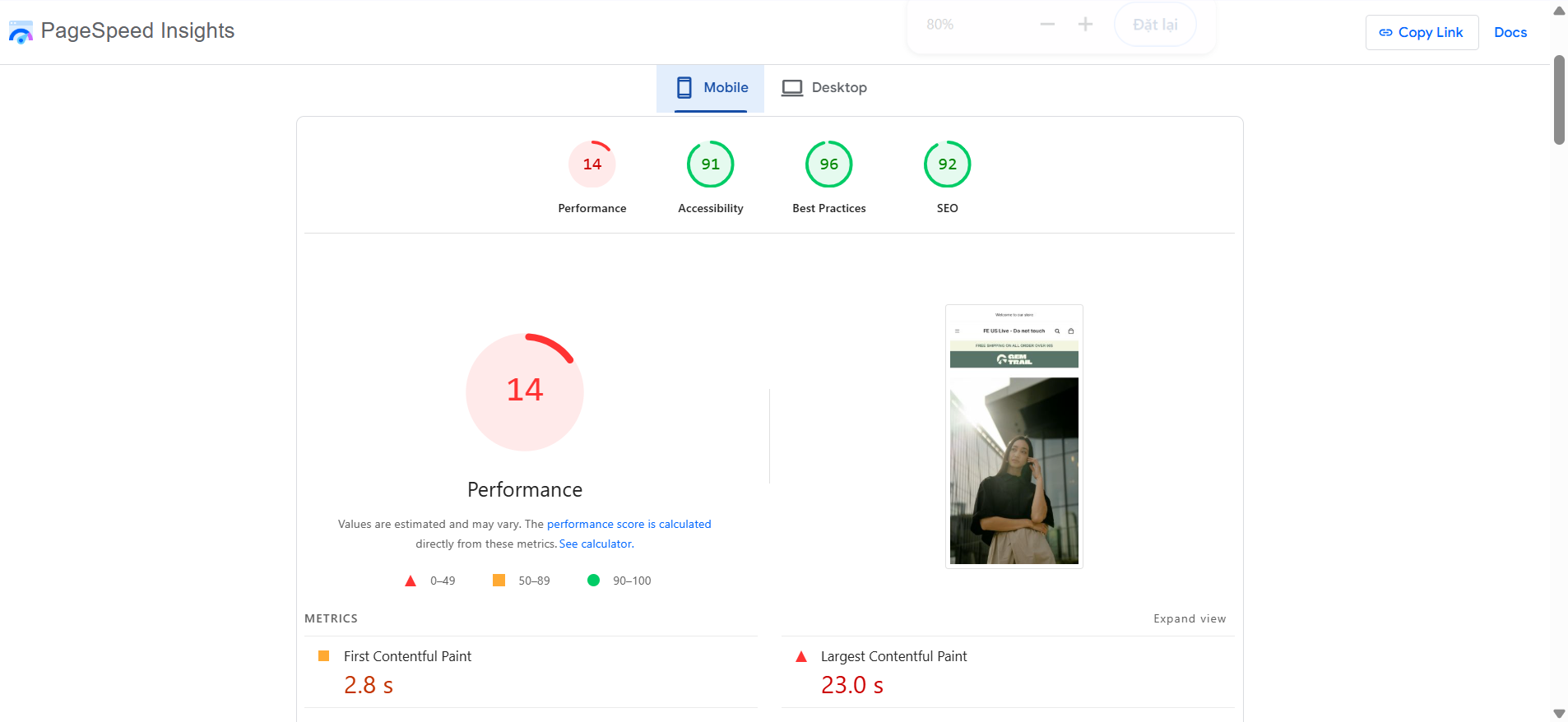
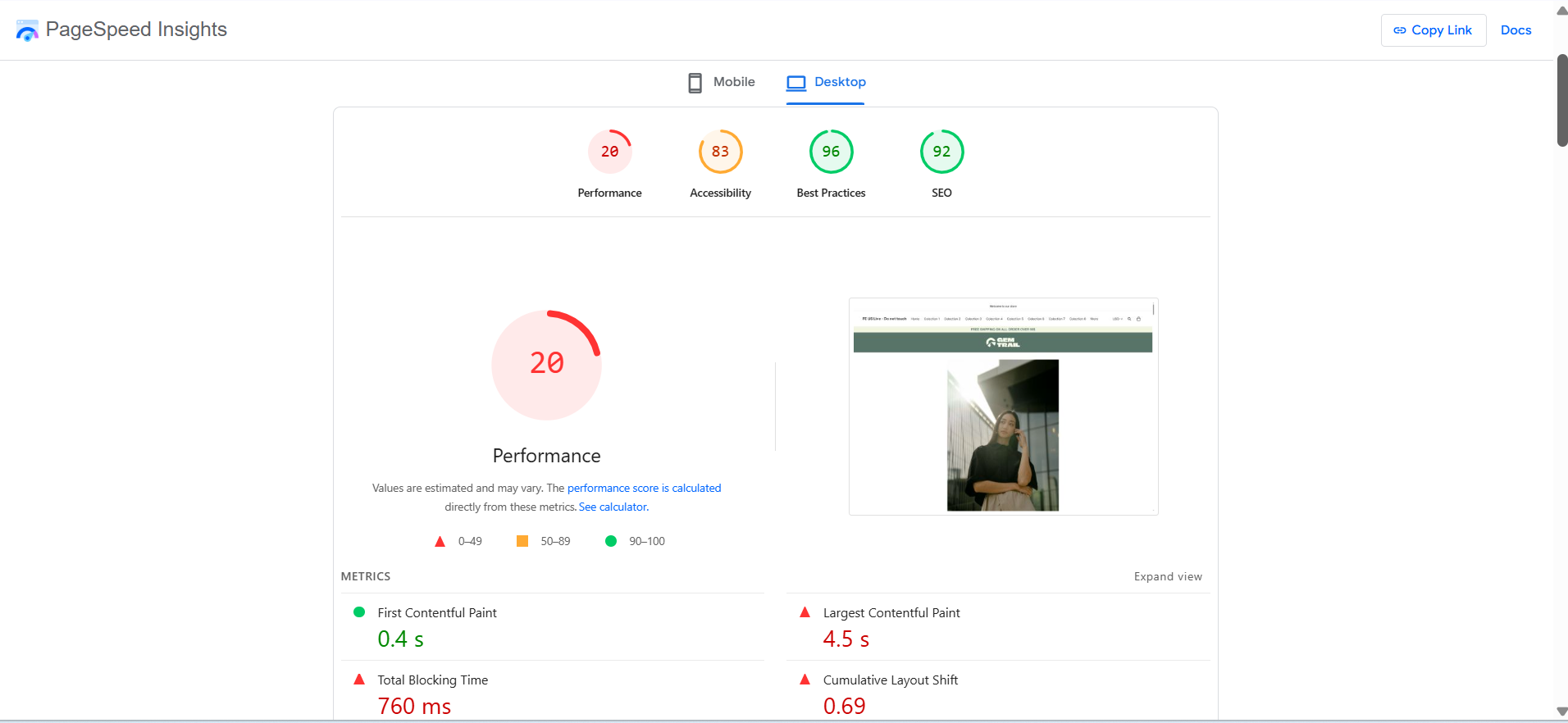
As you can see, image delivery needs to be improved, because the download time of images is long:
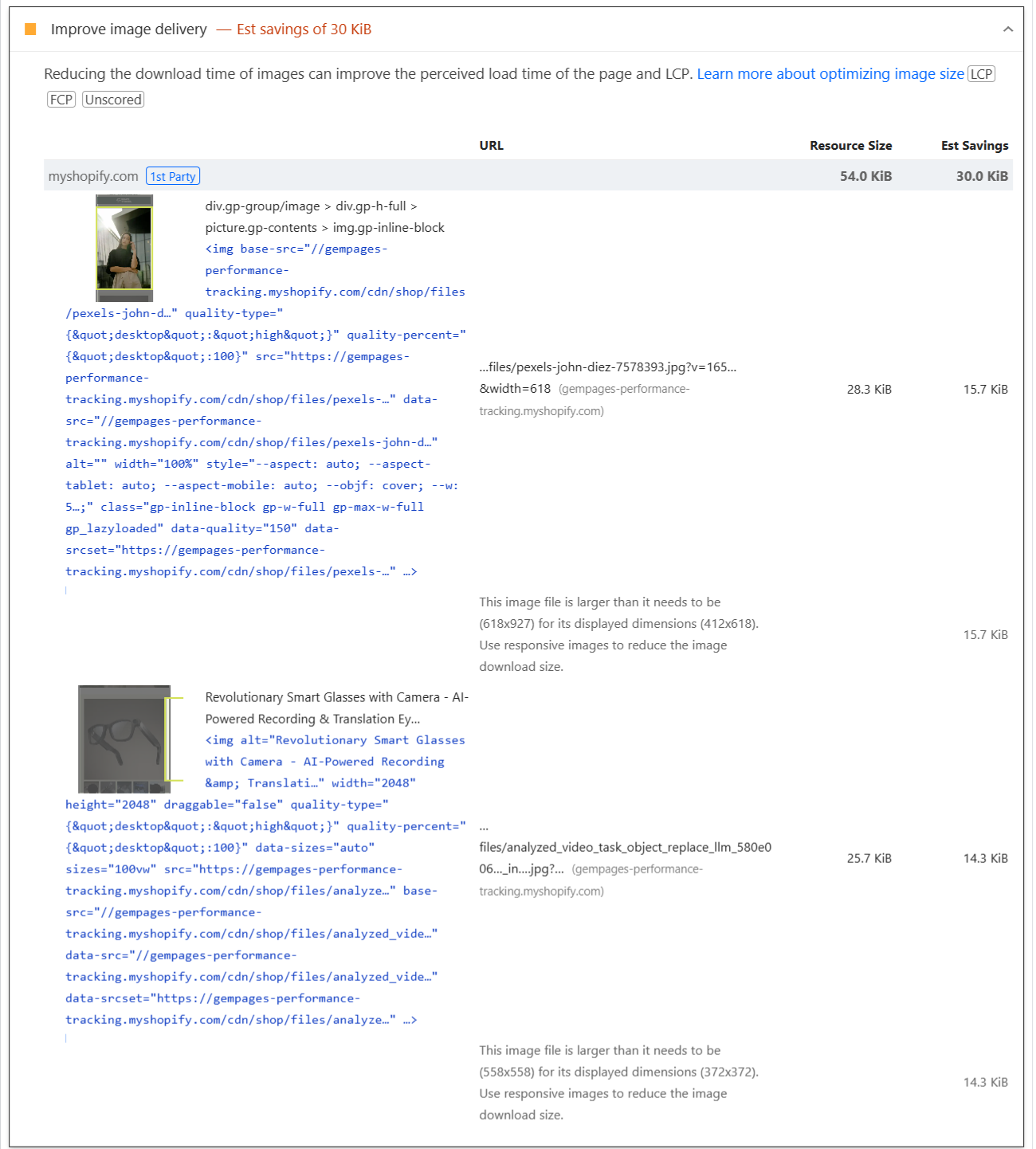
We then reconfigured the page using the recommended strategy:
- Configure the setting element that contains images in the Editor: Image, Product image; setting Quality = Medium
- Lazyload Image is OFF
- Lazyload Section is ON
- Preload Section is enabled
After applying all changes, we clicked Publish in the page editor to update the live page.
Then, we re-tested the performance of that page. The result has changed: the performance of this page is optimized.
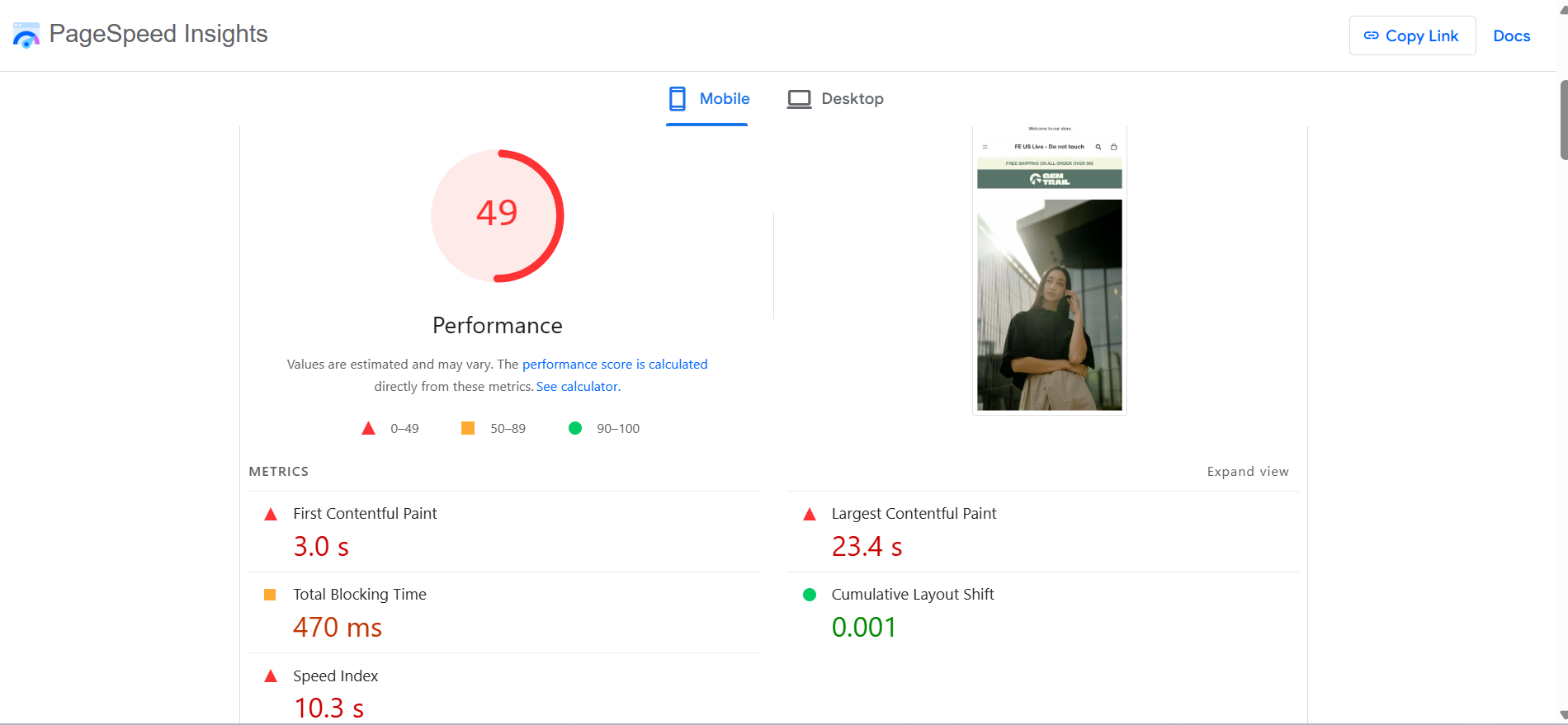
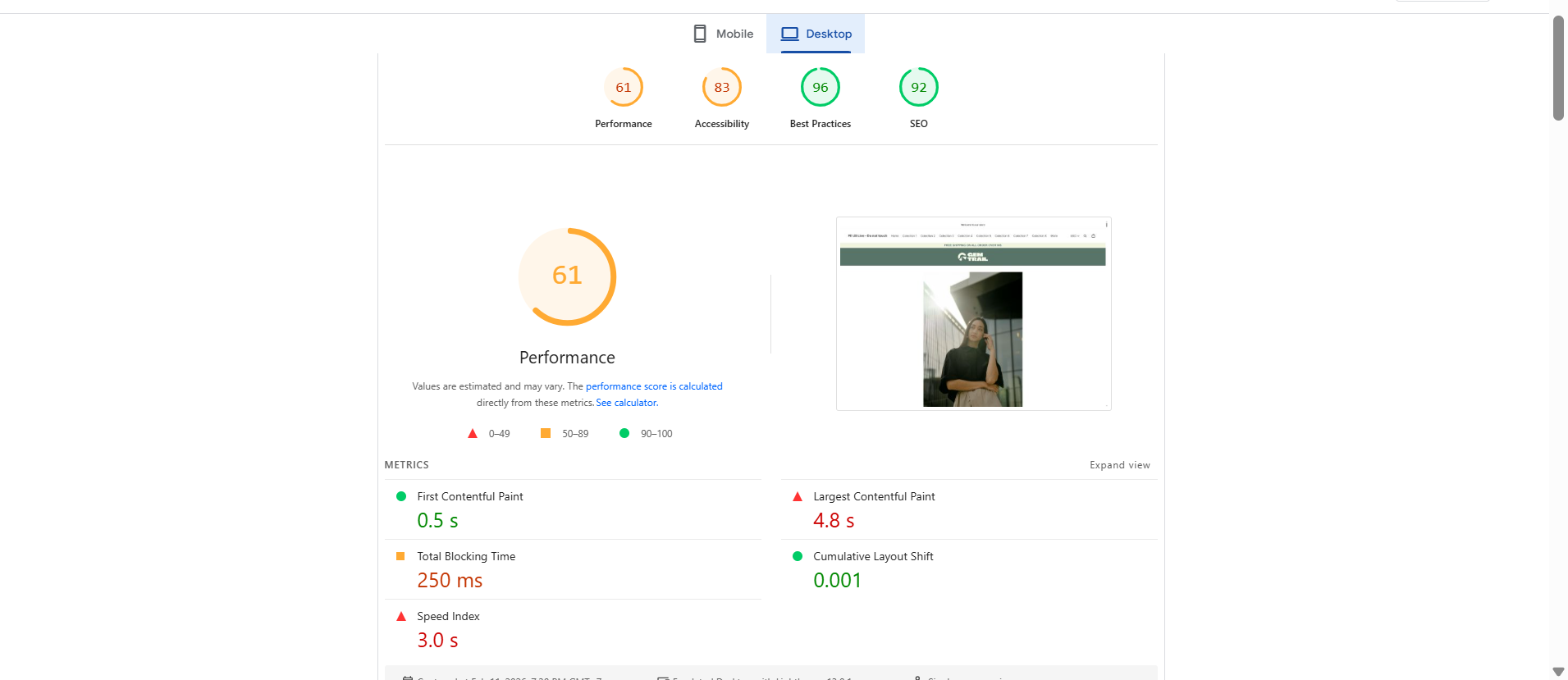
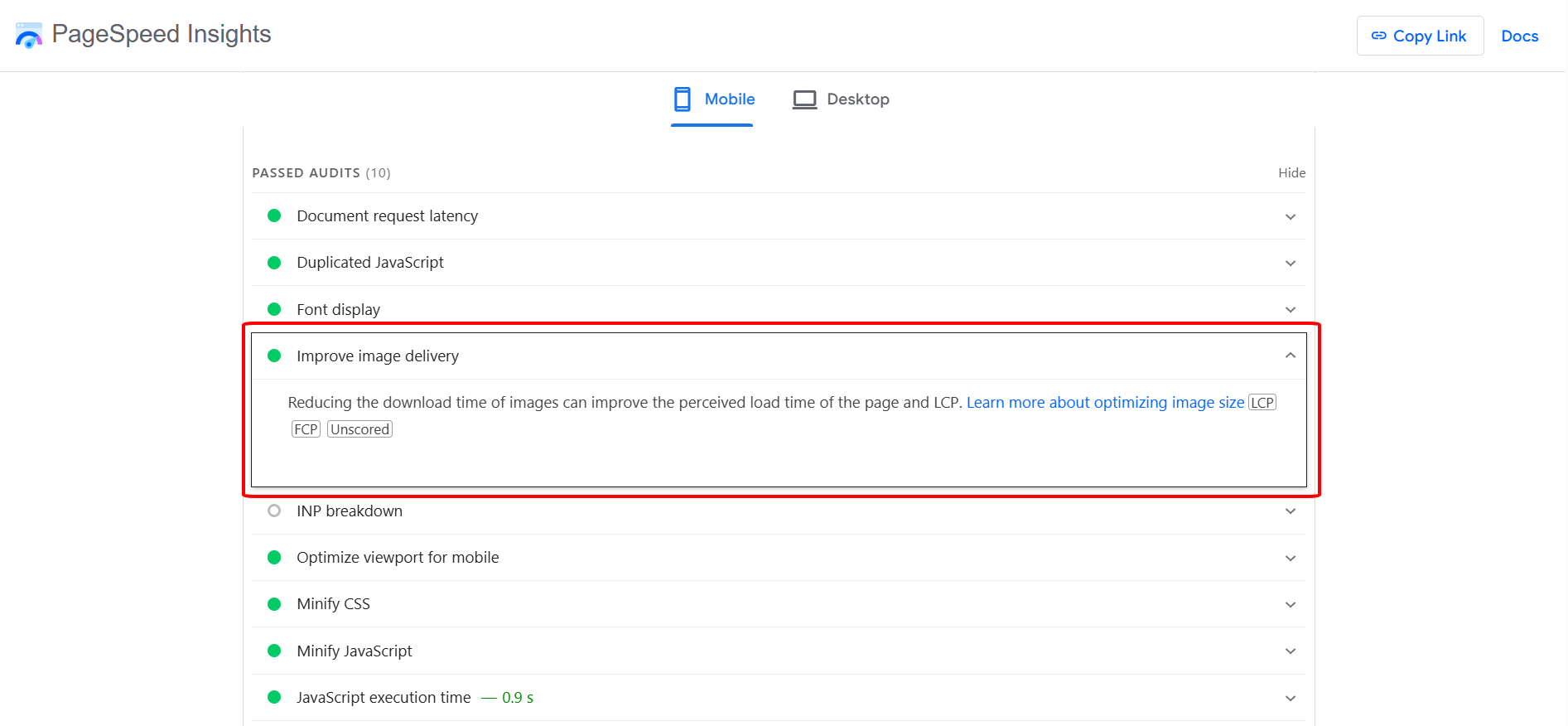
Image delivery is improved:
Final Takeaway
Performance optimization is not about turning one setting ON or OFF.
It is about:
- Serving properly sized images
- Loading visible content immediately
- Deferring non-critical content intelligently
- Prioritizing resources based on what users actually see
When these strategies work together, both Image Delivery and LCP improve consistently across devices, especially on image-heavy pages like product pages and landing pages.


Thank you for your comments