


About Skio Subscriptions App
Skio is a subscription management app for Shopify that helps merchants sell recurring products while providing a smooth experience for both customers and internal teams.
With Skio, you can create flexible subscription plans, manage customer subscriptions, and reduce churn using built-in retention tools.
Key Features of Skio Subscriptions App
- No-code customer portal: Allows customers to manage their subscriptions easily, helping reduce support requests.
- Build-a-Box subscriptions: Let subscribers customize bundles with static, dynamic, or sectioned options.
- Multi-step cancellation flows: Convert cancellations into pauses, swaps, or save offers.
- Automated customer journeys: Support welcome flows, win-backs, and upsells automatically.
- Seamless migration: Move existing subscribers from other platforms without data loss.
How to Install & Set Up Skio Subscriptions App?
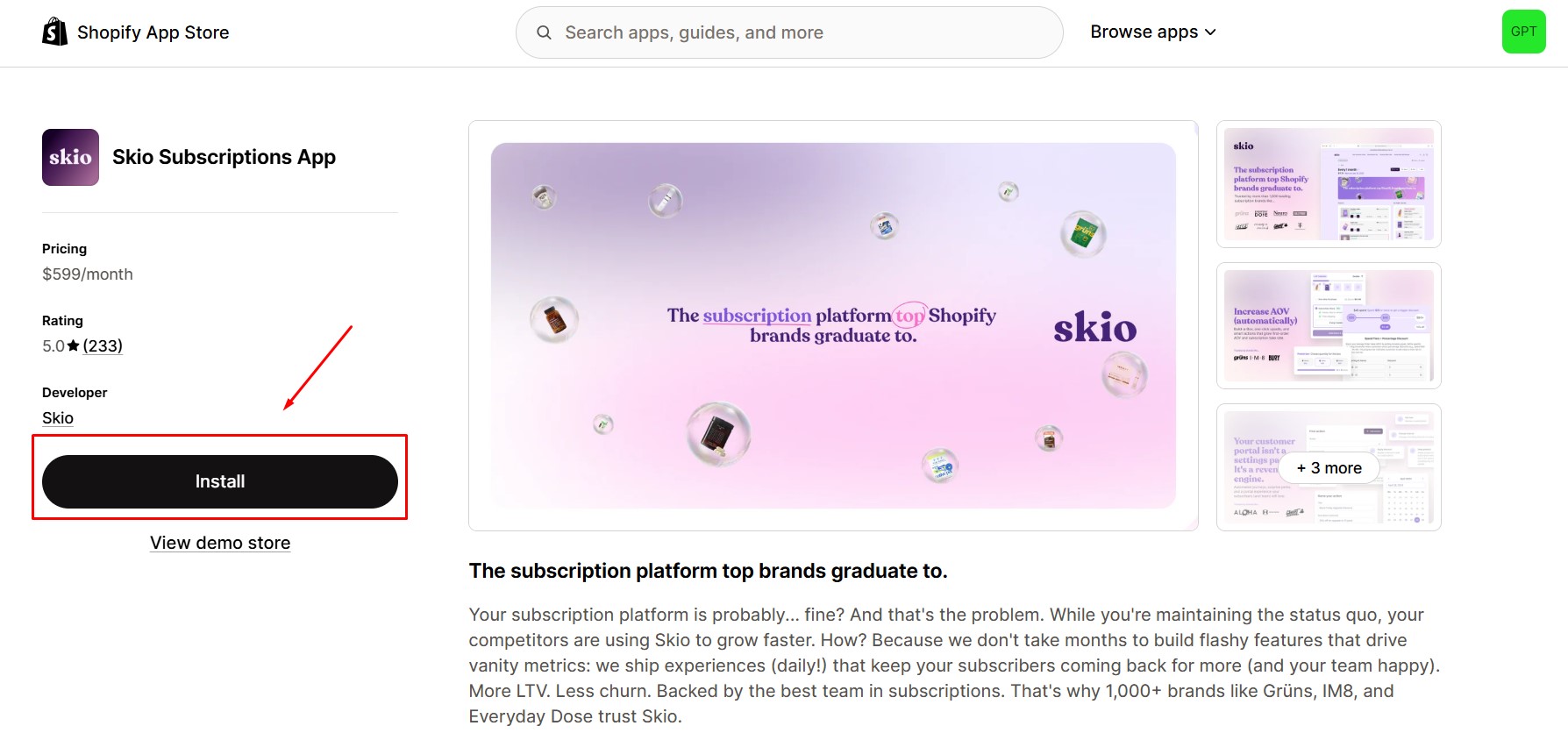
Step 1: Install Skio Subscriptions App in the Shopify App Store.
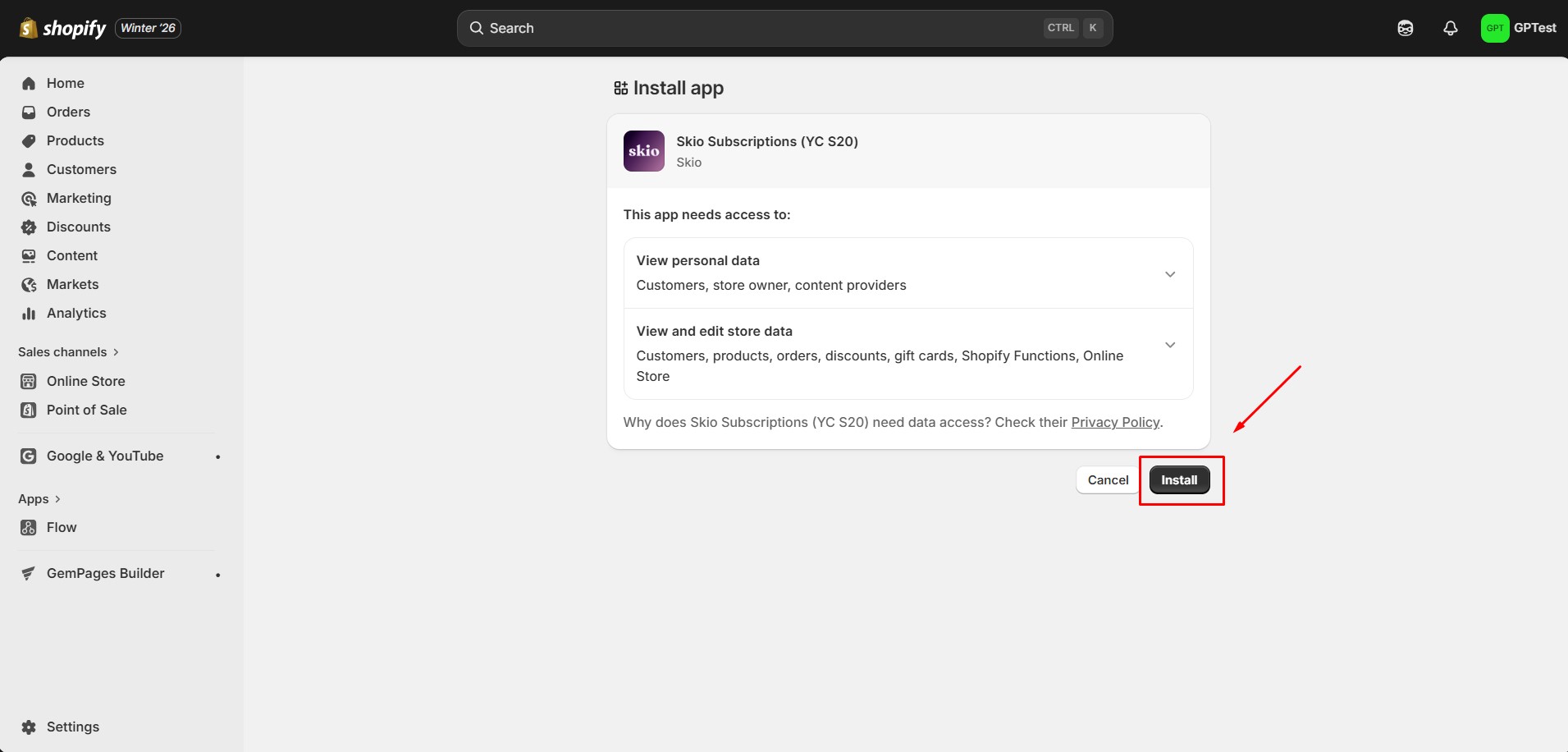
 Step 2: Provide the app with access to the required data.
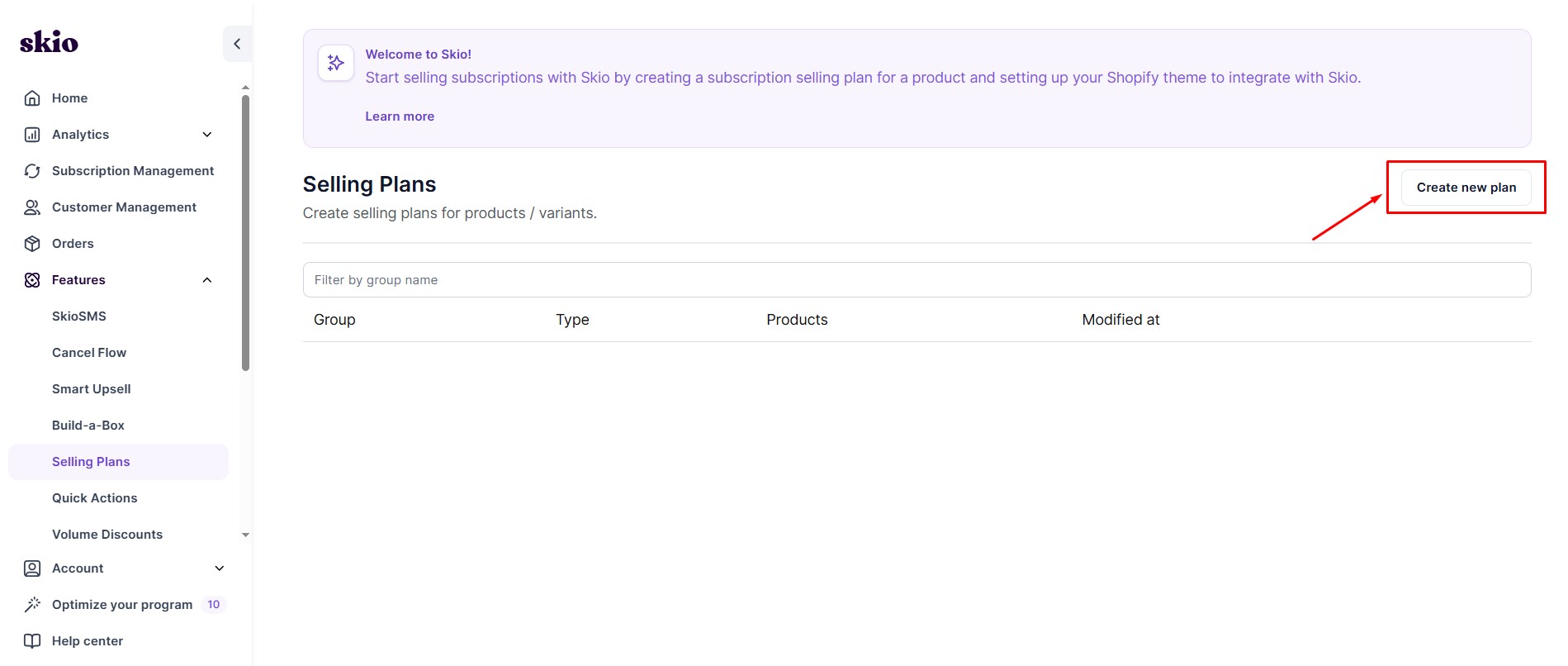
 Step 3: To begin selling subscription products with Skio, you’ll first need to set up your products for subscription in the Skio app. Open the Skio app in your Shopify admin. Navigate to the Selling Plans section. You can also access it directly at: https://dashboard.skio.com/selling-plans
Step 4: Click Create New Plan in the top-right corner. Select a Selling Plan Group type based on your subscription model.
Step 5: Enter a name for your Selling Plan Group. Select the products you want to offer as subscriptions
- Selecting a product will automatically include all of its variants
- Click the dropdown icon to review individual variants if needed
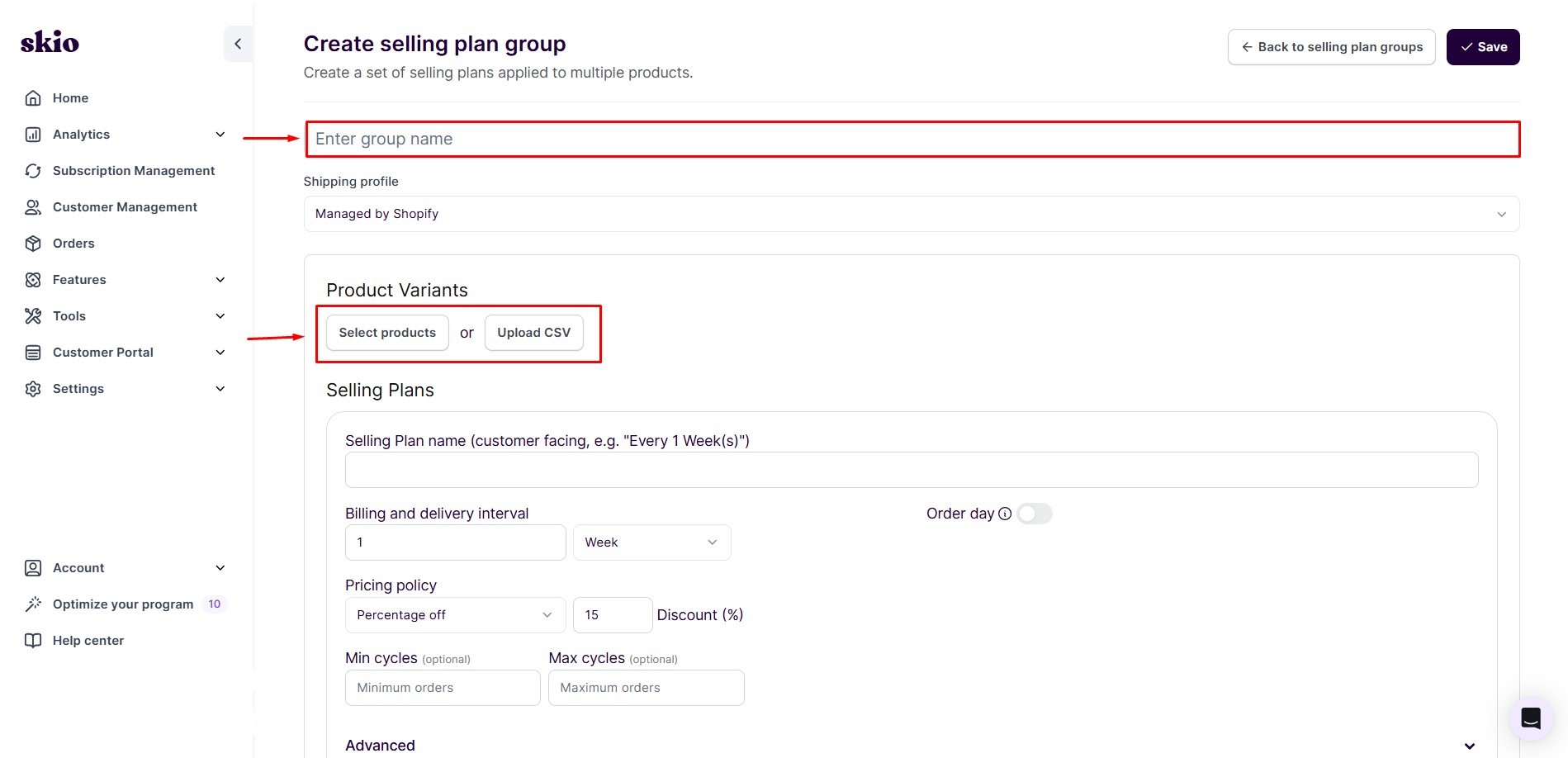
Step 6: Click Add subscription plan. Set up the required options, such as:
- Delivery frequency
- Subscription discount
Review the configuration carefully to ensure it matches your offer
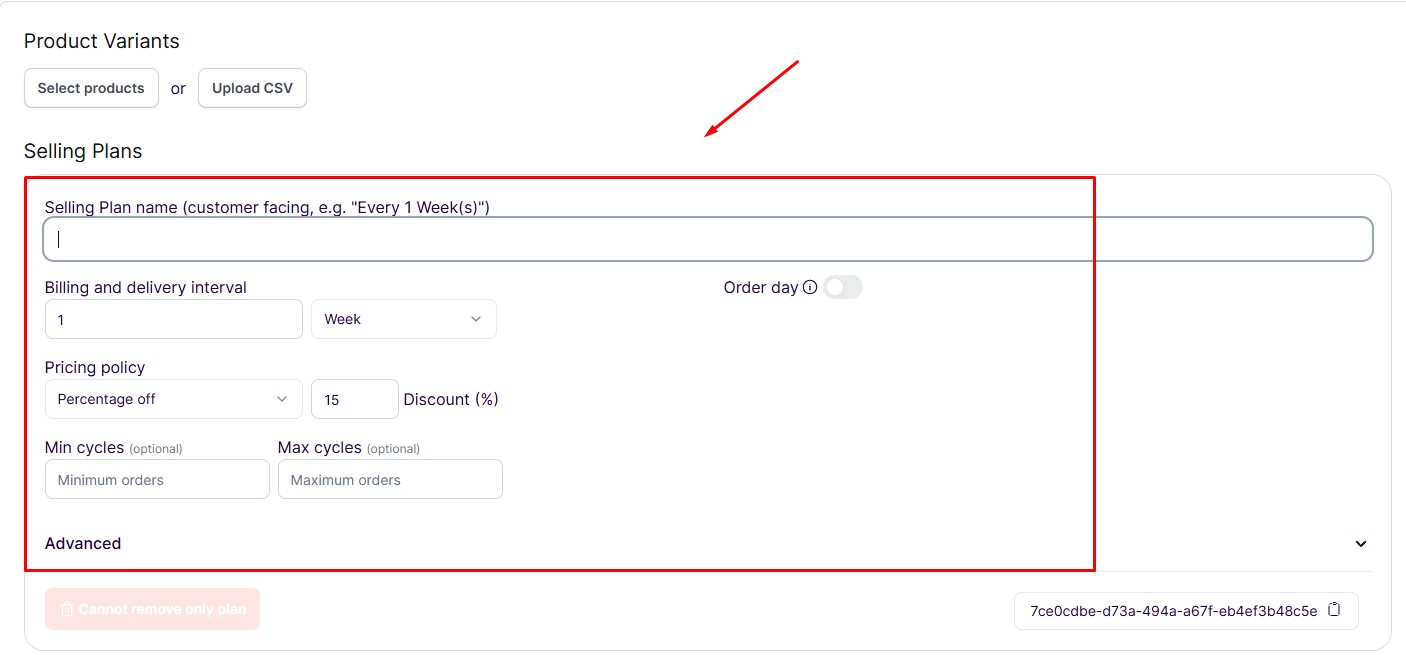
Step 7: Click Save in the top-right corner to apply your changes. You can edit an existing Selling Plan Group at any time by clicking its name on the Selling Plans page.
For more detailed information, you can refer to this official doc from Skio: Self-serve install + setup
How to Add Skio Subscriptions App to GemPages v7?
Step 1: In the GemPages Editor, open the product page. Use the search bar to find the app, then drag and drop the element onto the design area.
Step 2: Paste the selling plan ID.
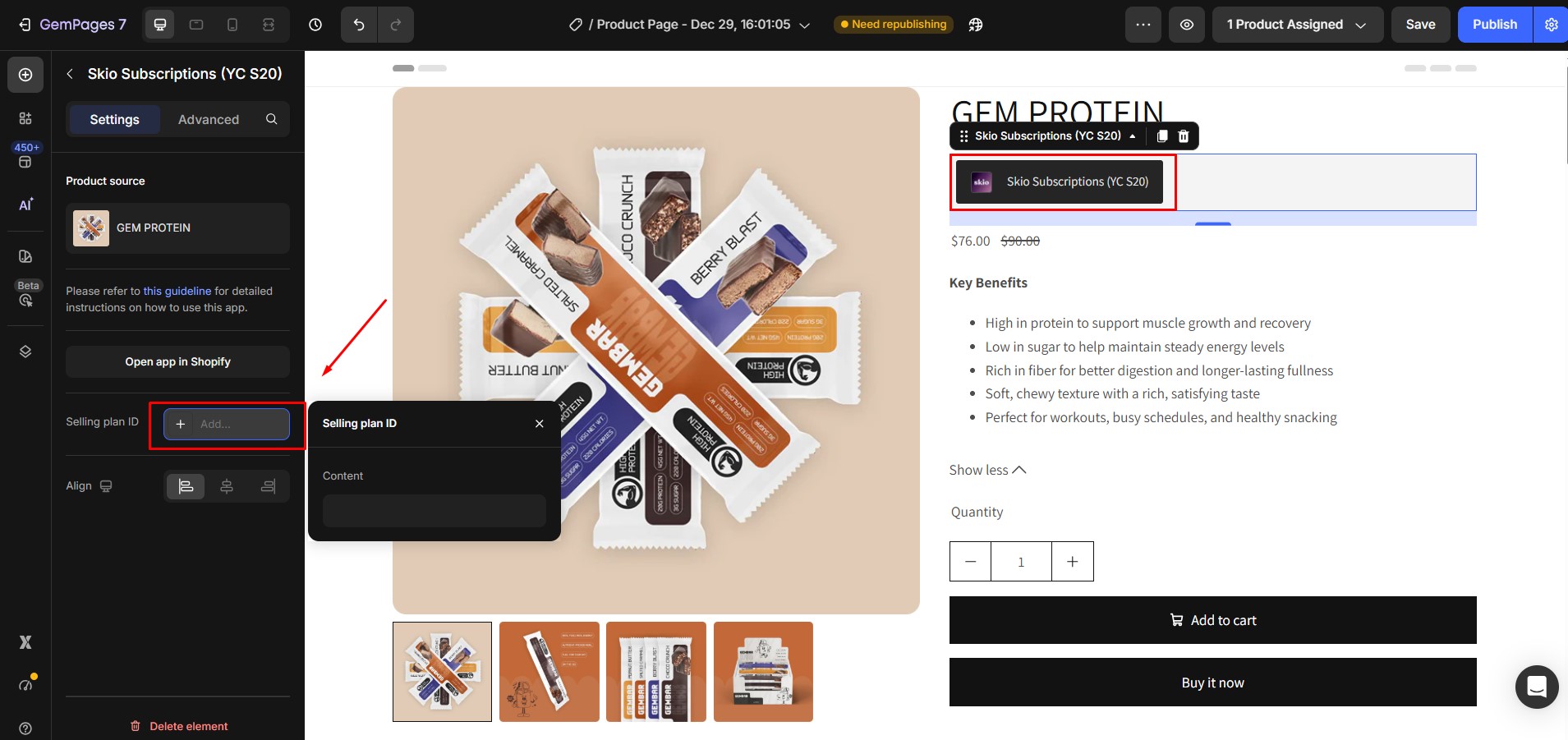
Step 3: Save and Publish.


Thank you for your comments