


Important change
Starting January 1, 2026, Shopify will no longer support creating Custom Apps for merchants. This means the previous connection method (creating a custom app and granting storefront & store data permissions manually) will no longer be available.
To replace that workflow, Shopify provides the official Headless app on the Shopify App Store; GemPages uses this app as the new, supported way to connect Headless Page (Instant Landing Page) to Shopify.
Before you start
You must have a Shopify store where you have the necessary admin permissions to install apps and manage storefronts.
How to Connect Headless Page to Shopify (new method using Headless app)
Follow these precise steps to connect an Instant Landing Page to a Shopify store using Shopify’s Headless app.
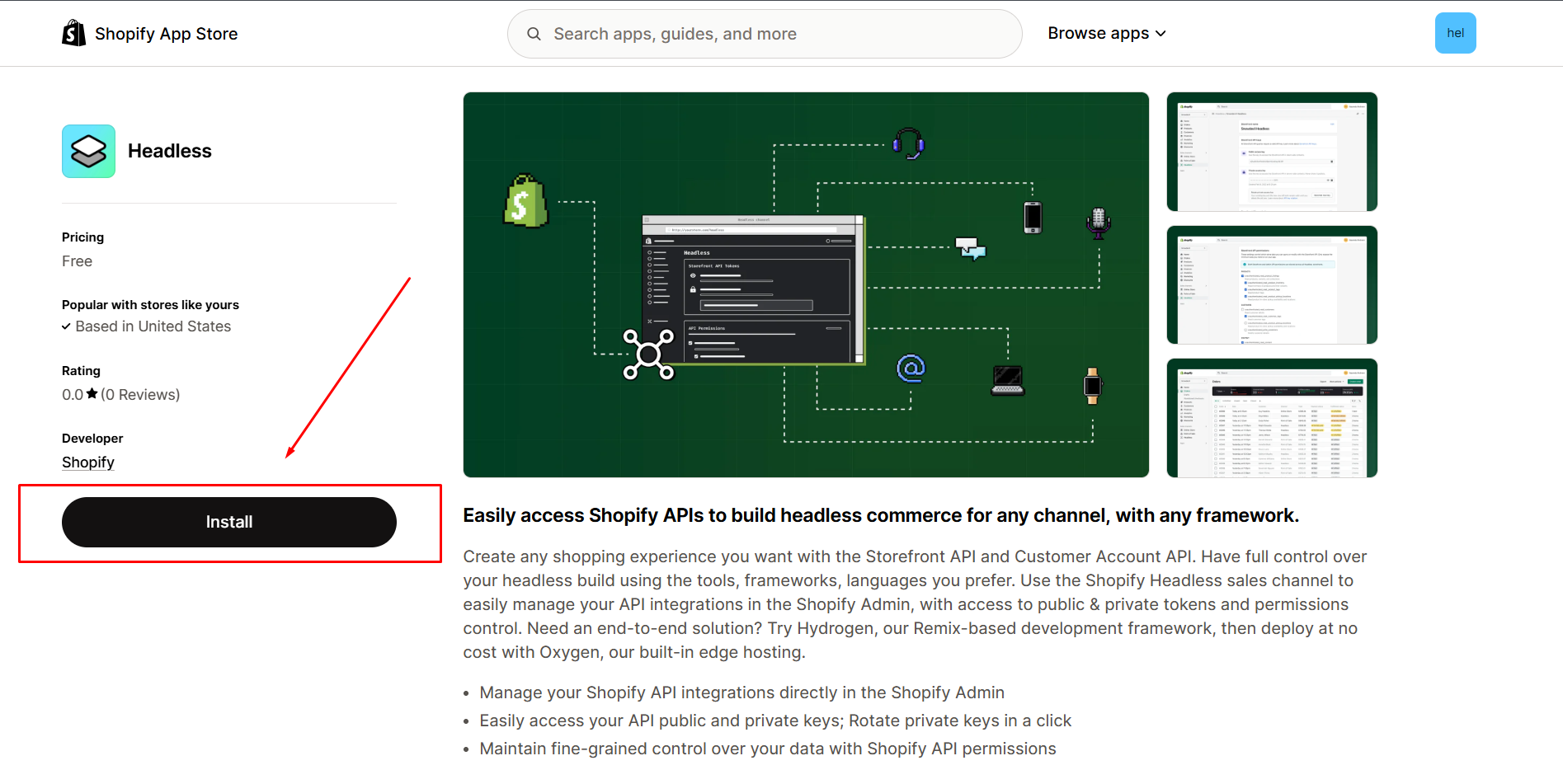
Step 1: Install the Headless app
1. Go to the Shopify App Store.
2. Search for Headless (the official Shopify Headless app) and click Install. Follow Shopify’s on-screen prompts to allow the app to be added to your store.
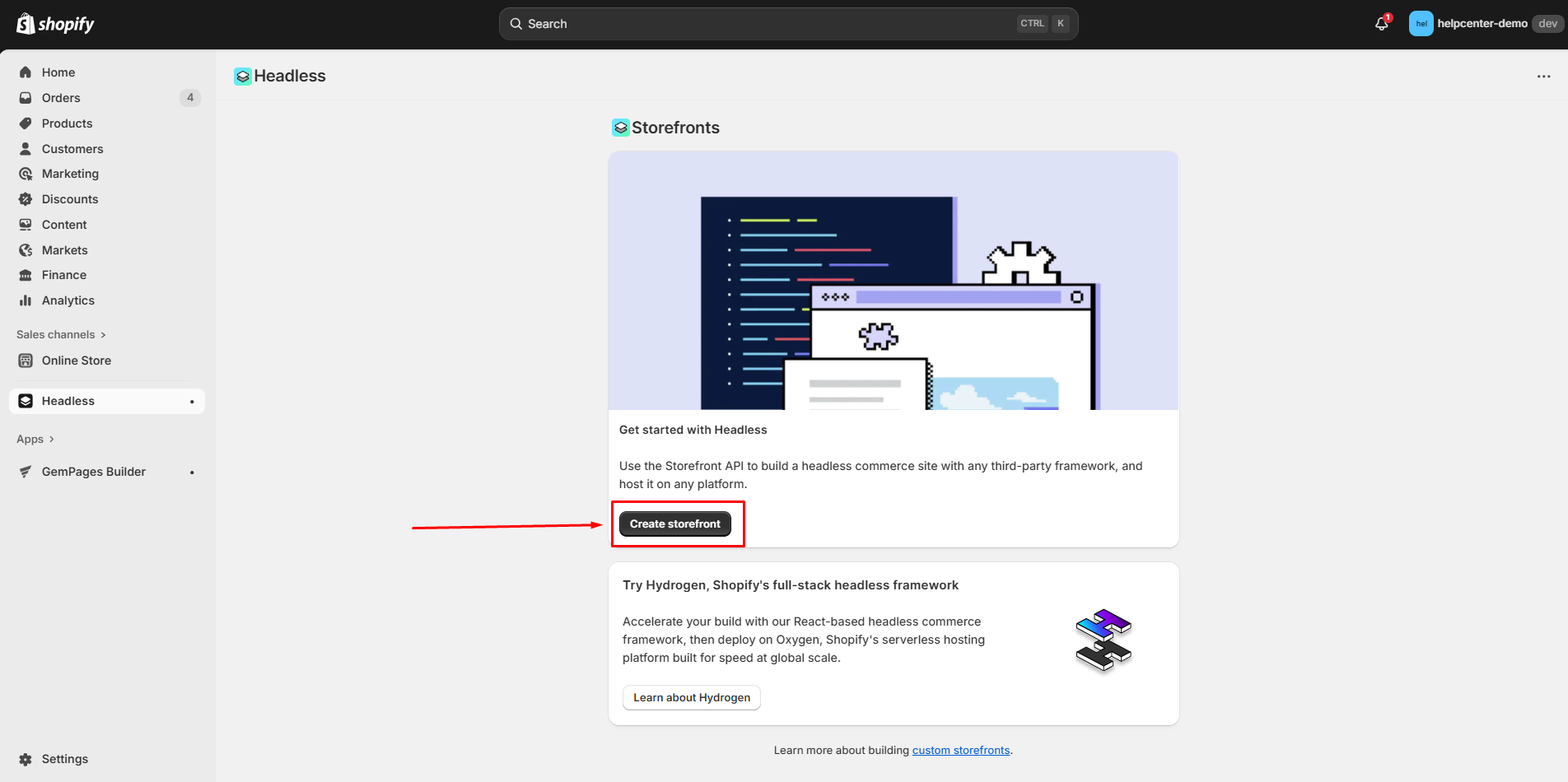
Step 2: Create a Storefront
1. Inside the Headless app, choose the option to Create storefront.
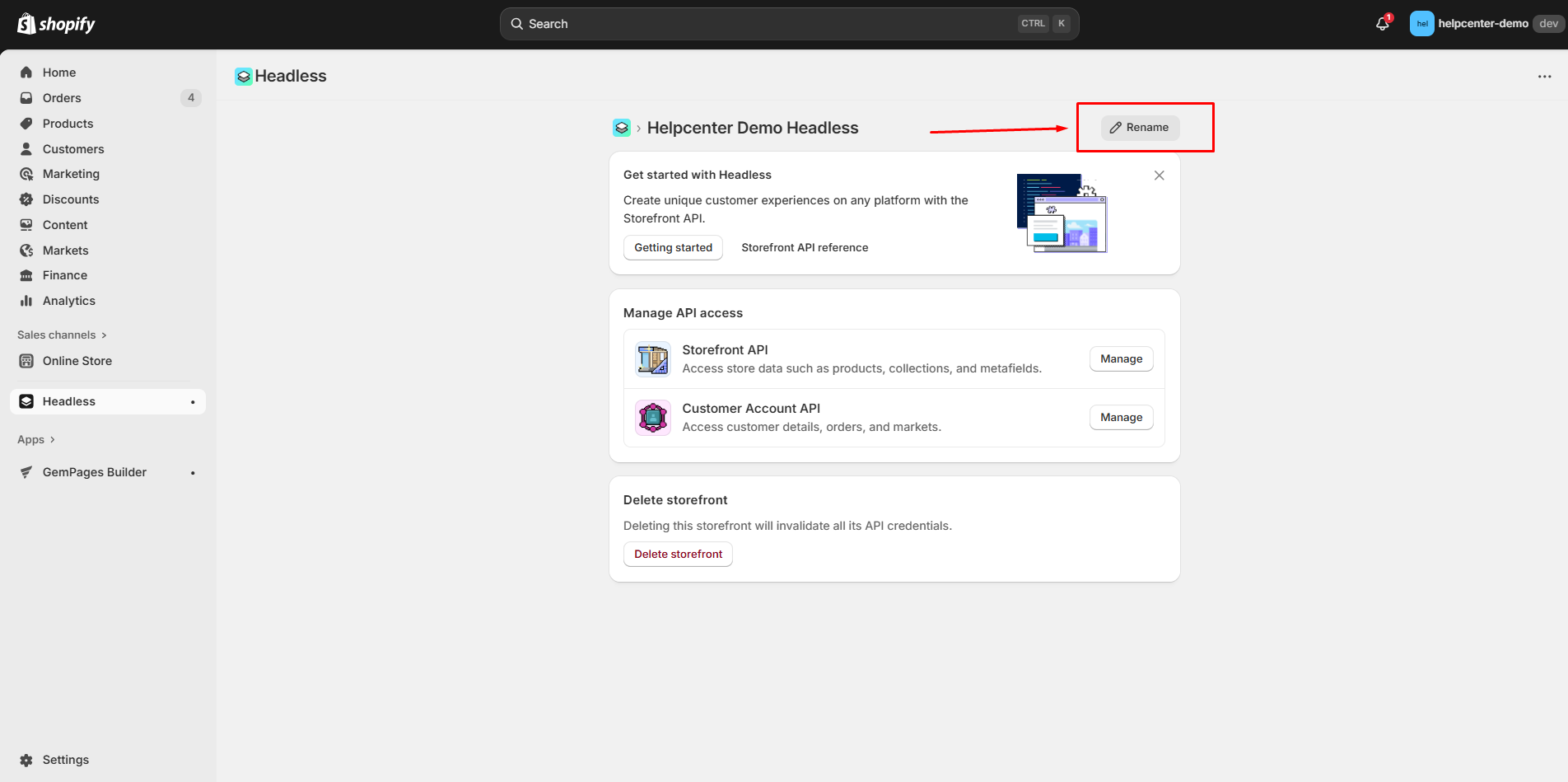
2. Give the storefront a clear name that helps you identify it later, then create it.
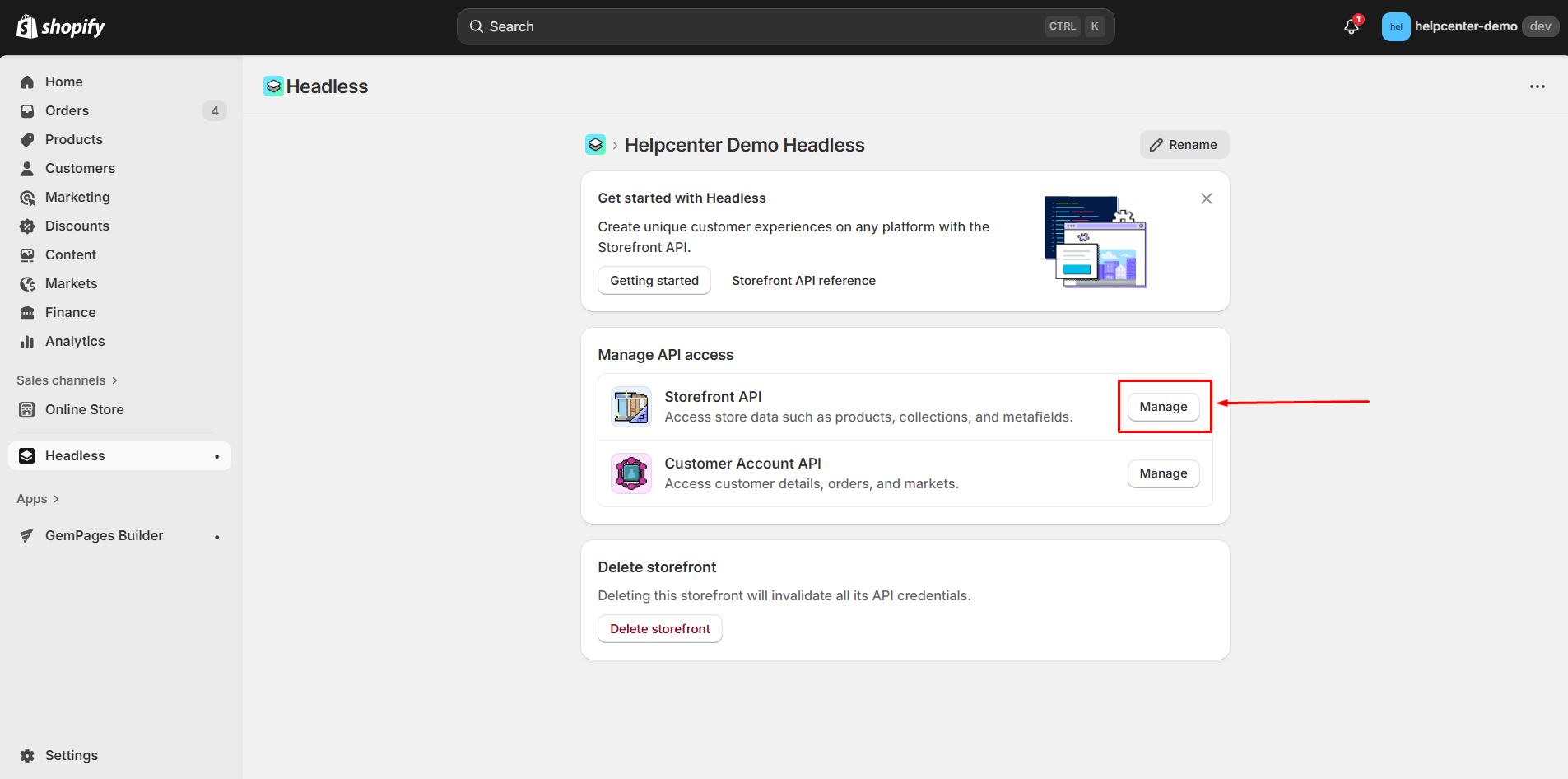
Step 3: Manage Storefront API
Find the section labeled Storefront API and click Manage.
Step 4: (Optional) Review or Edit Storefront API Permissions
When you create a new Storefront using the Headless app, Shopify automatically enables all required Storefront API permissions for the ILP connection.
You only need to complete this step if you want to review the permissions or edit them.
1. Select Edit to view the current Storefront API settings.
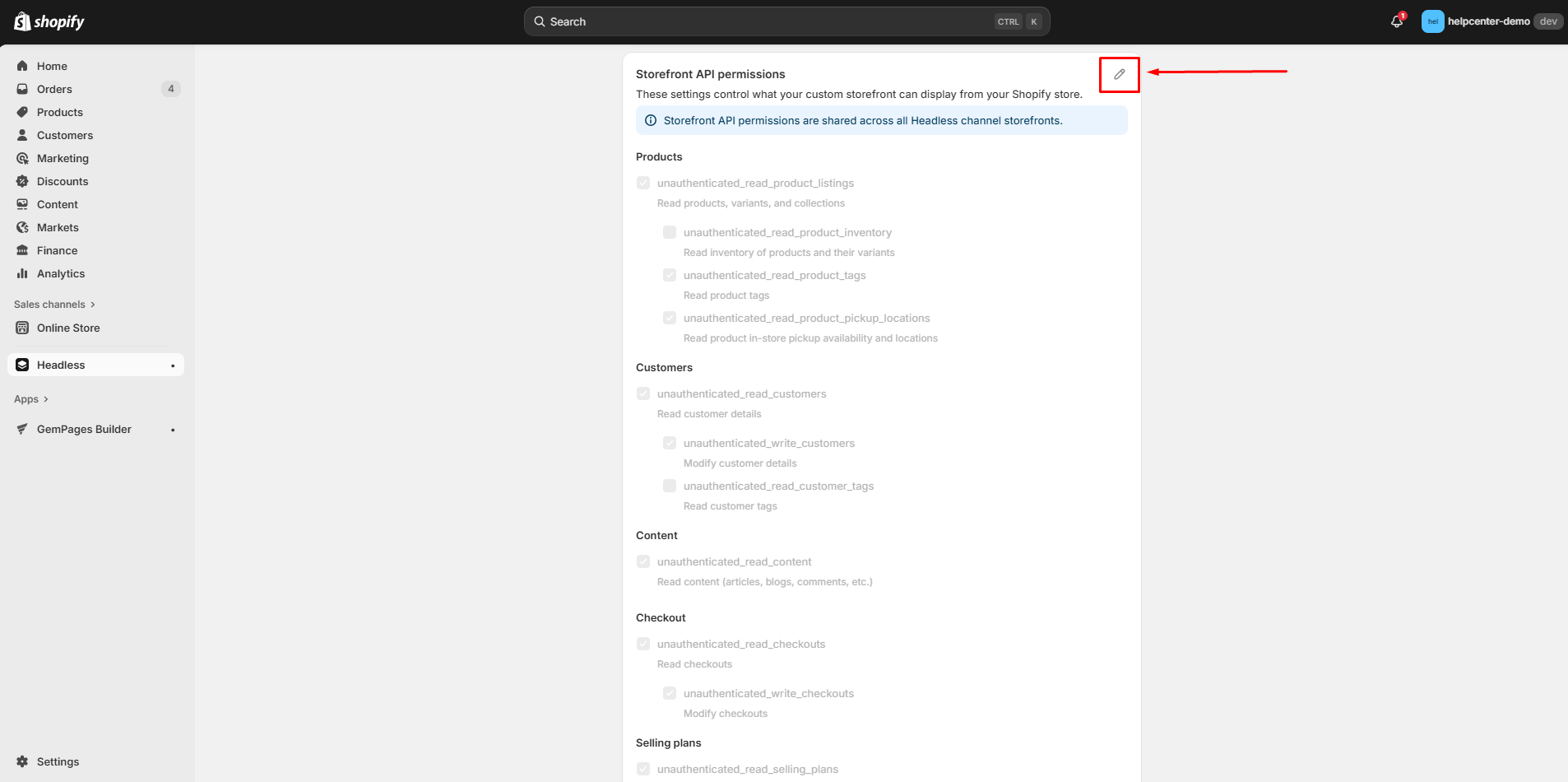
2. Review the permissions Shopify has pre-enabled. If needed, you may enable additional Storefront API scopes. Click Save if you make any changes.
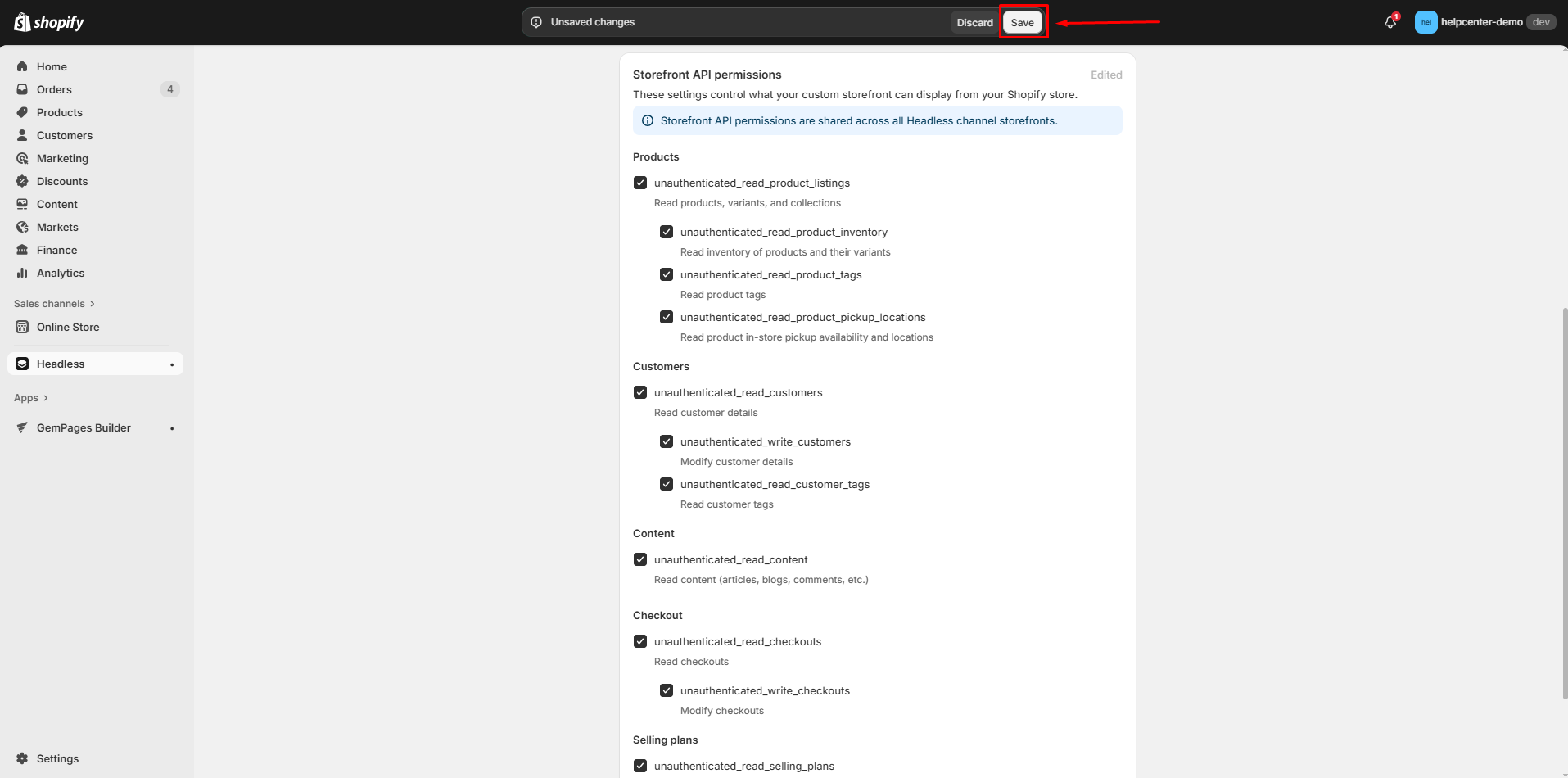
Step 5: Copy the Public Access Token
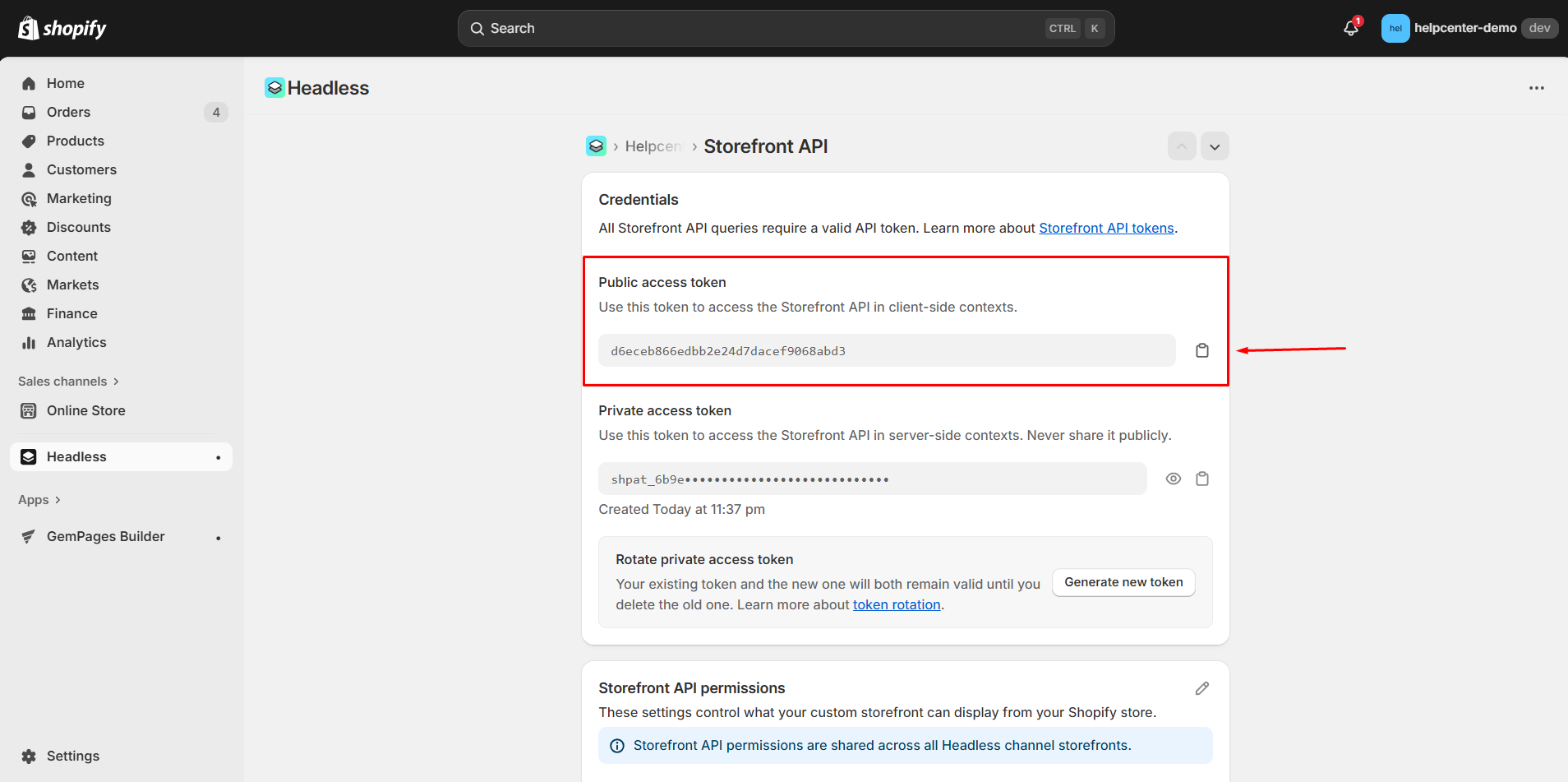
1. After saving the storefront permissions, locate the Public access token (also called the publish token) in the Headless app.
2. Click Copy to place the token into your clipboard.
Step 6: Paste the token into Headless Page (Instant Landing Page) (GemPages)
1. Open the Headless Page (Instant Landing Page) project you want to connect in GemPages.
2. Click Connect Shopify inside the Headless Page settings.
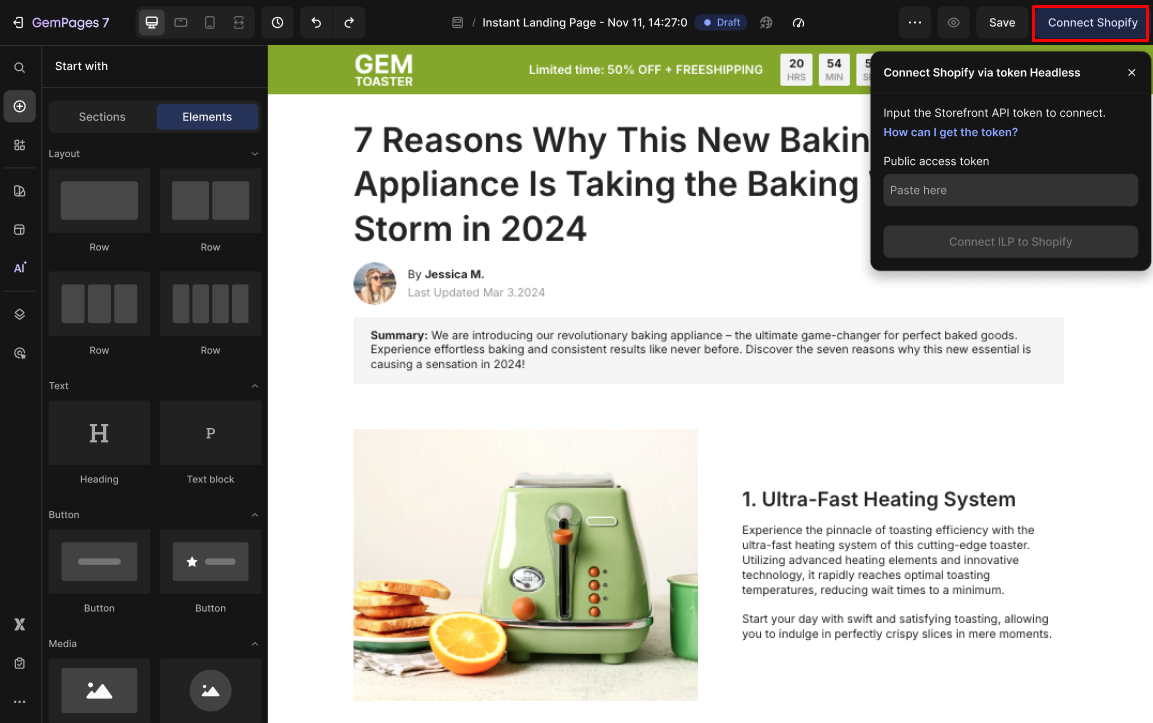
3. Paste the token you copied into the field labeled Public access token.
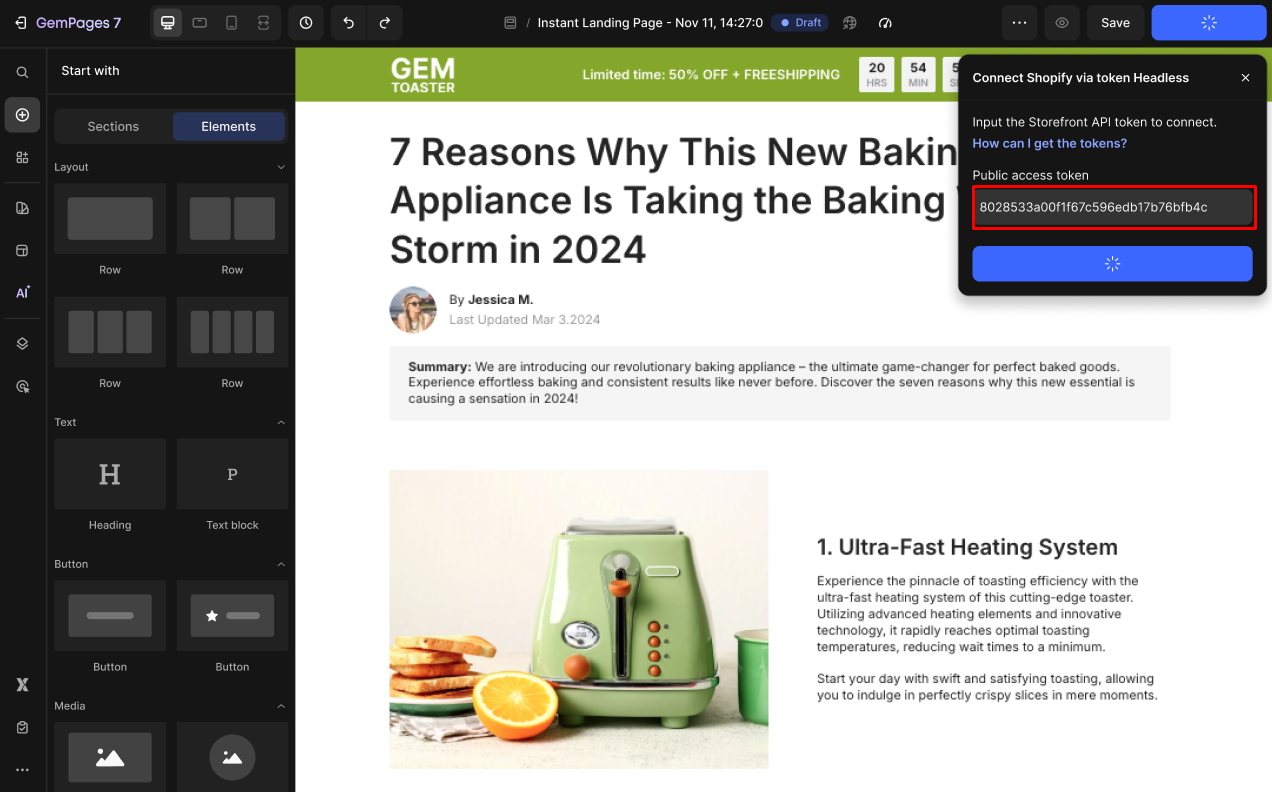
4. Click Connect Headless Page to Shopify.
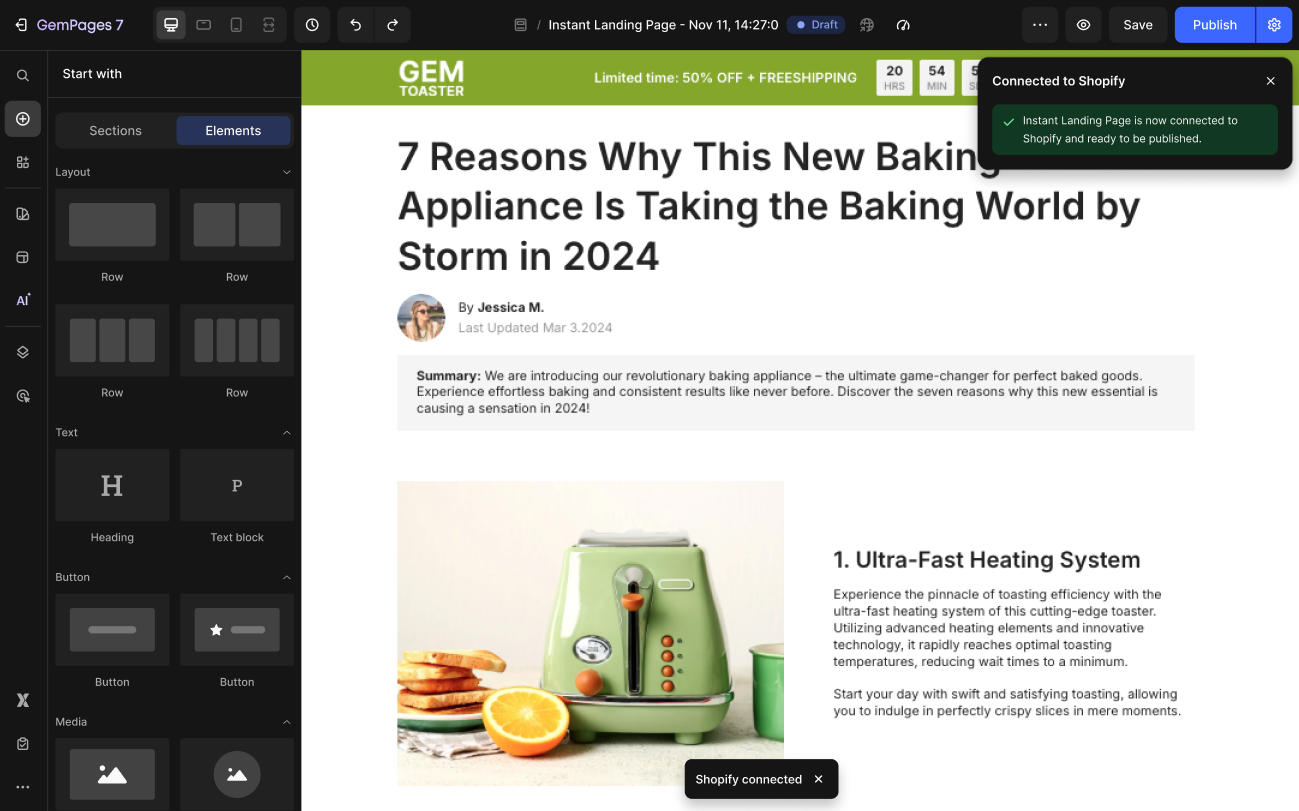
If the connection succeeds, the Connect Shopify button will be replaced by a Publish button, and GemPages will show a successful notice confirming the headless page is now connected to your Shopify store.
How to Recover Your Token and Reconnect Headless Page (Instant Landing Page) to Shopify
There are two common scenarios where the Public Access Token may no longer work or be available. Follow the guidance below depending on why the token was lost.
Scenario A: Token lost because the Storefront was deleted
If the storefront that issued the token was deleted, the token becomes invalid. To recover:
- Open the Headless app in your Shopify Admin.
- Create a new Storefront (follow Step 2 above). You only need to create a storefront if there are no other existing storefronts you can reuse.
- (Optional) Review or edit the storefront’s Storefront API permissions (follow Step 4).
- Copy the new Public access token and paste it in your headless page project (follow Step 5, 6).
Alternative: If your Headless app still contains another existing storefront (one that was not deleted), you do not need to create a new one. Simply copy that storefront’s Public Access Token and paste it into headless page.
Scenario B: Token lost because Headless app was uninstalled
If the Headless app was uninstalled from the store, any tokens issued through it are no longer available. To recover:
- Re-install the Headless app from the Shopify App Store.
- After reinstalling, open the Headless app and create a storefront (Step 2) or use an existing storefront if one remains.
- Enable all Storefront API permissions for that storefront (Step 4).
- Copy the Public Access Token and paste it into the headless page (Step 6).


Thank you for your comments