


About Text Editor Inline
The Text Editor Inline is a feature that allows you to edit text in your GemPages design area instantly.
With the inline editor, you can quickly format your text, such as applying bold, italic, alignment, links, or basic styling right where the content appears on the page.
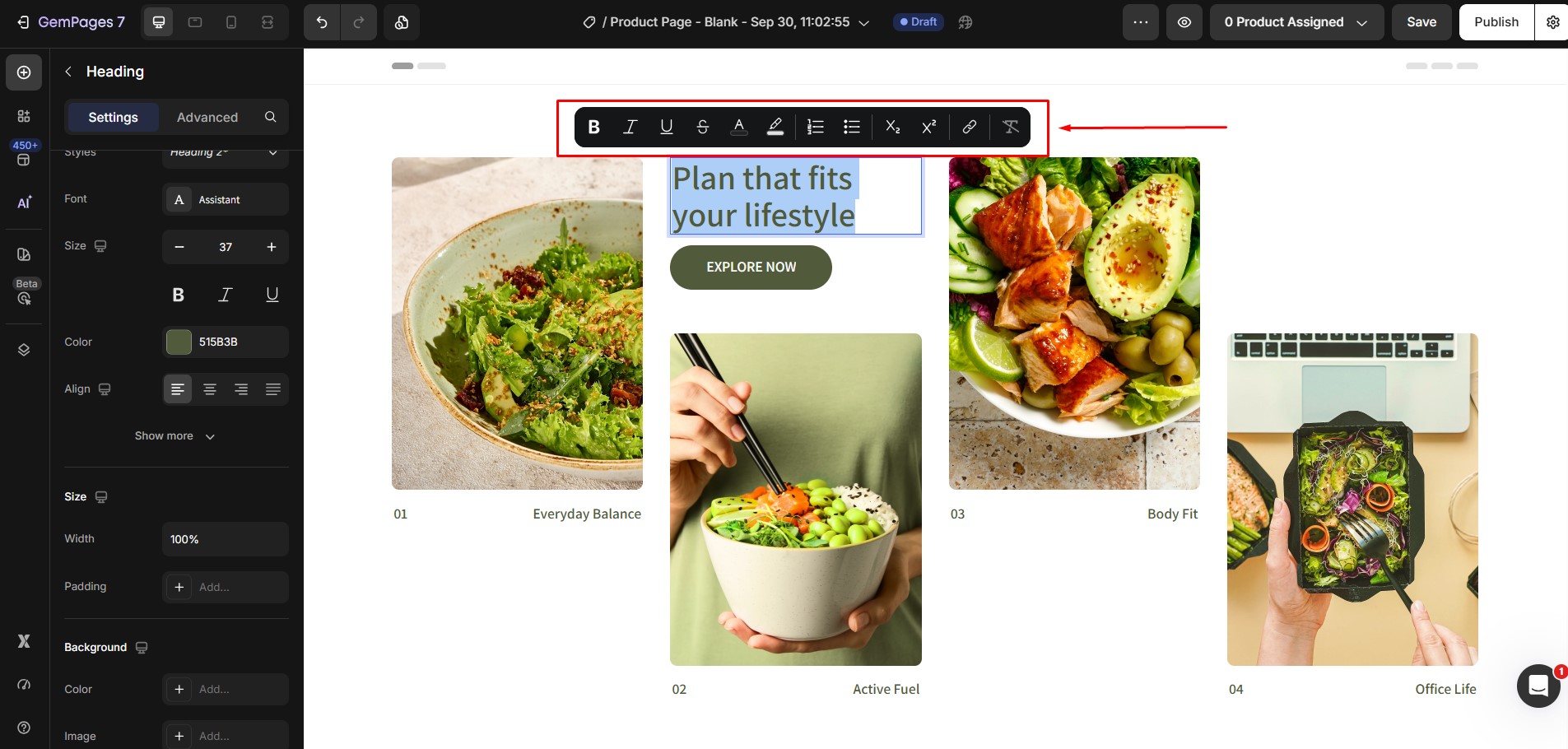
When using the inline editor:
- You can adjust formatting directly on the canvas.
- It is ideal for quick content edits and visual refinements.
- You do not need to open the sidebar settings for simple changes.
How to Access the Text Editor Inline in GemPages?
To access the Text Editor Inline, highlight the text you want to edit. You’ll see the editor bar at the top of the text.
This feature supports all elements that include editable text (the text you can edit within the GemPages editor), such as:
For the text that you need to access from Shopify to edit content (e.g., Product Title, Product Description, etc.), the Text Editor Inline feature is disabled.
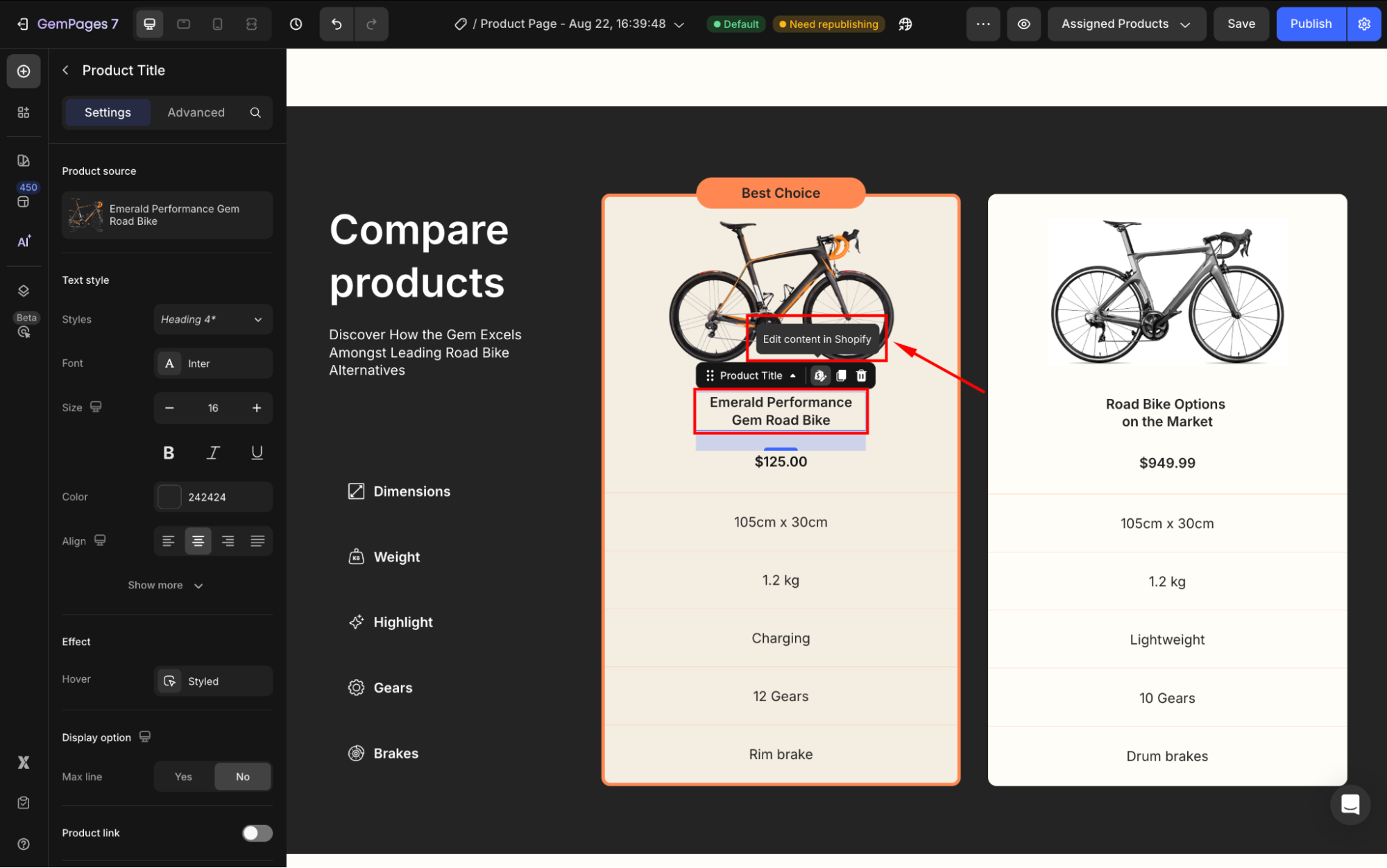
Text Editor Inline Settings
Here’s a quick breakdown of all the settings available in the Text Editor Inline:
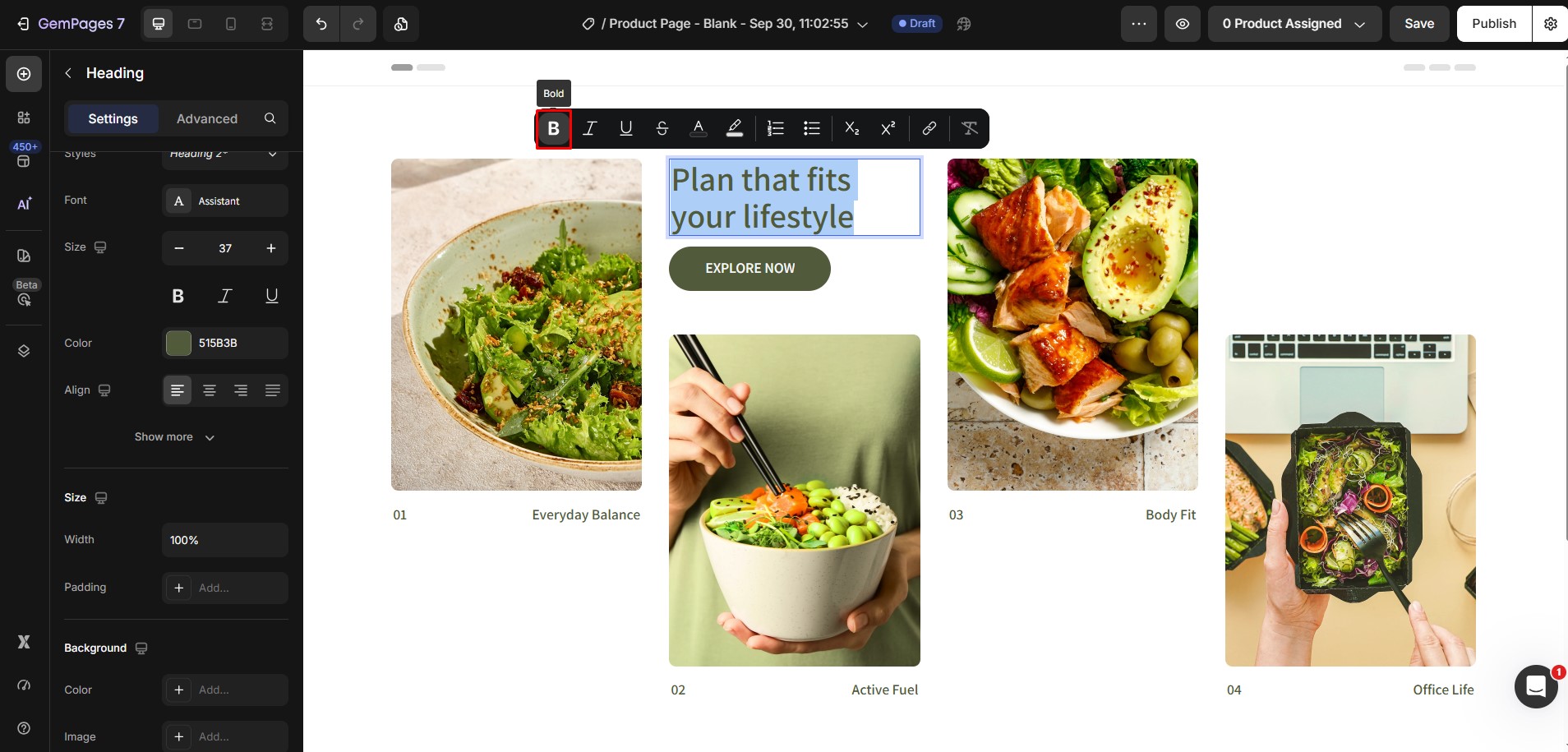
1. Bold
Make your text bold to emphasize important information.
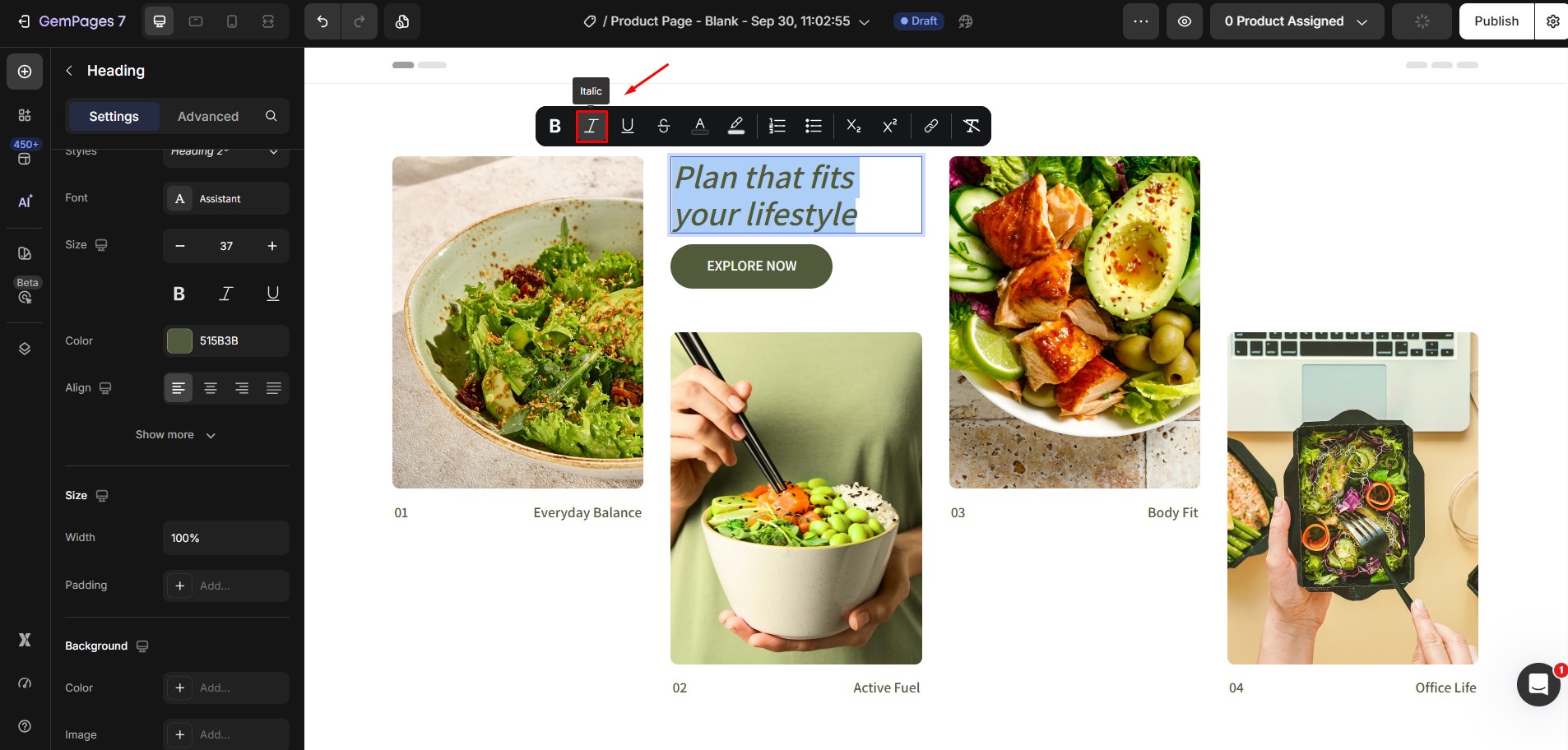
2. Italic
Italicize your text for added emphasis or style.
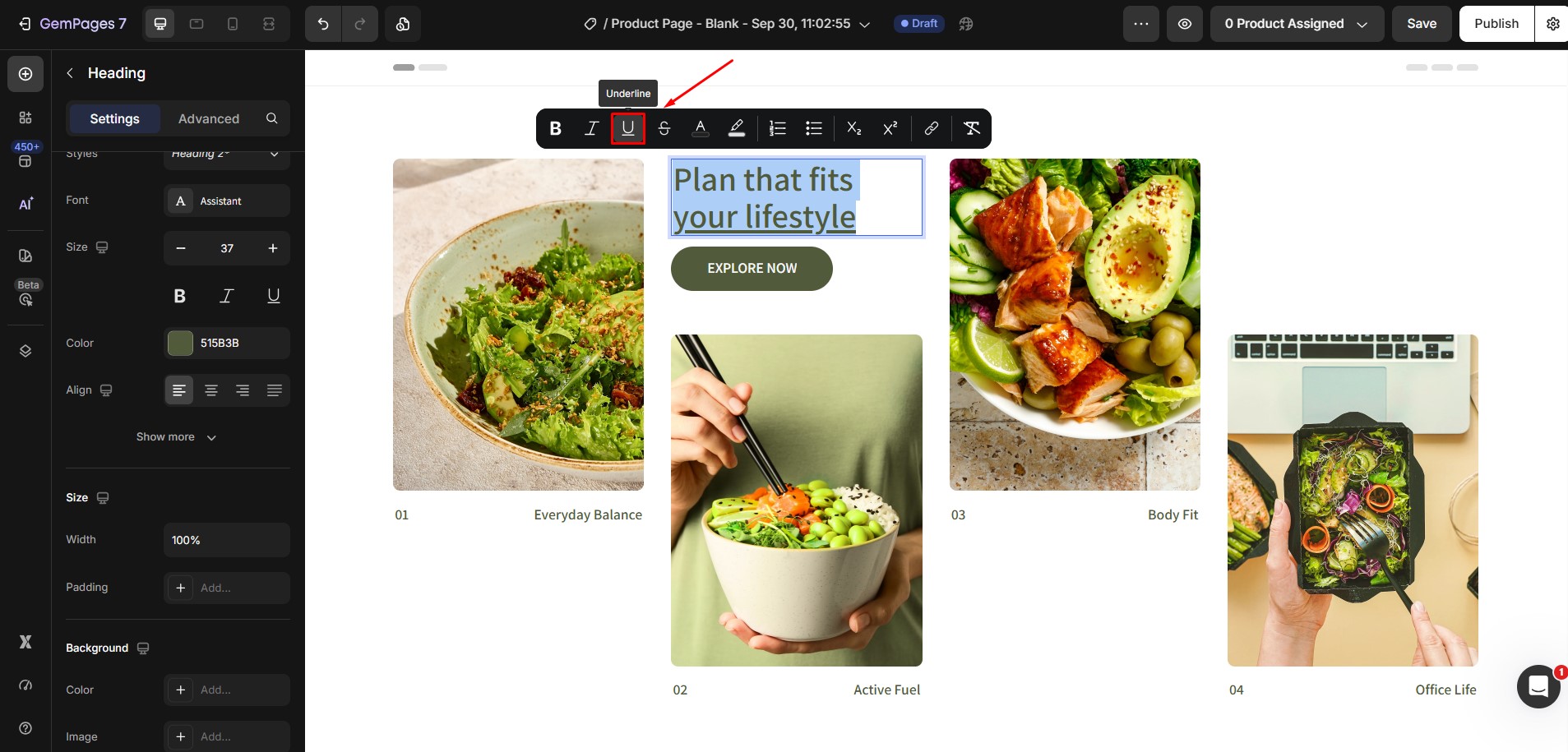
3. Underline
Underline text to highlight key points.
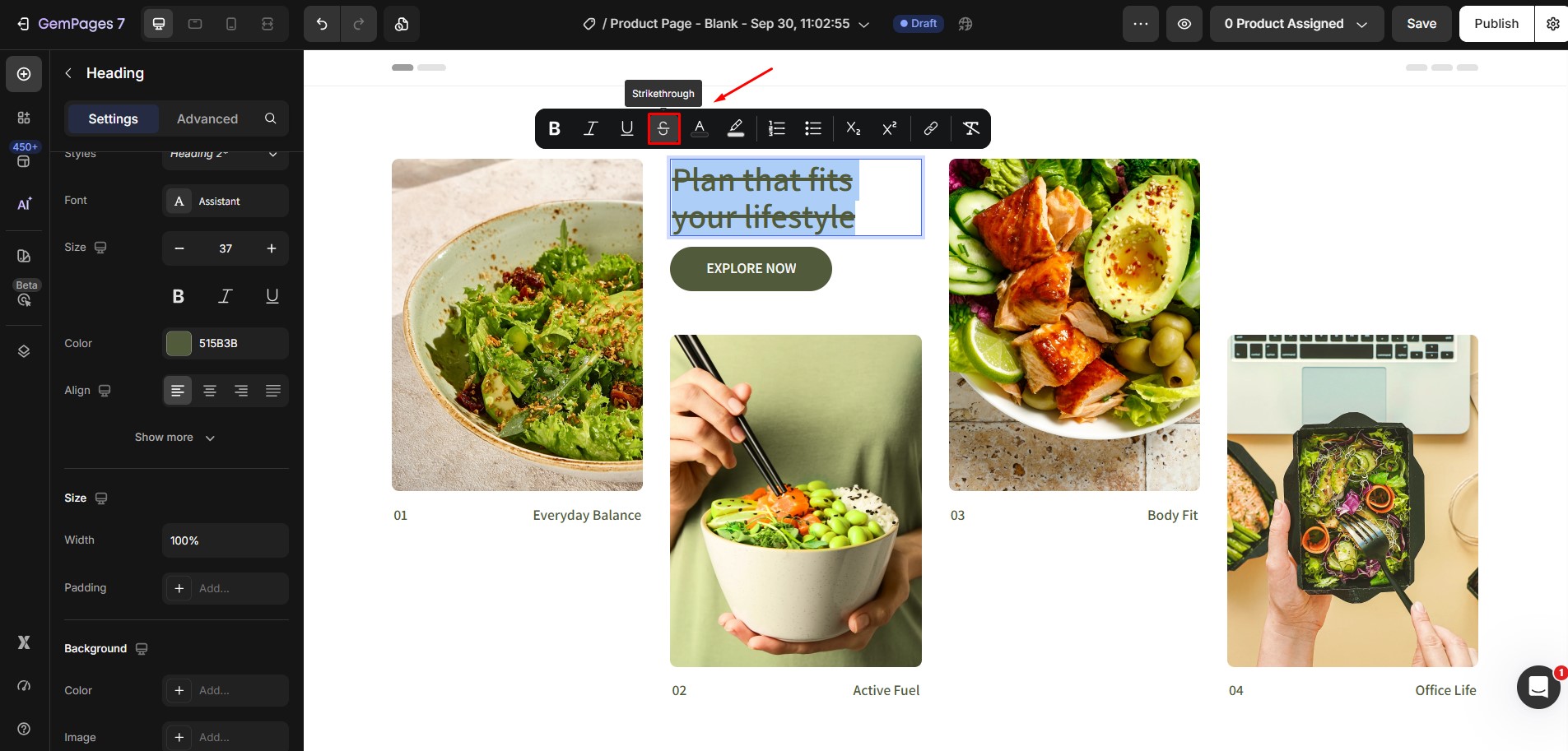
4. Strikethrough
Apply a strikethrough effect to indicate outdated or removed content.
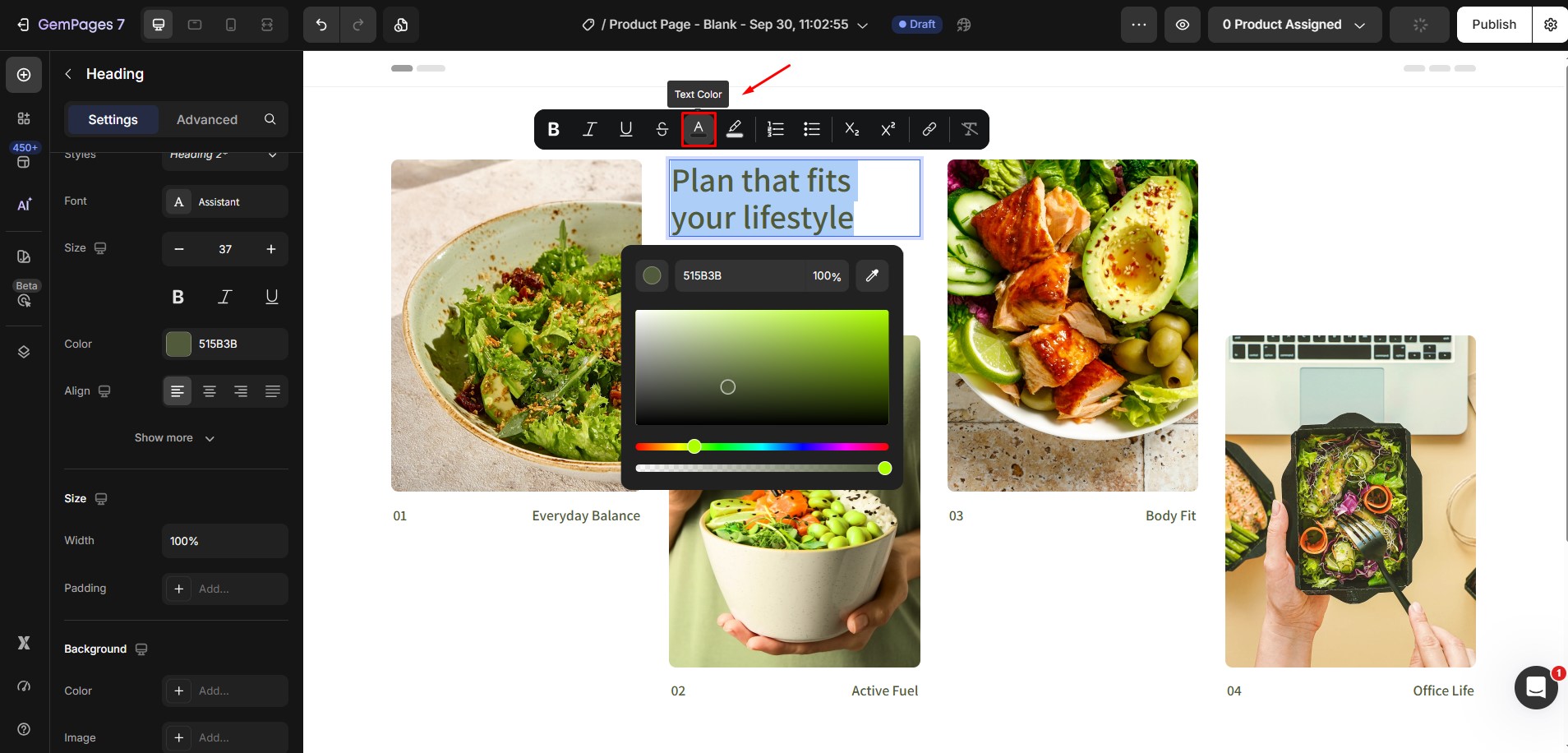
5. Text Color
Change the color of your text to match your brand’s theme. Simply click the Text Color icon and choose from the color palette.
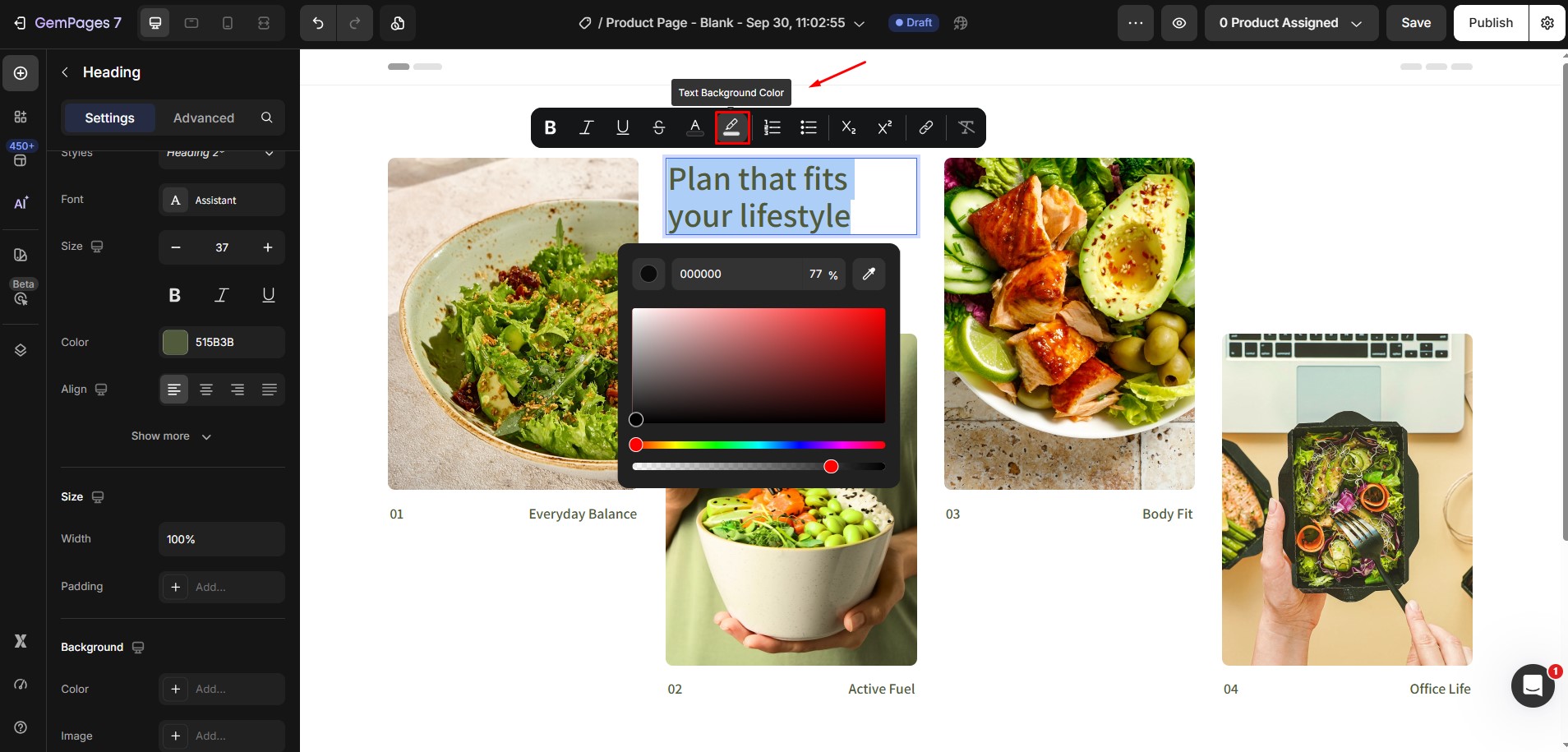
6. Text Background Color
Highlight text with a background color to make it stand out.
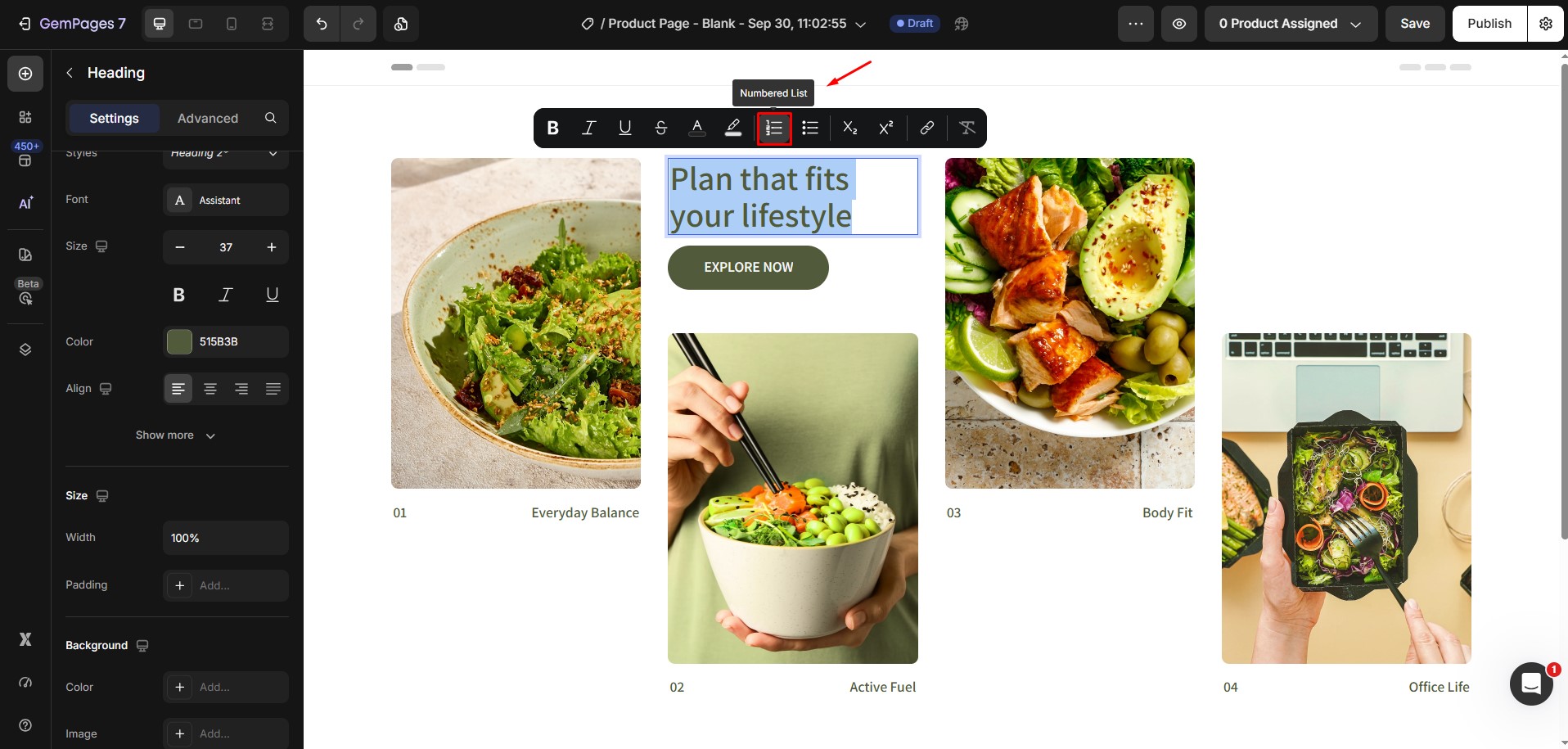
7. Numbered List
Organize content into a numbered list for a structured look. Ideal for step-by-step guides or lists.
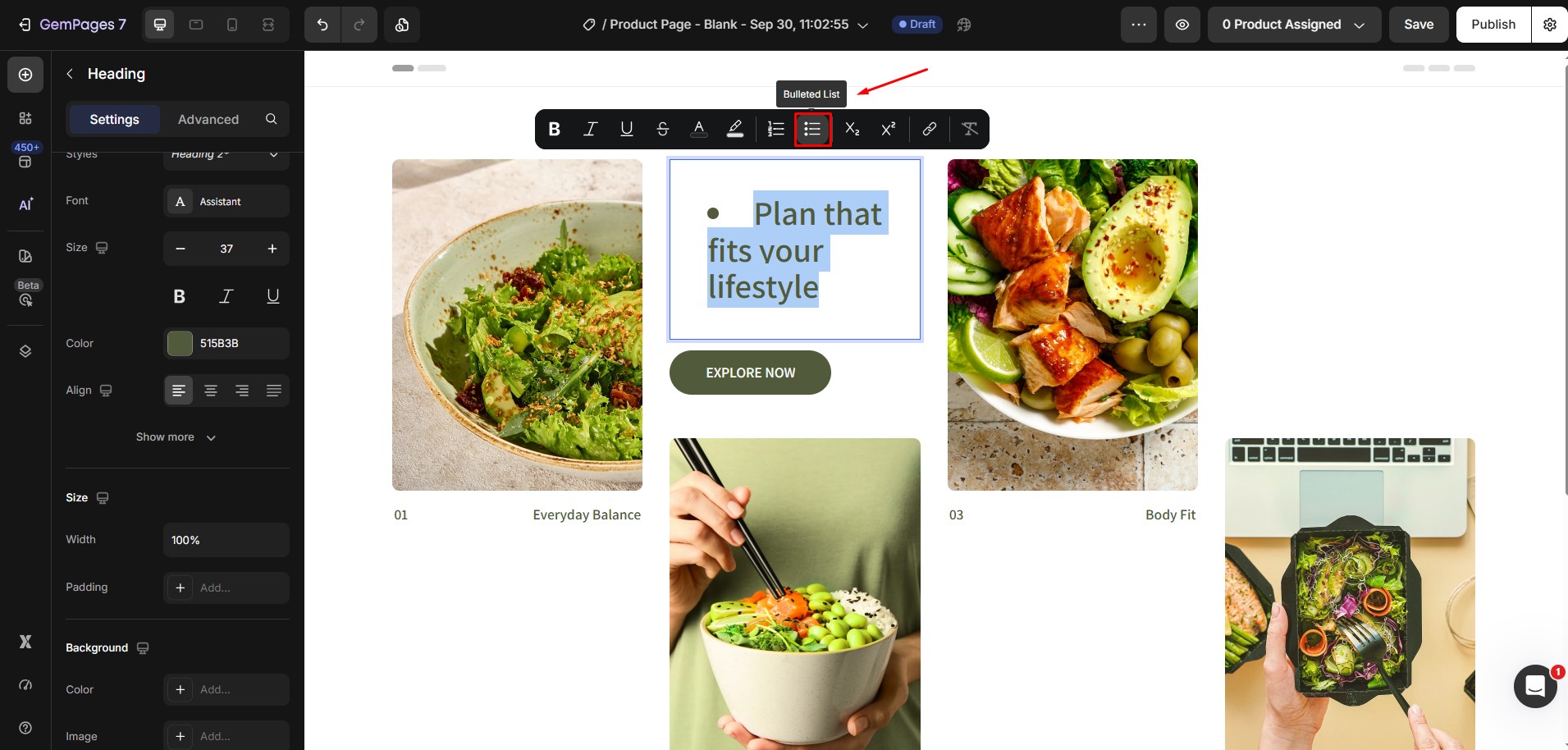
8. Bulleted List
Use bullet points to create lists that are easy to scan.
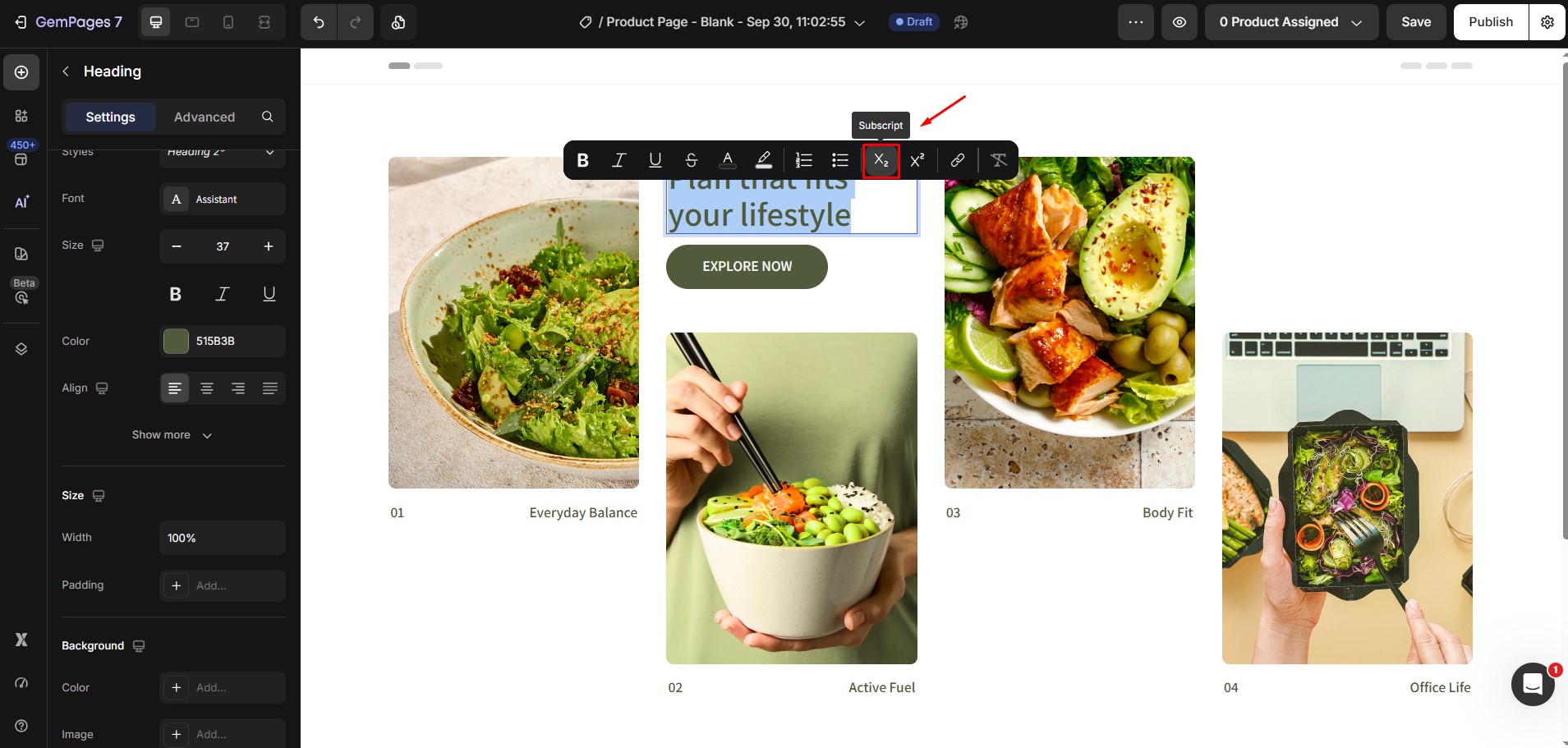
9. Subscript
Add subscript text, useful for chemical formulas or footnotes (e.g., Vitamin A1, B2)
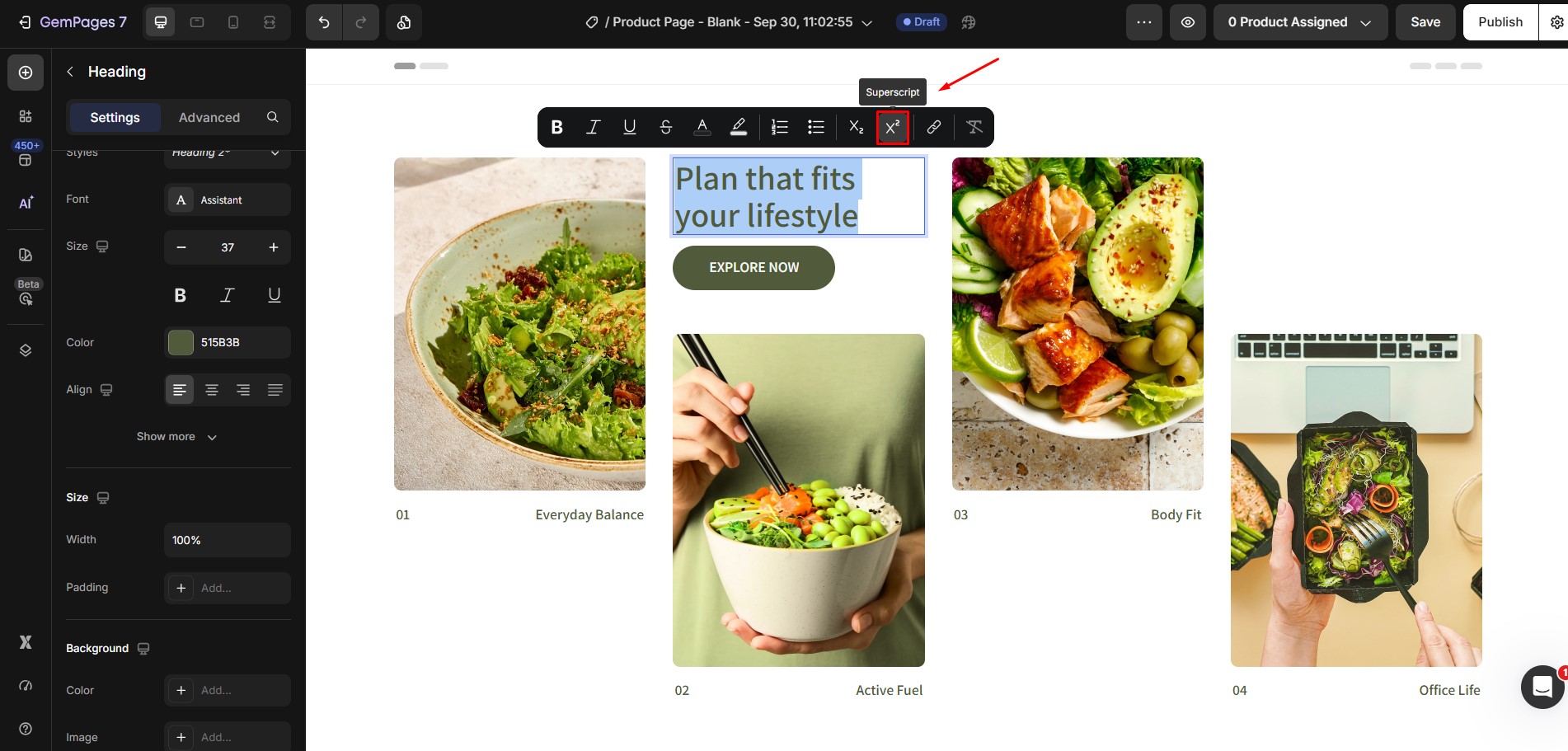
10. Superscript
Add superscript text, perfect for exponents or ordinal numbers (e.g., 1st, 2nd).
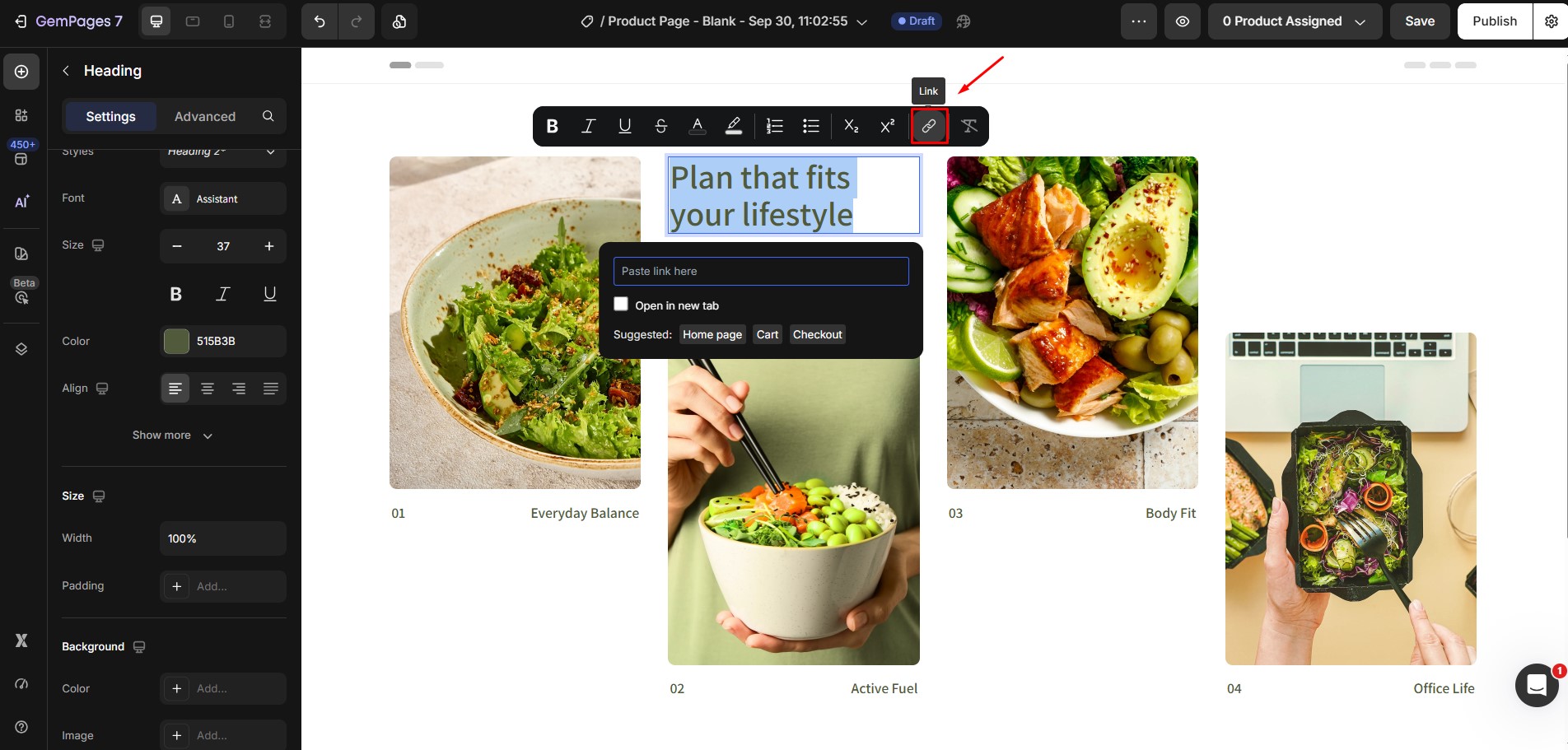
11. Link
Insert a hyperlink by highlighting text, clicking the Link icon, and entering the URL. This is great for directing users to other pages or resources.
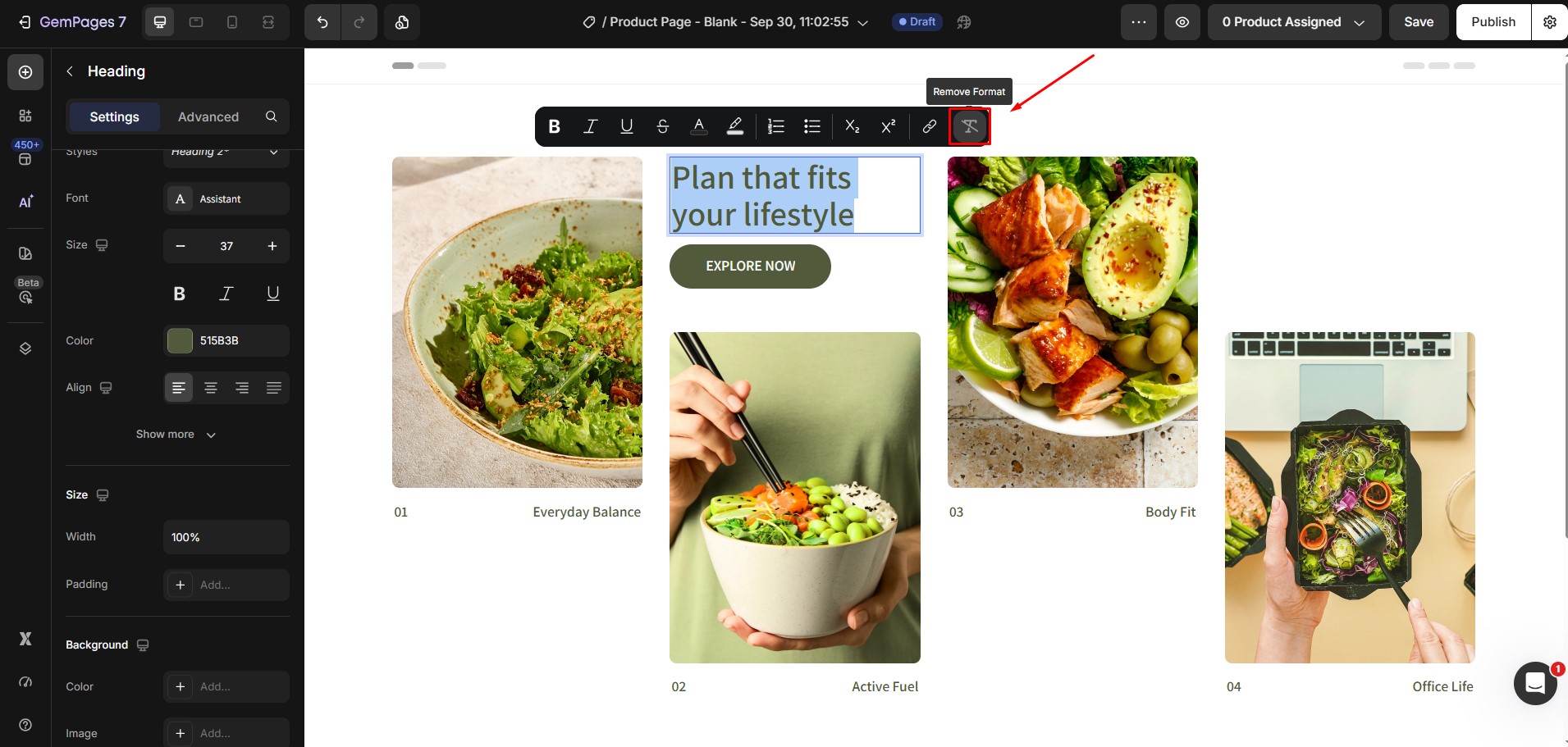
12. Remove Format Button
Clear all formatting from selected text, returning it to the default style.


Thank you for your comments