


About Appstle℠ Bundles & Discounts
Appstle℠ Bundles & Discounts is built by the team behind Appstle Subscriptions. The app allows Shopify merchants to create flexible and high-converting bundle and discount offers, including:
- Shopify bundles
- Mix & match bundles
- Buy One Get One (BOGO)
- Buy X Get Y
- Frequently Bought Together
- Bundle builder and custom bundles
- Volume discounts and tiered pricing
- Upsells optimized for conversion
The app integrates natively with Shopify and the Appstle ecosystem, and supports personalization and analytics-backed optimization.
Key Features of Appstle℠ Bundles & Discounts
With Appstle℠ Bundles & Discounts, you can:
- Create and manage bundles, quantity breaks, and discount offers in one place
- Choose from multiple bundle types, such as classic bundles, combo bundles, mix & match bundles, and advanced bundles
- Apply different discount types using conversion-optimized templates
- Seamlessly work with subscriptions, recurring orders, and other Shopify apps
- Receive hands-on support for migration and post-installation setup
How to Install & Set Up Appstle℠ Bundles & Discounts?
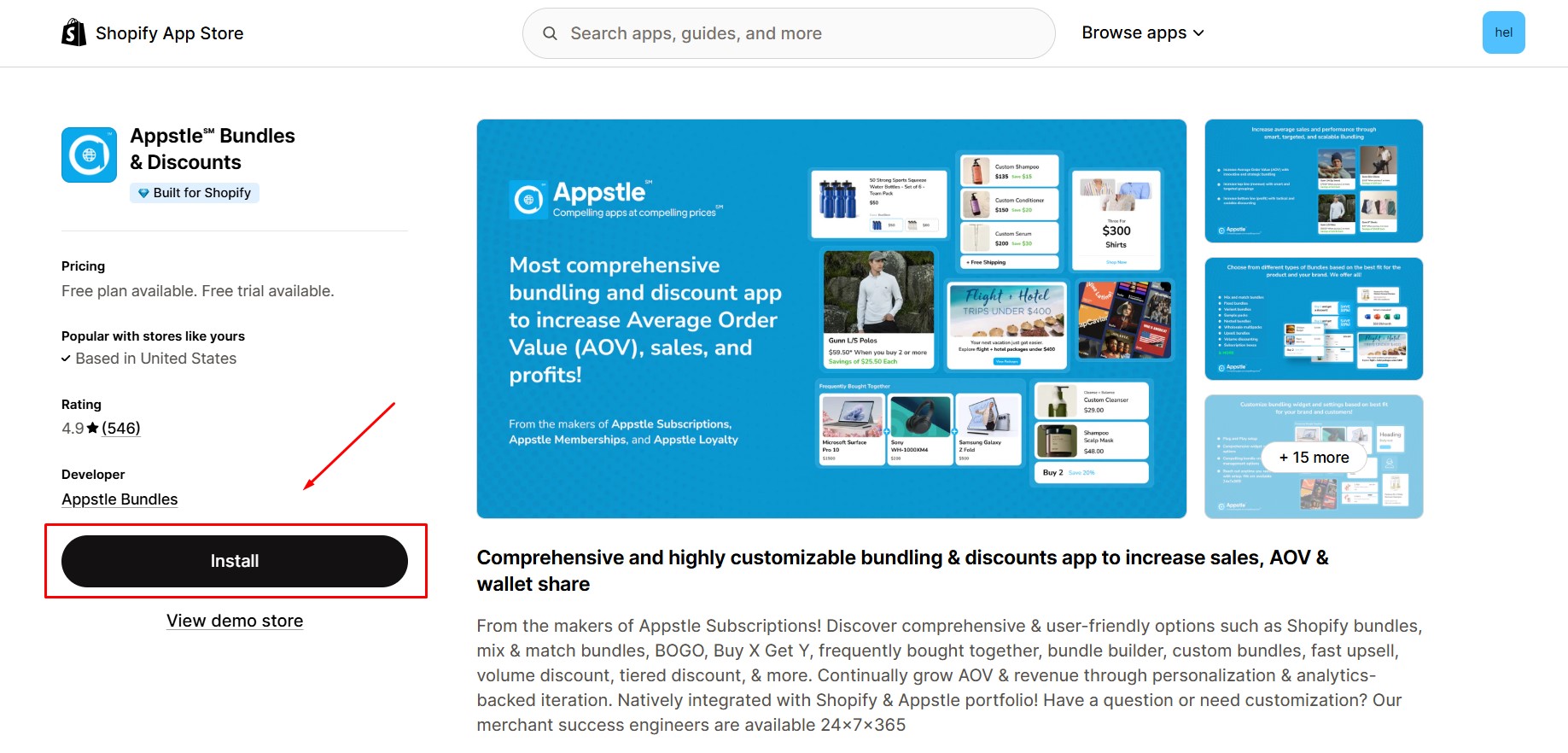
Step 1: Install Appstle℠ Bundles & Discounts in the Shopify App Store.
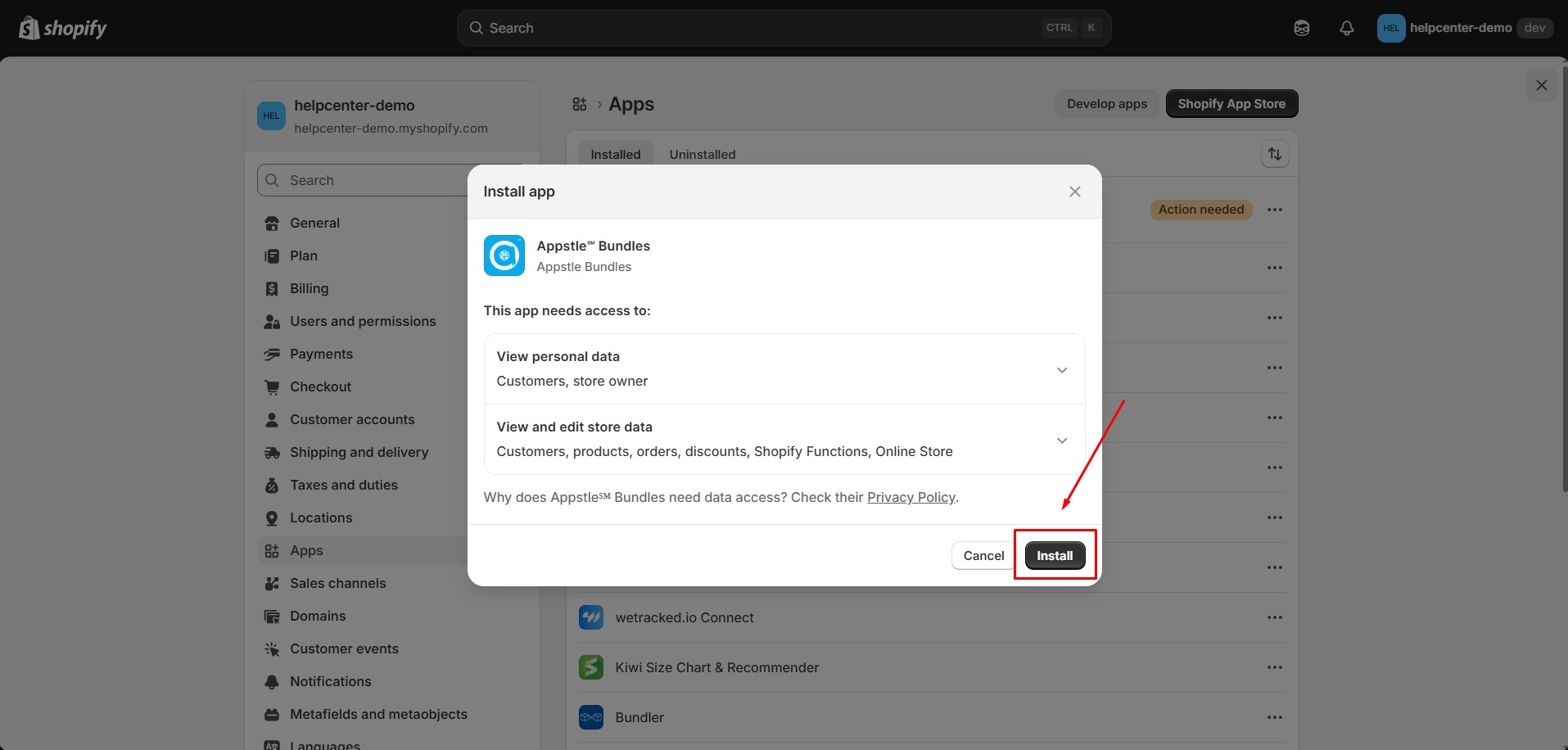
Step 2: Provide the app with access to the required data.
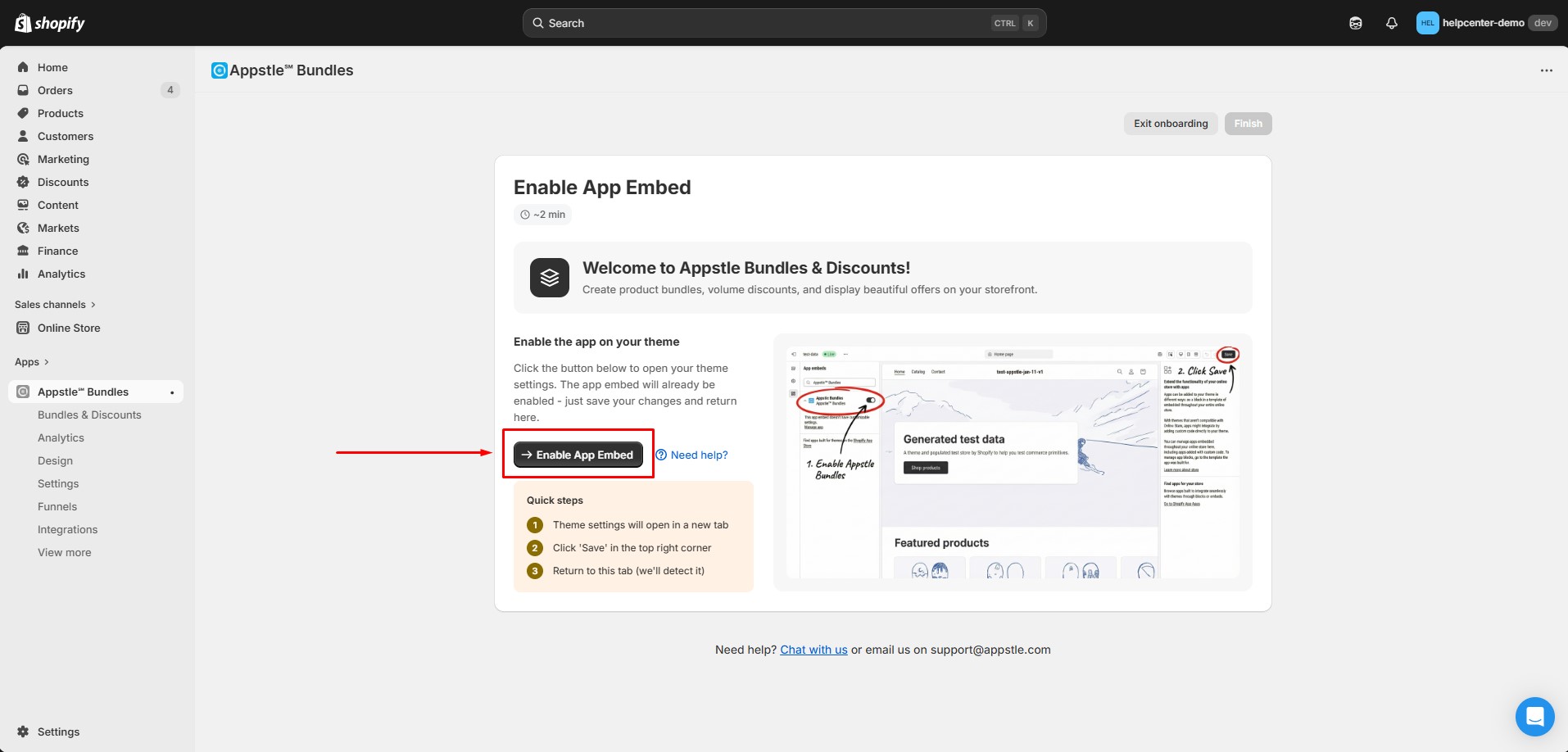
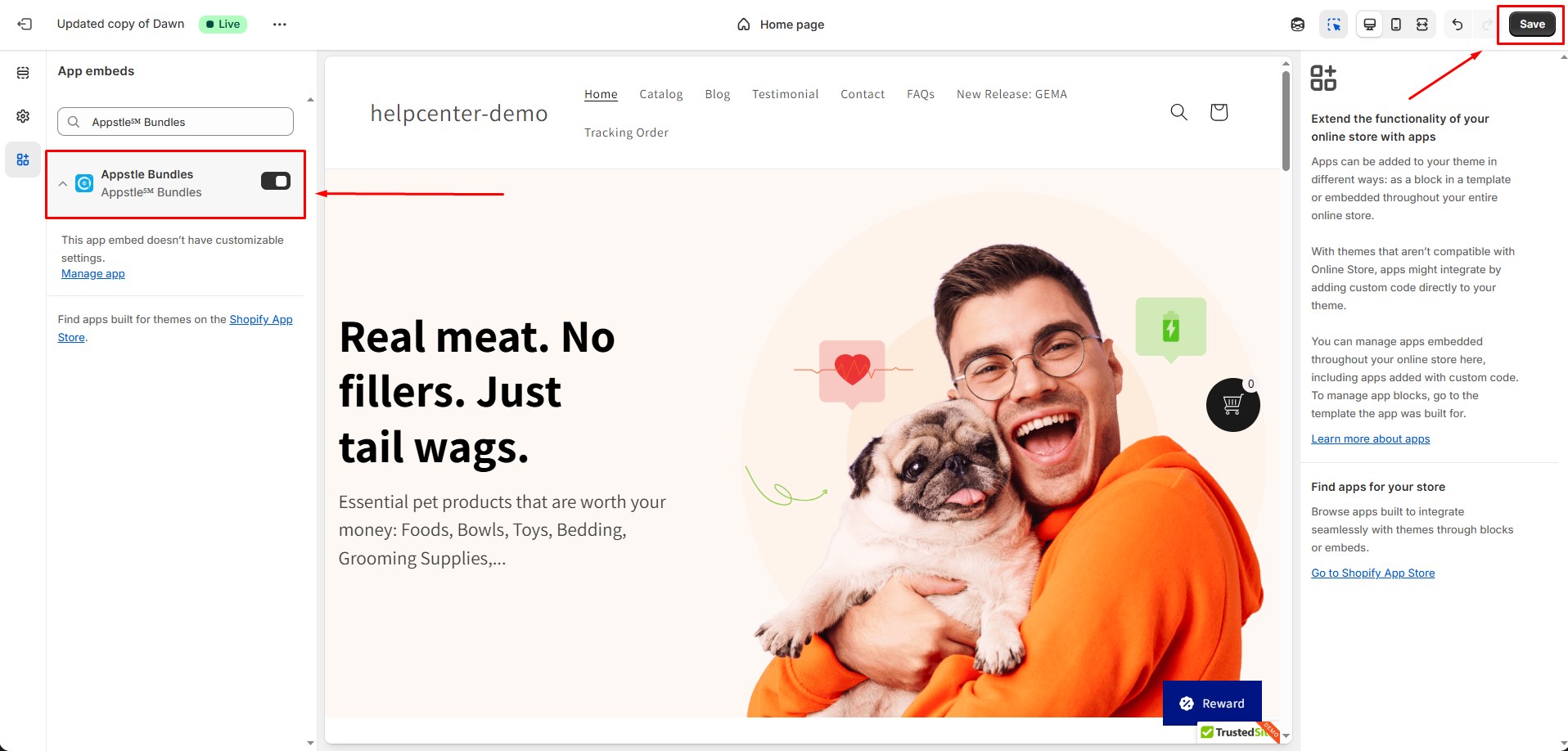
Step 3: Open the app embeds and enable the app in the Shopify Editor. Then, click Save.
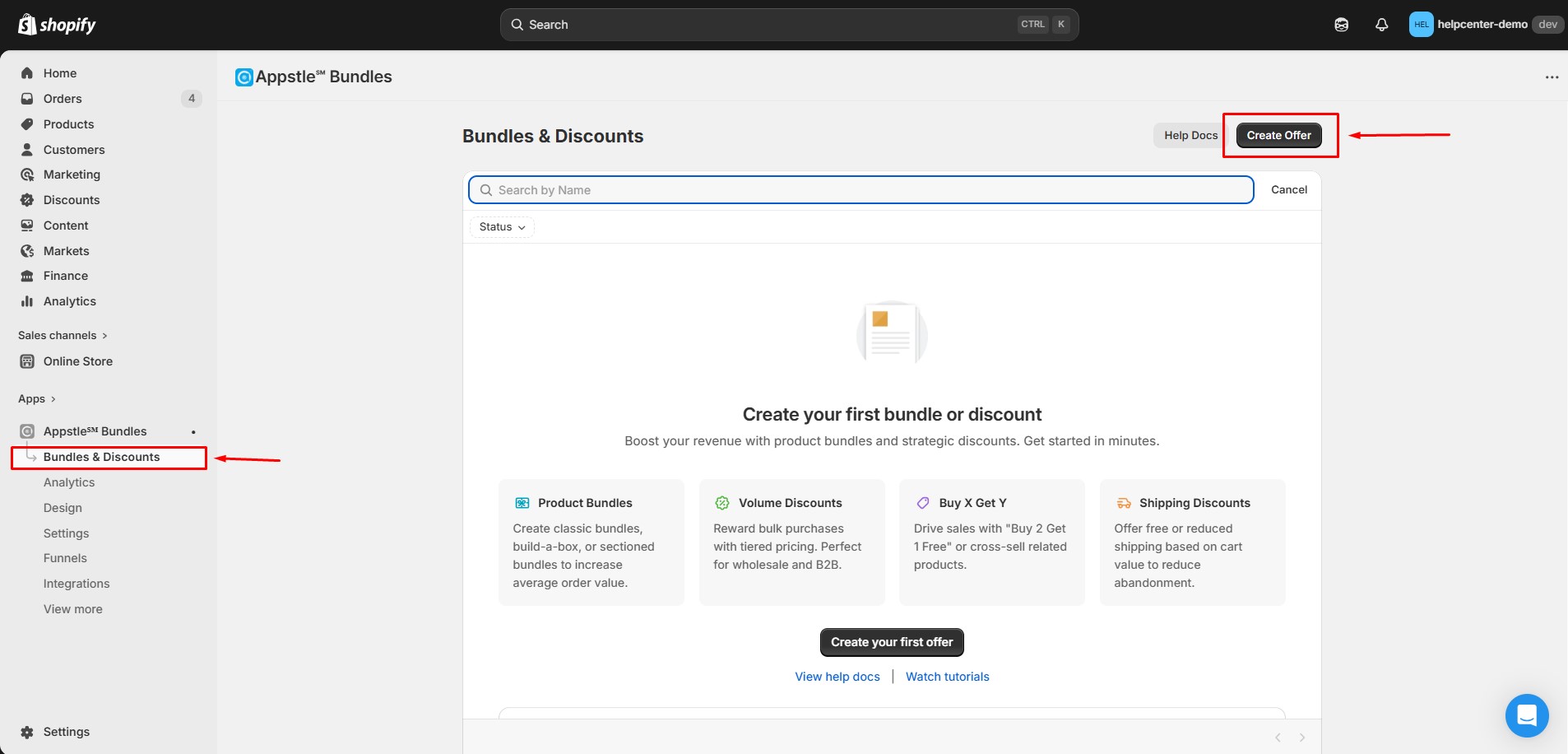
Step 4: Go back to the Appstle℠ Bundles & Discounts dashboard. Navigate to the Bundles & Discounts section.
Click Create Offer.
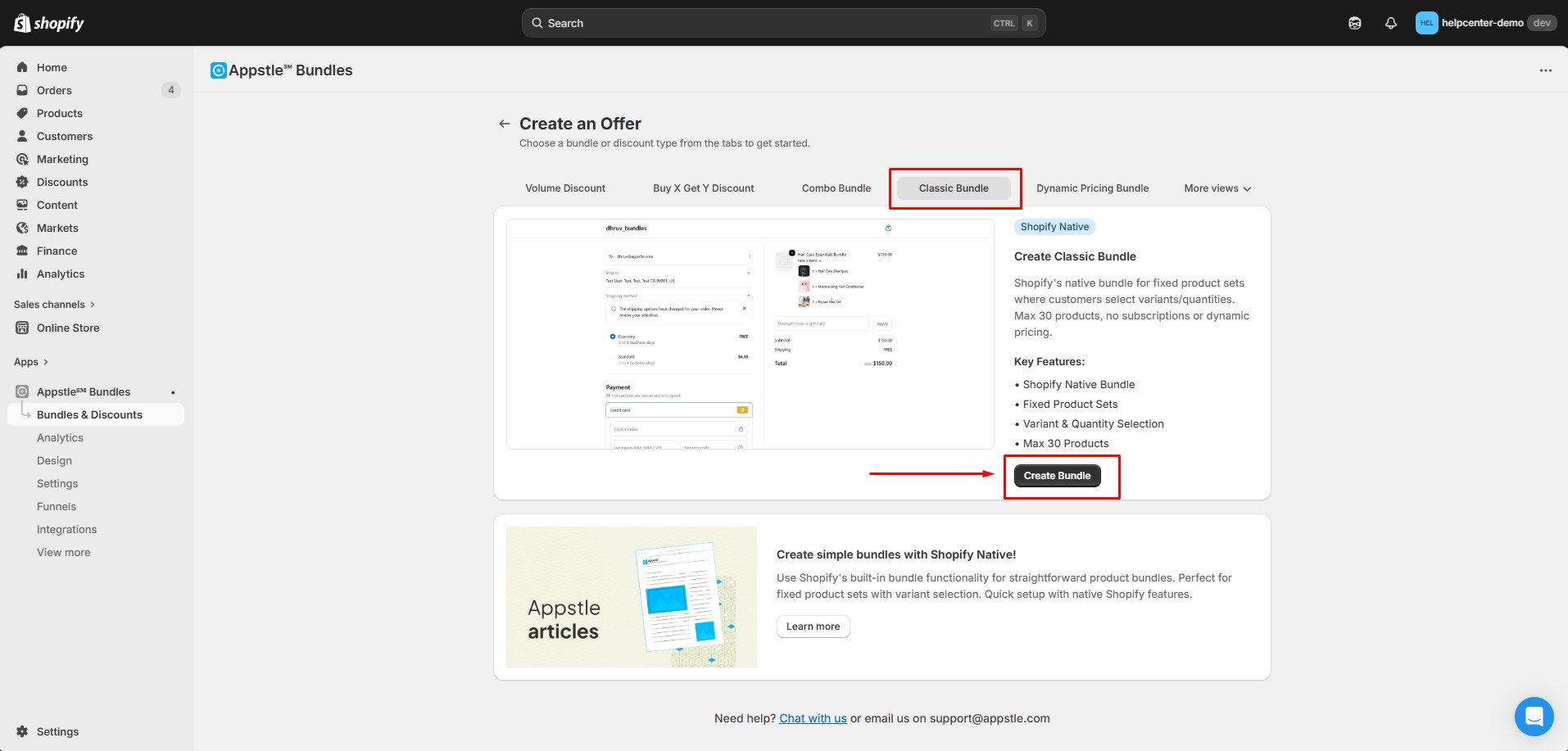
Step 5: Choose a bundle type. Appstle allows you to choose from many bundle types, for example, Volume discount, Buy X Get Y, Combo bundle, Classic bundle, Dynamic pricing bundle, etc.
In this article, we will use Classic Bundle as an example.
If you want to set up other bundle types, you can find detailed guides in Appstle’s documentation here: https://intercom.help/appstle/en/collections/9086094-bundles-discounts
Step 6: Configure bundle details
- Enter a Bundle Name that clearly describes the offer.
- Add a short Bundle Description to explain the value of the deal to customers.
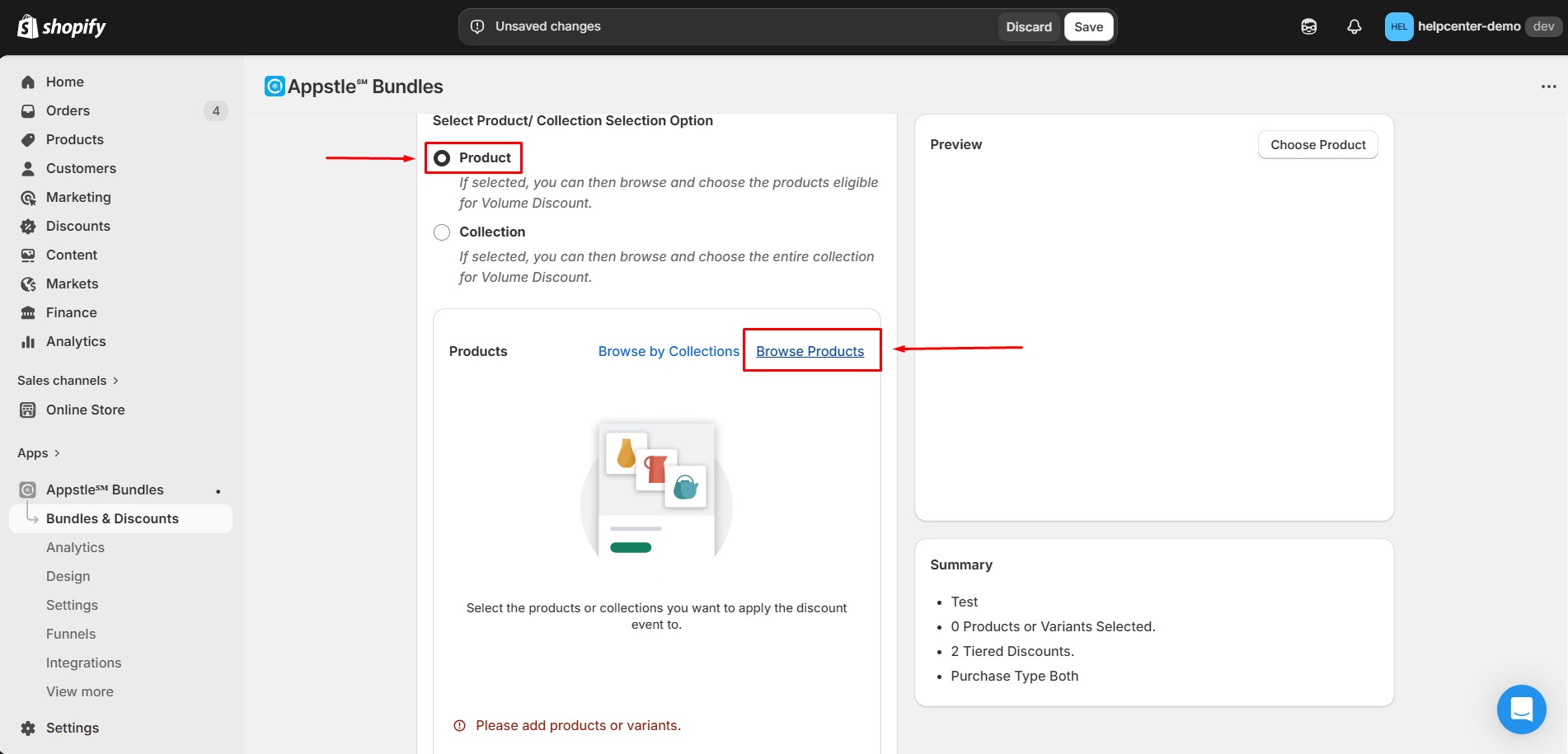
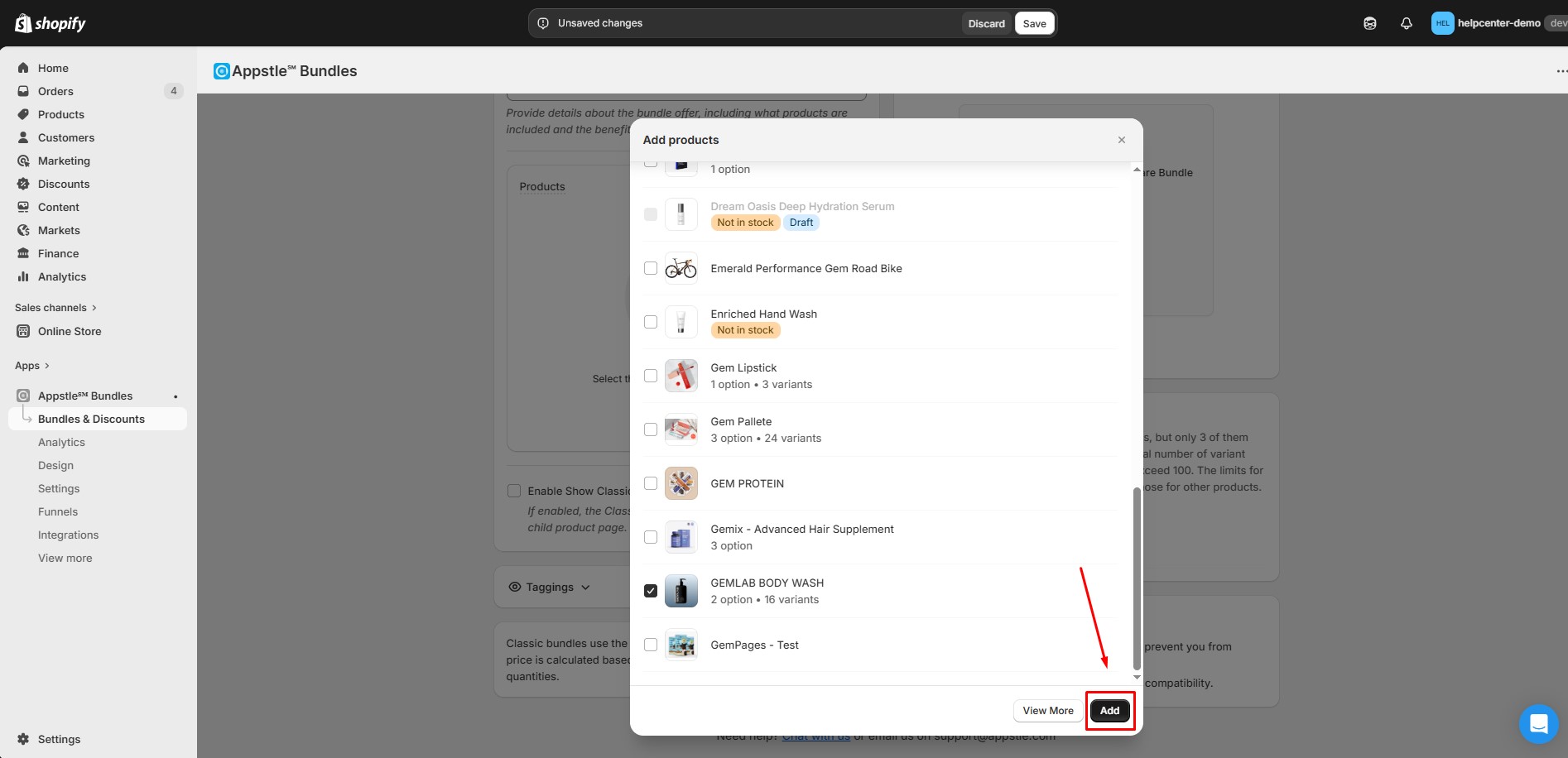
- Under Select Product, choose the products you want to include in the bundle.
 After selecting products, click Add.
- Review your bundle configuration.
- Click Save to finish creating the bundle.
How to Add Appstle℠ Bundles & Discounts to GemPages v7?
Once your bundle is created, you can display it on a page built with GemPages.
Step 1: In the GemPages Editor, open the page where you want to display the bundle. Use the search bar to find the app, then drag and drop the element onto the design area.
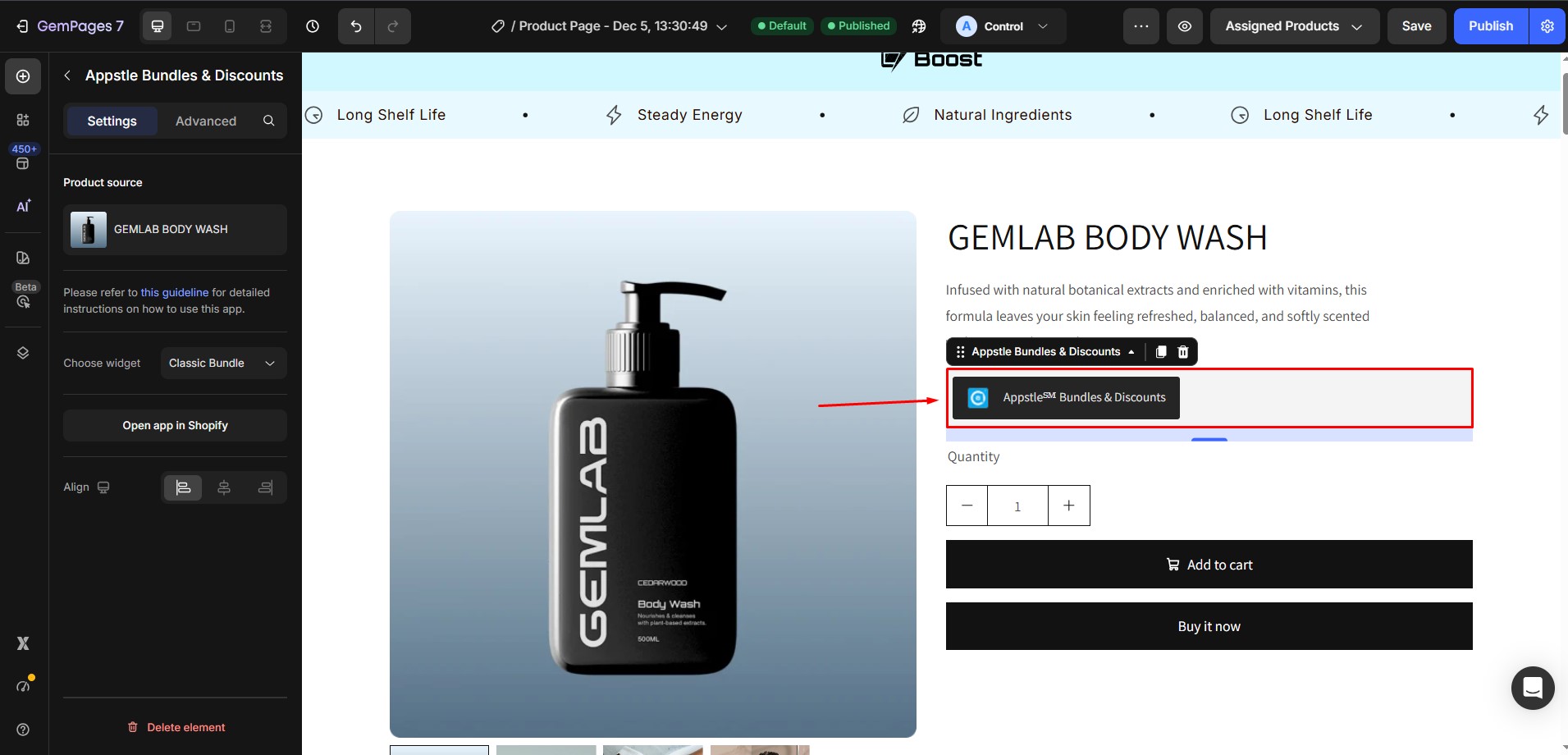
Step 2: Click Save in the GemPages Editor. Click Publish to apply the changes to your live store.
Once published, the Appstle bundle will appear on your GemPages page and function according to the settings you configured in the Appstle dashboard.
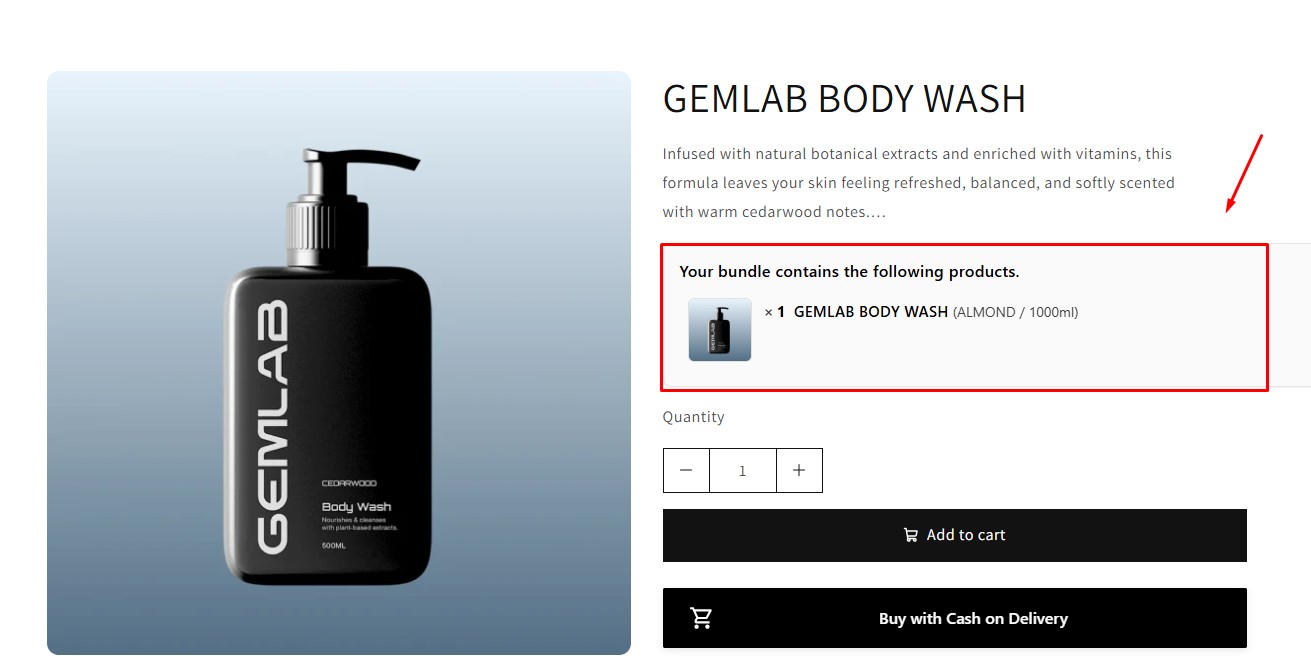


Thank you for your comments