


About Seguno Popups & Forms
Seguno Popups & Forms helps you capture new leads using popups and embedded forms, all managed directly inside your Shopify admin.
You invest time and money to drive traffic to your store. Seguno Popups & Forms helps you convert that traffic into subscribers and customers. Built exclusively for Shopify, the app allows you to create high-performing popups, trigger custom on-site experiences, embed forms, and track results from one centralized dashboard.
With a no-code editor, over 30 ready-made templates, and Canva integration, it’s easy to design on-brand popups. Advanced targeting tools ensure your messages reach the right visitors at the right time.
Key Features of Seguno Popups & Forms
- Grow your email and SMS subscriber lists to bring customers back to your store.
- Design popups and embedded forms using a no-code builder with Canva integration.
- Target visitors based on behavior, dates, pages, and languages, and tag signups automatically.
- Reduce cart abandonment and create urgency with exit-intent popups and countdown timers.
- Automatically connect with your preferred email marketing platform.
How to Install & Set Up Seguno Popups & Forms?
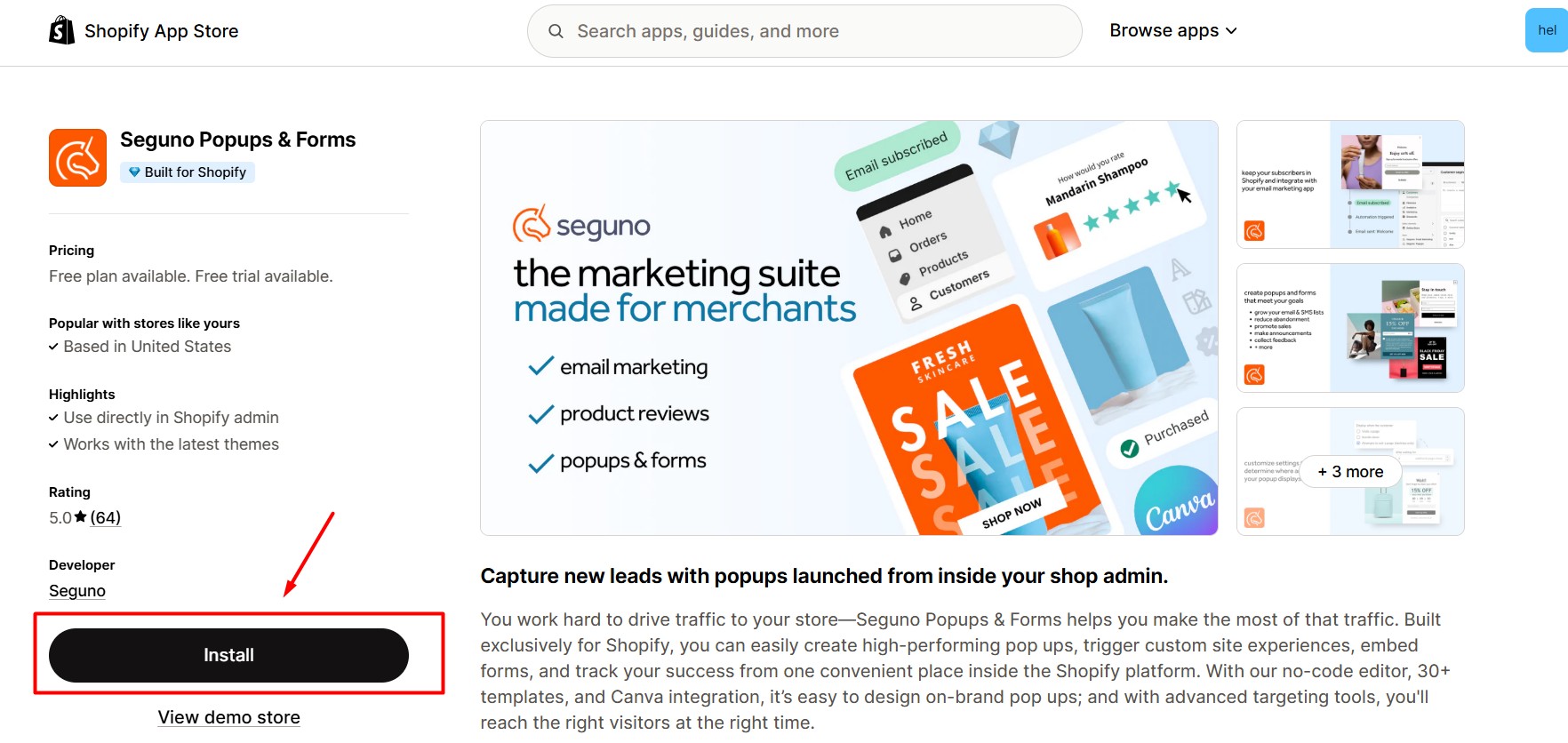
Step 1: Go to the Shopify App Store, search for Seguno Popups & Forms, then click Install.
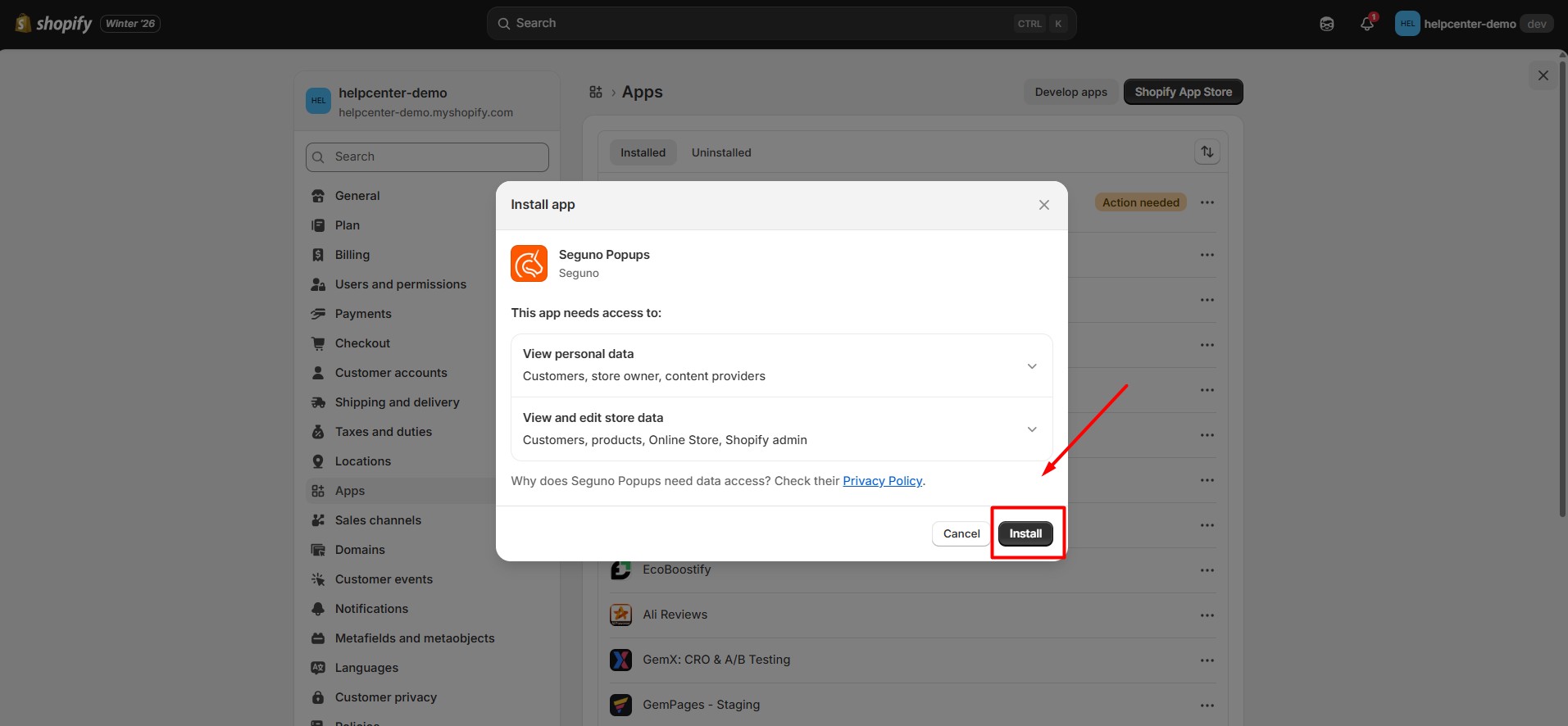
Step 2: Provide the app with access to the required data.
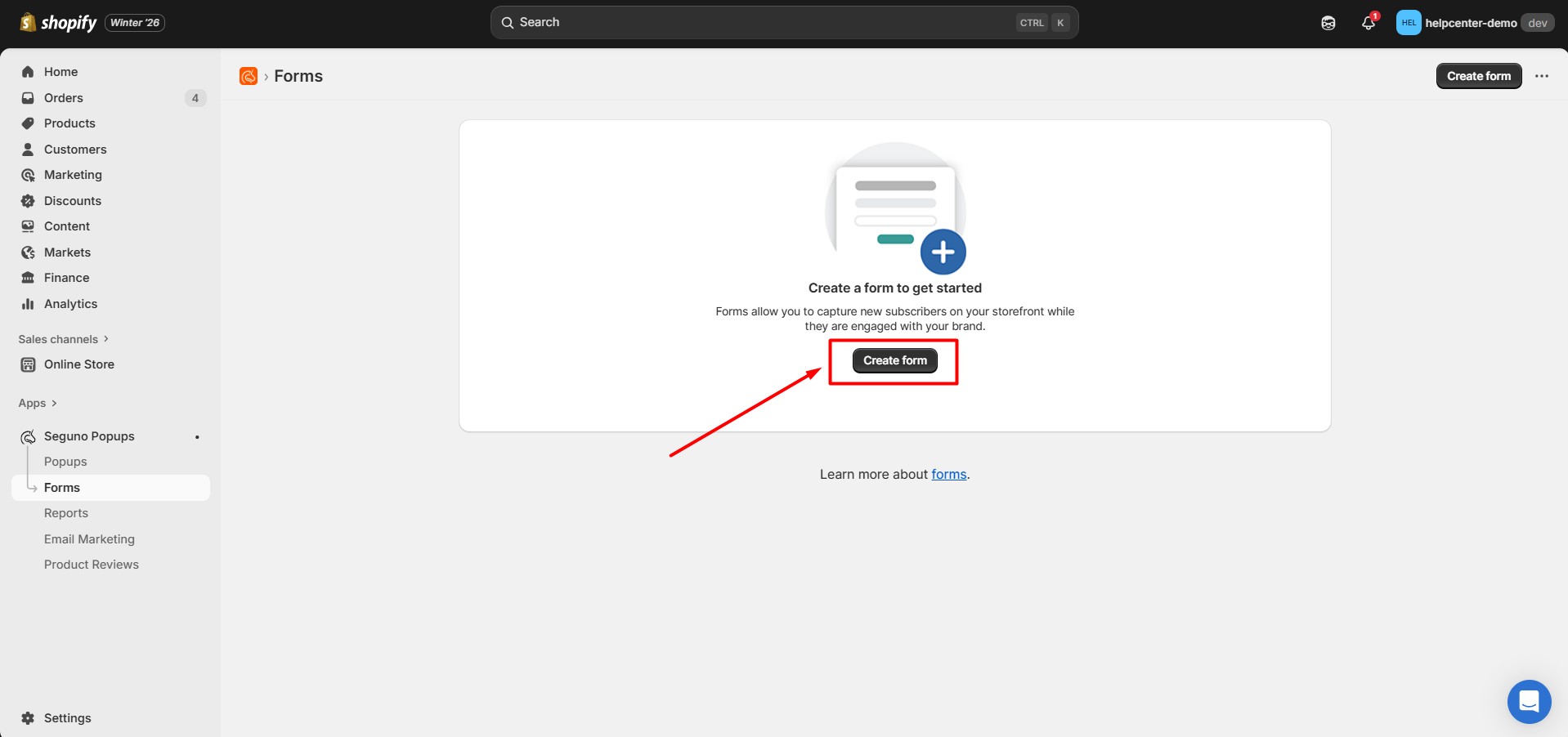
Step 3: From your Shopify admin, open the Seguno Popups & Forms app. In the app dashboard, go to the Forms tab and click Create form to start building a new form.
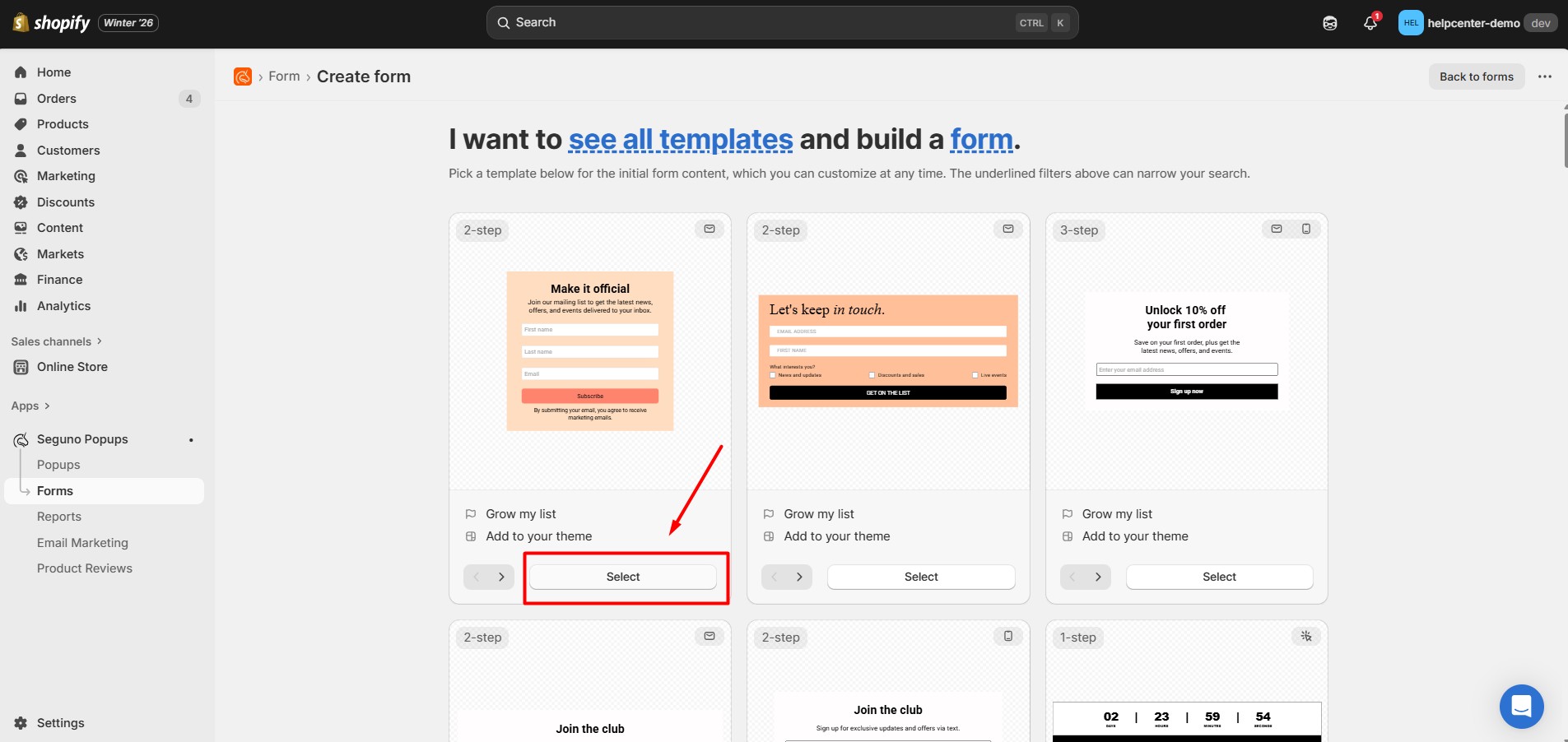
Step 4: Browse the available form templates and choose one that matches your goal, such as a popup, embedded form, or exit-intent form. Click to select the template you want to use.
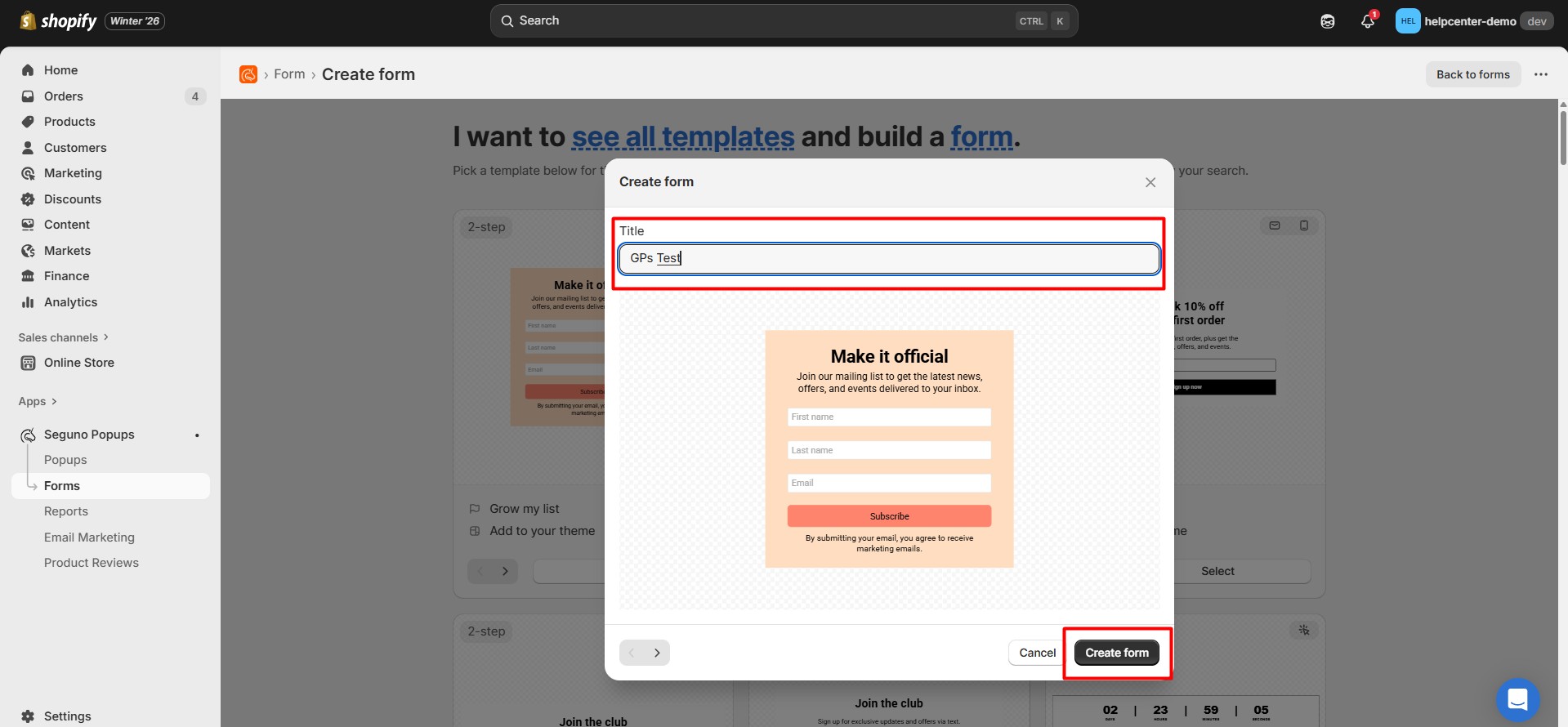
Step 5: In the form setup screen, enter a name in the Title field. This title is for internal reference and helps you manage your forms. After entering the title, click Create form.
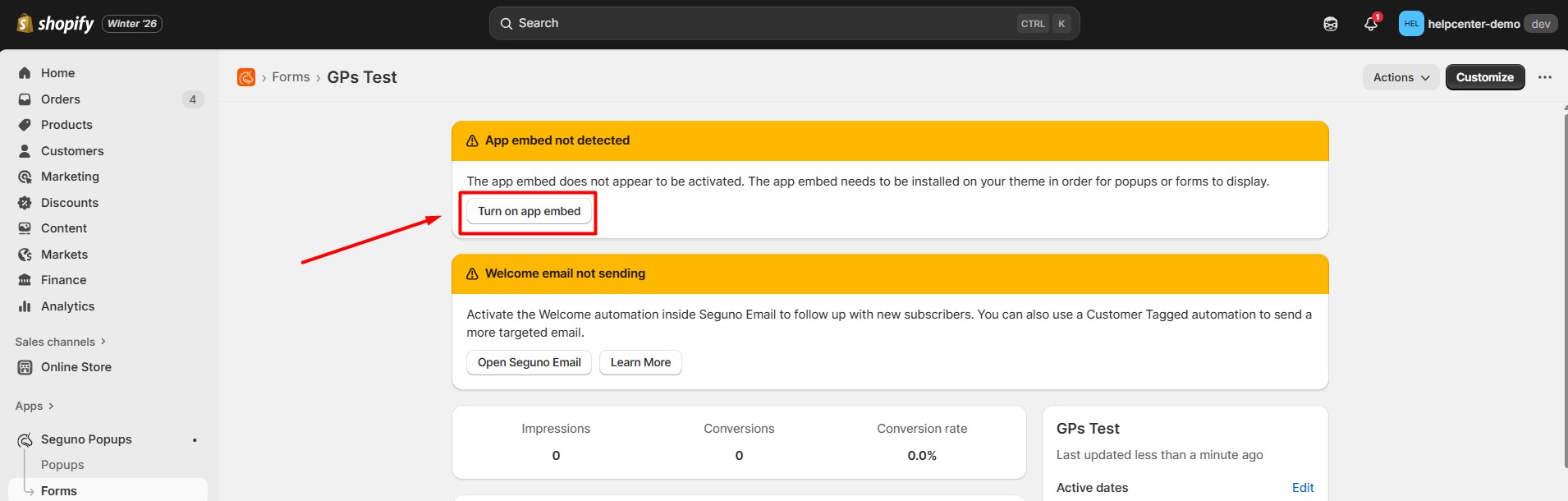
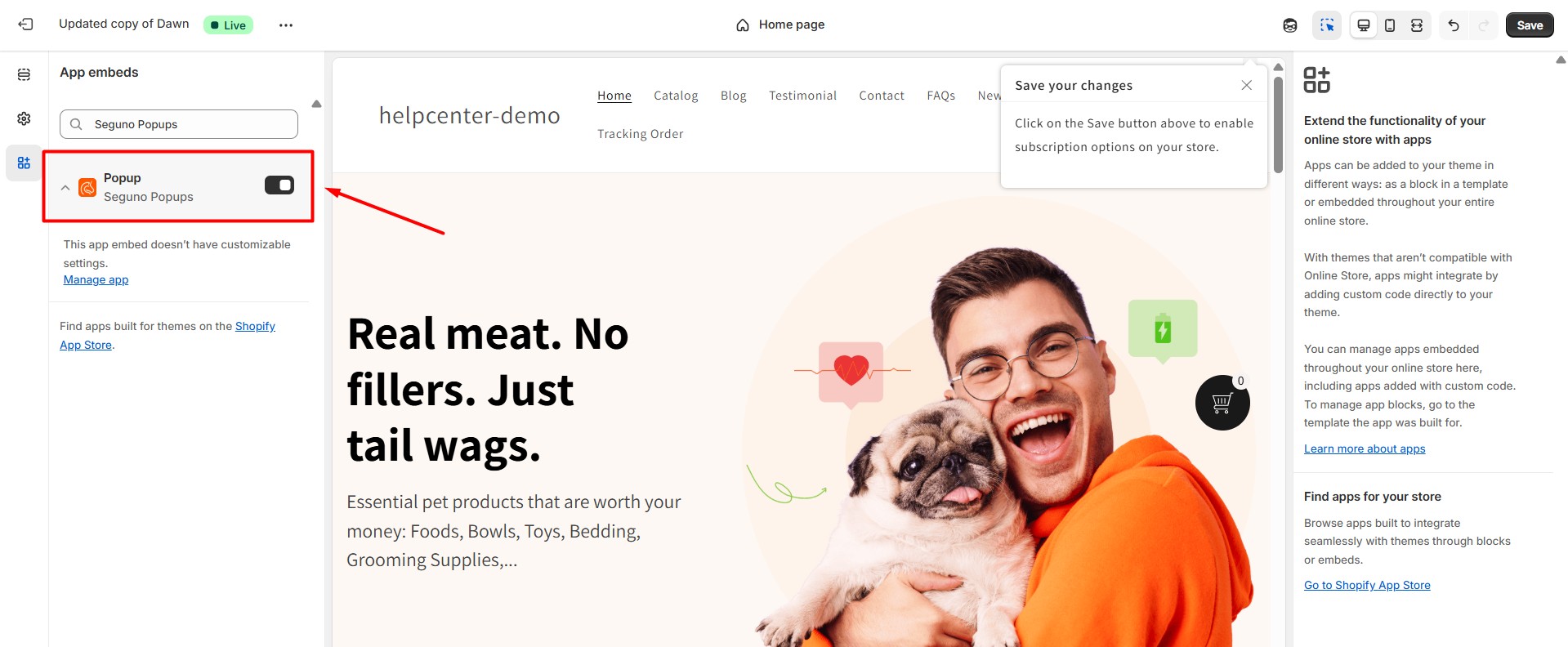
Step 6: Enable the app embed for Seguno so the form can display on your storefront. You can do this from the Seguno settings or from Shopify admin > Online Store > Themes > Customize > Apps, then turn on the Seguno app embed and save your changes.
How to Add Seguno Popups & Forms to your Online Store?
Step 1: Open the Seguno Popups & Forms app again and go to the Forms tab.
Step 2: Click on the form you want to display on your store. Locate the Form ID and click Copy form ID to copy it to your clipboard.
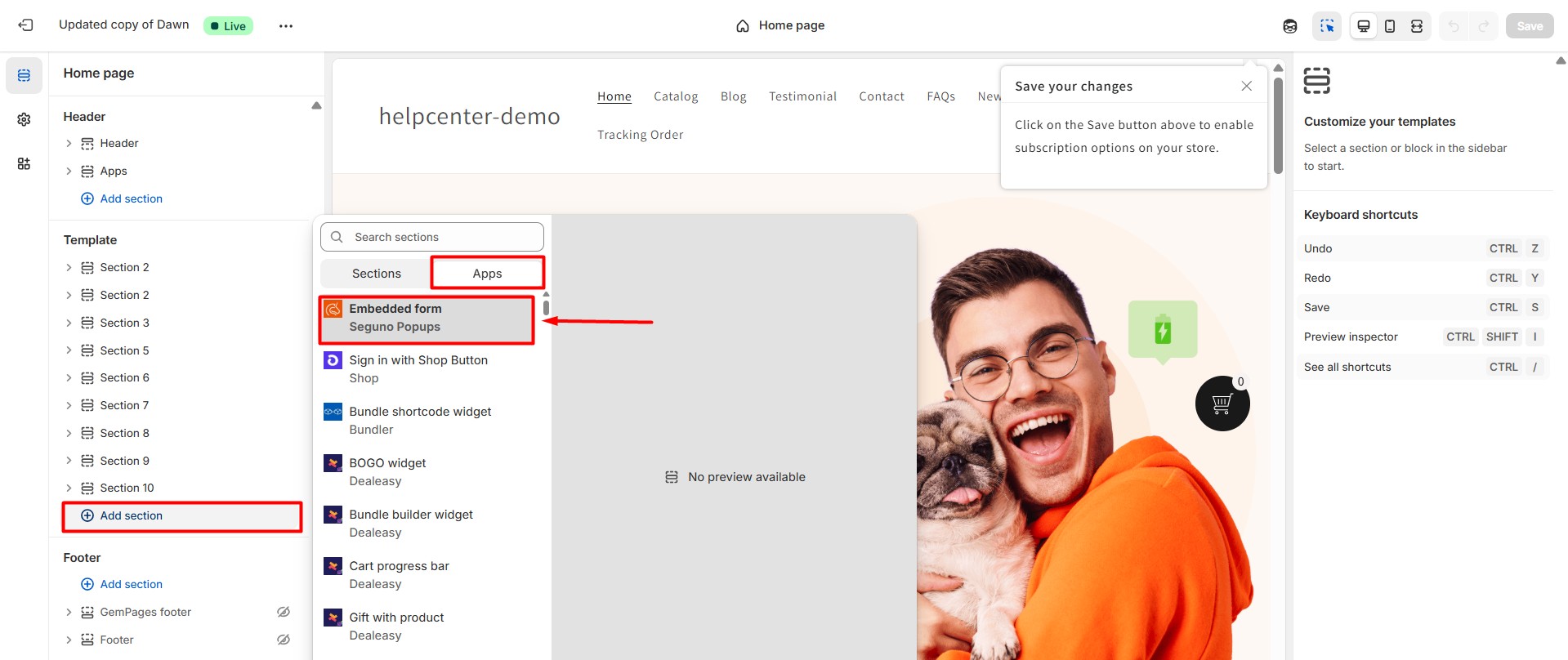
 Step 3: Go to Shopify admin > Online Store > Themes, then click Customize next to your active theme. In the theme editor, navigate to the page where you want to embed the form. Click Add section.
Step 4: In the section selection panel, switch to the Apps tab. Select Embedded form by Seguno to add the form section to your page.
Step 5: In the settings panel for the Embedded form section, paste the copied Form ID into the Form ID field. Once finished, click Save in the theme editor to apply your changes.


Thank you for your comments