


Last updated: March 30, 2026
Currently, users are frustrated by the long page publishing time, following the system logging, each publishing attempt typically takes an average of about 10-20 seconds, and sometimes it takes forever. During this period, users only see a generic loading indicator on the publish button and have no clear sense of how much longer the process will take, making the wait feel unpredictable and unresponsive.
To improve this experience, GemPages introduces a new publishing flow with a transparent progress indicator and built-in validation checks. This update helps users understand exactly what is happening during the publishing process and quickly identify issues that may prevent a page from being published successfully.
What Changed in the Publishing Experience?
This update improves the visibility of the publishing process by showing the current status and validation steps in real time, making it easier to understand progress and detect potential issues before the page is published.
Instead of a simple loading state, GemPages now displays a Publishing progress popover that clearly communicates what the system is checking and publishing. This allows users to see exactly where they are in the process while continuing to interact with the editor.
The following issues are automatically detected:
| Issue | Description |
| Theme helper is off | The GemPages Theme Helper is required for publishing pages.
If the helper is disabled or not installed properly, the publishing process cannot continue. |
| Theme size exceeded Shopify’s 250MB limit | Shopify themes have a maximum size limit of 250 MB.
If the total theme size exceeds this limit, publishing will fail. |
| Section size exceeds 256 KB | Each section generated by GemPages must be smaller than 256 KB.
Sections larger than this limit will trigger a publishing error. |
| Invalid Liquid syntax in custom code | If any custom Liquid code added through GemPages elements contains invalid syntax, the system will detect it before publishing. |
| Missing section in Shopify theme | If the page references a section that does not exist in the Shopify theme, the publishing process will stop. |
| Duplicate page handle | Shopify requires every page to have a unique handle (URL path).
If the page handle conflicts with an existing page in the store, the system will detect the duplication. |
| Unknown error | In rare situations where an unexpected error occurs, the system will return an unknown error notification so the issue can be investigated. |
Note:
- The new publishing flow is available for all GemPages plans.
- This feature supports all standard page types in GemPages Version 7, including: Home page, Landing page, Product page, Collection page, Article page, Contact page, etc.
- NOT support: Post-purchase offer page, Instant Landing page, Theme section.
How the Publishing Process Works
When publishing a page, GemPages now runs a structured three-step process that validates and publishes the page sequentially.
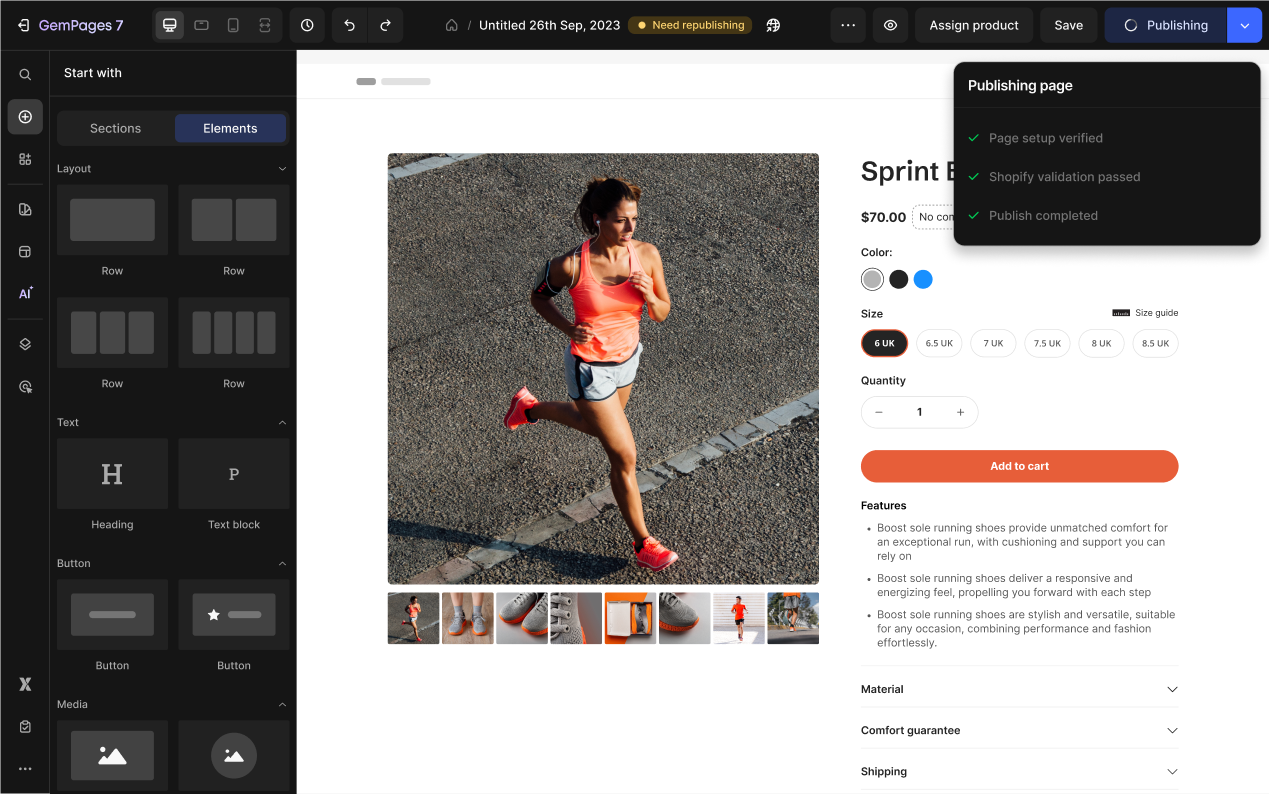
If a step completes successfully, a checkmark indicator appears next to it.
If a step fails, the system immediately stops the process and displays a detailed error message related to that step.
Step 1: Checking Section Data
The first step validates important page data before communicating with Shopify.
This stage ensures that the page configuration and required tools are properly set up.
The system performs the following checks:
- Theme helper status: GemPages verifies whether the GemPages Theme Helper is enabled and functioning correctly in the theme.
- Other validation errors detected during the preparation phase: The system also identifies issues that may have occurred during the internal preparation phase before publishing.
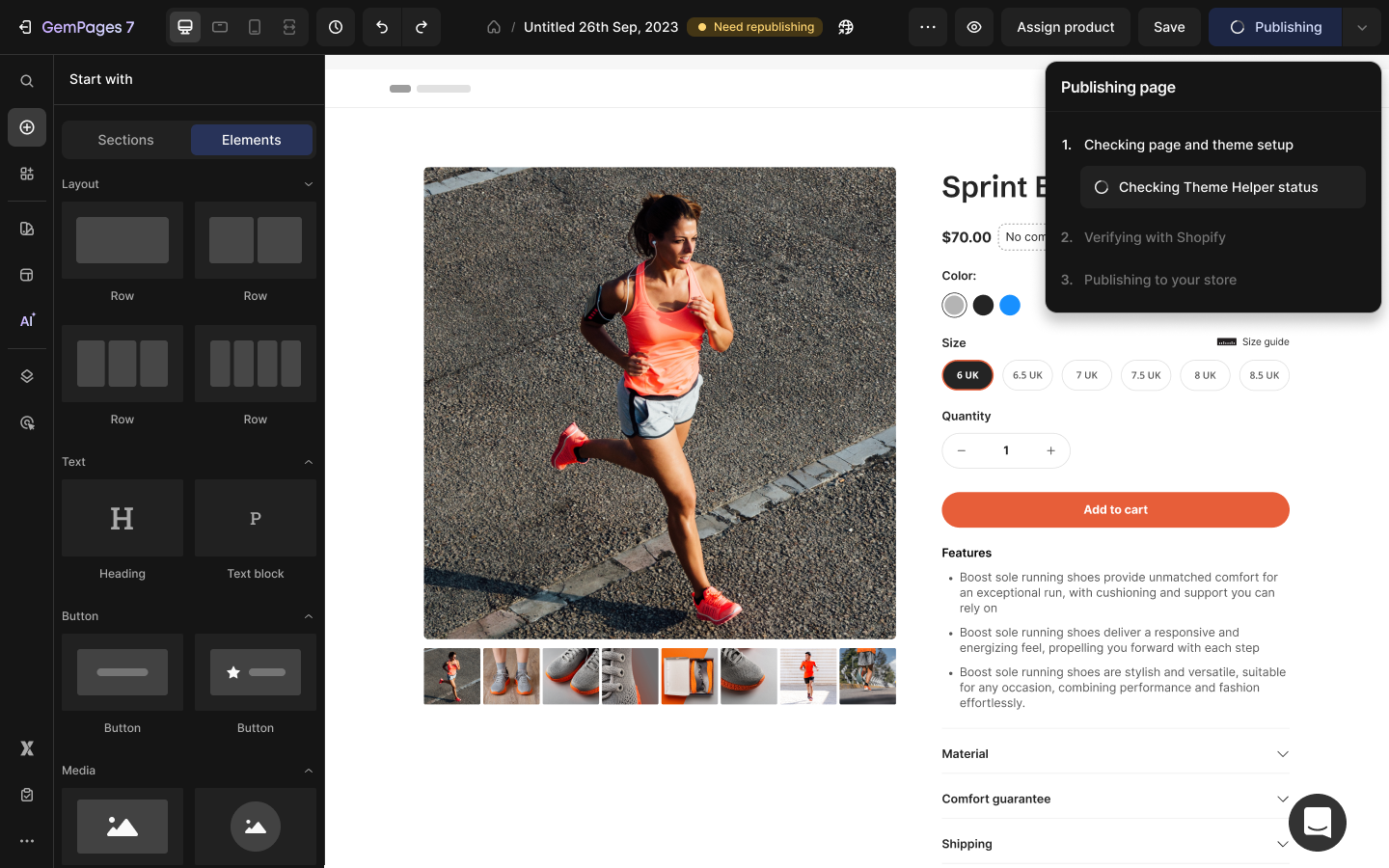
If everything passes validation, the system proceeds to the next step.
Step 2: Verifying With Shopify
After the internal validation phase is completed, GemPages communicates with Shopify to confirm that the theme and page configuration meet Shopify’s requirements.
This step includes the following checks:
- Check theme size: GemPages verifies that the total theme size does not exceed Shopify’s 250 MB limit.
- Calculate section sizes: The system calculates the file size of each section generated for the page. Each section must remain under 256 KB.
- Validate custom code: Any Liquid code from GemPages elements or custom code blocks is validated to ensure the syntax is correct.
- Review sections in the theme: GemPages ensures that all sections referenced on the page exist inside the Shopify theme (including original Shopify templates).
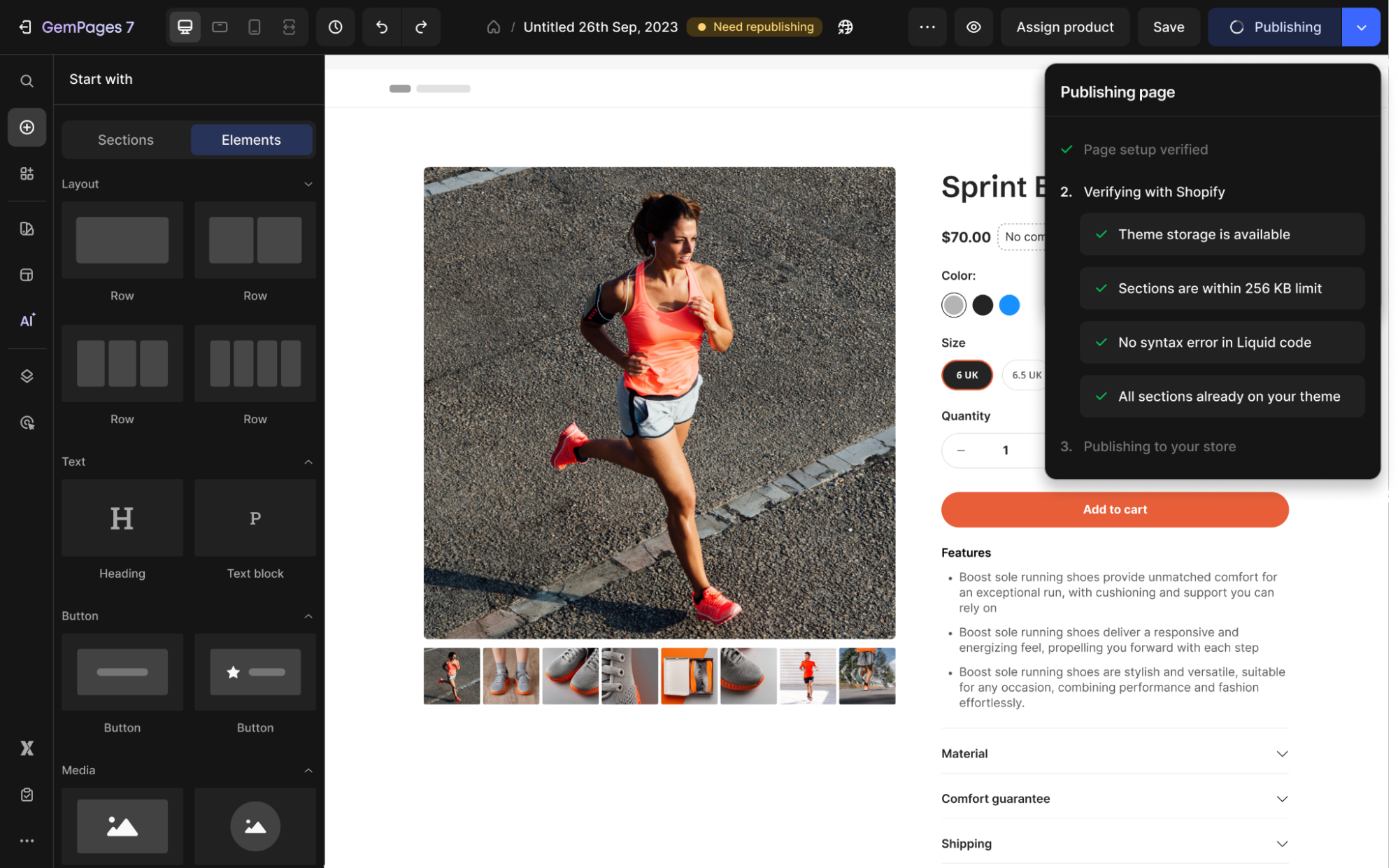
Once all Shopify validations pass, the publishing process moves to the final step.
Step 3: Publishing to the Store
During this process, the system performs one final verification:
Check page handle conflicts: GemPages checks whether the page handle being published already exists in the Shopify store. If a duplicate handle is detected, the publishing process stops.
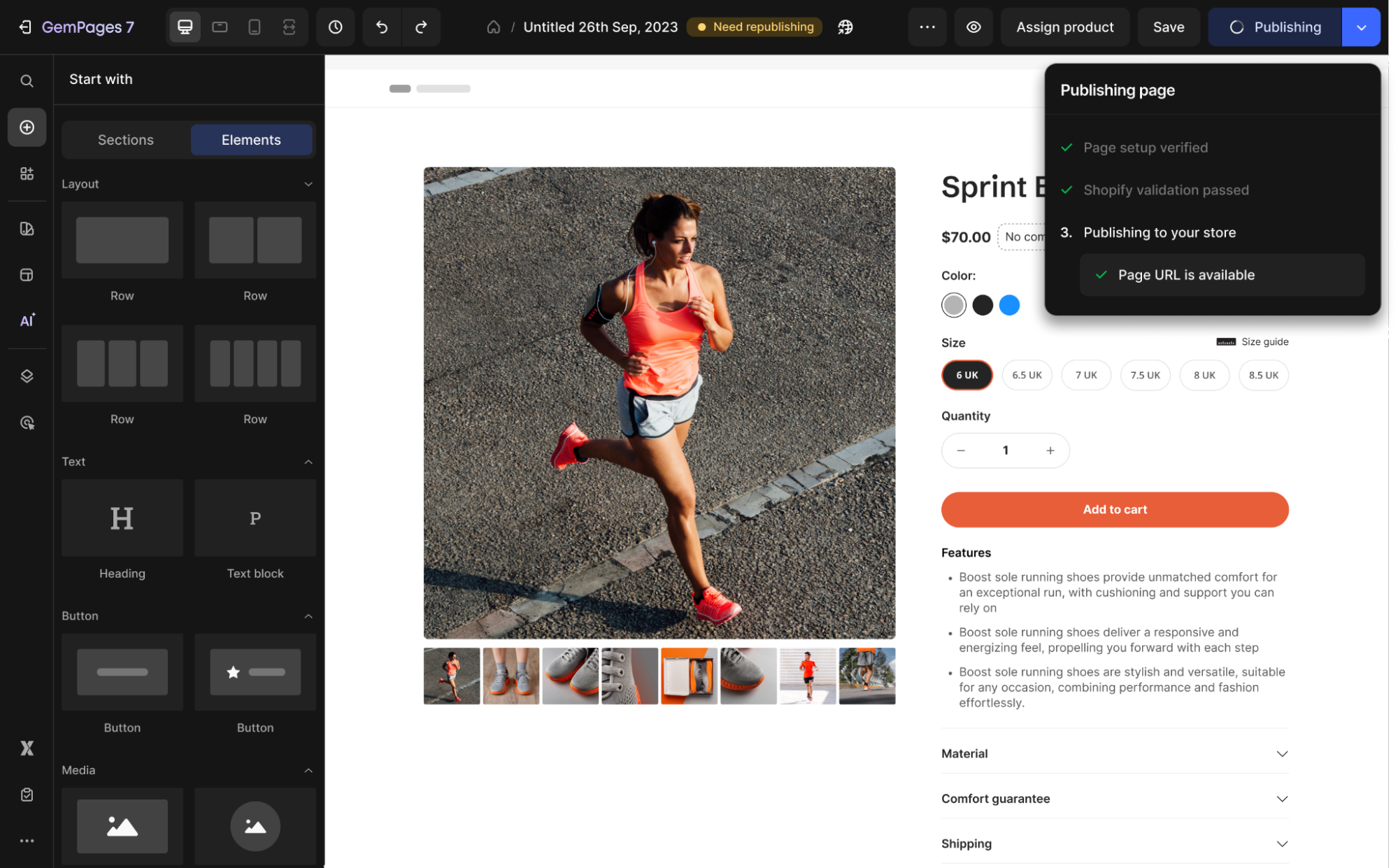
If everything is valid, the page is successfully published to the store.


Thank you for your comments