


To reorder columns in a row in GemPages, select the row, open the Item Management section in the right-hand settings panel, then drag each column up or down to change its position. The new order applies instantly without affecting your content or styles.
If you’ve ever wanted to flip an image and text block, rearrange a feature list, or test a different layout order, you don’t need to move each element by hand. GemPages’ Item Management lets you reorder entire columns inside a row in just a few clicks.
What is column reordering in GemPages?
Column reordering is a feature inside GemPages’ Item Management panel that lets you change the position of columns within a row. Instead of dragging individual elements (like images, headings, or buttons) from one column to another, you can move an entire column — along with everything inside it — to a new position with a single drag.
When to reorder columns in a row
Reordering columns through Item Management is the fastest approach when you want to:
- Flip an image and text layout for example, moving a product image from the right column to the left column without rebuilding the section.
- Rearrange multi-column rows such as feature highlights, testimonial groups, or product collections.
- A/B test different layout orders during design iterations.
- Keep all element settings intact while only changing the column order on the page.
How to reorder columns in a row in GemPages
Follow these two steps to change the column order in a row.
Step 1: Select the row containing the columns you want to reorder
In the GemPages editor, click on the row you’d like to rearrange. Make sure you’re selecting the Row itself, not a column or an element inside it. Once selected, the row will be highlighted and the row settings panel will open on the right side of the editor.
Step 2: Reorder the columns in the Item Management section
Scroll down to the Item Management section. You’ll see a list of all the columns inside the selected row, displayed in their current left-to-right order.
To change the order:
- Click and hold the column you want to move.
- Drag it up or down in the list to its new position.
- Release to drop it in place.
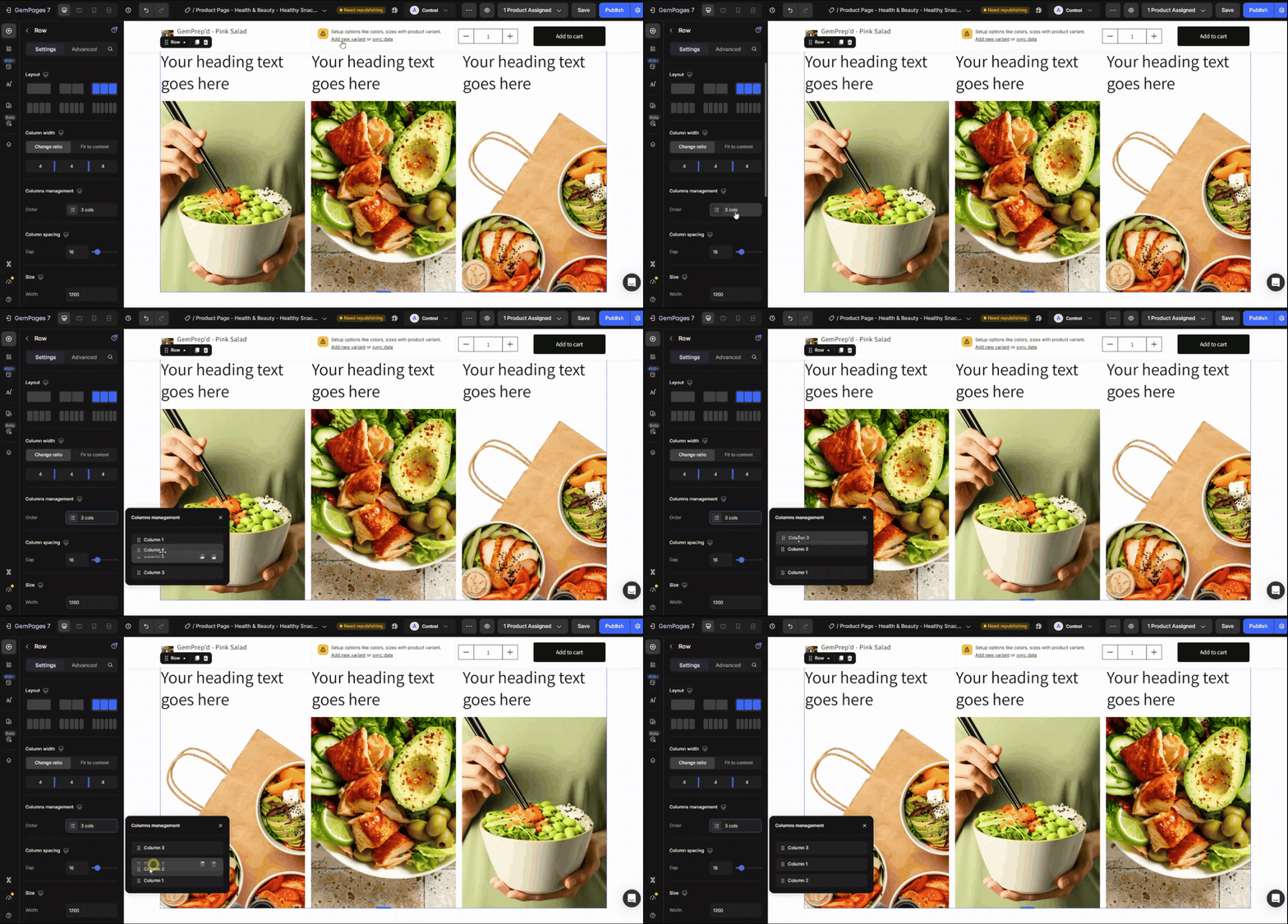
The layout in the editor updates instantly to reflect the new column order. All elements, styles, animations, and responsive settings inside each column stay exactly as they were — only the position changes.


Thank you for your comments