


In GemPages, several elements such as Carousel, Tabs, Accordion, and Item List are built using items. Each item works like a repeatable block that contains content such as images, text, buttons, or icons.
Instead of designing each item from scratch, you can design one item first and then duplicate it to create multiple items with the same layout and style. This helps you work faster and keeps your design consistent across all items.
This article will guide you through how to quickly duplicate items inside Item Management so you can build layouts more efficiently in GemPages.
When Should You Duplicate Items?
Duplicating items is especially useful when:
- You want multiple slides in a Carousel with the same layout
- You need several Tabs with identical structure
- You are creating multiple Accordion sections
- You want consistent layouts inside an Item List
For example, instead of designing 4 carousel slides separately, you only need to design one slide, then duplicate it 3 more times and update the content.
This method significantly reduces design time and keeps spacing, typography, and layout consistent.
How to Duplicate Items in Item Management
In this example, we will demonstrate using a Carousel element, but the same steps apply to Tabs, Accordion, and Item List elements.
Step 1: Select the element with Item Management
From the editor canvas:
- Click on the Carousel element
(You can also use Tabs, Accordion, or Item List — any element that supports Item Management.)
Once selected, the Element Settings panel will appear on the left side of the editor.
Step 2: Find the Item Management section
Scroll down inside the Element Settings panel until you see the Item Management section.
Inside this section, you will see:
- A list of existing items
- Control icons for each item
- The Duplicate icon
Click the Duplicate icon on the item you want to copy.
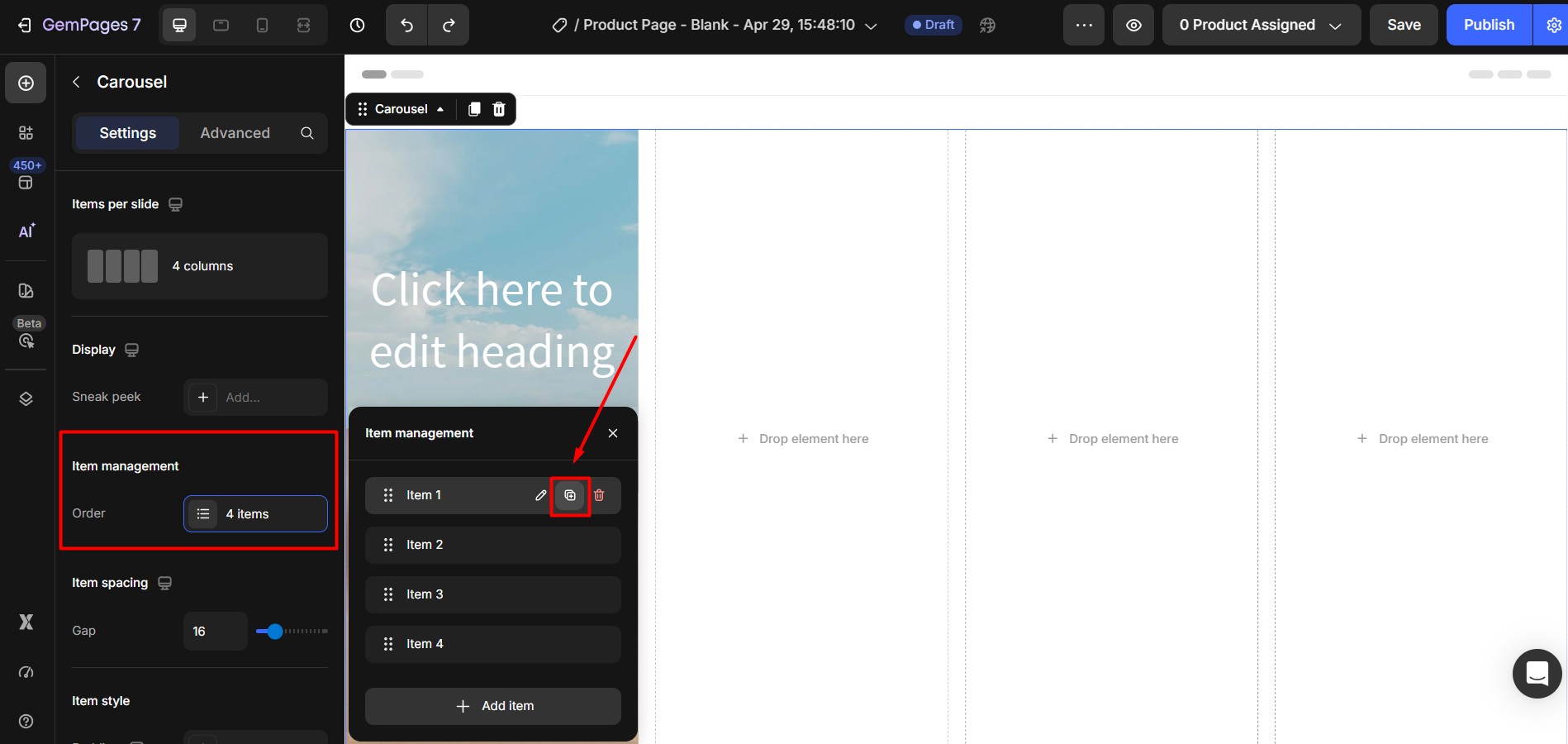
GemPages will immediately create a new item with the same layout, style, and content as the original item.
Step 3: Customize the duplicated item
After duplicating the item:
- A new identical item will appear in the list
- You can now edit the content inside the duplicated item
- Update text, images, or buttons without affecting the original item
Your layout structure remains the same, so you only need to change the content.
Example Use Case: Create 4 Carousel Items Quickly
Let’s say you want to create 4 carousel slides with the same layout.
Instead of designing all 4 manually, follow this workflow:
- Design Item 1 completely
(Add image, text, buttons, styling, spacing, etc.) - Duplicate Item 1 three times
This will instantly create:- Item 2
- Item 3
- Item 4
- Update the content inside each duplicated item
Replace images or text as needed.
Result: You now have 4 consistent carousel slides created in a fraction of the time.


Thank you for your comments