


Customizing the background color of a text area can help your contact form better match your store branding and improve the overall user experience.
In this article, you’ll learn how to change the background color of a text area inside the Contact Form element in GemPages using simple custom CSS code.
Step 1: Open the Custom Code Panel
Inside the GemPages editor:
- Right-click the Text Area field you want to customize
- Select Custom Code
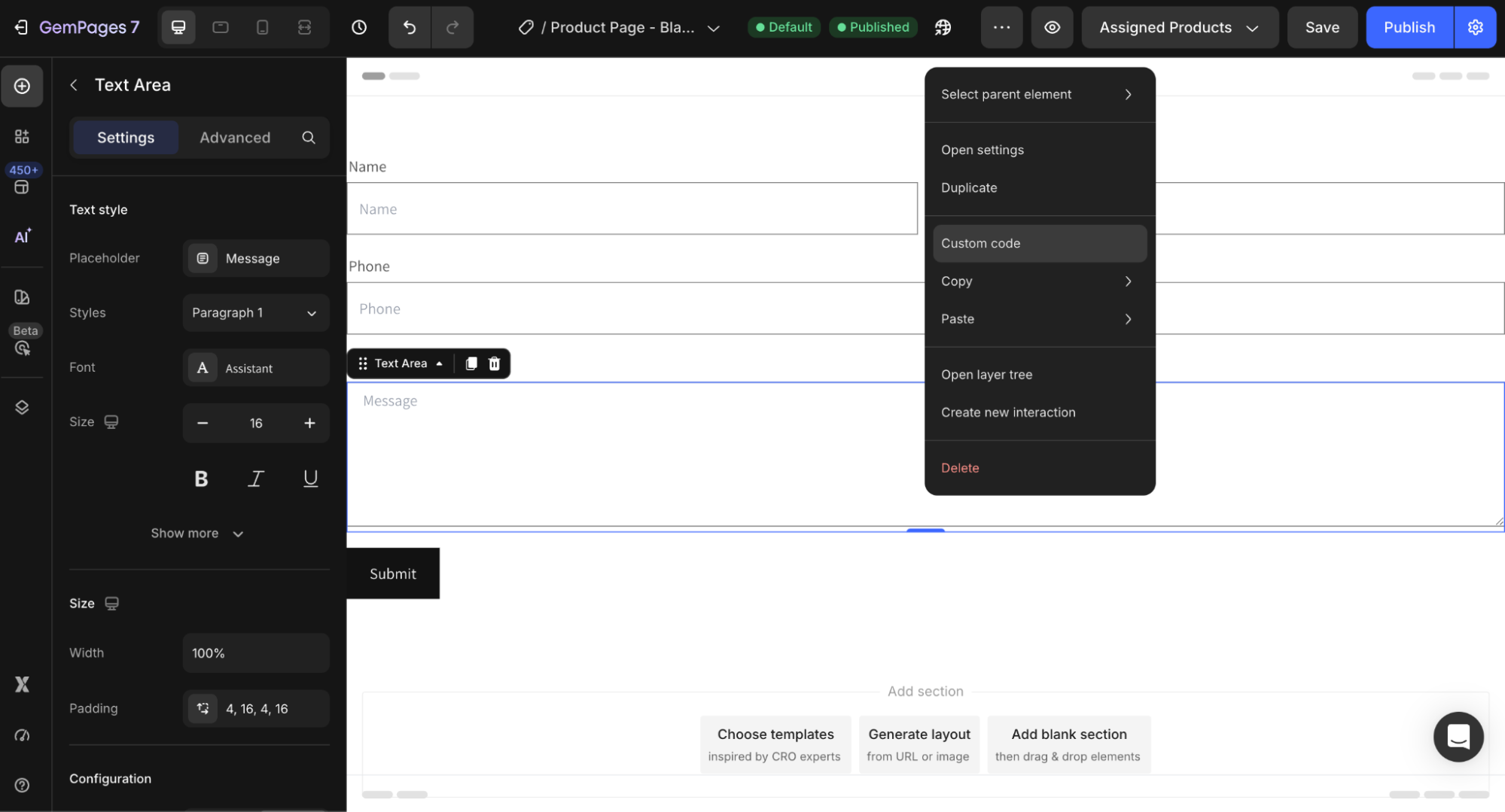
The Custom Code panel will appear.
Step 2: Add the CSS Code
Paste the following code into the Custom Code field:
ElementClass textarea {

 background-color: red !important;

}
Important Note:
- Replace ElementClass with the actual class of your element. You can find the element class at the top of the Custom Code panel.
- You can also replace red with any color you want.
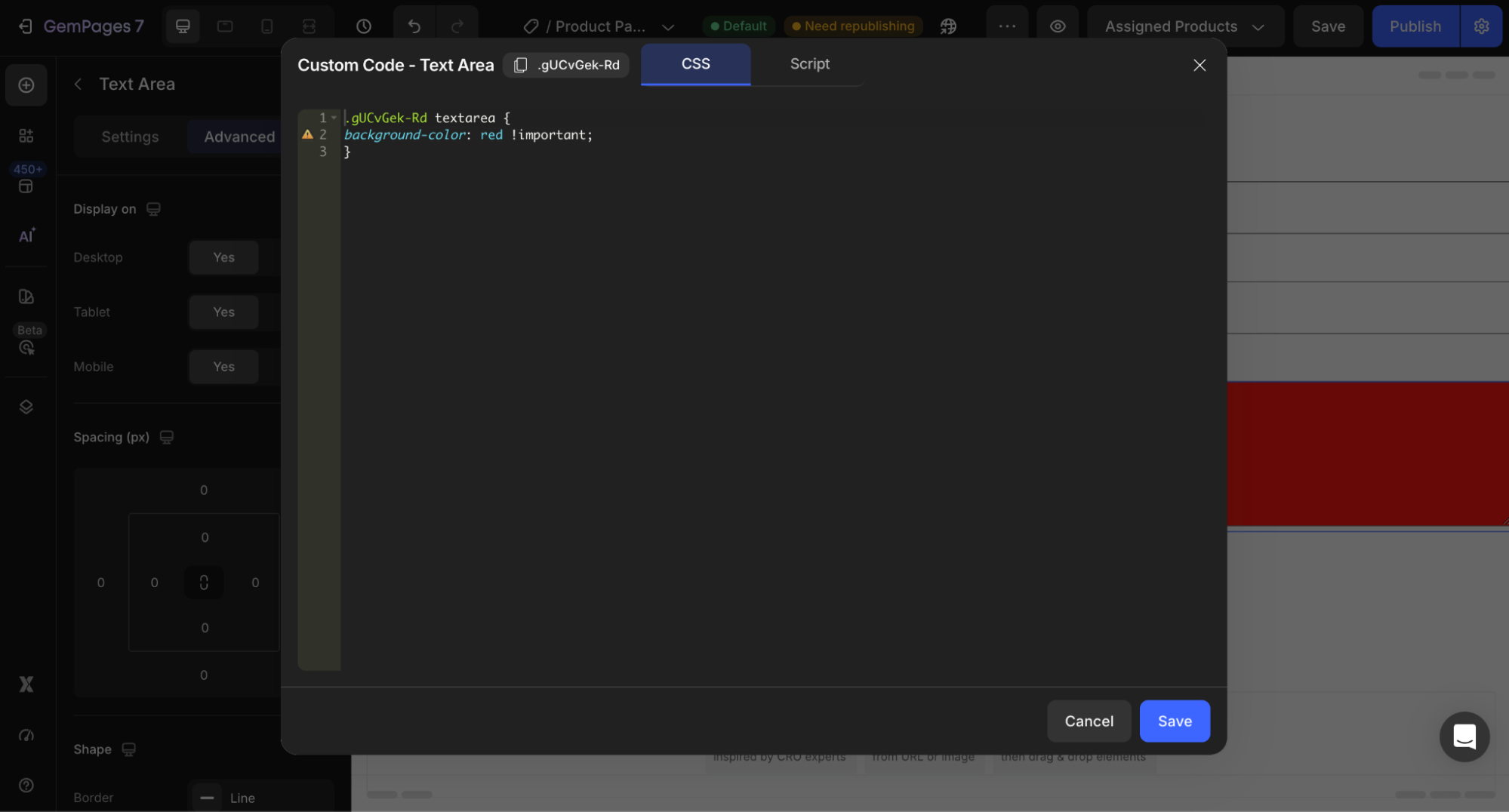
Examples:
background-color: #000000;
background-color: #f5f5f5;
background-color: rgba(255,255,255,0.8);
Step 3: Save and Publish
After adding the code:
- Click Save
- Publish or update your page
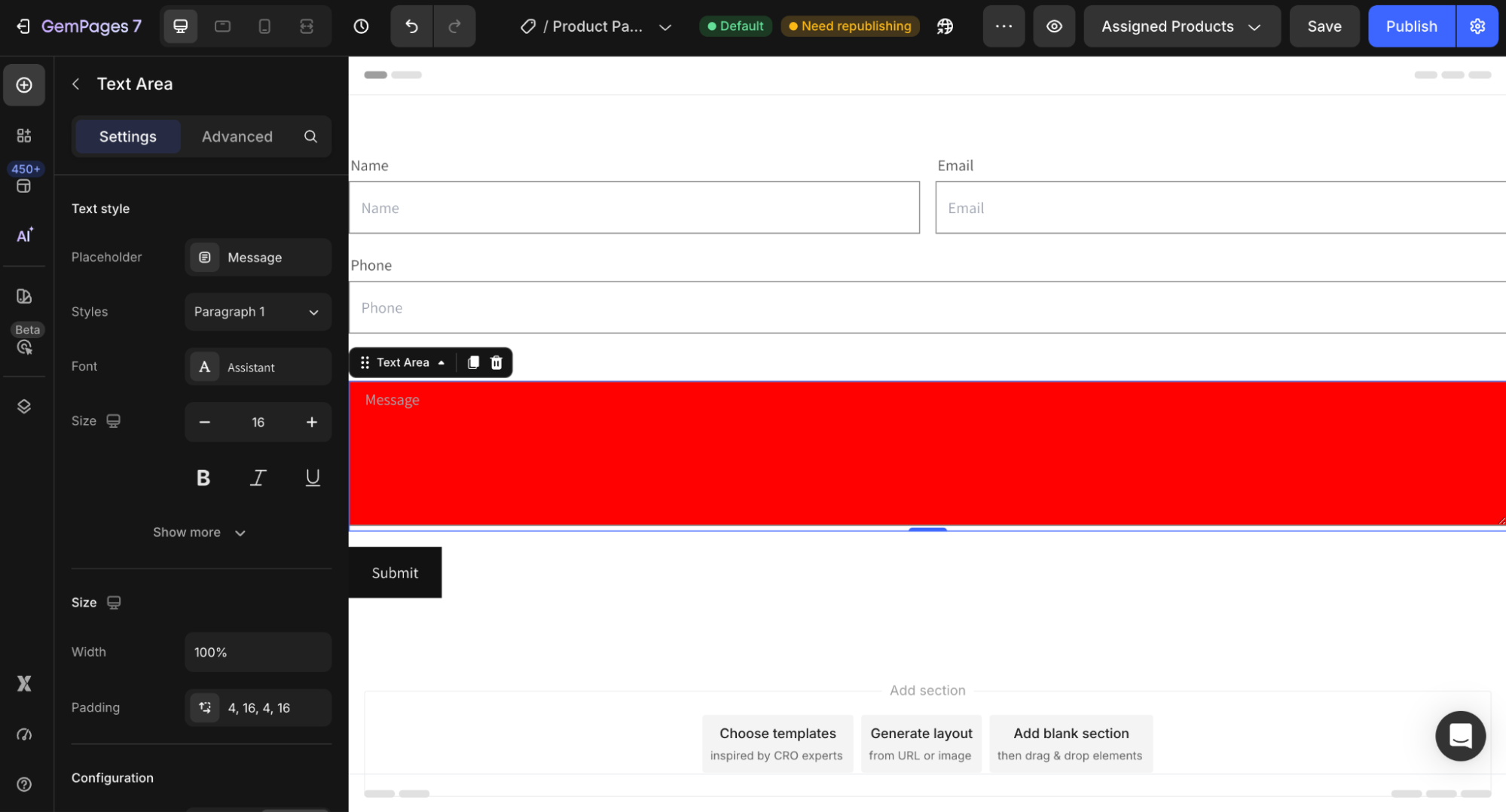
- Preview the contact form to confirm the new background color is applied correctly


Thank you for your comments