


When using the Carousel element in GemPages, you may notice that the content block and video element do not have the same height. This can make the layout look uneven, especially on landing pages or product showcases.
This tutorial will show you how to make the video height automatically match the content height inside a Carousel element using a simple custom CSS snippet.
Why Are the Content and Video Heights Different?
By default, the Content and Video elements inside a Carousel may adjust their height based on their own content.
For example:
- The text column may become taller because of longer descriptions or buttons.
- The video column may keep its original aspect ratio and appear shorter.
Adding a custom CSS rule allows the Video element to stretch and match the height of the content section for a cleaner and more professional design.
How to Make Content and Video the Same Height in the Carousel Element
Step 1: Open the Video Element Custom Code Panel
First, you need to access the custom code settings for the Video element.
- Open your page in the GemPages editor.
- Navigate to the Carousel element.
- Select the Video element inside the Carousel.
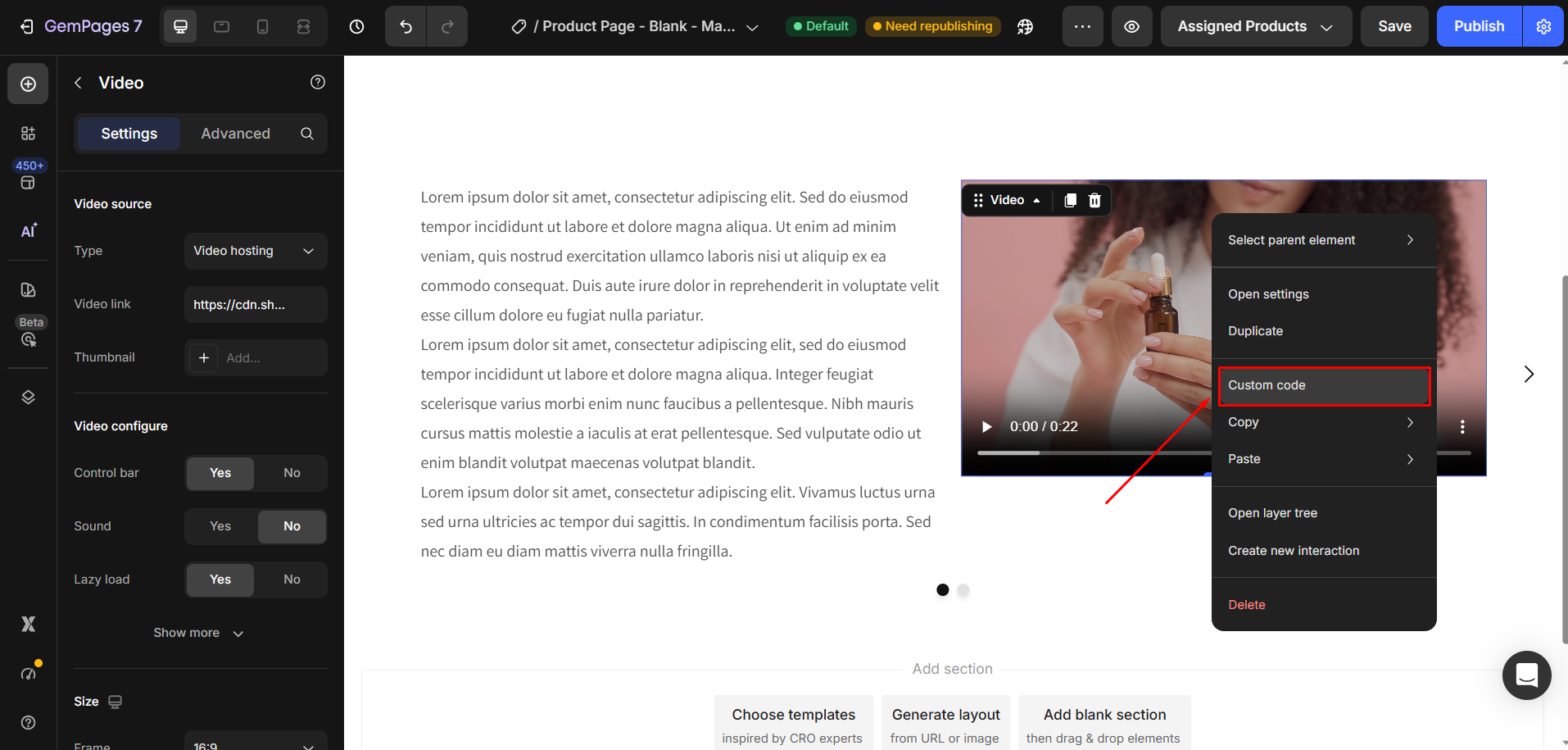
- Right-click the element.
- Click Custom Code.
Step 2: Add the CSS Code
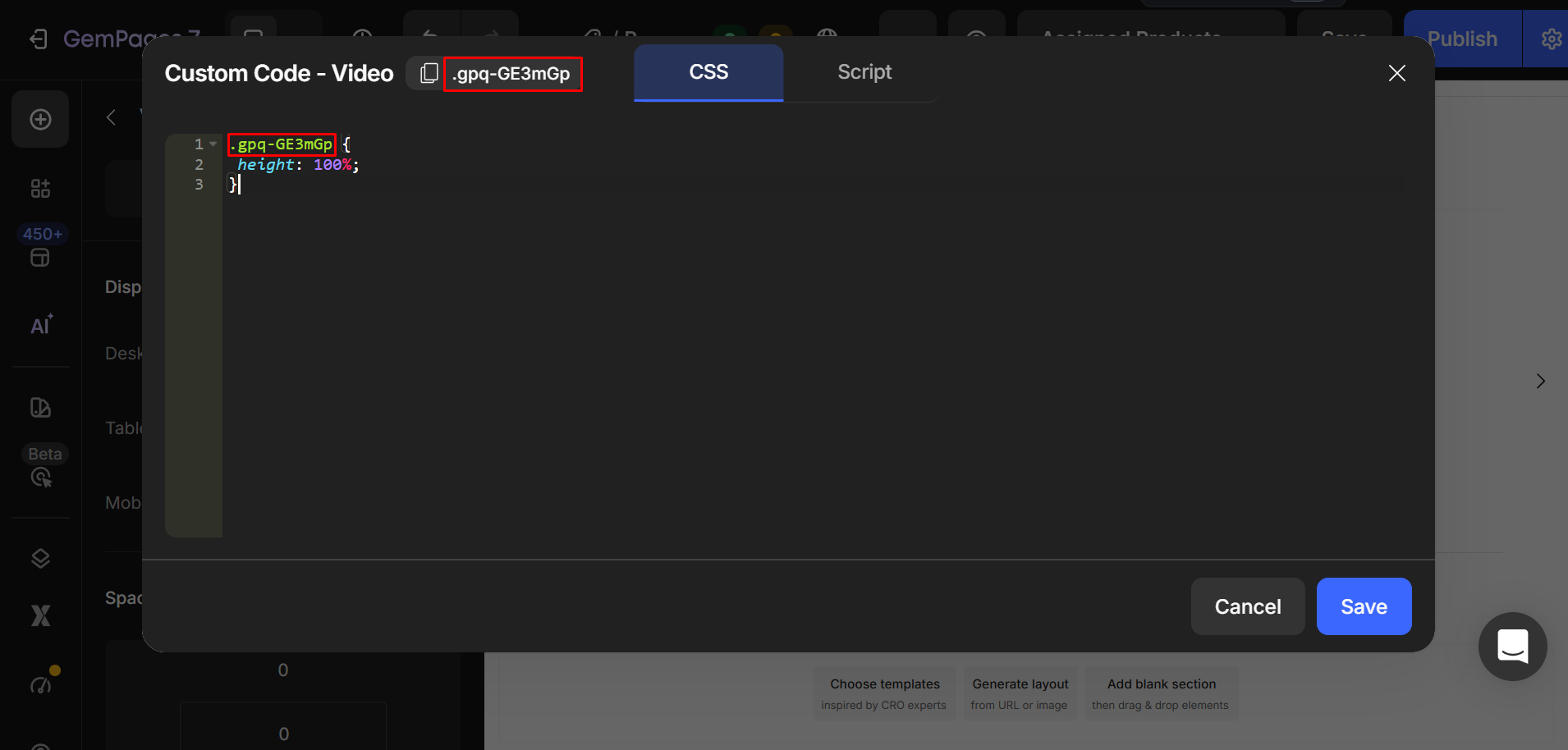
Paste the following code into the Custom Code panel:
.ElementClass {

 height: 100%;

}
This CSS makes the Video element take up the full available height inside the Carousel layout.
Step 3: Replace .ElementClass With the Actual Element Class
You need to replace .ElementClass with the real class name of your Video element.
You can find the class name displayed at the top of the Custom Code panel.
Step 4: Preview and Publish Your Page
After adding the code:
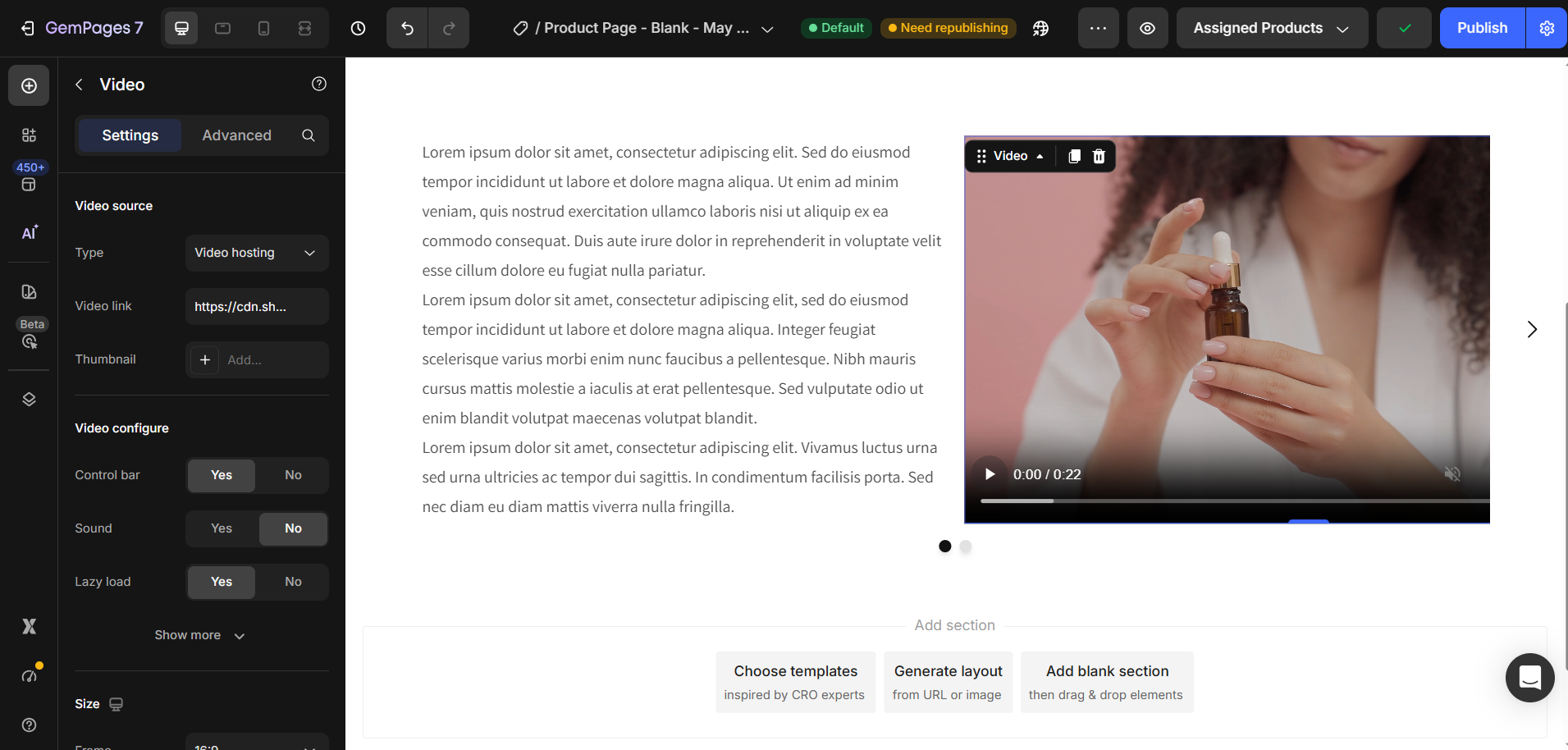
- Click Preview to check whether the content and video now display with equal height.
- Test the layout on desktop and mobile view.
- Once everything looks correct, click Publish to apply the changes to your live store.


Thank you for your comments