


When designing pages in GemPages, you may want multiple elements to share the same styling — such as font, size, color, or spacing. Instead of manually adjusting each element one by one, you can use the Copy/Paste Style feature to apply the same styling quickly.
This feature is especially useful when working with Heading and Text Block elements, where consistent typography is important.
When Should You Use Copy/Paste Style?
Copying and pasting styles is helpful when:
- You want multiple Heading elements to use the same font
- You need to update font size across many elements
- You change typography settings (font family, bold, spacing)
- You want consistent styling across similar elements
- You are making bulk style updates on a page
For example, if you update the font of one Heading and want all other Headings to match, using Copy/Paste Style is much faster than editing each Heading manually.
Important Note Before You Start
You can only copy styles between the same element type.
For example:
✅ Supported:
- Heading → Heading
- Text Block → Text Block
- Button → Button
❌ Not supported:
- Heading → Text Block
- Text Block → Button
Make sure the source element and target element are the same type before applying styles.
How to Copy and Paste Styles
In this example, we will copy styles from one Heading element and apply them to other Heading elements.
Step 1: Right-click the element you want to copy styles from
First, identify the element that already has the correct styling.
For example:
- A Heading with the correct font
- Correct font size
- Correct bold or spacing
Then:
- Right-click on the element
- A context menu will appear
Step 2: Click Copy → Copy Style
From the context menu:
- Click Copy
- Then select Copy Style
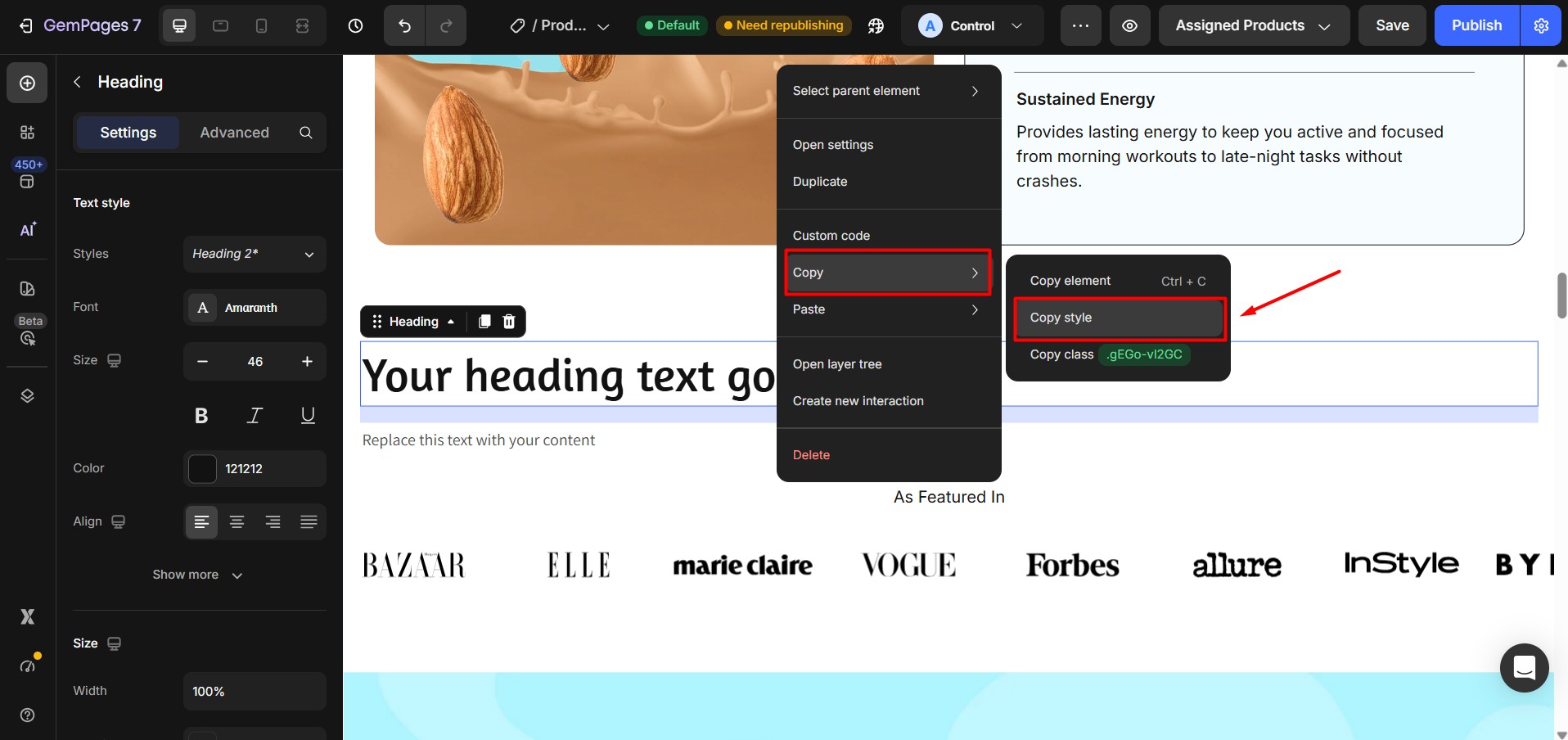
This action copies all style settings from the selected element.
These styles include typography, spacing, and visual styling.
Step 3: Paste the style to another element
Next, apply the copied style to another element.
To do this:
- Right-click the target element
- Click Paste → Paste Style
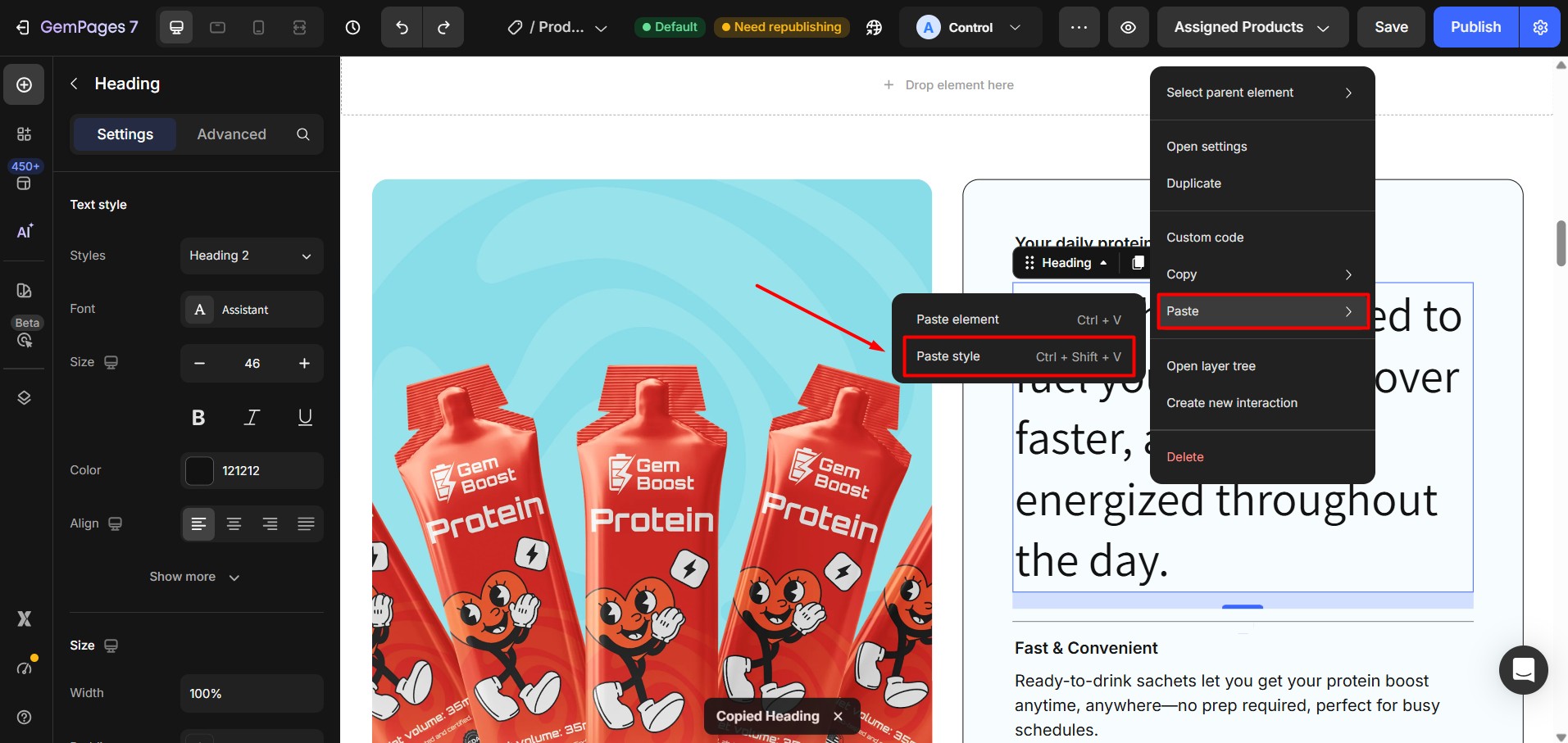
After pasting:
- The target element will immediately adopt the same style
- Its typography and visual appearance will match the original element
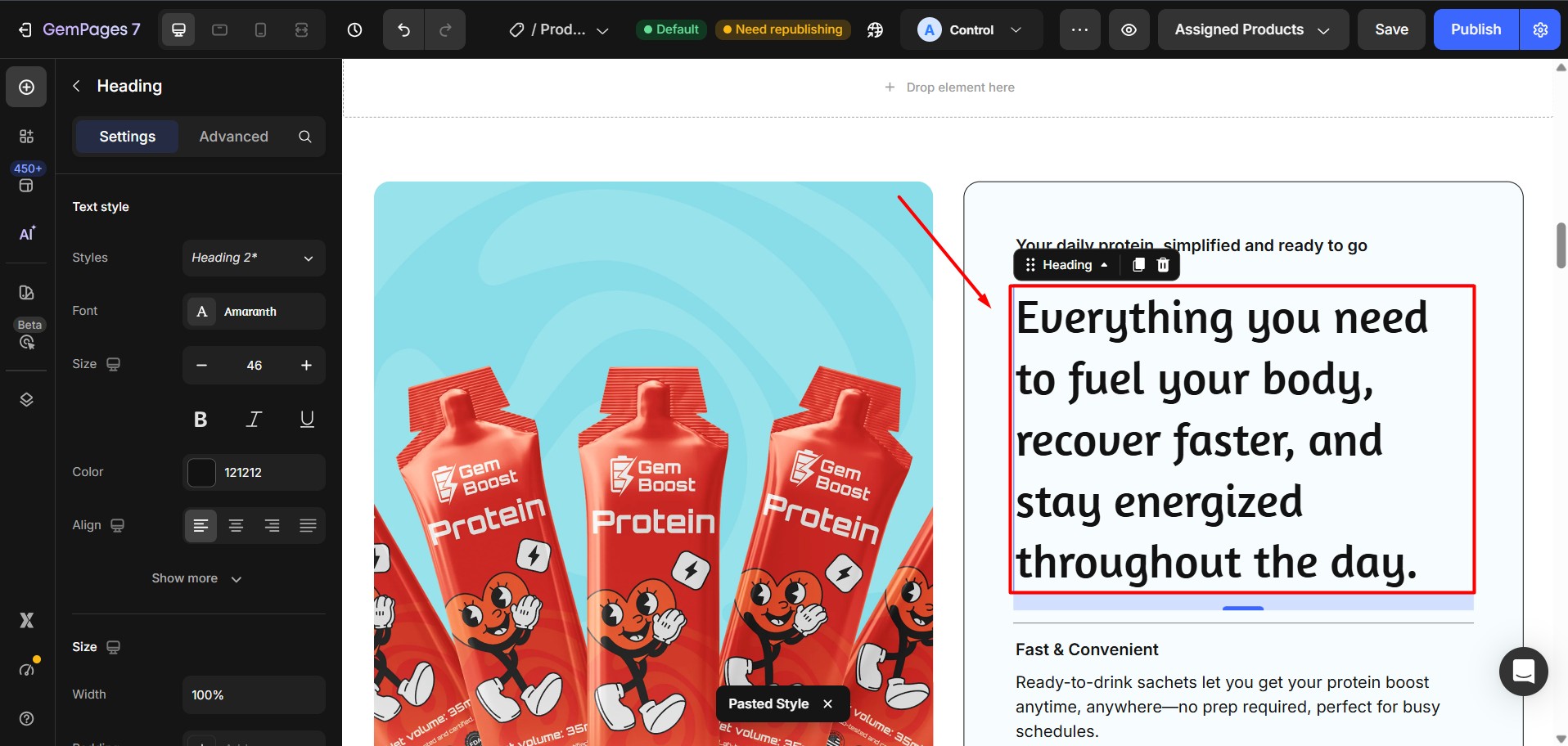
You can repeat this step to apply the same style to multiple elements.


Thank you for your comments