


About the Right Shadow Not Displaying Issue
In some cases, when you enable shadow effects inside a Carousel element, the right-side shadow may be hidden or cut off.
This happens because the Carousel container often uses:
overflow: hidden;
This setting prevents content from extending outside the container boundaries. As a result:
- Shadows on the right side may not be visible
- Elements near the edge may appear clipped
- Design effects such as glow or depth may look broken
The solution is to update the overflow setting to allow shadows to display properly.
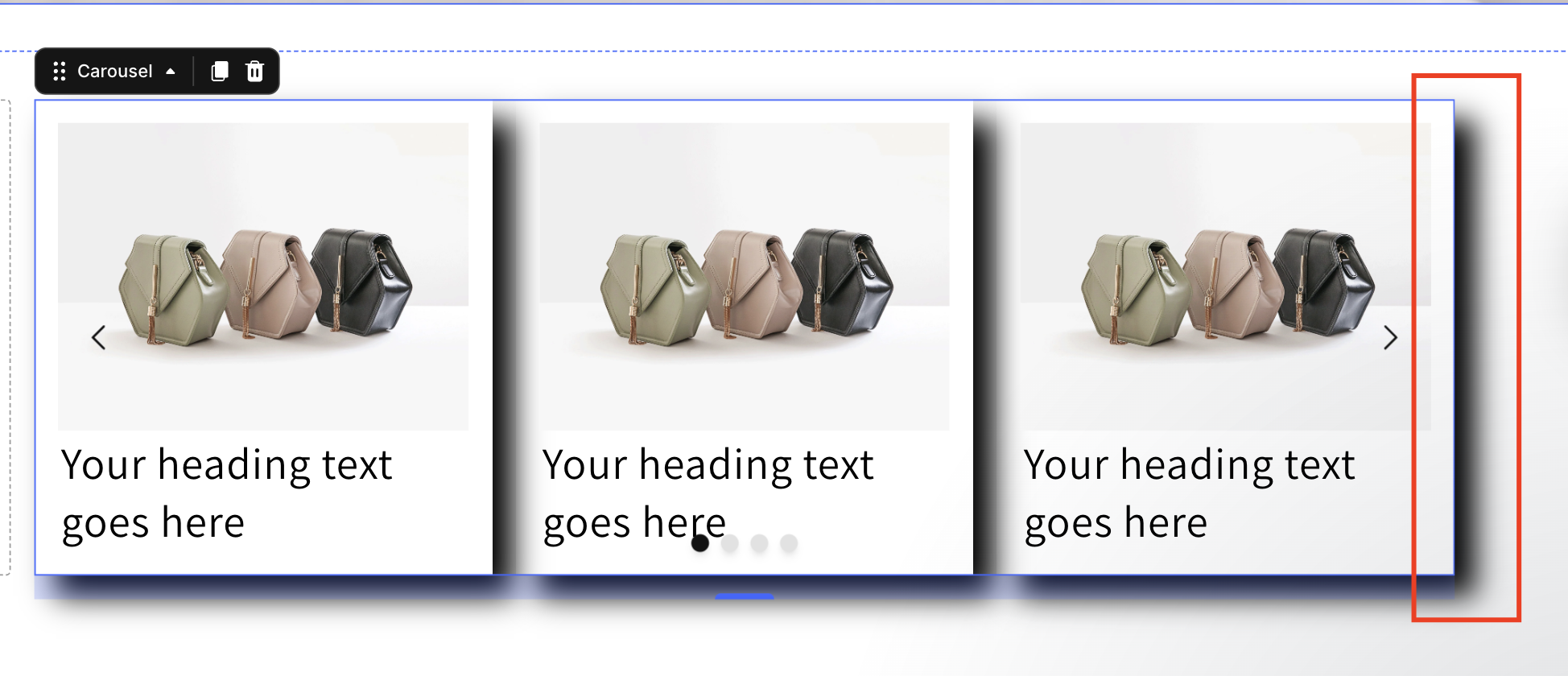
You may be experiencing this issue if:
- The left shadow displays normally
- The right shadow is missing or partially cut
- Shadows appear inside the editor but not on the live page
- Shadow effects disappear when placed near the edge of a Carousel
If any of these apply, follow the steps below.
How to Fix Overflow Setting in Carousel
You can fix this issue by adding a simple custom CSS rule to your Carousel element.
Step 1: Open Your Page in GemPages Editor
From your GemPages Dashboard, open the page that contains the Carousel where the shadow issue occurs.
Locate the Carousel element where the right shadow is not displaying correctly.
Step 2: Find the Carousel Class Name
Right-click directly on the Carousel element.
Then:
- Select Custom Code
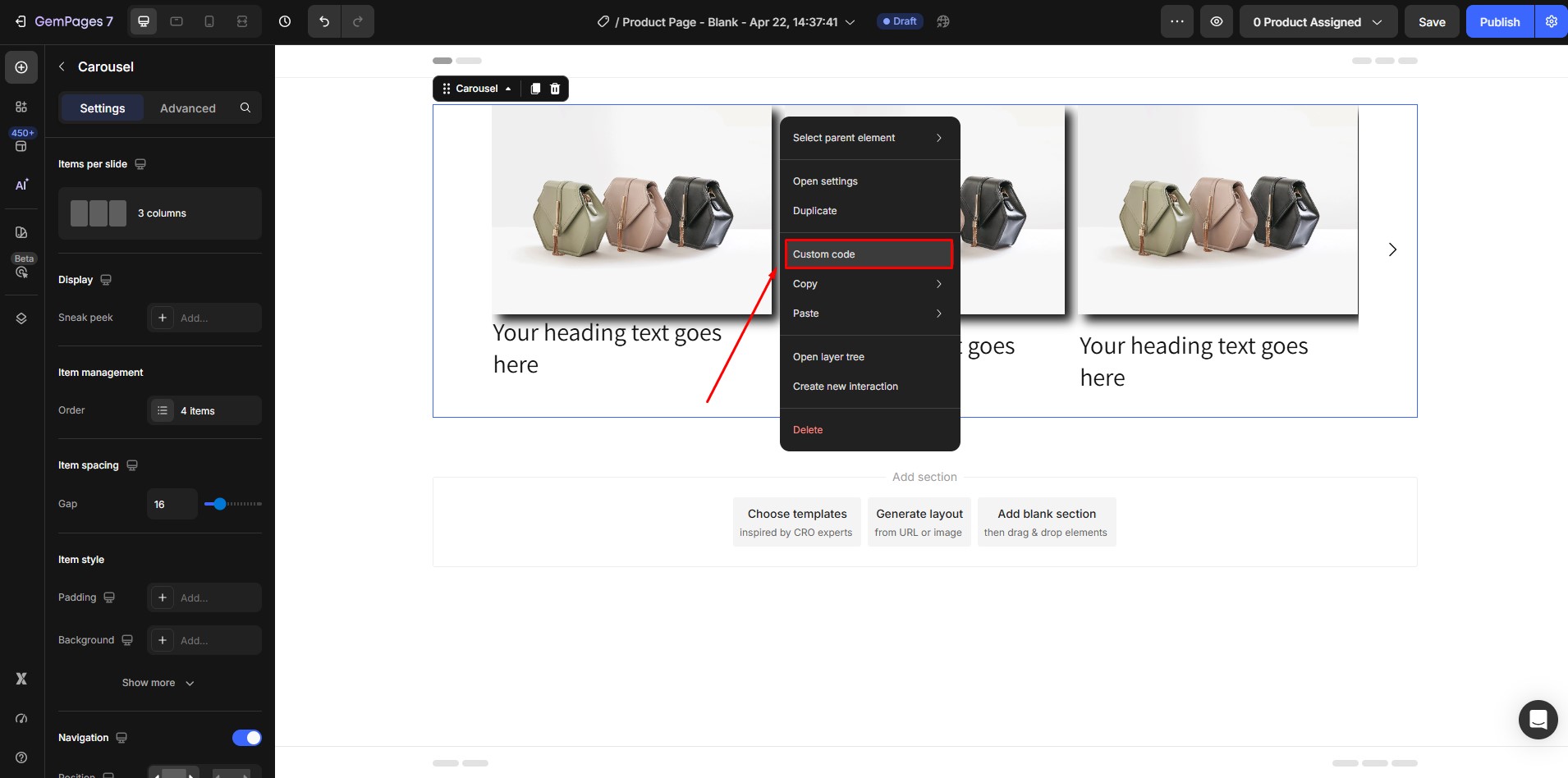
- The CSS panel will open
- Look at the first line — this is your Carousel class
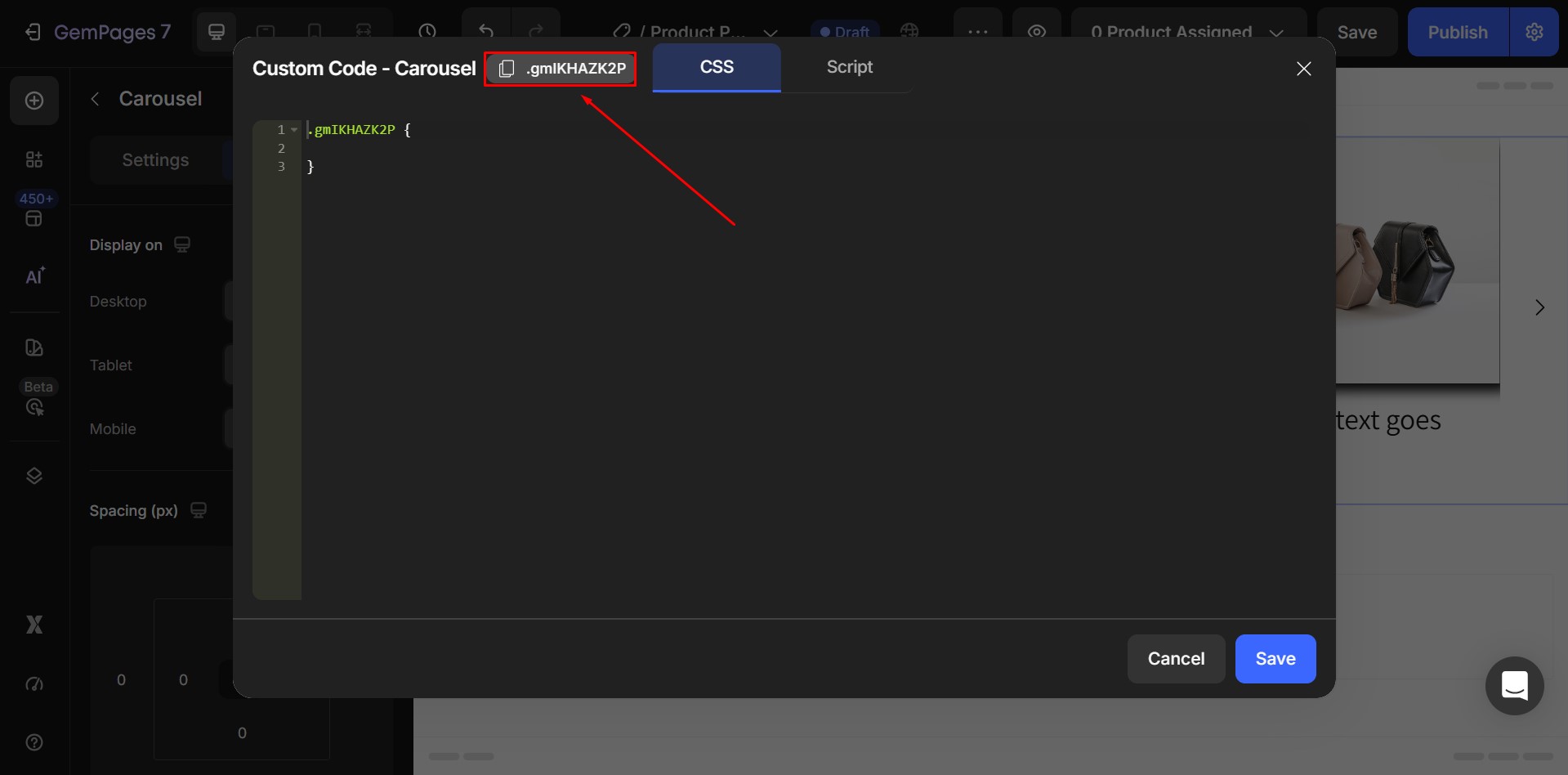
Copy this class name. You will use it in the next step.
Step 3: Add Custom Overflow Code
Paste the following code into the Custom Code panel:
| #gp-carousel-class-of-carousel {
overflow: visible; } |
Then:
Replace:
#gp-carousel-class-of-carousel
With:
Your actual Carousel class.
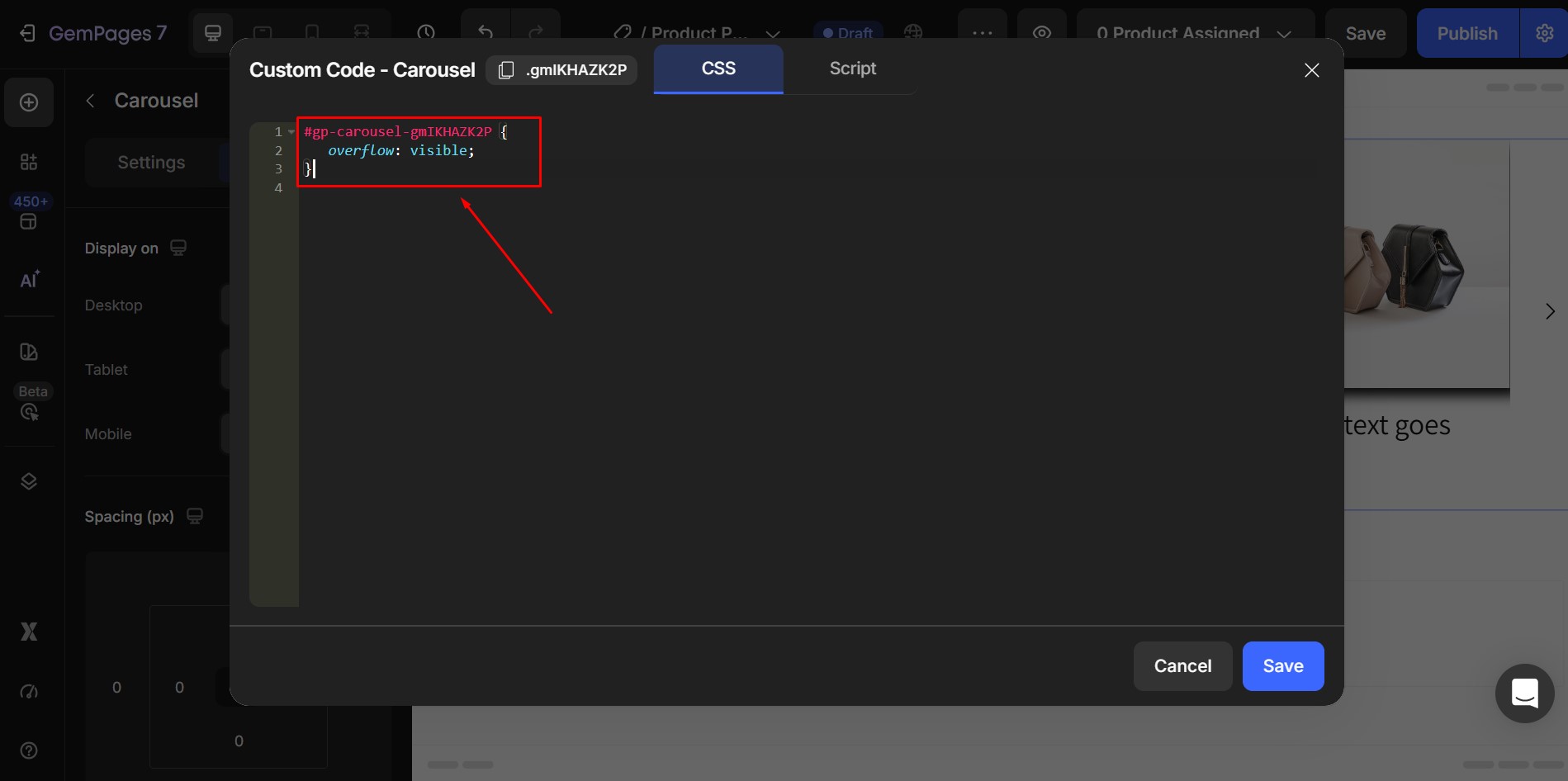
For example, if your Carousel class is: .gp-carousel-abc123
Your final code should look like:
.gp-carousel-abc123 {
overflow: visible;
}
After adding the code:
- Click Save
- Refresh the preview
- Check if the right shadow is now visible


Thank you for your comments