


About WC Wishlist & Back in Stock
WC Wishlist & Back in Stock empowers your customers to save their favorite products for future purchases, helping you boost sales effortlessly with Guest, Multiple, and Share Wishlist features.
Key Features of WC Wishlist & Back in Stock
- Save for later: Let customers wishlist their favorite products for future purchases.
- Wishlist icons across your store: Display wishlist icons on Home, Collection, and Product pages to boost conversion.
- Smart alerts: Send Price Drop, Re-stock, and Back in Stock notifications to bring shoppers back.
- Live tracking: Monitor real-time product and user wishlist activity to improve performance.
- Automated email reminders: Re-engage buyers and generate more orders with automatic wishlist emails.
Available App Blocks
The app provides four interactive widgets you can place on your GemPages templates. Each widget is designed for a specific page type and use case.
| Block Name | Description | Type | Supported Page | Functionality |
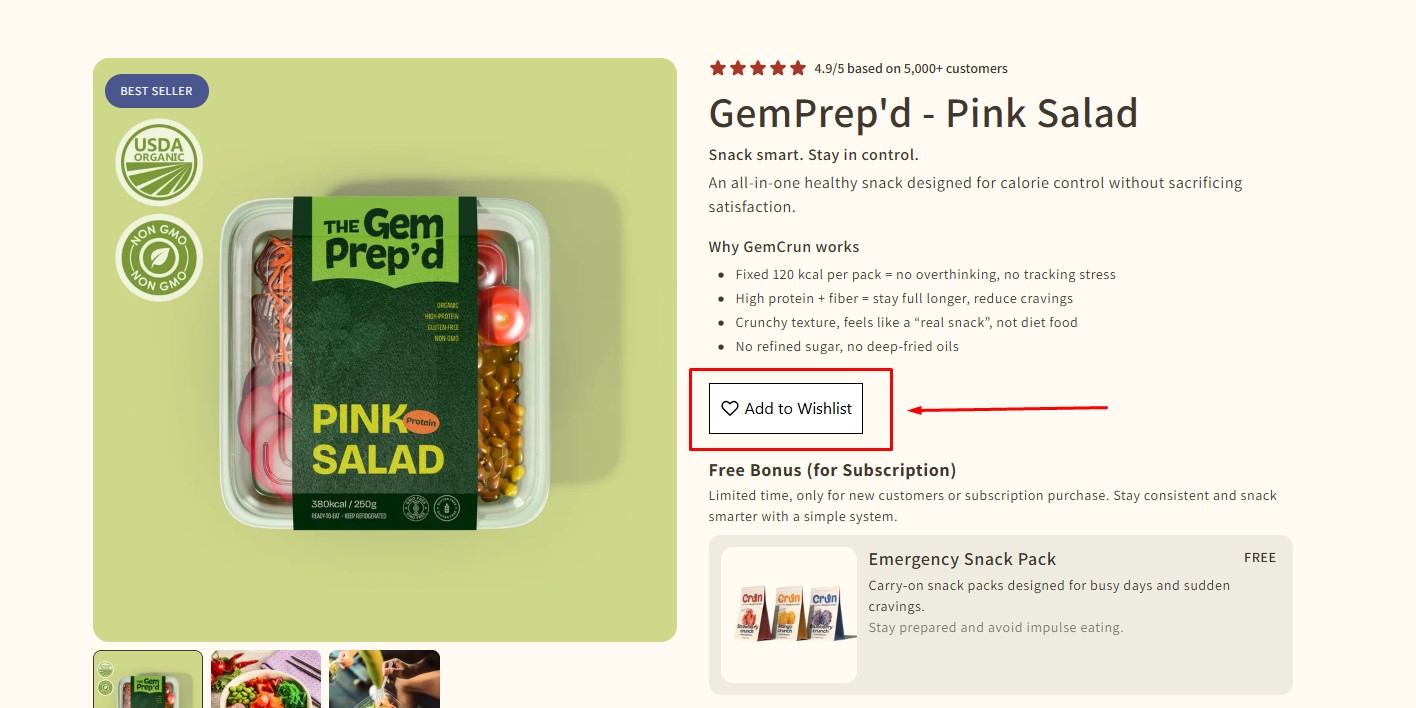
| Wishlist Products | Allows customers to add products to their wishlist directly from the product page. | Interactive widget | Product page only | – Add product to wishlist – Remove product from wishlist
– Uses dynamic product and variant ID |
| Back In Stock Products | Allows customers to subscribe to notifications when an out-of-stock product becomes available. | Interactive widget | Product page only | – Customer enters email for restock alert
– Notification sent when product is back in stock |
| Wishlist Collections | Adds wishlist functionality to products displayed on collection pages. | Interactive widget | Collection page only | – Add/remove products from wishlist
– Works dynamically for each product card |
| Back In Stock Collections | Allows customers to subscribe to restock notifications from product cards on collection pages. | Interactive widget | Collection page only | – Subscribe to restock notification
– Dynamic product detection |
How to Install & Set Up WC Wishlist & Back in Stock?
Follow these steps to install the app and prepare it for use with GemPages.
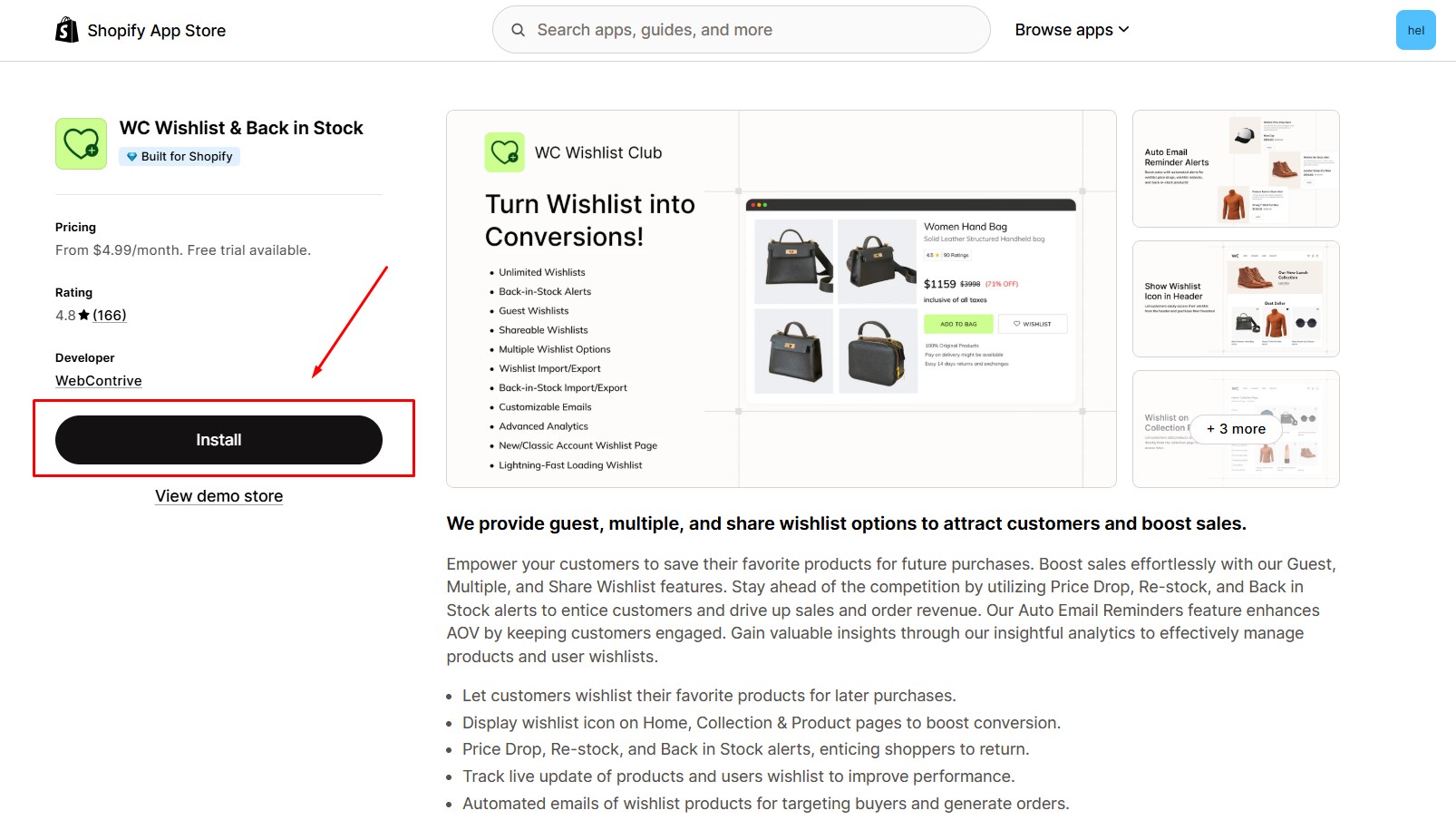
Step 1: Install WC Wishlist & Back in Stock in the Shopify App Store.
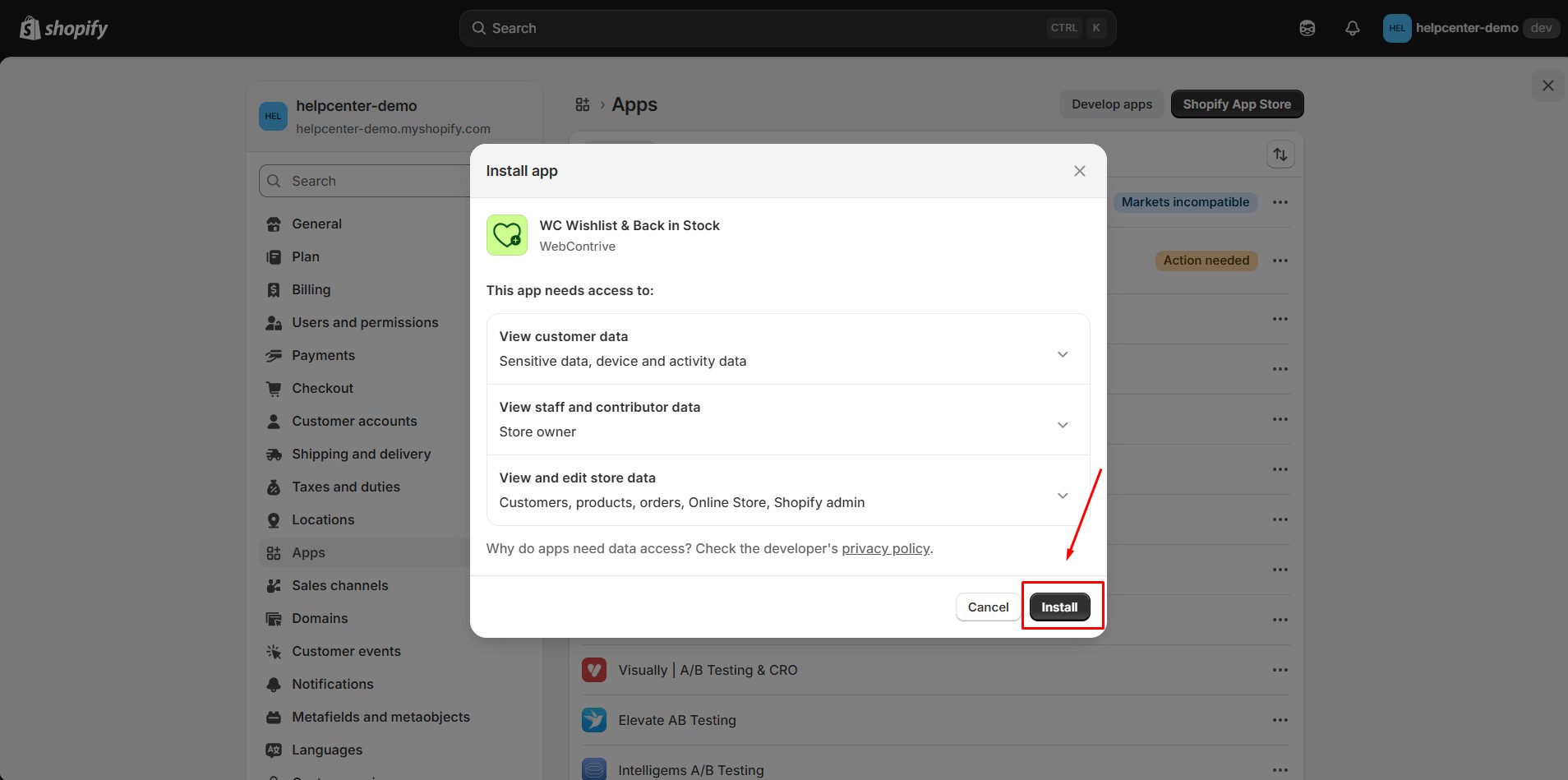
Step 2: Provide the app with access to the required data.
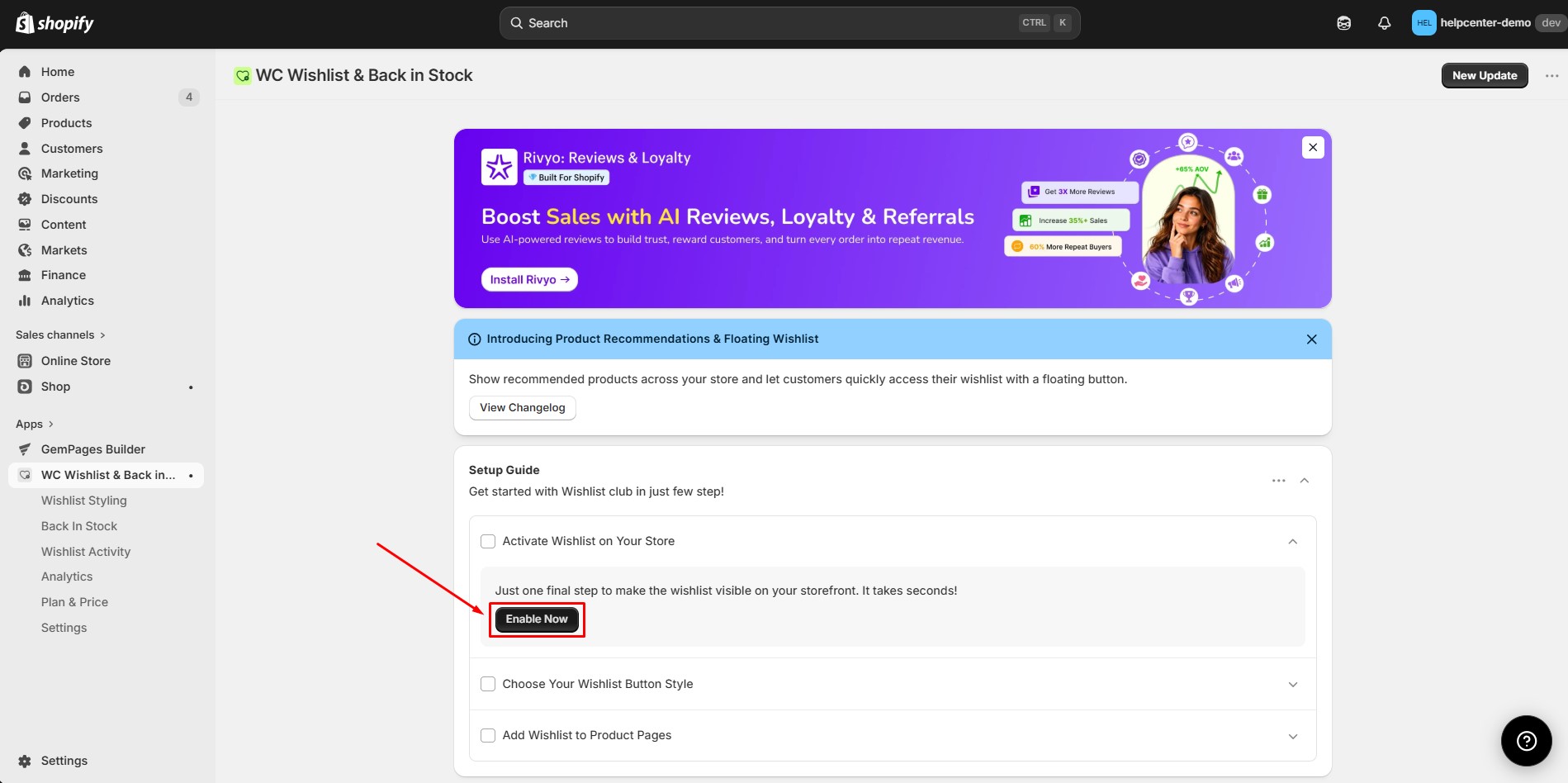
Step 3: Click Enable now to activate the app embed on your store.
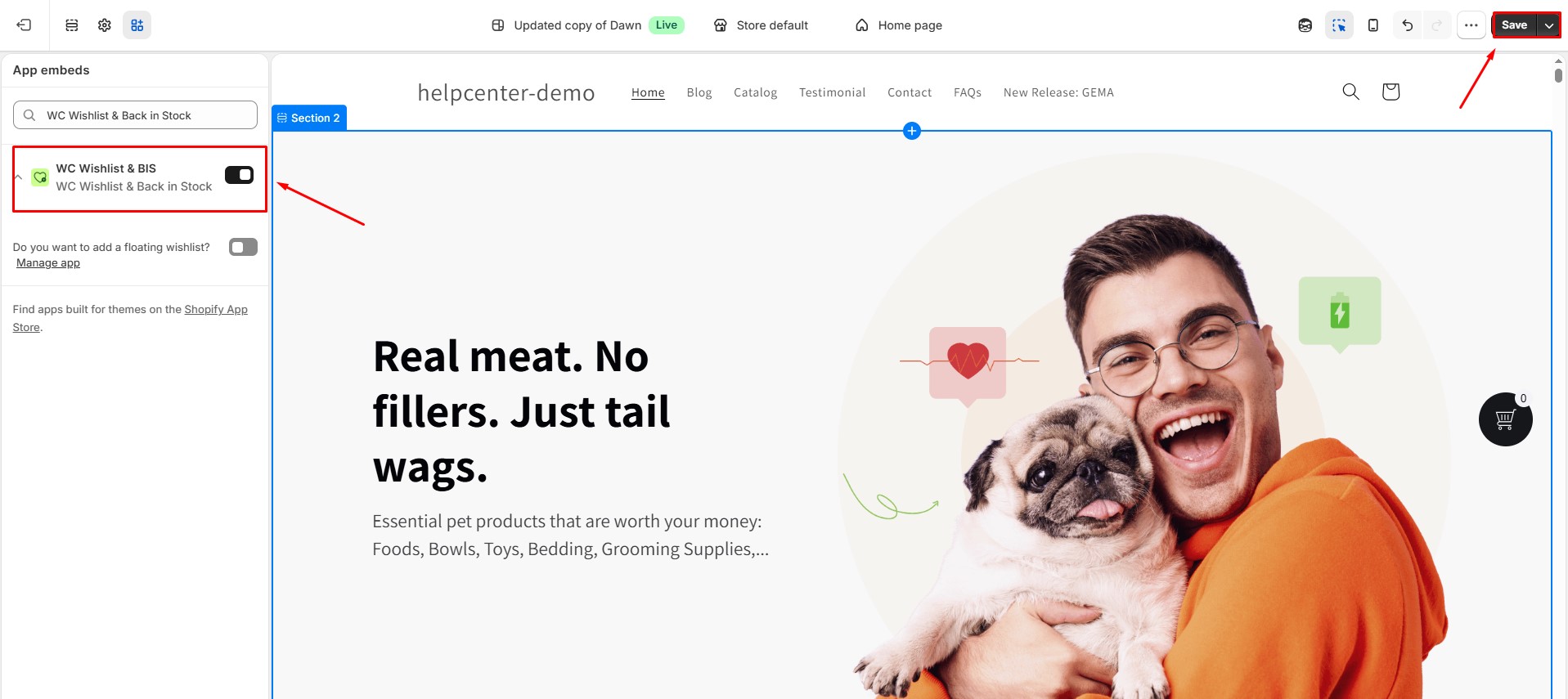
Step 4: Toggle the app embed on, then click Save to apply the change.
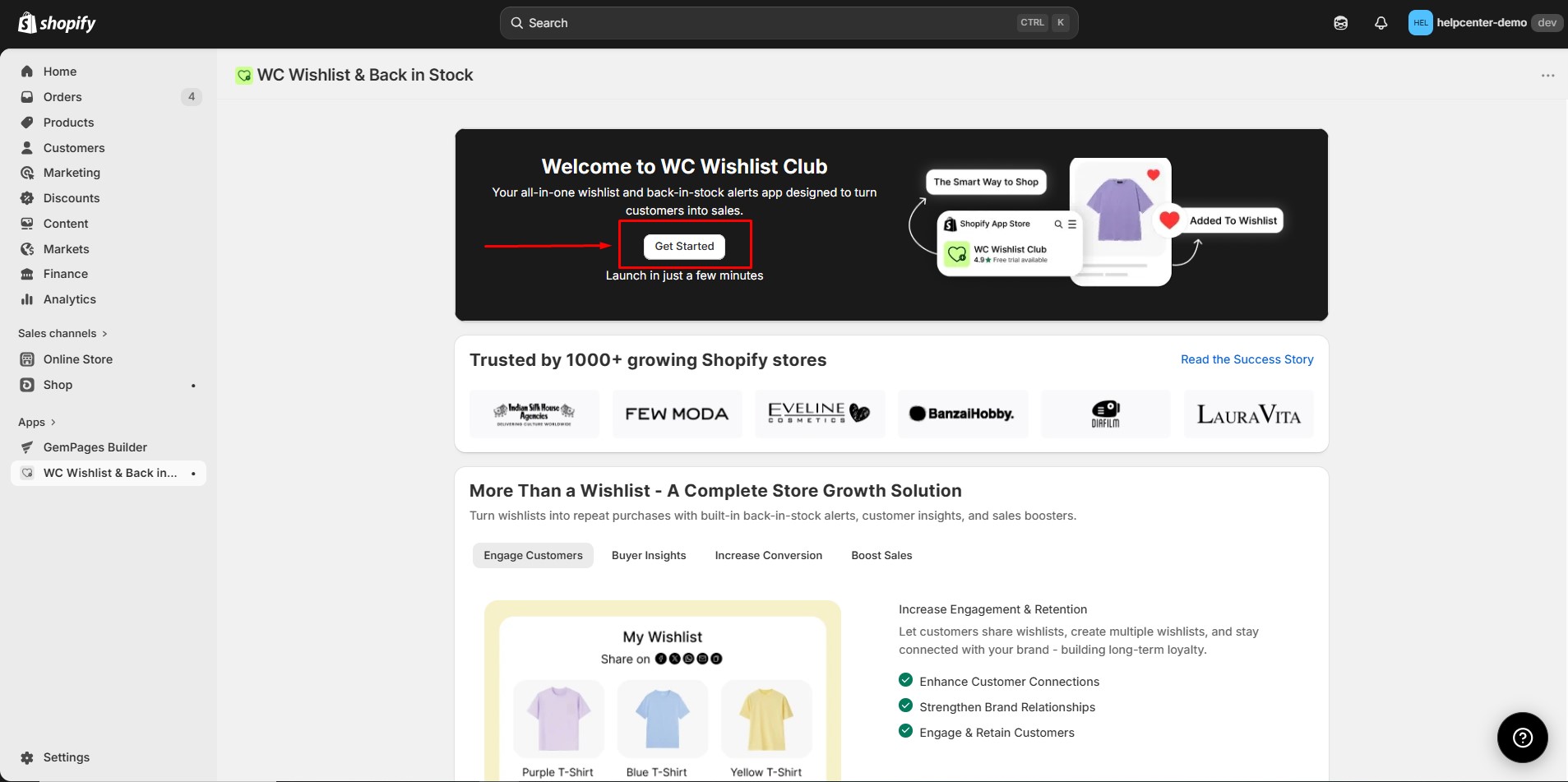
Step 5: Return to the app dashboard and click Get started.
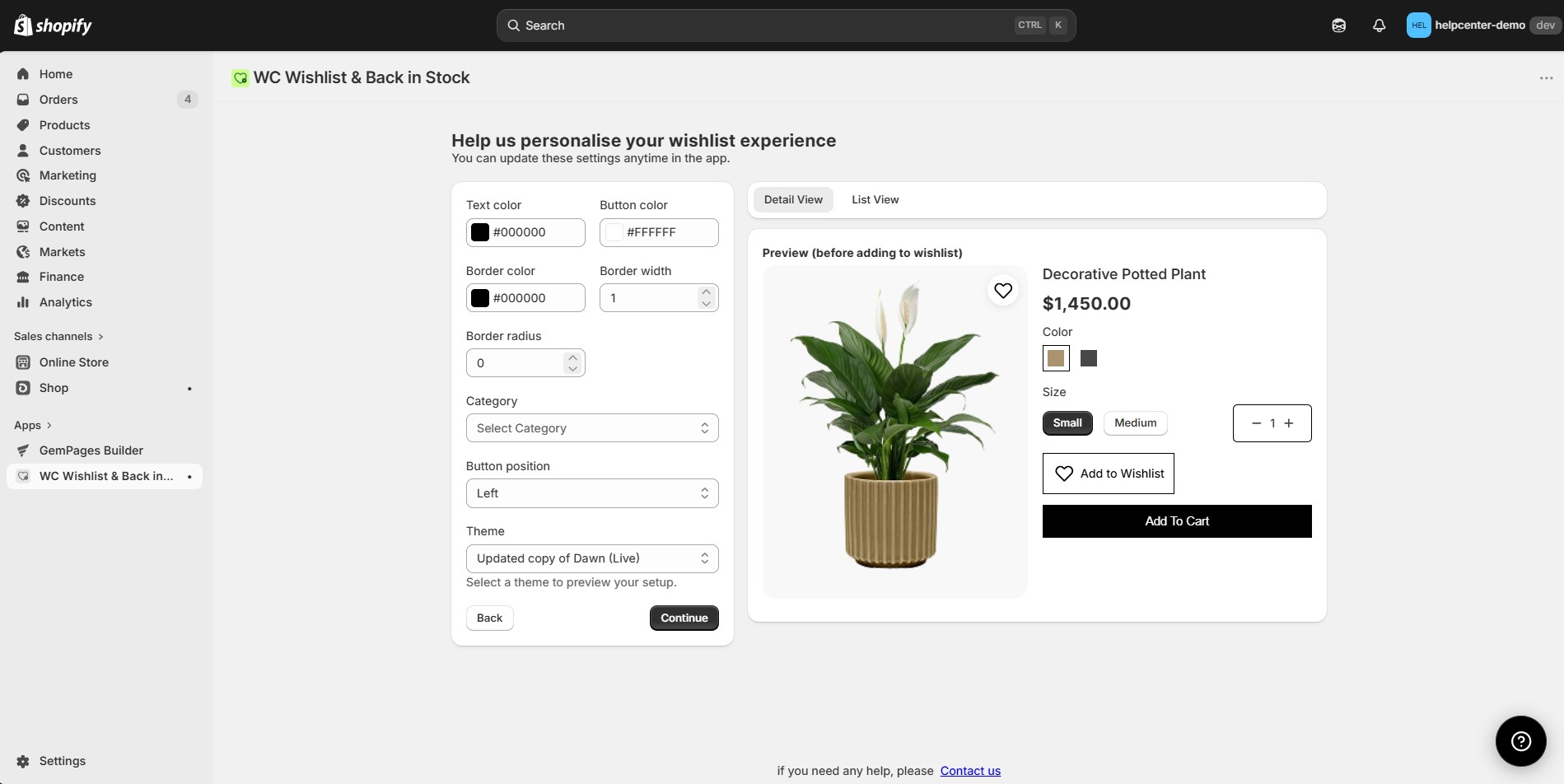
From here, you can personalize the customer wishlist experience.
How to Add WC Wishlist & Back in Stock to GemPages v7?
Once the app is installed and enabled, you can add its widgets to any compatible GemPages template.
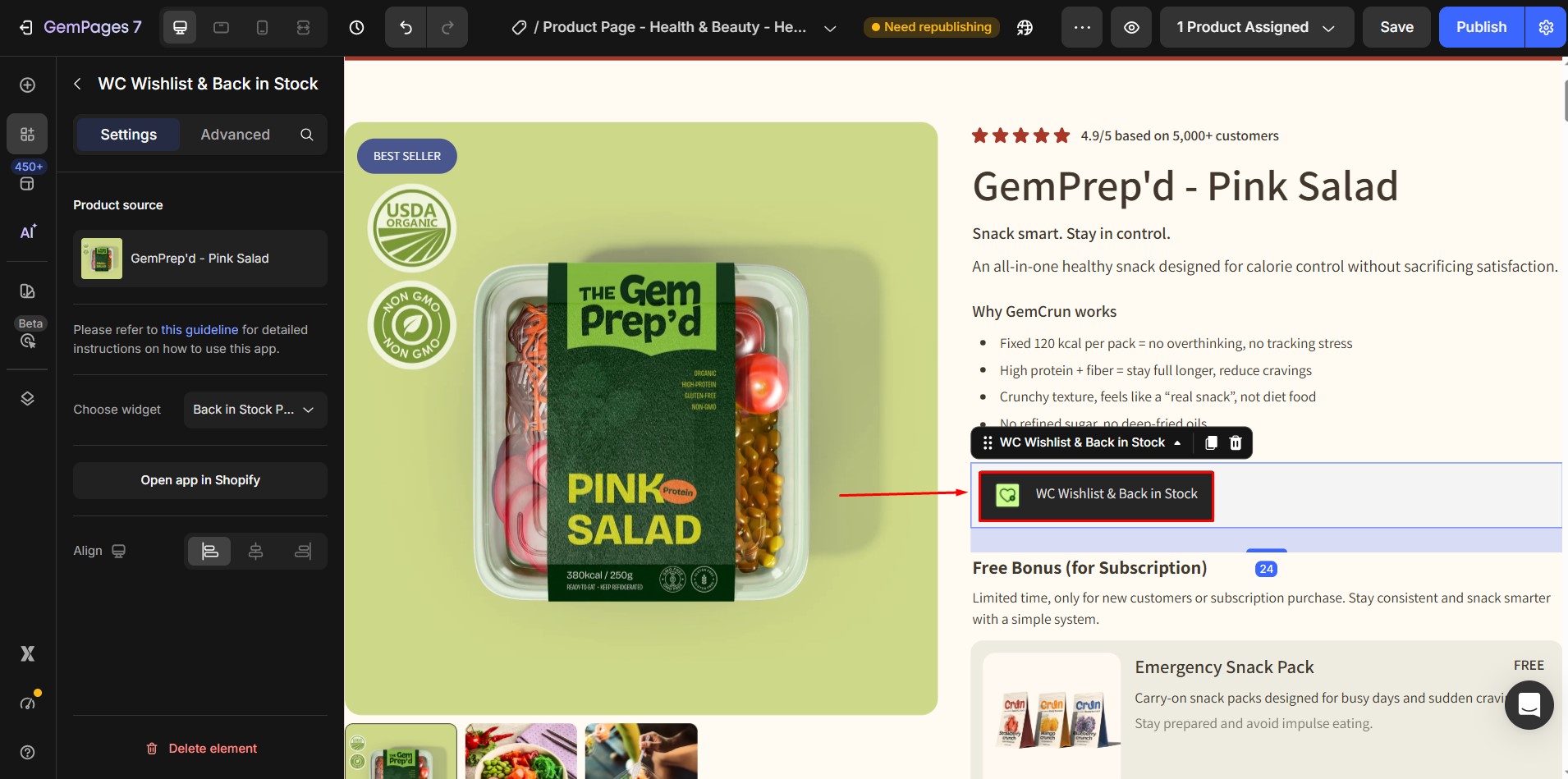
Step 1: In the GemPages Editor, open the page where you want to add the app block. Use the search bar in the elements panel to find the app, then drag and drop the desired element onto the design area.
Multiple widgets can be placed on the same page.
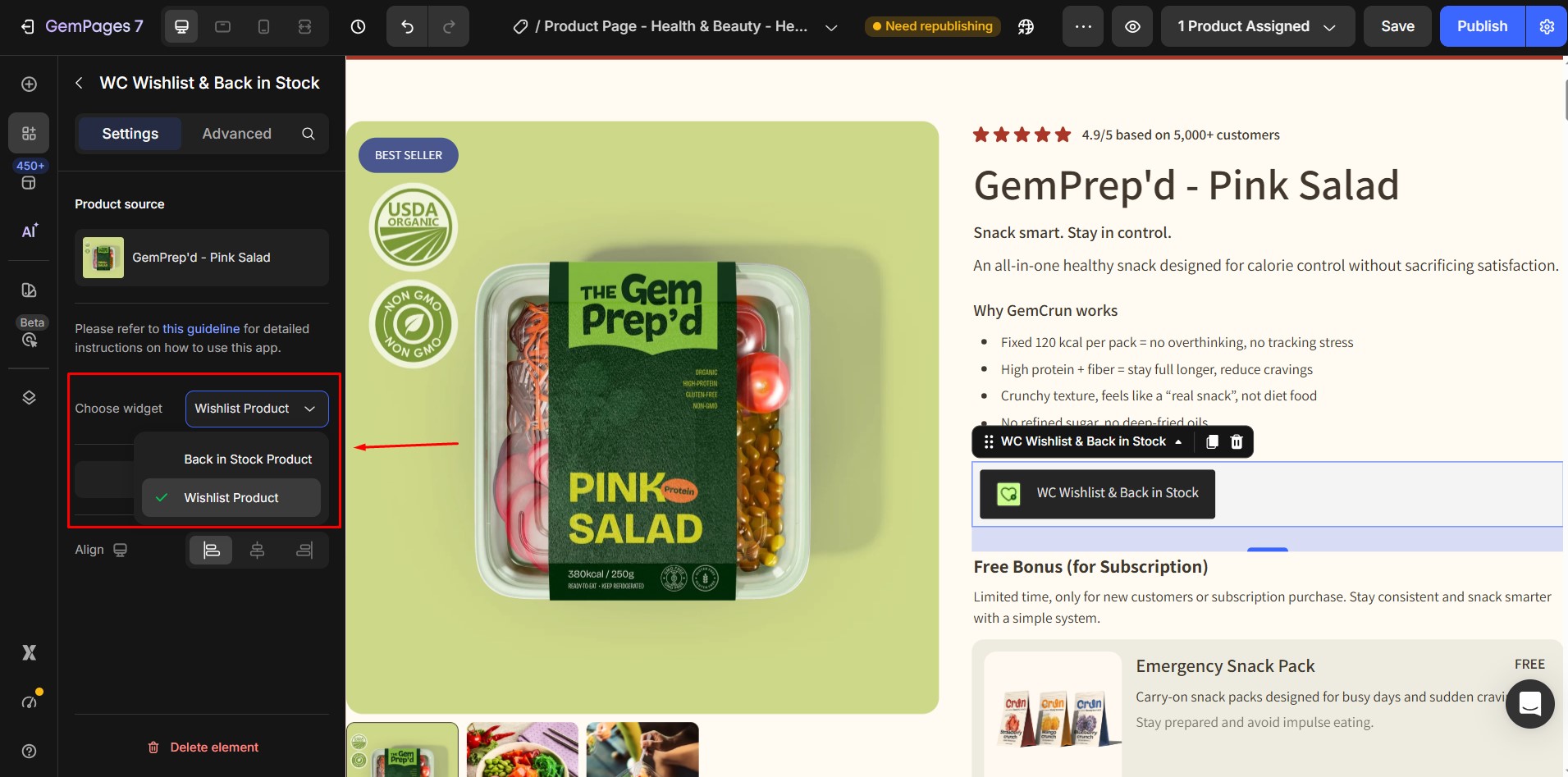
Step 2: Select the widget you want to use from the available options. Make sure to choose the widget that matches your page type — for example, Wishlist Products on a product page or Wishlist Collections on a collection page.
Step 3: Click Save and then Publish to make the widget live on your storefront.


Thank you for your comments