


Update: March 30, 2026
This article explains how the Multi-language feature works in GemPages, why it was introduced, which languages are supported, and how to switch the app language.
Introduction to the Multi-language Feature
The Multi-language feature in the GemPages app allows users to switch the app’s user interface (UI) to their preferred local language. This helps users interact with the app more comfortably in their native language, making the overall experience more accessible, intuitive, and user-friendly.
Why This Feature Was Introduced
GemPages introduced the Multi-language feature to improve usability for international users.
Many users prefer working in their native language, especially when navigating complex tools such as page builders. By supporting multiple languages, GemPages helps users:
- Understand UI instructions more easily
- Reduce mistakes caused by language barriers
- Navigate features faster
- Feel more comfortable using the app
- Improve productivity when building pages
How to Use Multi-language Feature
By default, the local language displayed in GemPages is automatically detected based on the locale settings of Shopify store staff.
If you want to use a different language than the automatically detected one, you can manually change the language inside GemPages Preferences. Follow these steps:
Step 1: Open the GemPages App
Log in to your Shopify admin, then open the GemPages app from your app list.
Step 2: Navigate to GemPages Preferences
Inside the GemPages dashboard, locate and open the Preferences section.
Step 3: Locate the Language Section
Inside the Preferences => Store settings, find the Language section.
This section allows you to choose the language that will be used across the GemPages interface.
Step 4: Select Your Preferred Language
From the language dropdown list, select your preferred language.
Available options currently include:
- English
- Spanish
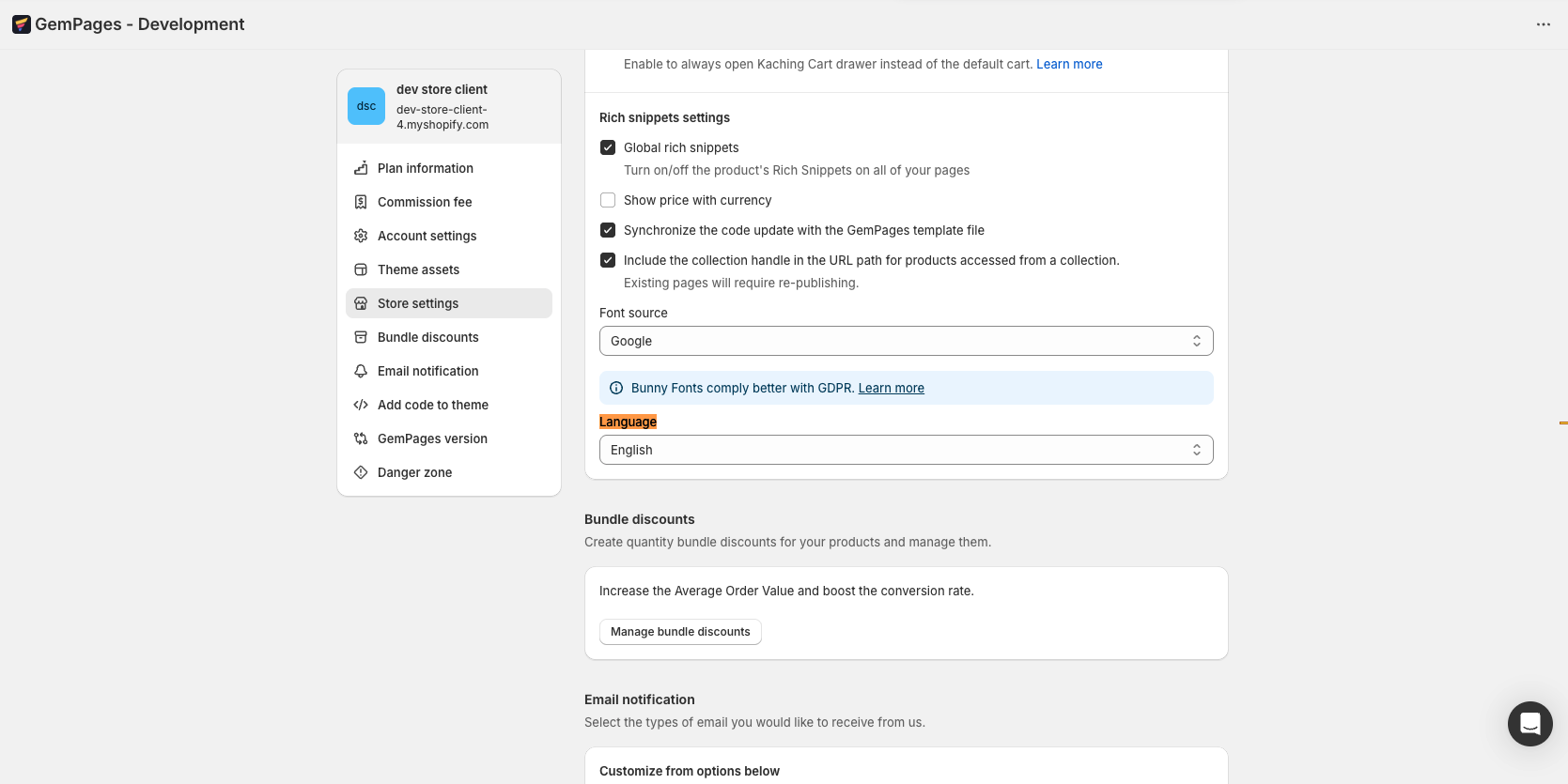
After selecting a language, the GemPages interface will update immediately to reflect the selected language.


Thank you for your comments