


By default, the inactive navigation dots in the Carousel element of GemPages appear in gray and do not have a border. If you want a cleaner or more modern look, you can customize these dots to be transparent with a white border using custom CSS.
This guide will walk you through the process step by step. After following this guide, your carousel inactive navigation dots will:
- Have a transparent background
- Display a white border
- Maintain a cleaner, more minimal design
Step 1: Add custom CSS to the Carousel element
- Open your page in the GemPages Editor
- Click on the Carousel element
- Right-click and select Custom Code
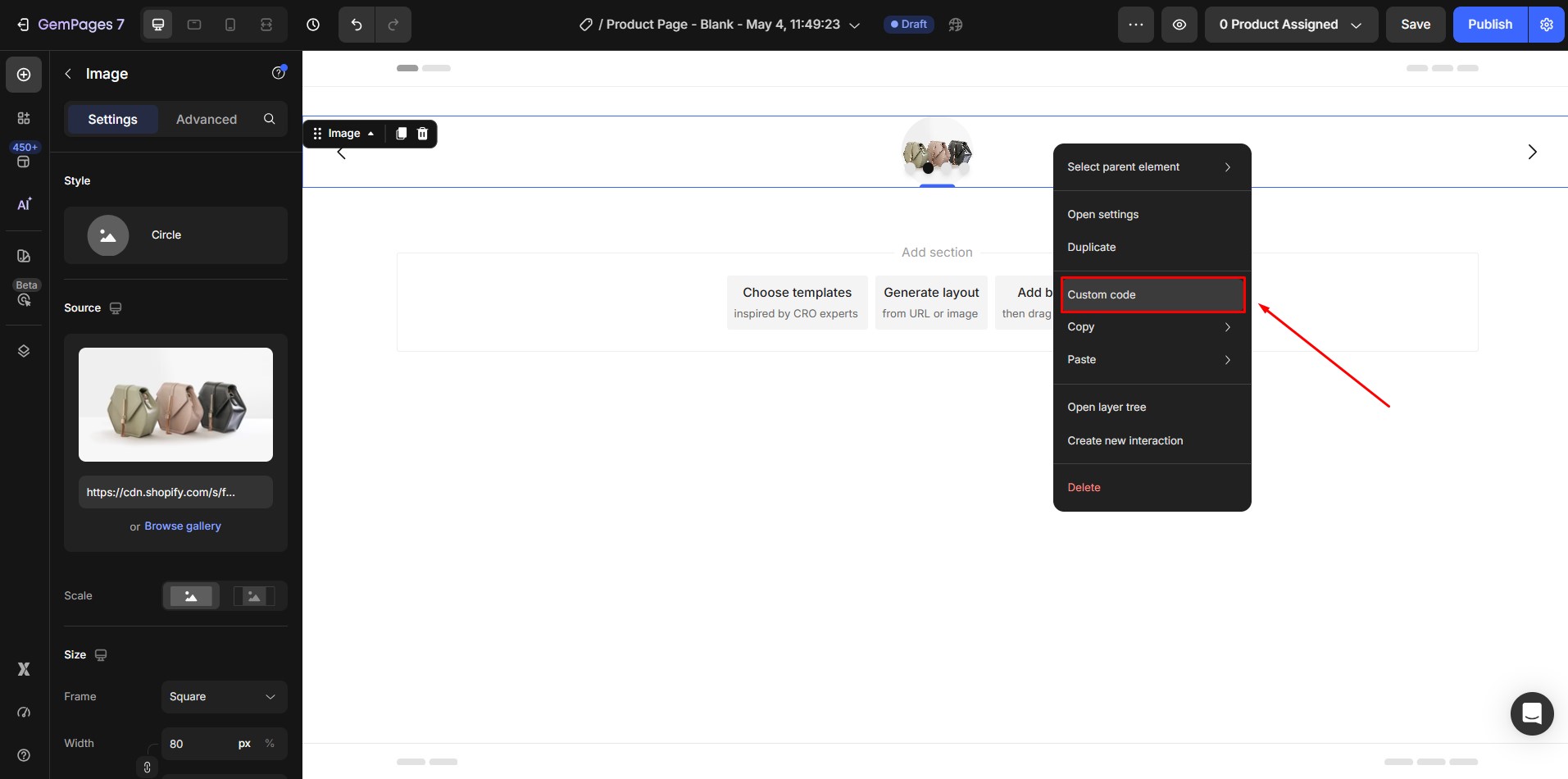
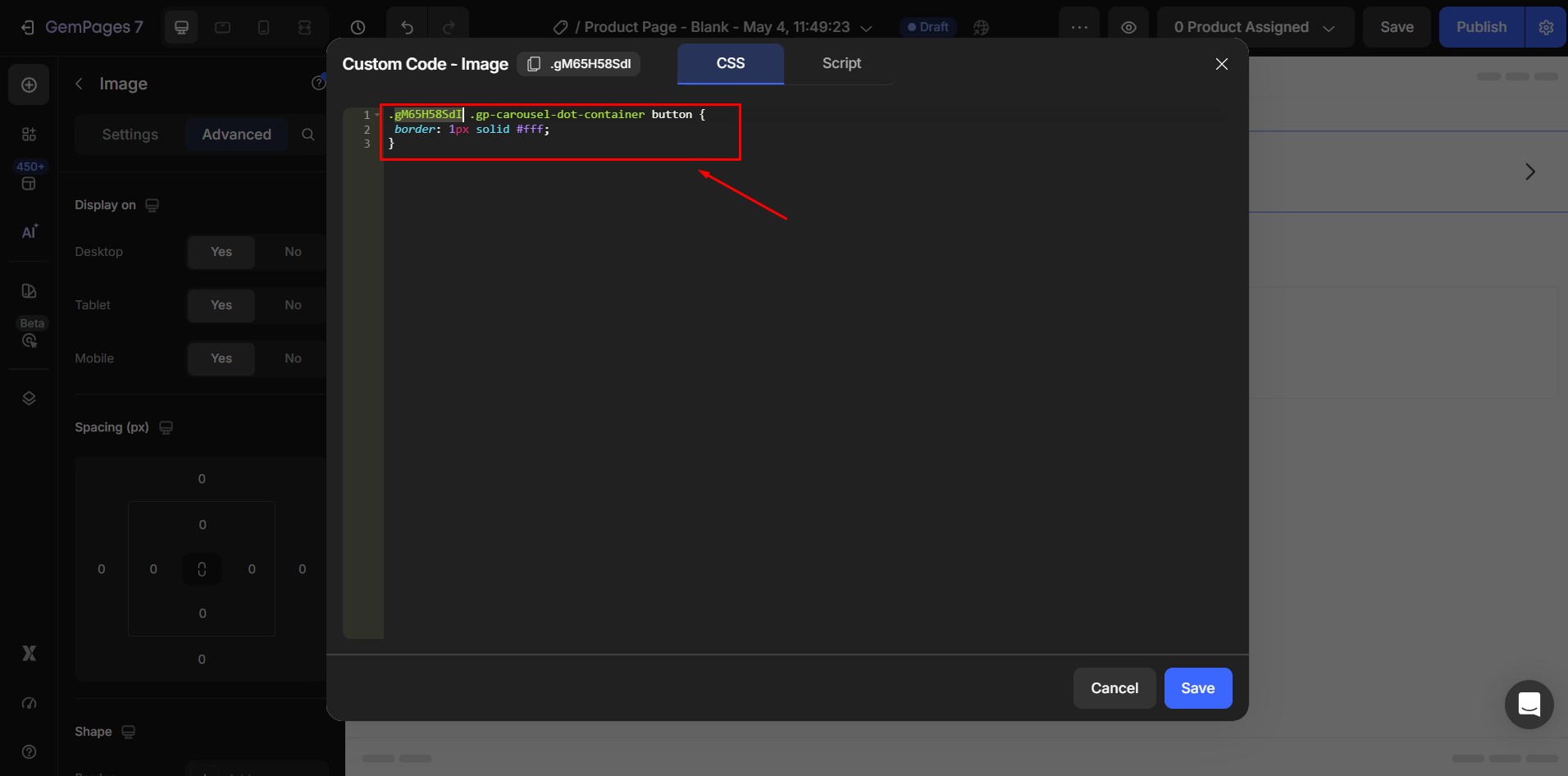
- In the Custom Code panel, paste the following CSS:
ElementClass .gp-carousel-dot-container button {

 border: 1px solid #fff;

}
- Replace ElementClass with the actual class of your Carousel element
Step 2: Change inactive navigation dots to transparent
Instead of using CSS, you can directly update this setting in the editor:
- Click on the Carousel element
- Go to the Dots settings panel
- Find the Inactive color option
- Set the color to Transparent
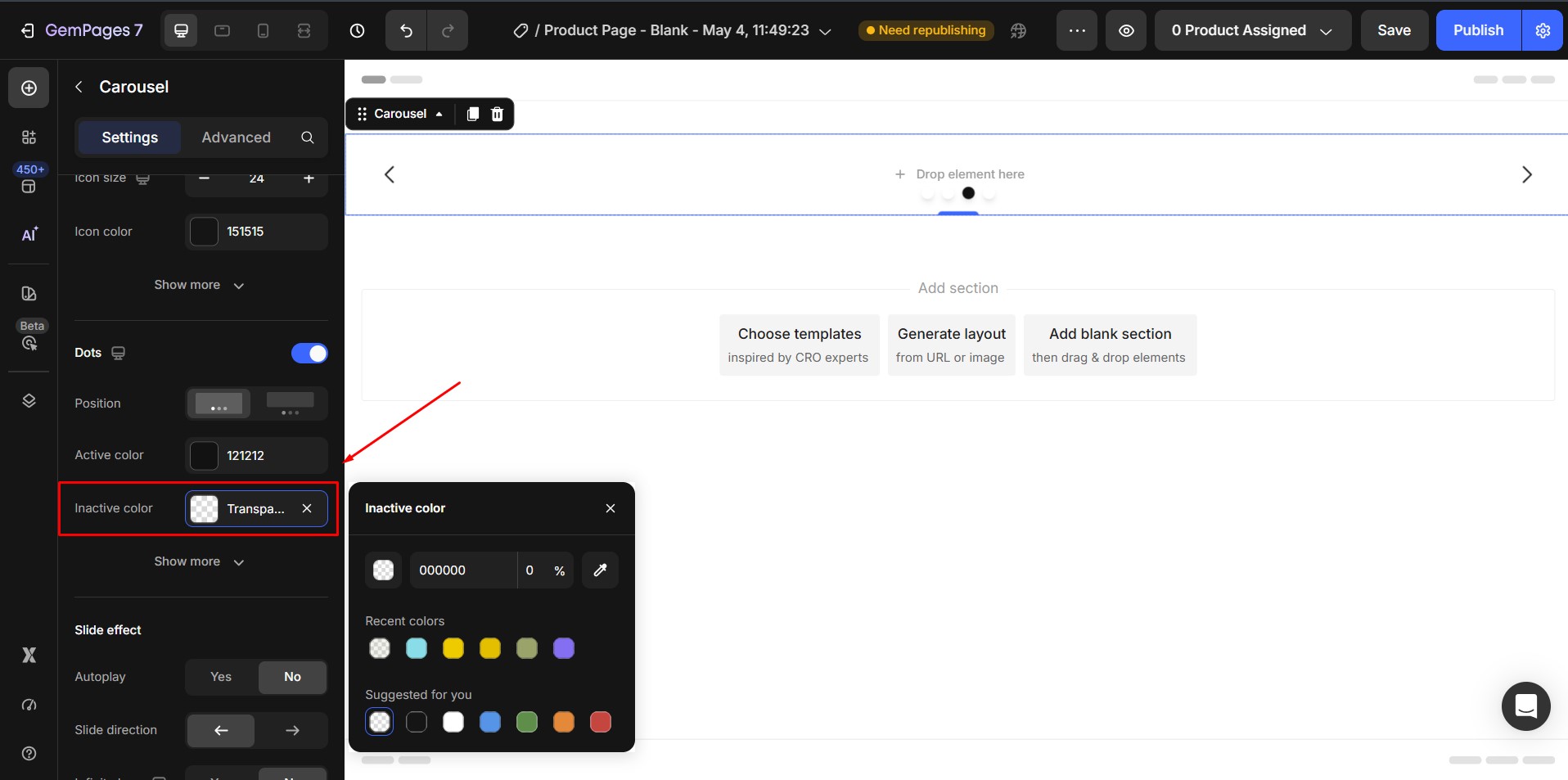
This removes the default gray background of inactive dots.


Thank you for your comments