


GemPages lets you customize the border thickness on each side of an element or section independently — top, right, bottom, and left. Instead of being limited to a single uniform border, you can mix thicknesses to create modern, on-brand designs without touching a line of code.
This guide walks you through how the feature works, when to use it, and exactly how to apply it to any element in the GemPages editor.
When to Use Individual-Side Borders
By default, when you add a border to an element in GemPages, the same thickness is applied to all four sides. The individual-side border setting unlocks each side so you can set them separately.
For example, you can:
- Apply a 4px border only to the bottom for an underline effect
- Add a thick 6px border just on the left to create a callout style
- Combine different values on every side for a custom card design
It’s a small switch in the settings panel, but it opens up a wide range of design possibilities.
Here are some popular use cases where editing borders per side makes a real difference:
- Underline-style headings: A thin bottom border creates a clean section title separator
- Highlighted callouts and quote blocks: A thick left border draws attention to important content
- Tab-style containers: Borders on the top, left, and right (no bottom) form a tab look
- Asymmetric product or feature cards: Mix thin and thick borders for modern, eye-catching layouts
How to Edit Border on Individual Sides in GemPages
Step 1: Select the Element or Section You Want to Style
- Open your page in the GemPages editor.
- Click directly on the element or section you want to edit.
Tip: If your page has many nested elements, use the Layer Tree on the left sidebar to select the exact block you want — it’s faster and more precise than clicking on the canvas.
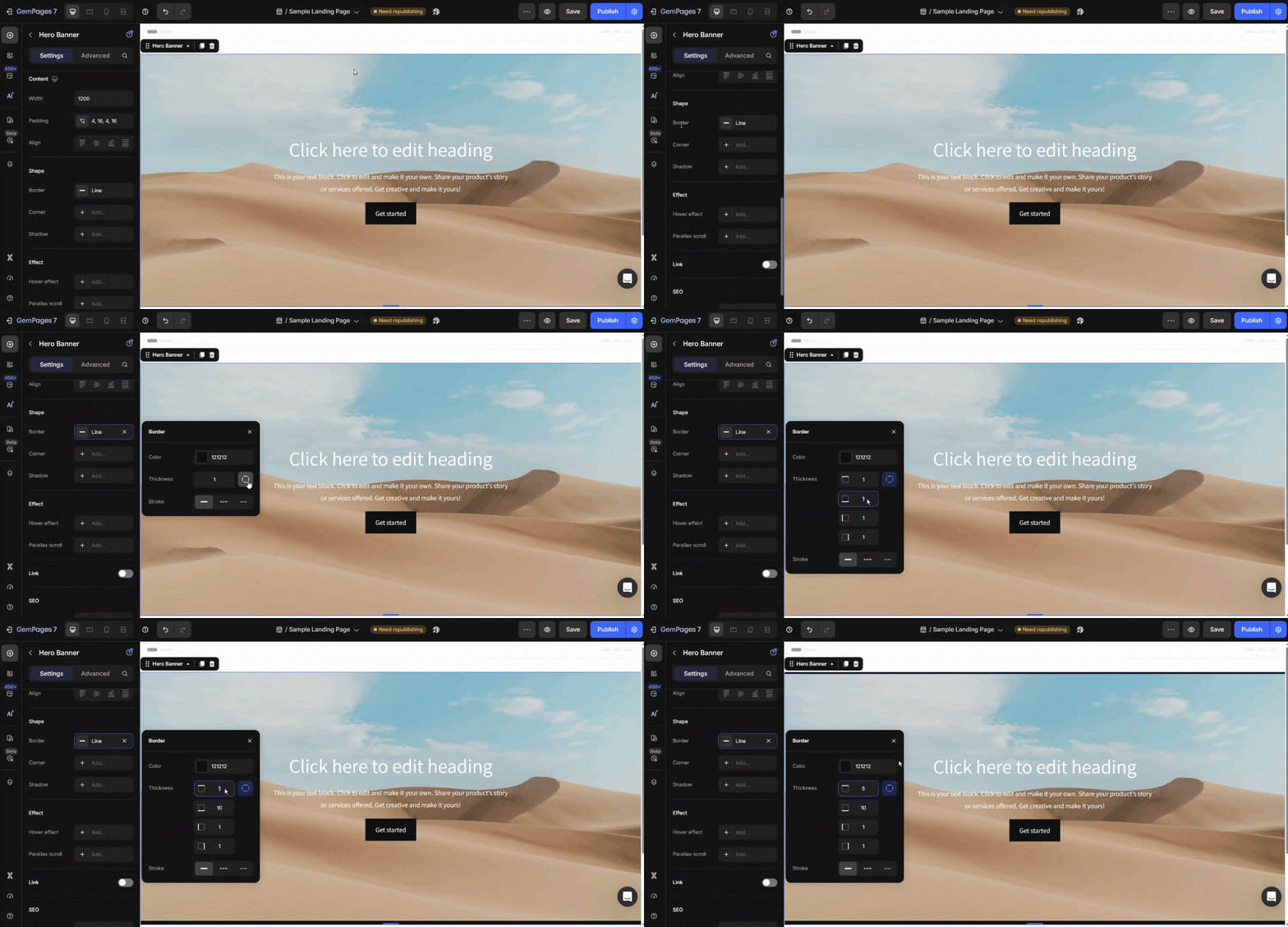
Step 2: Open the Border Settings
- In the settings panel on the right, scroll to the Shape section.
- Locate the Border group.
- Find the Thickness field.
- Click the icon next to the Thickness field.
Step 3: Set Custom Thickness for Each Side
You’ll now see four input fields representing each side of the border:
- Top: thickness of the top edge
- Right: thickness of the right edge
- Bottom: thickness of the bottom edge
- Left: thickness of the left edge
For each side:
- Click into the input field.
- Enter the value in pixels.


Thank you for your comments