


Sometimes while working in the GemPages editor, you may hide elements inside a section for responsive design or layout adjustments. After hiding them, it can become difficult to select those elements directly from the canvas.
To view and select hidden elements more easily, you can use the Layer Tree feature. The Layer Tree allows you to see all elements inside a section — including hidden ones, and select them directly from a structured list.
When Should You Use Layer Tree?
Using the Layer Tree is especially helpful when:
- You cannot click an element directly on the canvas
- An element is hidden on certain devices
- Multiple elements overlap each other
- You want to quickly locate elements inside a complex layout
- You need to review all elements inside a section
Instead of clicking around the canvas, you can use the Layer Tree to quickly find the exact element you need.
How to Select Hidden Elements Using Layer Tree
Follow these steps to open the Layer Tree and select hidden elements.
Step 1: Right-click on the section you want to inspect
Move your cursor to the section that contains the hidden element.
Then:
- Right-click on the section
- A context menu will appear
Make sure you click on the correct section that contains the hidden elements you want to find.
Step 2: Click Open Layer Tree
From the right-click menu, click Open Layer Tree
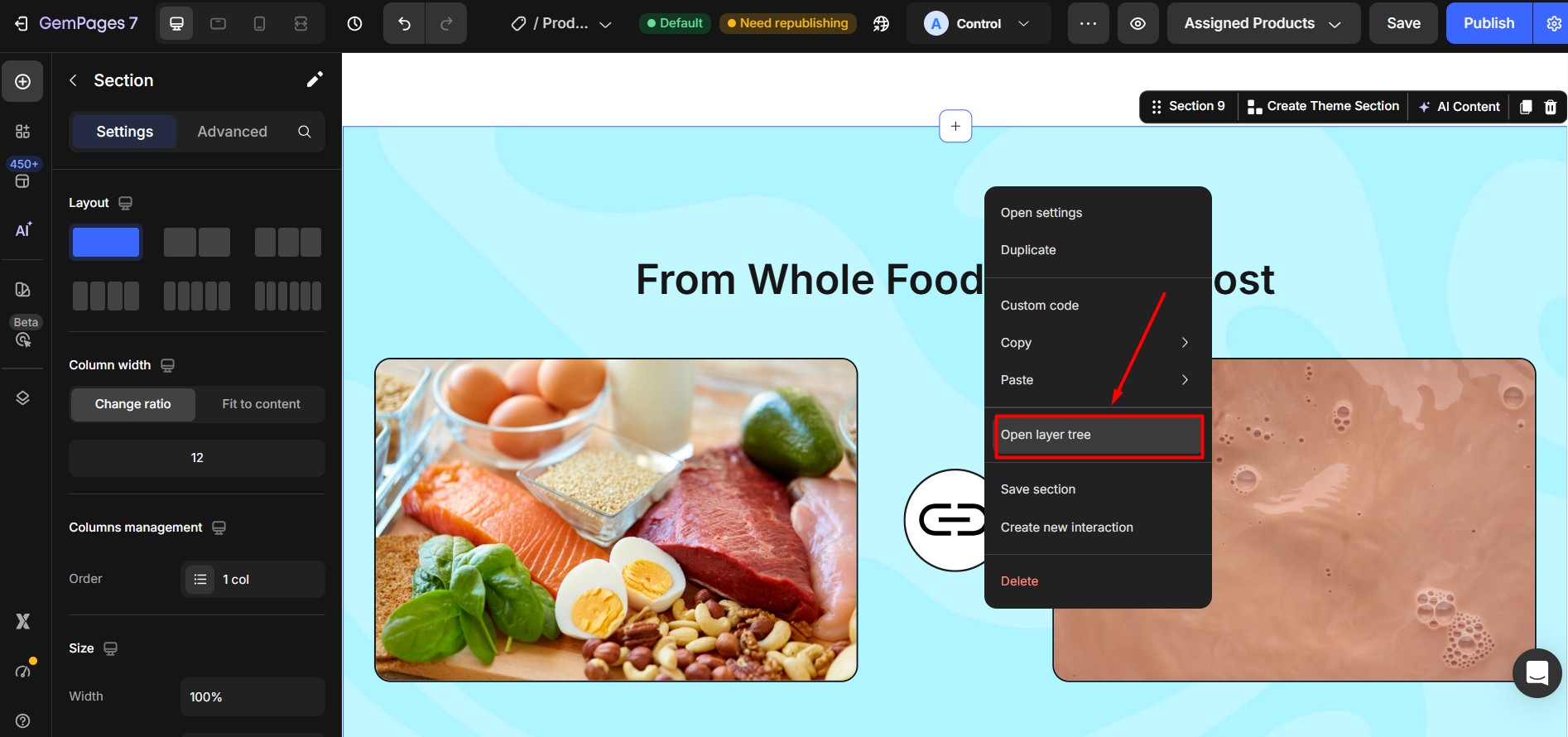
After clicking this option, the Layer Tree panel will appear.
This panel shows a structured list of all elements inside the selected section.
Step 3: View all elements inside the section
Once the Layer Tree opens:
- You will see all elements contained inside the section
- Hidden elements will still appear in the list
- You can expand nested elements to see their structure
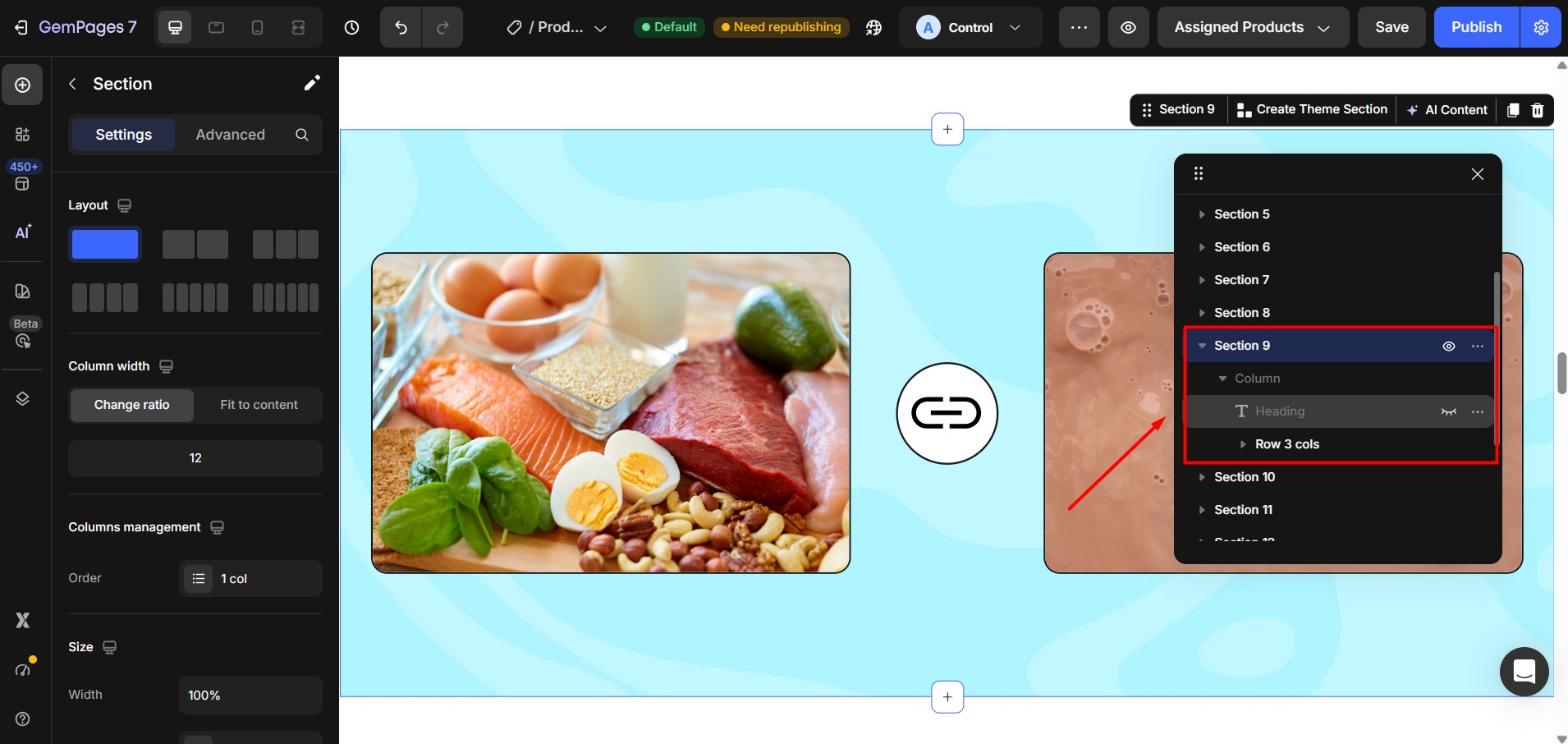
This makes it much easier to locate elements that are not visible on the canvas.
Step 4: Hover over elements to identify them visually
To quickly identify which element is which:
- Hover over each element in the Layer Tree
- The corresponding element will be highlighted in the design workspace
This visual highlight helps you confirm the exact location of the element before selecting it.
Step 5: Click the element to select it
Once you find the hidden element:
- Click its name inside the Layer Tree
- The element will be selected
- Its settings will appear in the Element Settings panel
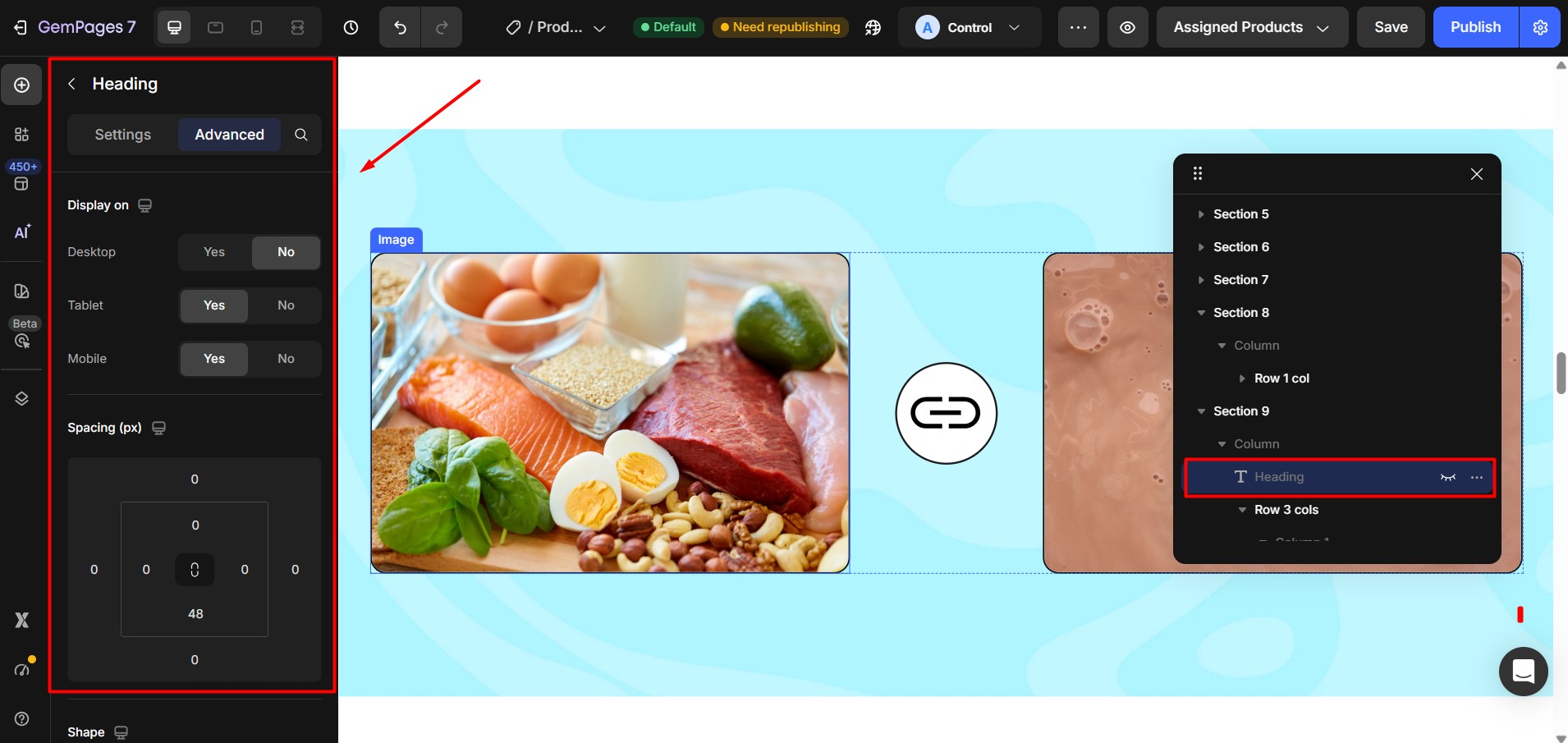
You can now edit, unhide, move, or delete the element as needed.


Thank you for your comments