


Customizing your Contact Form design helps create a more consistent and professional storefront experience. In some cases, you may want to change the text color inside form fields to better match your branding or improve readability.
This article will show you how to change the text color in a Contact Form element using simple custom CSS code in GemPages.
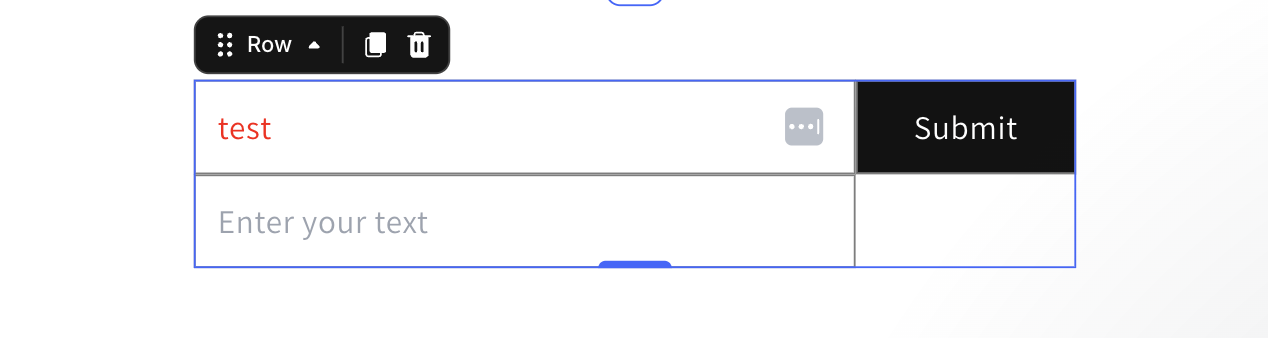
How to Change Contact Form Text Color
Make sure:
- You already added a Contact Form element to your page
- You have access to the GemPages editor
- You know which form field or text area you want to customize
Step 1: Open the Custom Code Panel
Inside the GemPages editor:
- Right-click the text field or Contact Form element you want to customize
- Select Custom Code
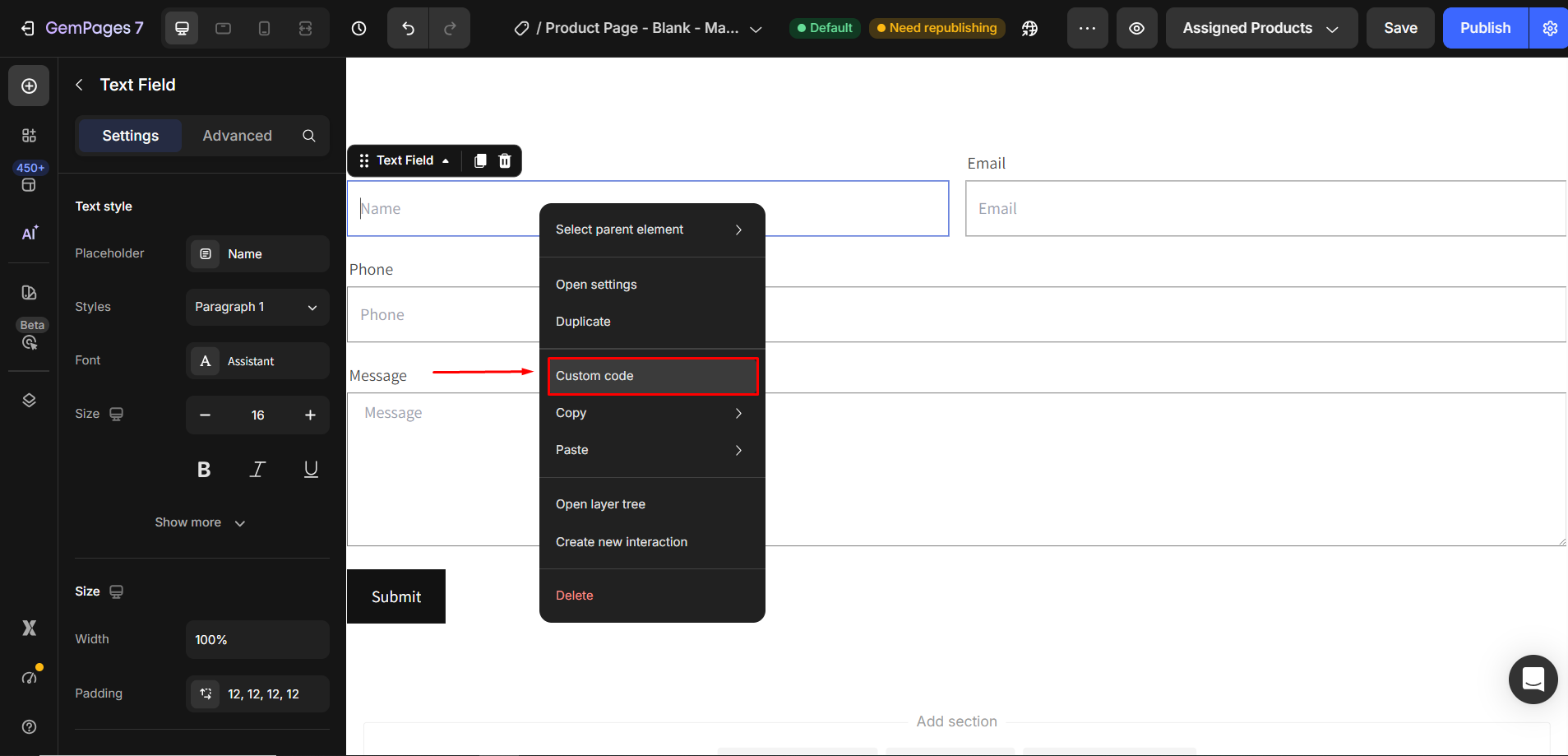
The Custom Code panel will appear.
Step 2: Add the CSS Code
Paste the following CSS code into the Custom Code field:
.classID.gp-form-item{

 color: xxxxx !important;

}
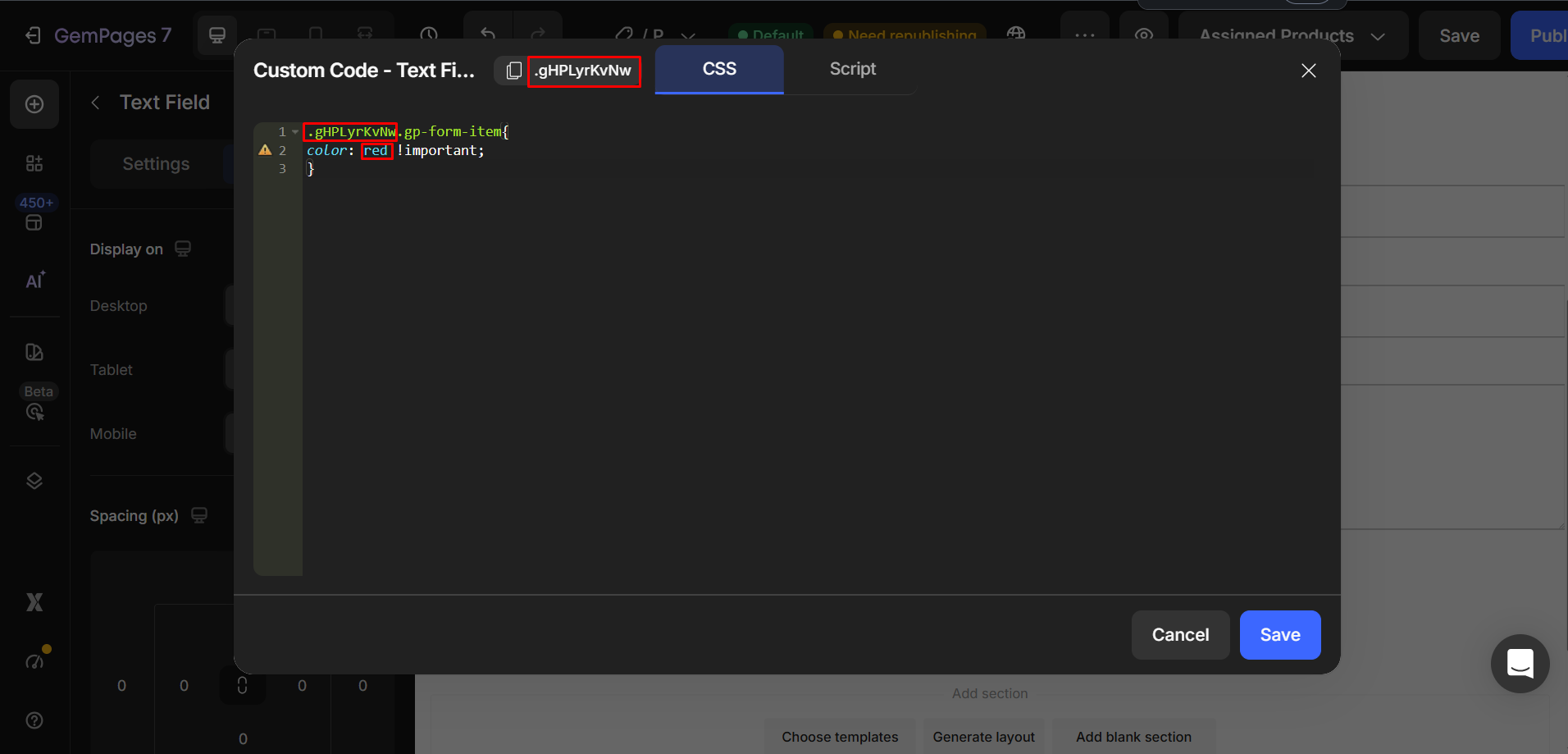
Remember to:
- Replace .classID With Your Actual Element ID
You need to replace .classID with the actual element ID of your Contact Form.
You can find this ID at the top of the Custom Code panel.
- Replace xxxxx With Your Preferred Color
Replace xxxxx with the color you want to use.
You can use:
- Color names
- HEX color codes
- RGB values
Examples:
Using a Color Name
color: black !important;
Using a HEX Color
color: #ffffff !important;
Using RGB
color: rgb(255,255,255) !important;
Step 3: Save and Publish Your Changes
After adding the code:
- Click Save
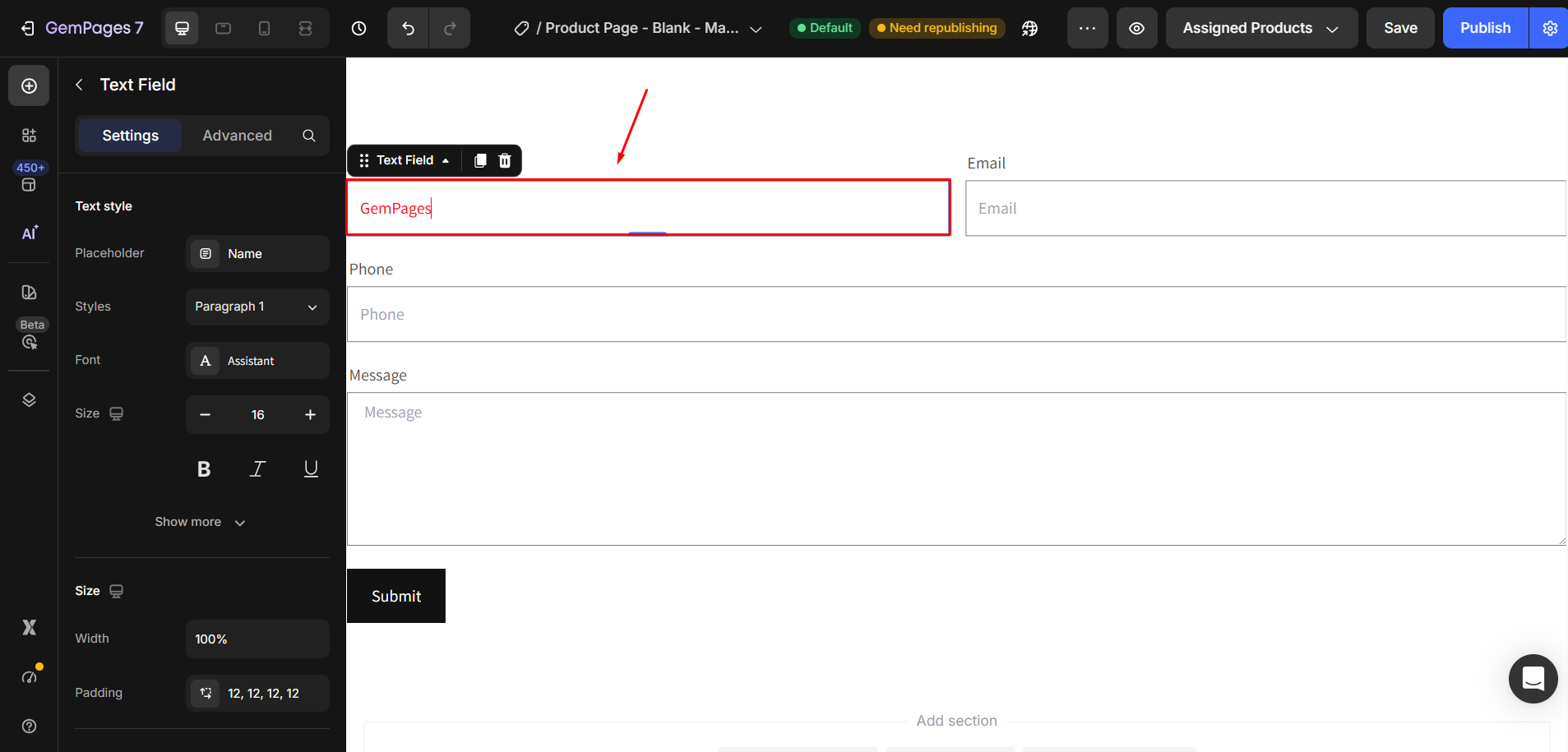
- Preview the Contact Form to confirm the text color has changed correctly


Thank you for your comments