


When designing pages in GemPages, you may place multiple elements close to each other — for example, a Heading element and a Text Block element placed one under another. Later, you may want to move both elements to a new position on the page. Instead of moving each element separately, you can group them inside a Row element. Once grouped, you only need to move the Row to reposition all elements together.
This method helps you quickly move, copy, or duplicate multiple elements at once, making layout editing much faster and easier.
When Should You Group Elements in a Row?
Grouping elements inside a Row is especially useful when:
- You want to move multiple elements together
- You need to copy or duplicate several elements at once
- You want to keep related elements aligned
- You are reorganizing sections on a page
- You want to maintain layout consistency
For example, if you have:
- One Heading element
- One Text Block element
and both belong to the same content block, grouping them into a Row makes them easier to manage.
How to Group Elements in a Row
In this example, we will group a Heading element and a Text Block element so they can be moved together.
Step 1: Drag a Row element into the layout
From the left sidebar:
- Find the Row element
- Drag the Row element into the section where your elements are located
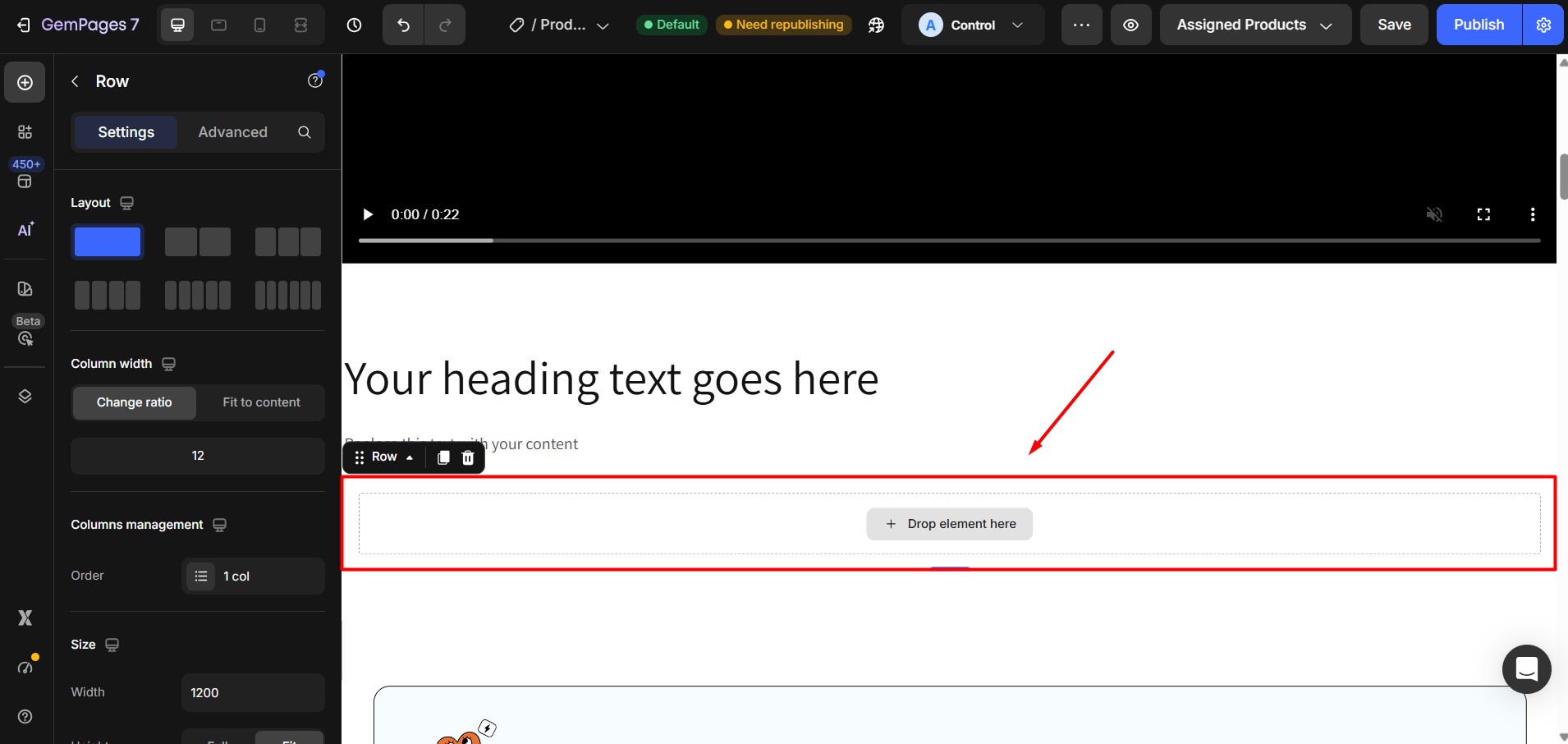
The Row element works as a container that holds other elements.
You can place the Row near the elements you want to group.
Step 2: Drag elements into the Row container
Next, move the elements into the Row.
For example:
- Drag your Heading element into the Row
- Drag your Text Block element into the same Row
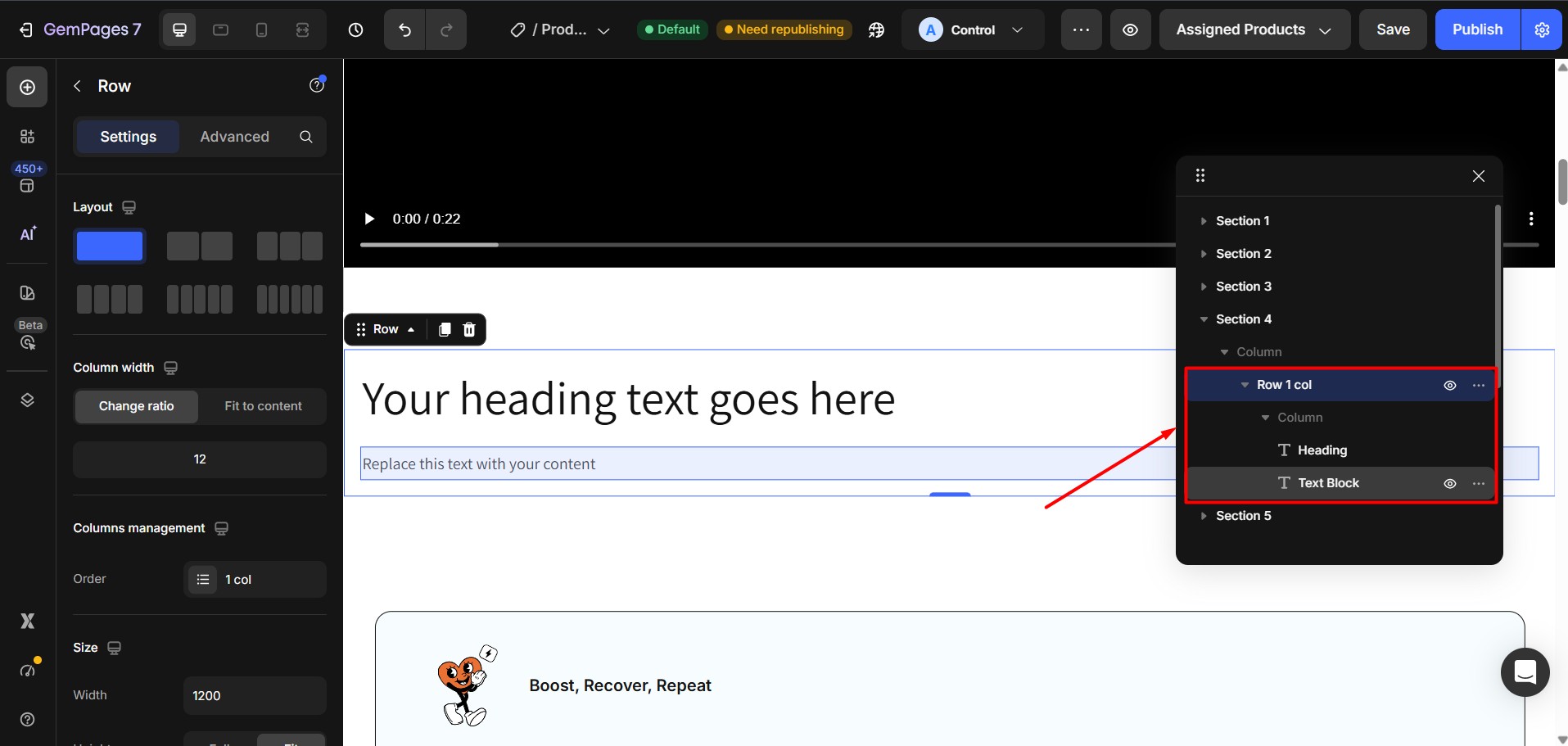
Once both elements are inside the Row, they are now grouped together.
You can confirm this by opening the layer tree.
Step 3: Move the Row to a new position
After grouping the elements:
- Click on the Row element
- Drag the Row to the new position on your page
All elements inside the Row will move together automatically.
You no longer need to move each element separately.
How to Copy or Duplicate Multiple Elements Using a Row
Grouping elements inside a Row also allows you to copy multiple elements at once.
After placing elements inside the Row:
- Select the Row element
- Use the Duplicate option
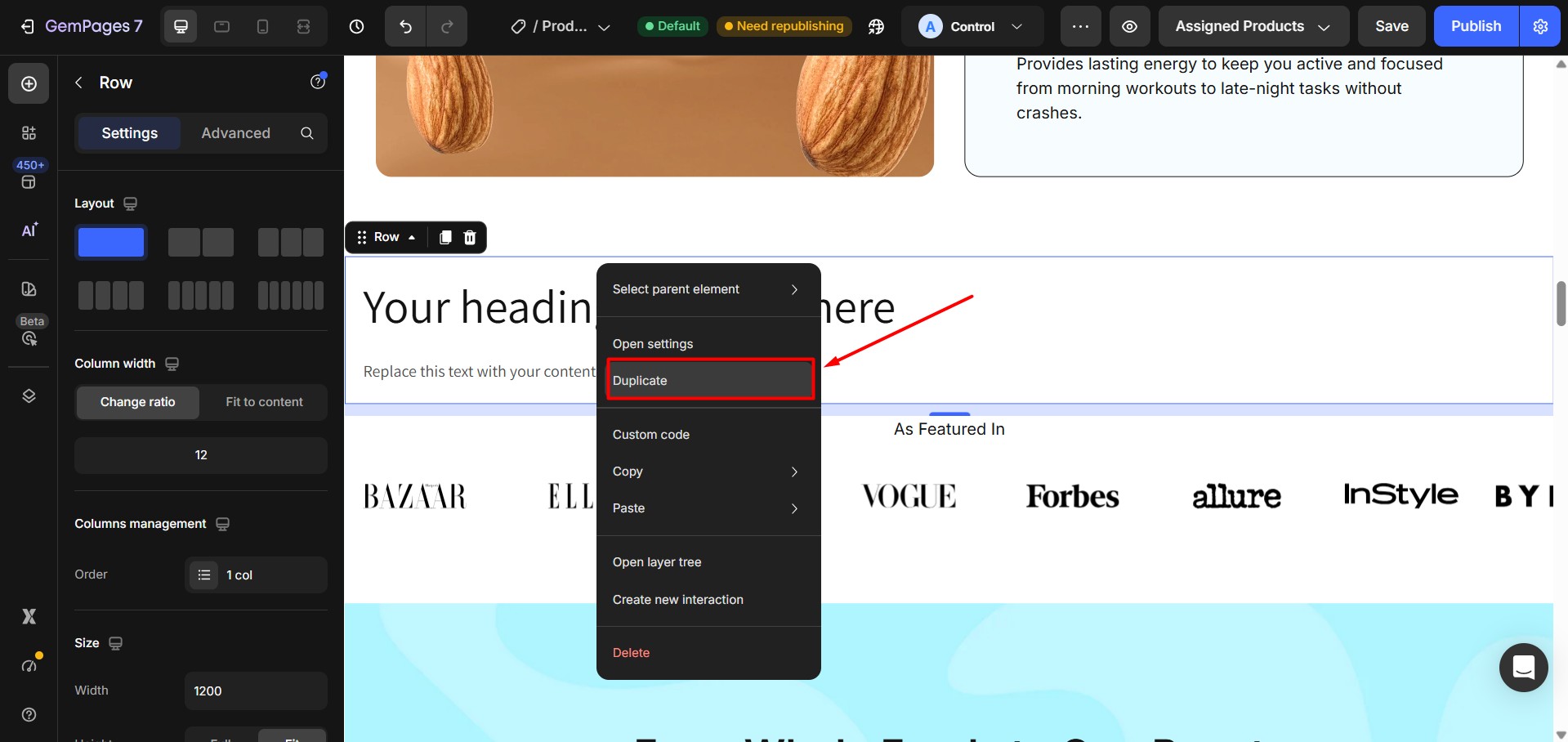
- A full copy of the Row — including all contained elements — will be created
This is much faster than duplicating each element individually.


Thank you for your comments