


In most cases, button icons automatically inherit default styles. However, when working with custom button backgrounds, brand colors, or dark layouts, you may need to manually define the icon color to ensure proper visibility and consistent styling.
The Button element in GemPages supports two layout types, depending on how the button is configured:
- Button without icon: displays only button text
- Button with icon: displays an icon alongside the button text
If you are using a Button with icon layout, you can customize the icon appearance using Custom CSS. In this guide, you will learn how to change the icon color when using a button that includes an icon.
Why Icon Color Matters in Button Design
Icons inside buttons help users quickly understand the purpose of an action.
However, the default icon color does not always match your design needs. In many real projects, merchants want their button icons to:
- Match brand colors
- Stay visible on dark or gradient backgrounds
- Align with button text color
- Maintain consistent styling across multiple sections
If the icon color does not contrast well with the background, it can become difficult to see, reducing the effectiveness of the button.
How to Change Icon Color in a Button Element
Follow the steps below to apply a custom icon color to your button.
Step 1: Open Custom Code for the Button
- Open your page in the editor.
- Locate the Button element that contains the icon.
- Right-click the Button element.
- Select Custom Code.
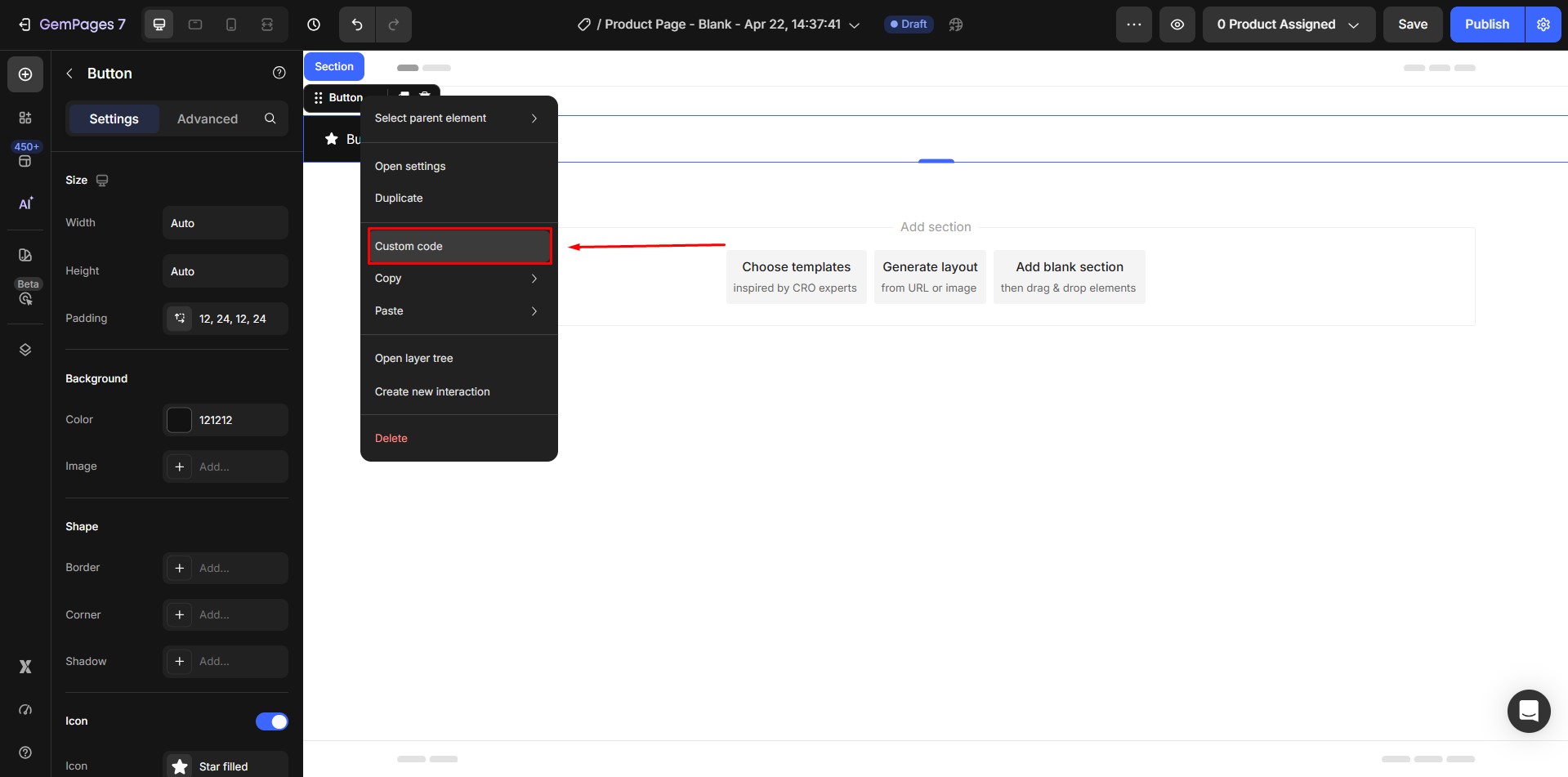
The Custom Code panel will open.
Step 2: Add the CSS Code
Inside the CSS tab, add the following code:
| button.elementID svg{
color: #ffffff; } |
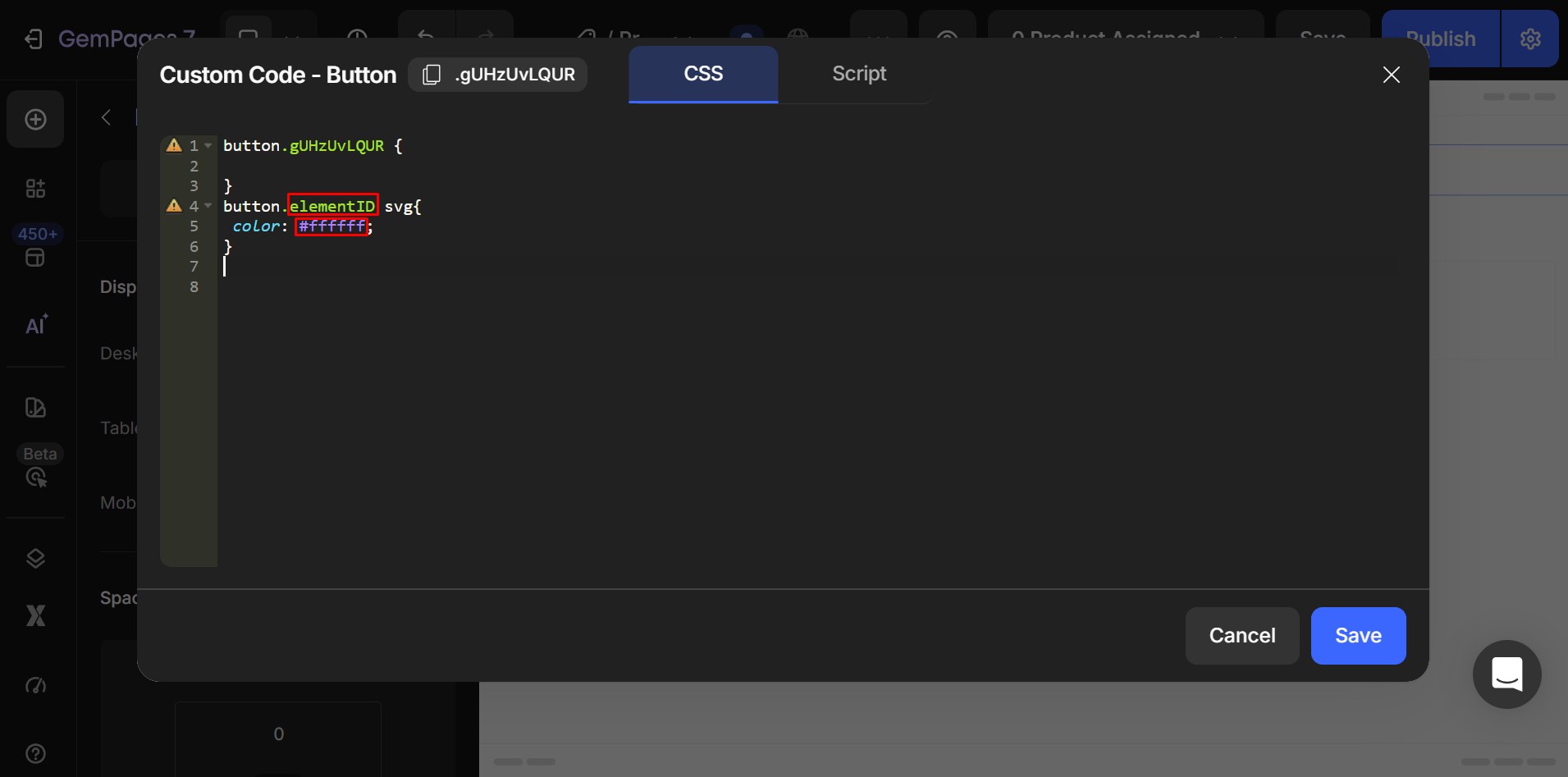
Replace:
elementID with the class shown at the top.
#ffffff with your preferred color code.
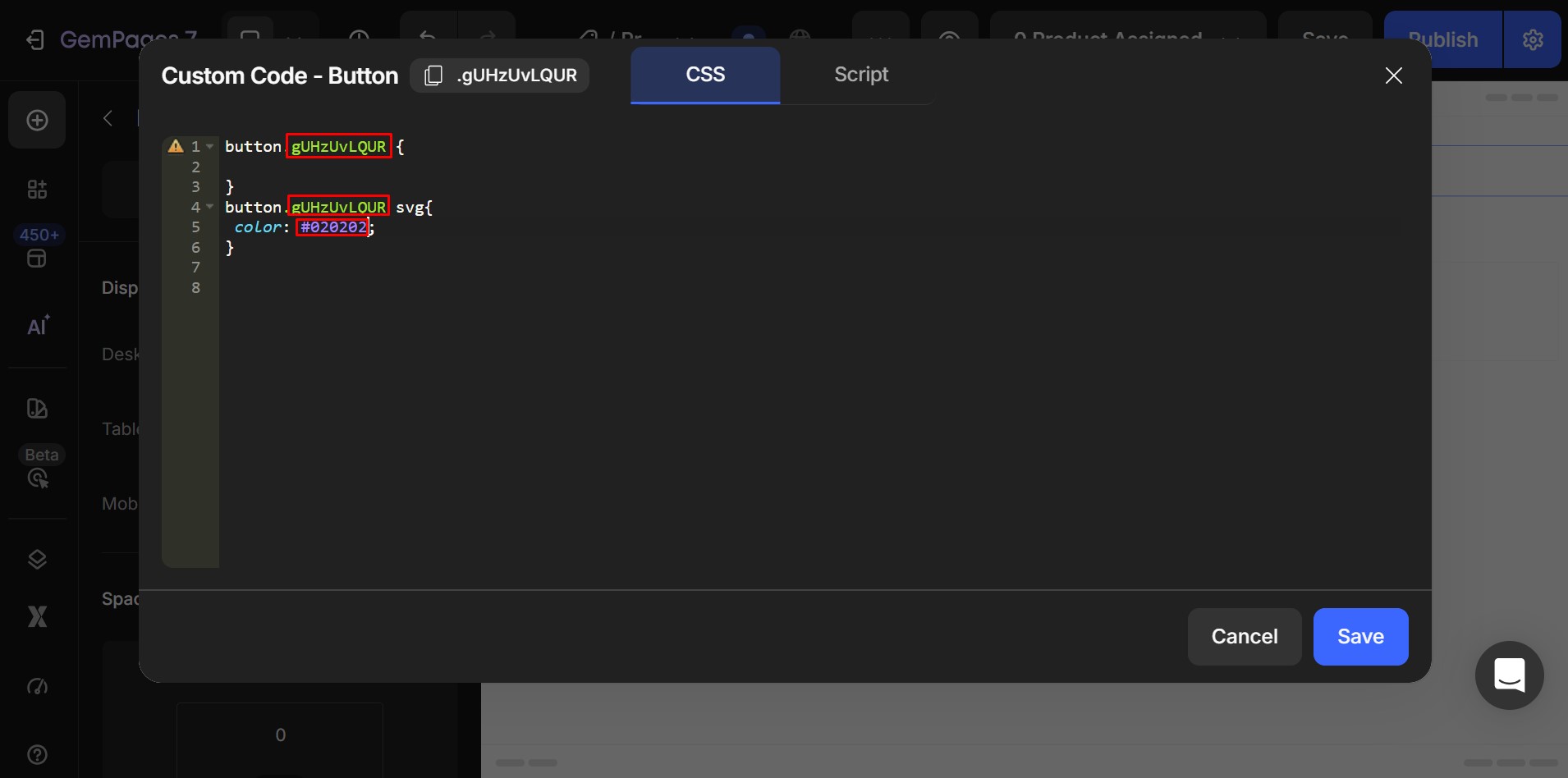
If you don’t know the HEX color code you want to use, you can generate one using an online color picker tool. Here are some useful websites:
- Color Picker Online Tool: Allows you to choose colors using a color wheel and instantly copy HEX, RGB, or HSL values.
- Image Color Picker Tool: Lets you upload an image and click any area to extract its exact HEX color code.
Step 3: Save and Publish
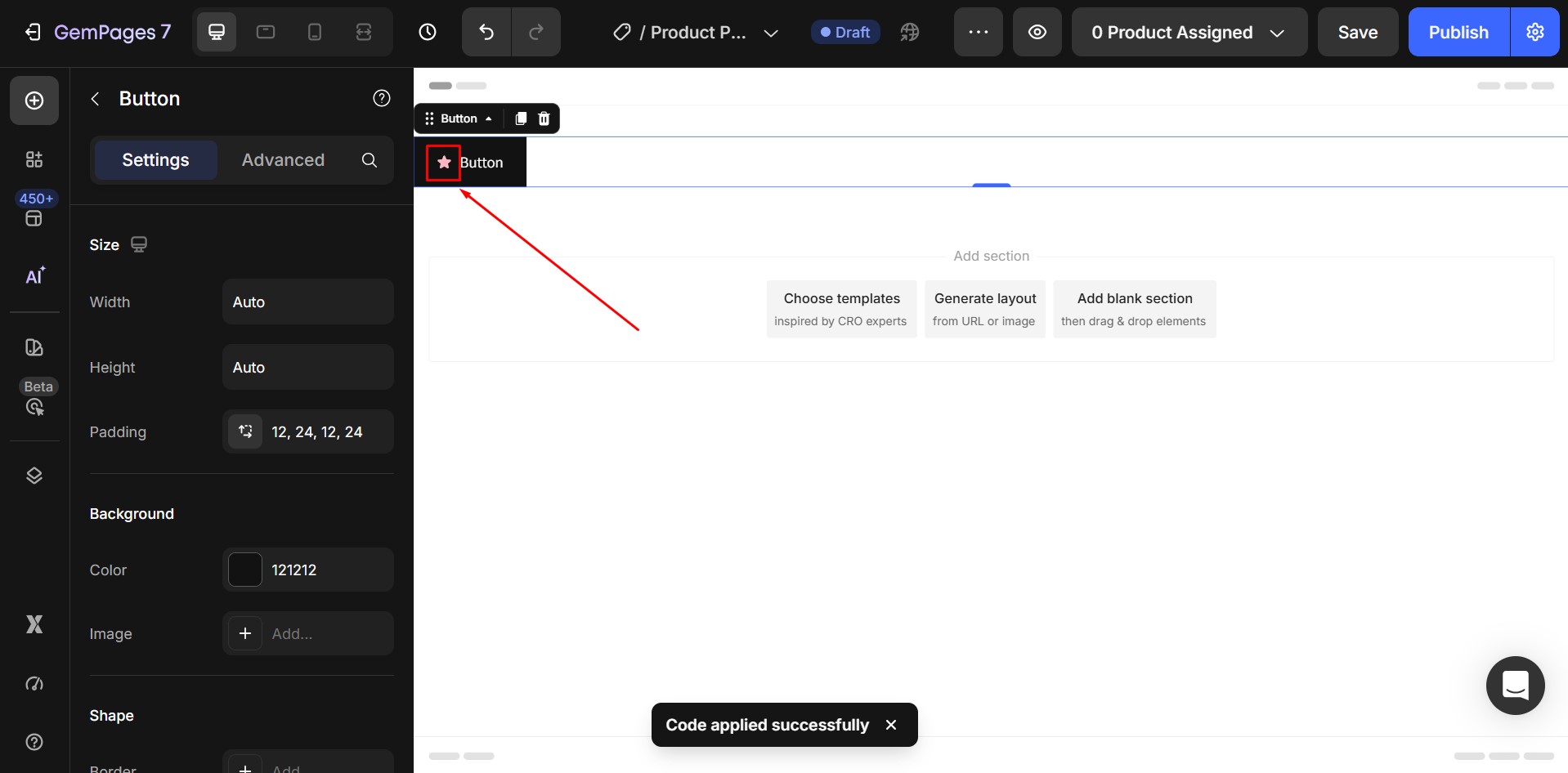
After adding the code, Click Save. The icon color will update immediately.
Tips for Choosing Effective Icon Colors
Consider the following:
1. Maintain Strong Contrast
Icons should be easy to see.
Good contrast example:
- Dark button + white icon
- Light button + dark icon
Poor contrast example:
- Dark button + dark icon
- Light button + light icon
2. Stay Within Your Brand Palette
Use official brand colors whenever possible.
Avoid random colors that break visual consistency.
3. Test Across Devices
Check icon visibility on:
- Desktop
- Tablet
- Mobile
Some colors appear differently on smaller screens.
If you also need to resize icons, you can follow the guide on how to change icon size in Button element using custom code to adjust icon dimensions before applying color customization.


Thank you for your comments