


When designing your store pages in GemPages, getting the spacing right around each element makes the difference between a page that looks polished and one that feels cluttered. Padding is one of the most important spacing controls, it defines the inner space between an element’s content and its border on the top, right, bottom, and left sides.
To make editing padding faster and more flexible, GemPages provides a Lock/Unlock icon that lets you choose between adjusting all four sides at once or each side independently. This guide will walk you through exactly how to use it.
What Is Padding in GemPages?
Padding is the inner spacing of an element. It controls how much breathing room sits between the content (text, image, button, etc.) and the edges of the container holding it.
In GemPages, every element has four padding values you can adjust:
- Top: space above the content
- Right: space to the right of the content
- Bottom: space below the content
- Left: space to the left of the content
Adjusting padding correctly helps you create balanced layouts, improve readability, and ensure your design looks great on both desktop and mobile devices.
Where to Find the Padding Setting
To access padding controls for any element in GemPages:
- Open your page in the GemPages Editor.
- Click on the element you want to edit (for example, a Heading, Image, Button, or Section).
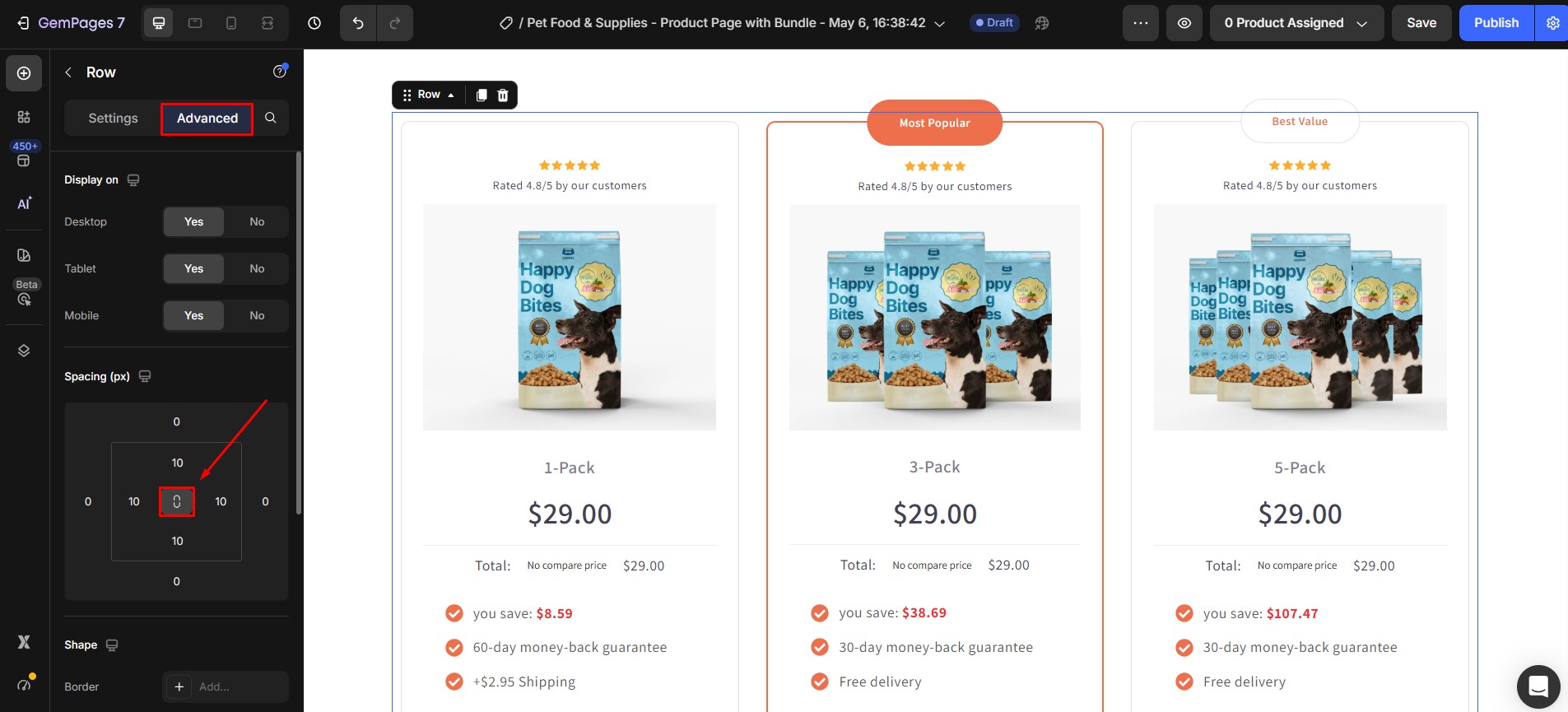
- In the right-hand sidebar, scroll down to the Spacing section.
You’ll see four input boxes representing Top, Right, Bottom, and Left, with a small lock icon in the center.
Using the Lock/Unlock Icon to Edit Padding
The lock icon at the center of the padding controls is the key to flexible editing. It has two states:
Locked Mode: Edit All 4 Sides at Once
When the icon shows as locked, all four padding values are linked together. This means whenever you change one value, the other three will automatically update to match it.
When to use Locked mode:
- You want uniform spacing on all sides of an element.
- You’re applying consistent padding to buttons, cards, or sections where symmetry matters.
- You want to save time without adjusting each side manually.
How to use it:
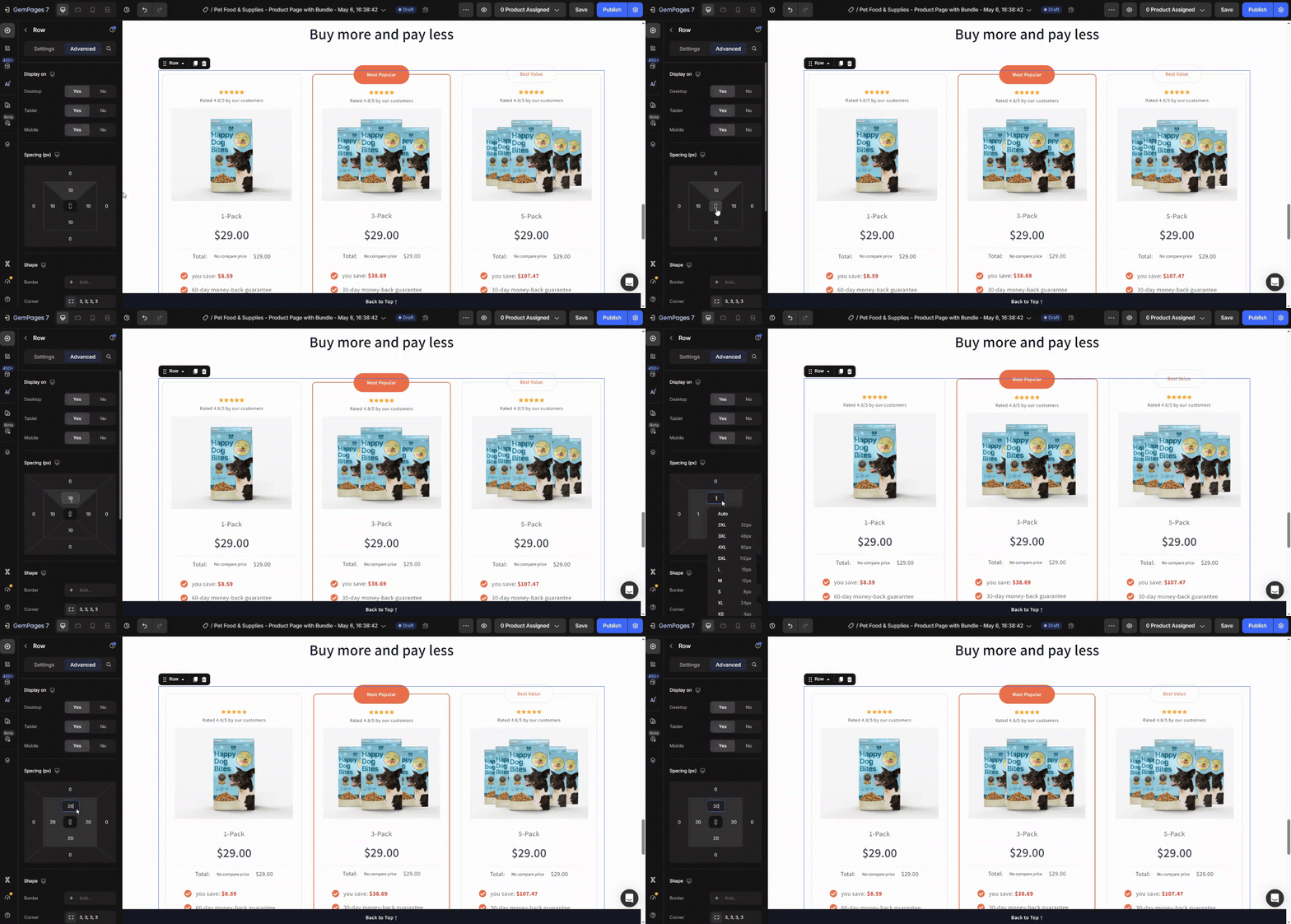
- Make sure the lock icon is in the closed/locked state.
- Click any of the four input boxes (Top, Right, Bottom, or Left).
- Enter your desired value (for example, 20px).
- All four sides will instantly update to the same value.
Unlocked Mode: Edit Each Side Individually
When you click the lock icon, it switches to the unlocked state. Now each of the four padding values becomes independent, and you can set a different number for each side.
When to use Unlocked mode:
- You need asymmetric spacing, for example, more padding on the top than the bottom.
- You’re fine-tuning a hero section, banner, or special layout.
- You want to align an element with surrounding content that doesn’t follow uniform spacing.
How to use it:
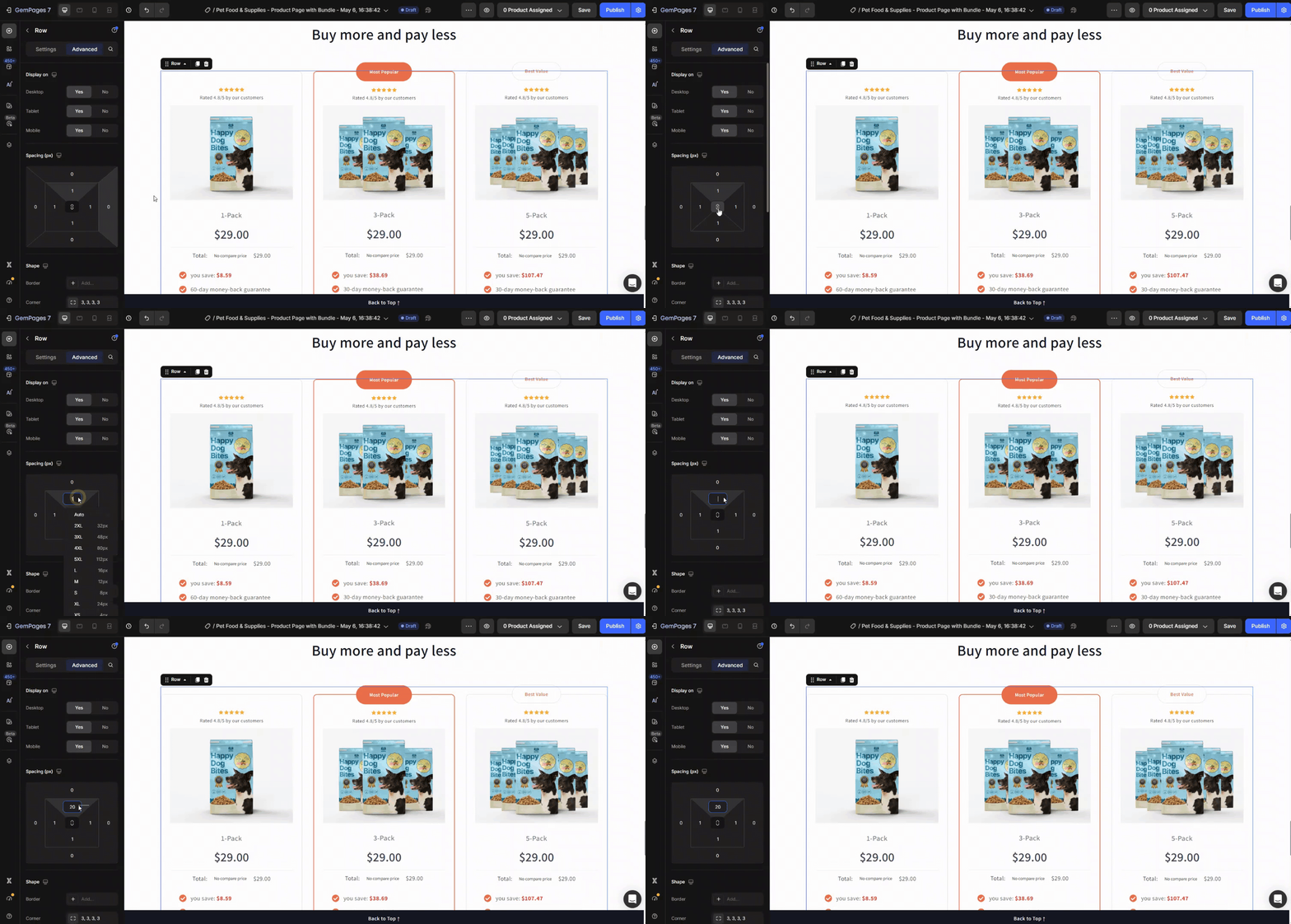
- Click the lock icon to switch it to the unlocked state.
- Click the input box of the side you want to change (Top, Right, Bottom, or Left).
- Enter the value you need for that specific side.
- Only the side you edited will change, the other three remain untouched.
Quick Comparison: Locked vs. Unlocked
| Mode | Behavior | Best For |
| Locked | Editing one side updates all four sides | Uniform, symmetric spacing |
| Unlocked | Each side can be edited independently | Custom, asymmetric spacing |
Tips for Editing Padding Effectively
To get the best results when working with padding in GemPages, keep these tips in mind:
- Start in Locked mode for a clean baseline, then switch to Unlocked if you need to fine-tune specific sides.
- Check responsiveness — switch between desktop, tablet, and mobile views in the editor to make sure your padding looks good on every screen size.
- Use consistent values across similar elements (such as all your section headings or product cards) for a more professional, cohesive design.
- Avoid excessive padding — too much empty space can push important content below the fold and hurt user experience.
- Combine padding with margin thoughtfully: padding controls inner space, while margin controls outer space. Use both to achieve precise layout control.
Frequently Asked Questions
1. Can I set different padding values for desktop and mobile?
Yes. GemPages lets you set responsive padding for each device type. Switch the device view in the editor toolbar (Desktop, Tablet, Mobile) and adjust the padding separately for each one.
2. What units can I use for padding?
GemPages typically supports px (pixels) for padding values. Pixels give you precise control over spacing on every screen.


Thank you for your comments