


When using the Article List element, displaying too many articles at once can make your page look long and harder to navigate. A simple way to improve readability is by adding a Load More button that initially shows only part of the list and expands the full content when clicked.
Before You Start
Before adding the Load More function, make sure you have:
- An Article List element already added to the page
- A Button element that will be used as the Load More button
- The Element ID of both elements
You will need these IDs to update the script correctly.
How to Add a Load More Button
Follow these steps to create the Load More behavior.
Step 1: Add a Button Element
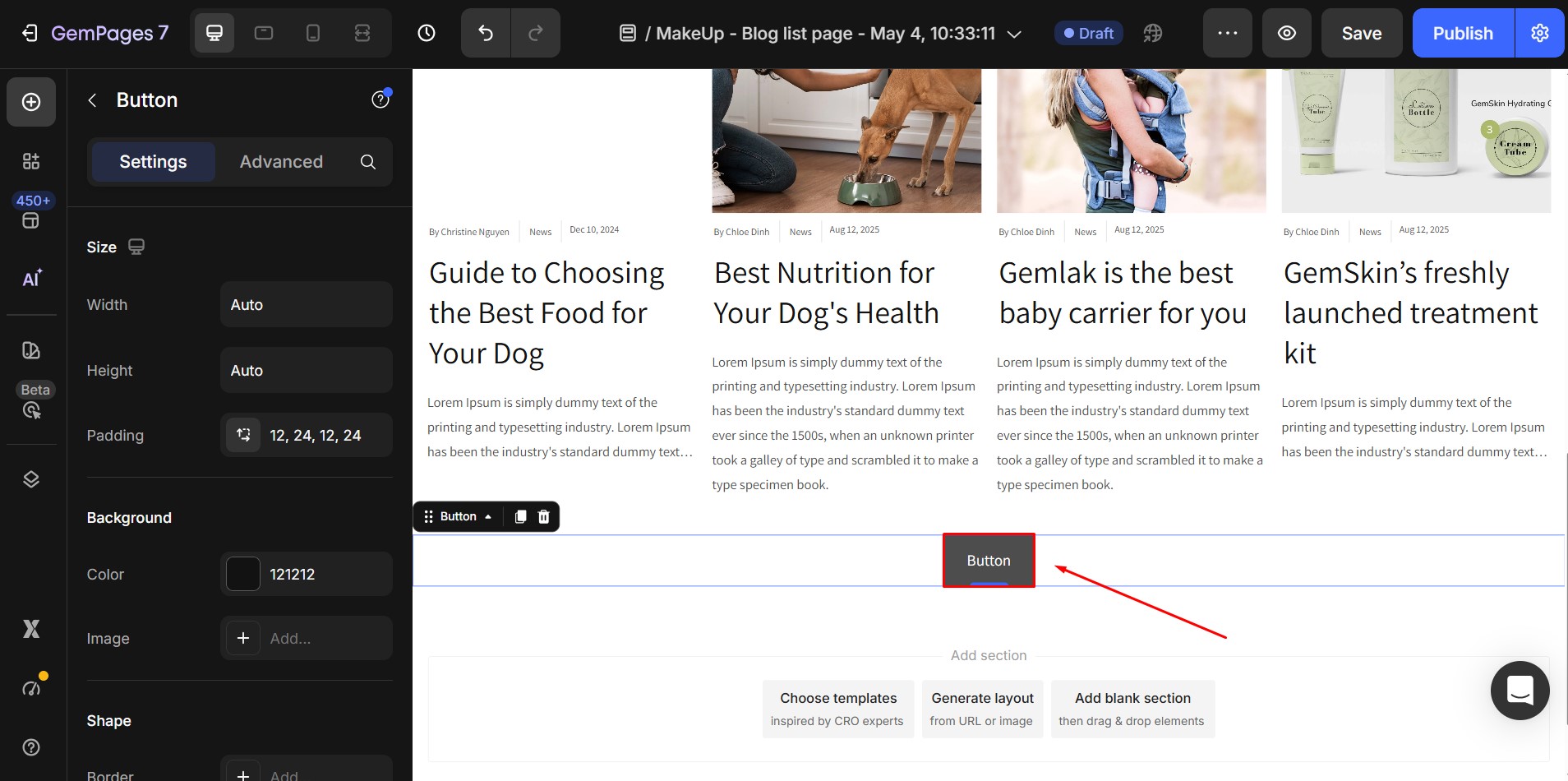
First, add a button below the Article List.
- Drag a Button element below your Article List
- Change the button text to: Load More
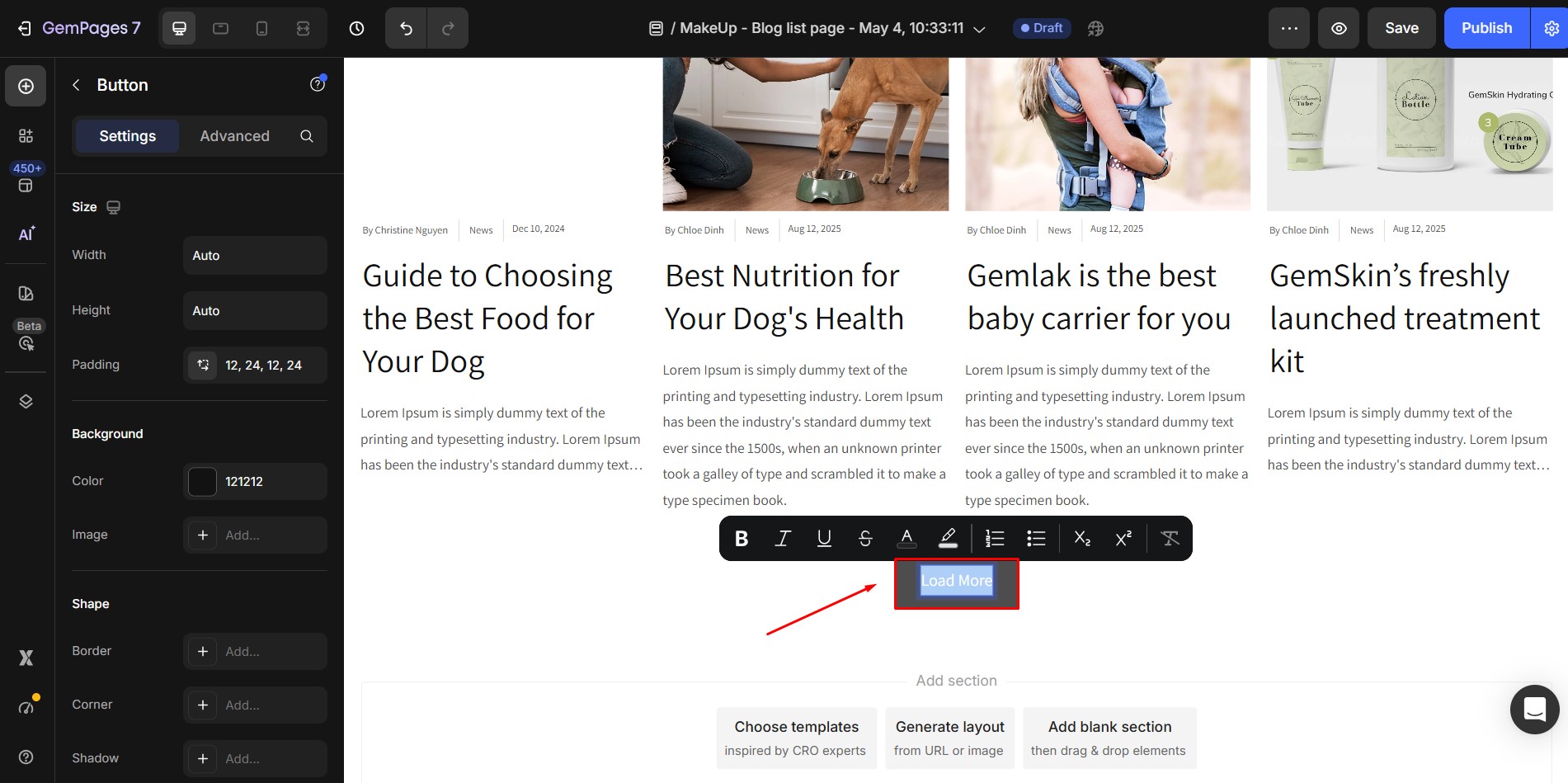
- Style the button as needed
This button will trigger the expand action.
Step 2: Copy Element IDs
You need to copy the Element IDs of:
- The Article List element
- The Button element
To copy an Element ID:
- Right-click the element
- Click Copy → Copy Element ID
- Save the copied ID
You will replace the sample IDs inside the code.
Step 3: Add a Custom Code Element
Add a Custom Code Element.
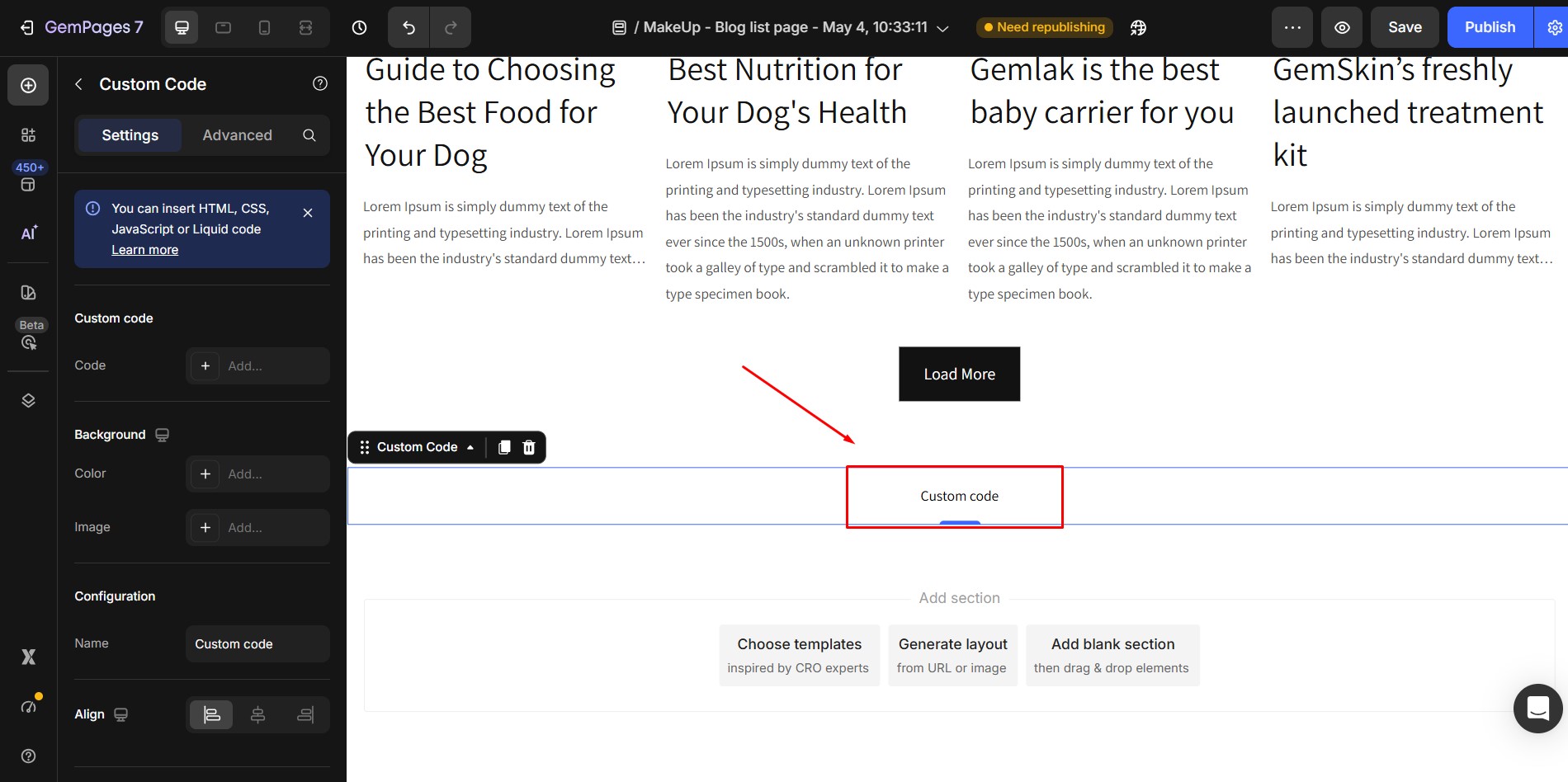
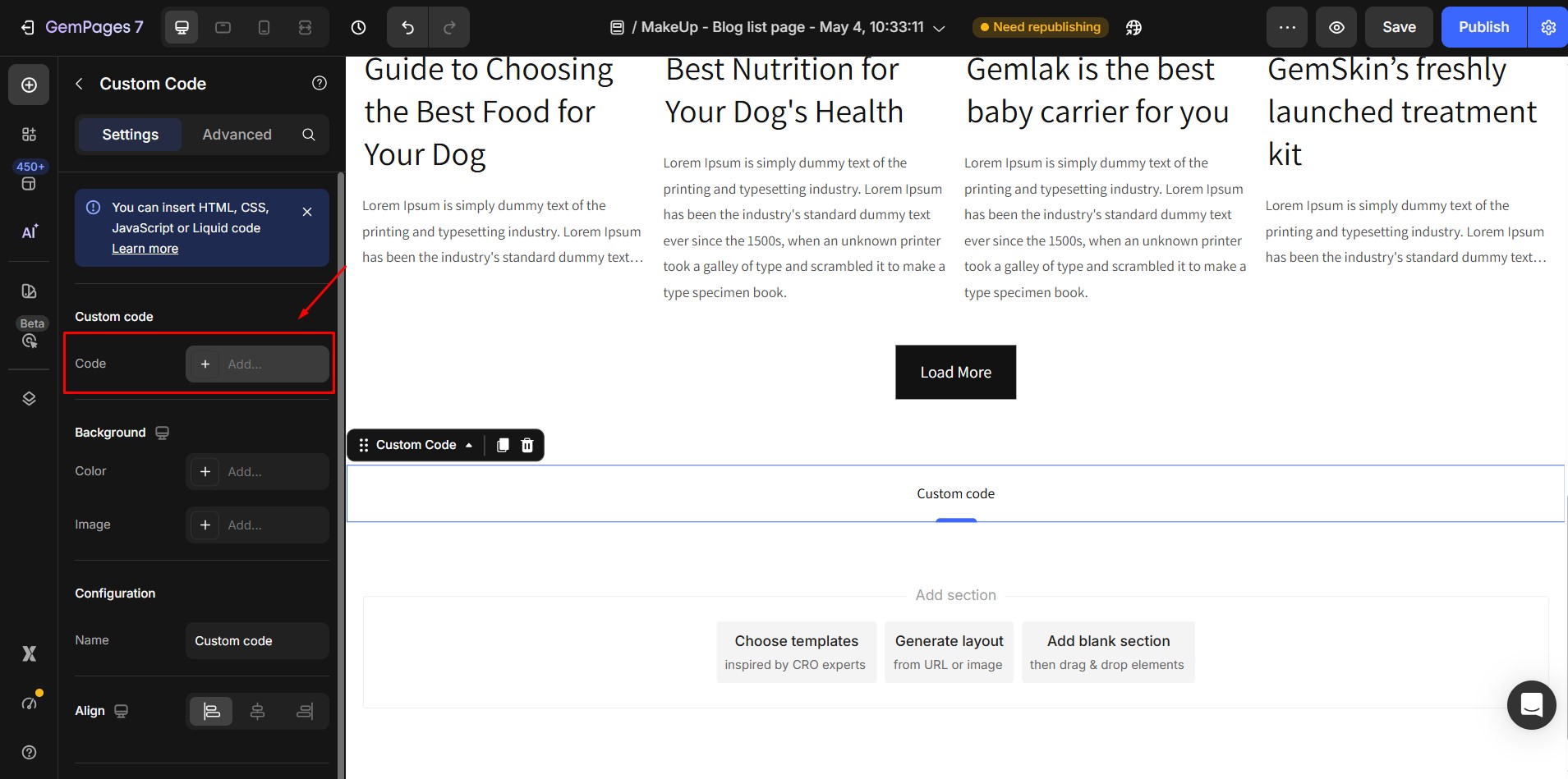
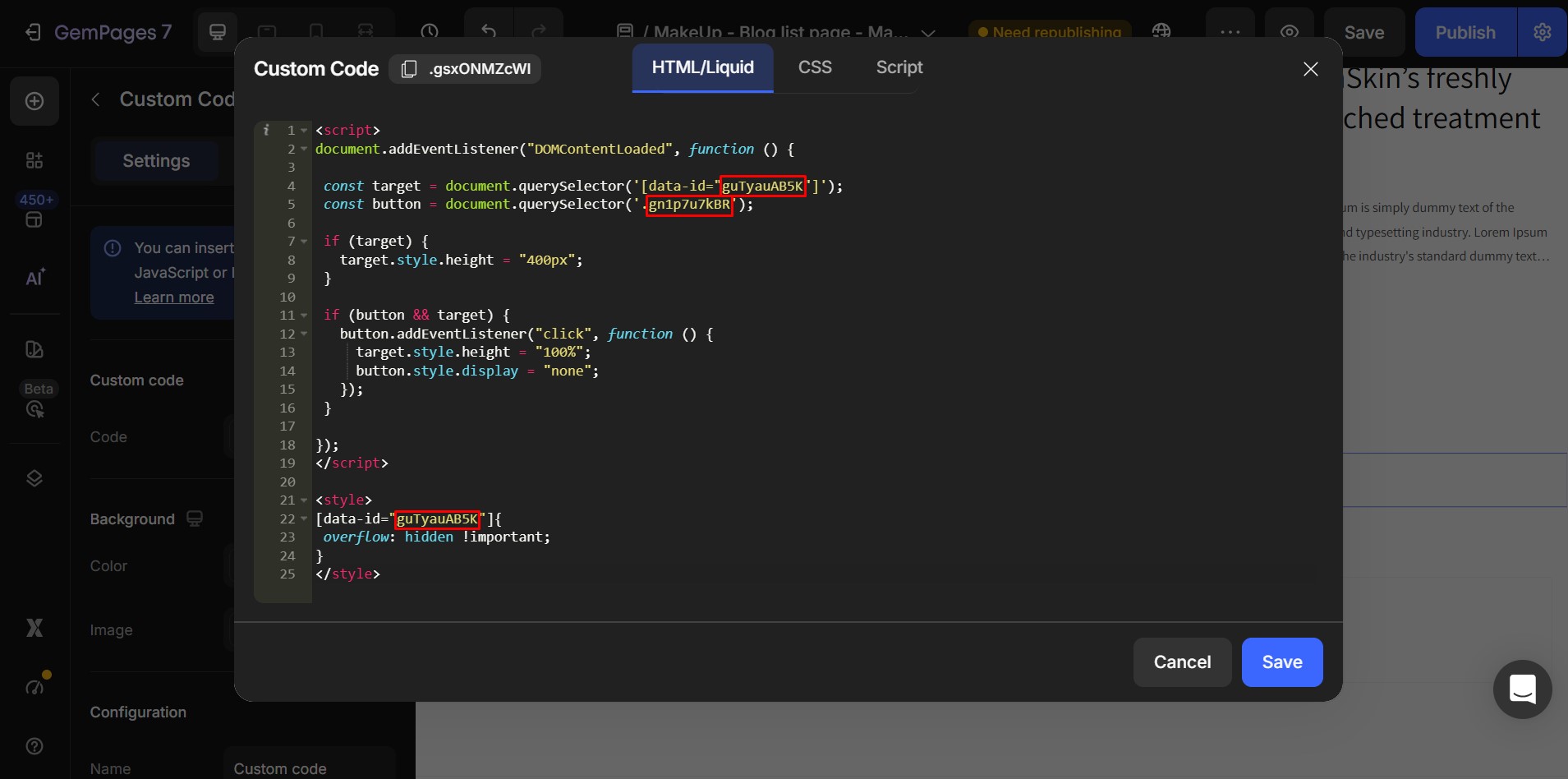
Then paste the following HTML code into the Custom Code element.
<script> document.addEventListener("DOMContentLoaded", function () { const target = document.querySelector('[data-id="gMwtAAckG5"]'); const button = document.querySelector('.g4FCNC2MEY'); if (target) { target.style.height = "400px"; } if (button && target) { button.addEventListener("click", function () { target.style.height = "100%"; button.style.display = "none"; }); } }); </script> <style> [data-id="gMwtAAckG5"]{ overflow: hidden !important; } </style> |
Step 4: Replace the Sample Element IDs
Inside the code above, you must replace the sample IDs with your own.
Replace:
gMwtAAckG5
with:
- Your Article List element ID
Replace:
g4FCNC2MEY
with:
- Your Button element ID
How This Load More Function Works
After adding the code:
- The Article List will initially show only 400px height
- Extra articles will be hidden
- When users click Load More:
- The full list becomes visible
- The button disappears
This creates a simple and clean expand interaction.
You can control how many articles appear before clicking Load More.
Find this line in the code:
target.style.height = “400px”;
Change 400px to another value, such as:
- 300px → show fewer articles
- 500px → show more articles
- 600px → show even more
Adjust this value based on your layout.


Thank you for your comments