


Customizing the default placeholder text of a Dropdown element can help make your forms clearer, more professional, and easier for customers to understand.
Instead of using generic placeholder text, you can display more meaningful labels such as:
- Select your country
- Choose a size
- Select your profession
- Pick a delivery option
Why Customize Dropdown Placeholder Text?
Updating your dropdown placeholder text helps improve:
- Form clarity
- User experience
- Form completion rates
- Brand professionalism
- Customer guidance
Clear placeholder labels help visitors understand exactly what information they need to select before submitting a form.
This is especially useful for:
- Contact forms
- Registration forms
- Survey forms
- Product customization forms
- Multi-step forms

Before You Start
Before following this tutorial, make sure you already have:
- A page created in GemPages
- A Dropdown element added to your page
- Access to the GemPages editor
Step 1: Select the Dropdown Element
Open your page in the GemPages editor.
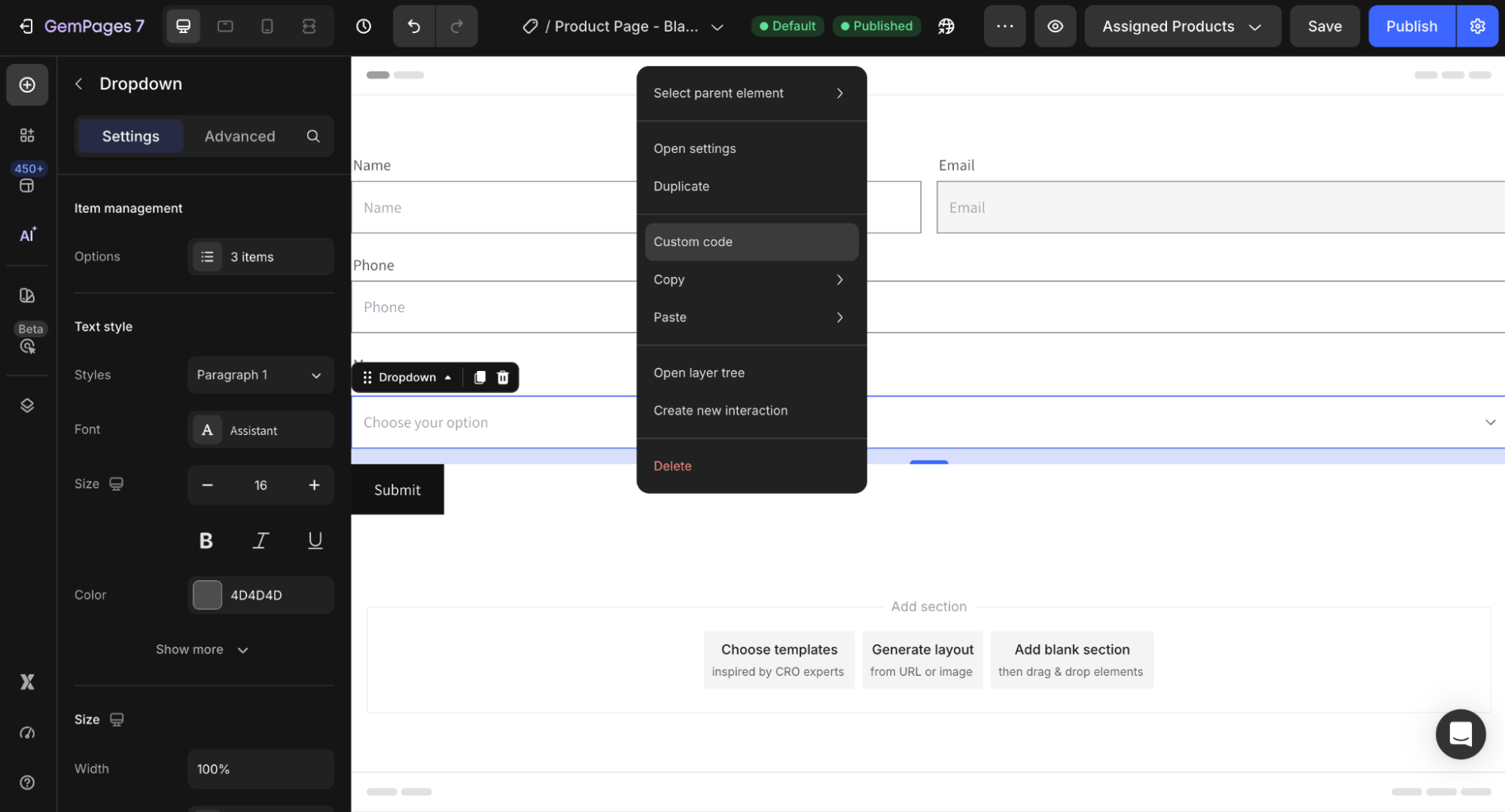
Right click on the Dropdown element where you want to change the placeholder text => Custom Code.
Step 2: Open the Script Tab
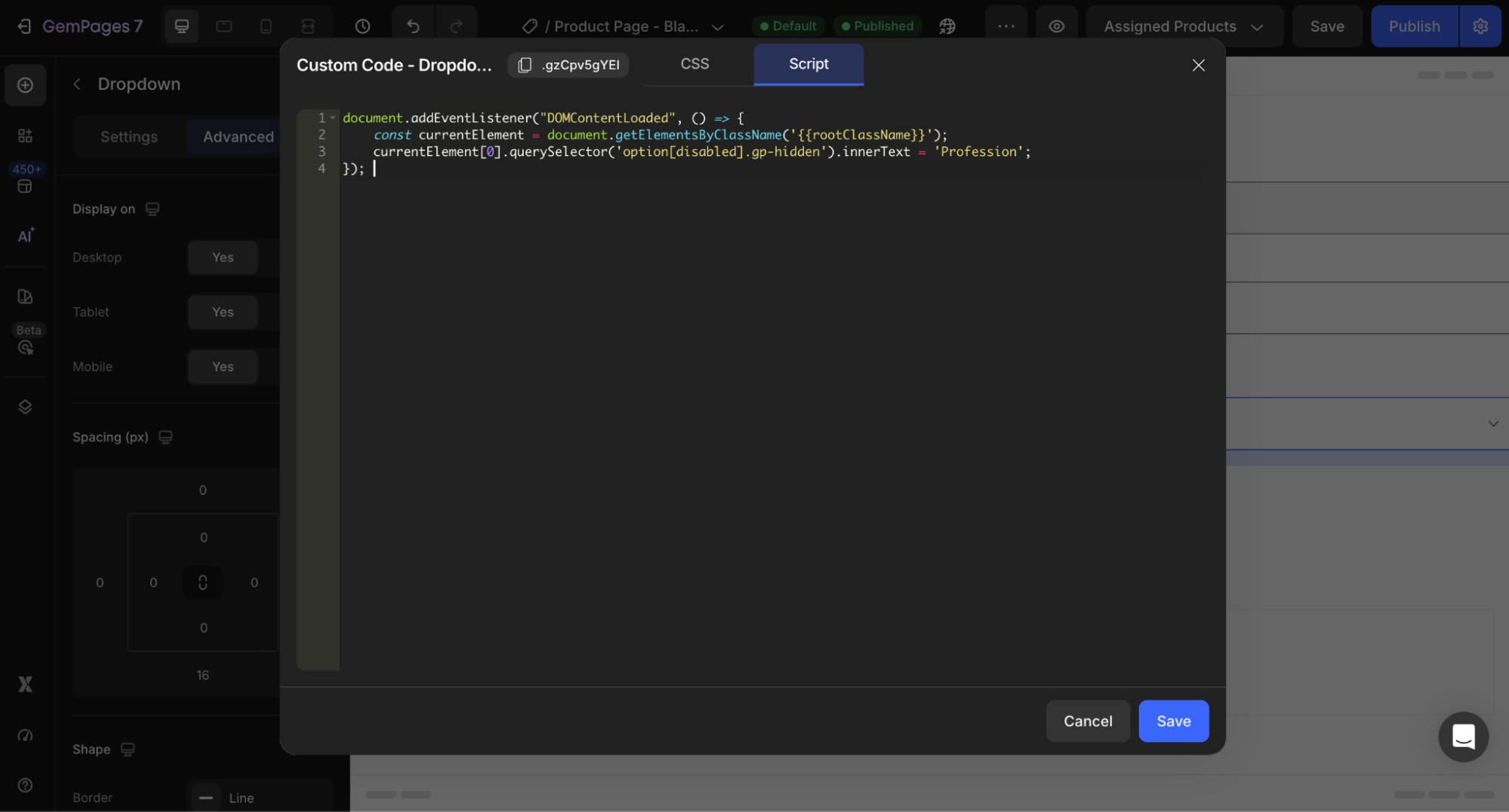
Open the Script tab. This is where you can add custom JavaScript for the selected element.
Step 3: Add the Custom Script
Paste the following code into the Script tab:
document.addEventListener("DOMContentLoaded", () => {

  const currentElement = document.getElementsByClassName('{{rootClassName}}');

  currentElement[0]

    .querySelector('option[disabled].gp-hidden')

    .innerText = 'Profession';

});
Important Note
Replace: ‘Profession’ with the placeholder text you want to display.
Example:
‘Select your country’
or
‘Choose your size’
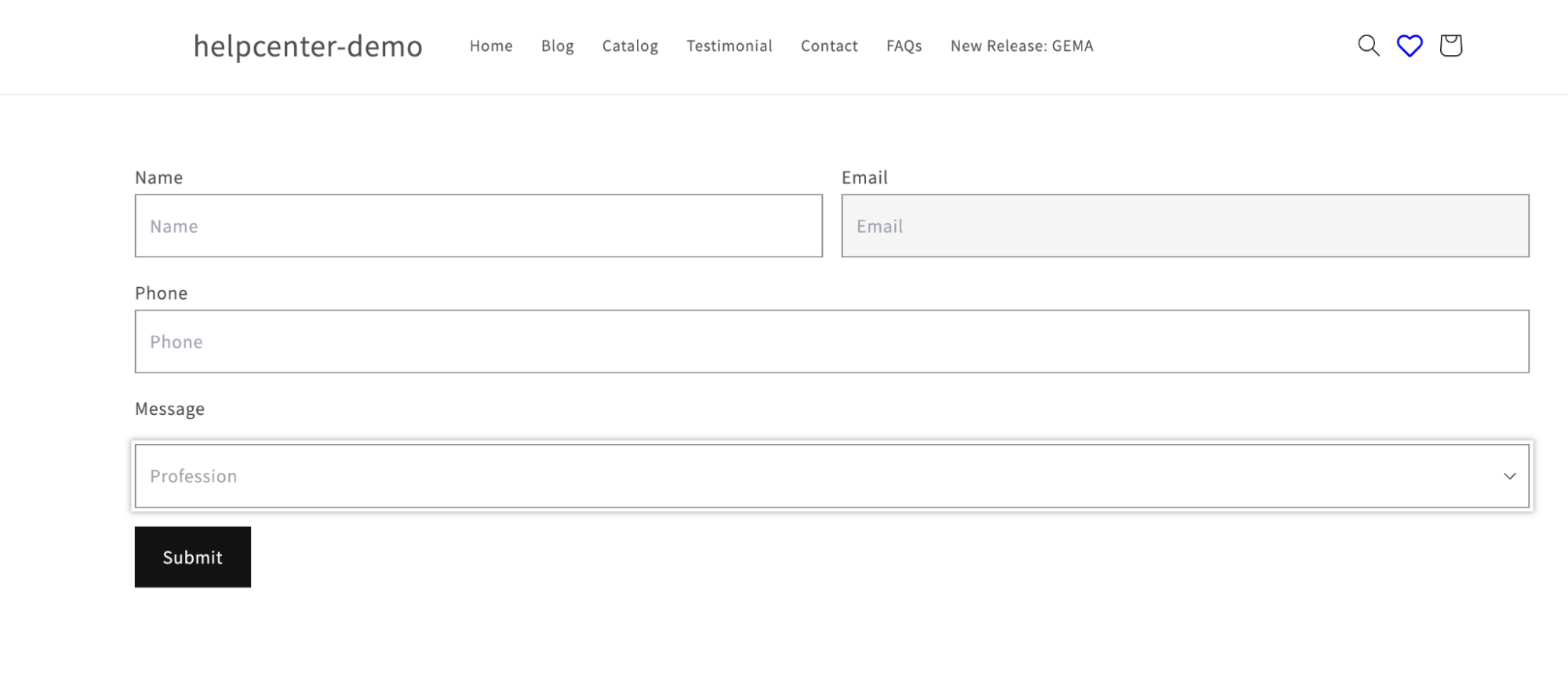
Result:


Thank you for your comments