


Your form design plays an important role in how professional and trustworthy your store looks.
A simple change like updating the background color of an Email Field can help:
- Match your brand identity
- Improve readability
- Create better visual hierarchy
- Make your contact forms look more modern and polished
Before You Start
Make sure you already have:
- A page created in GemPages
- An Email Field element added to your form
- Access to the GemPages editor
No advanced coding knowledge is required.
Step 1: Select the Email Field Element
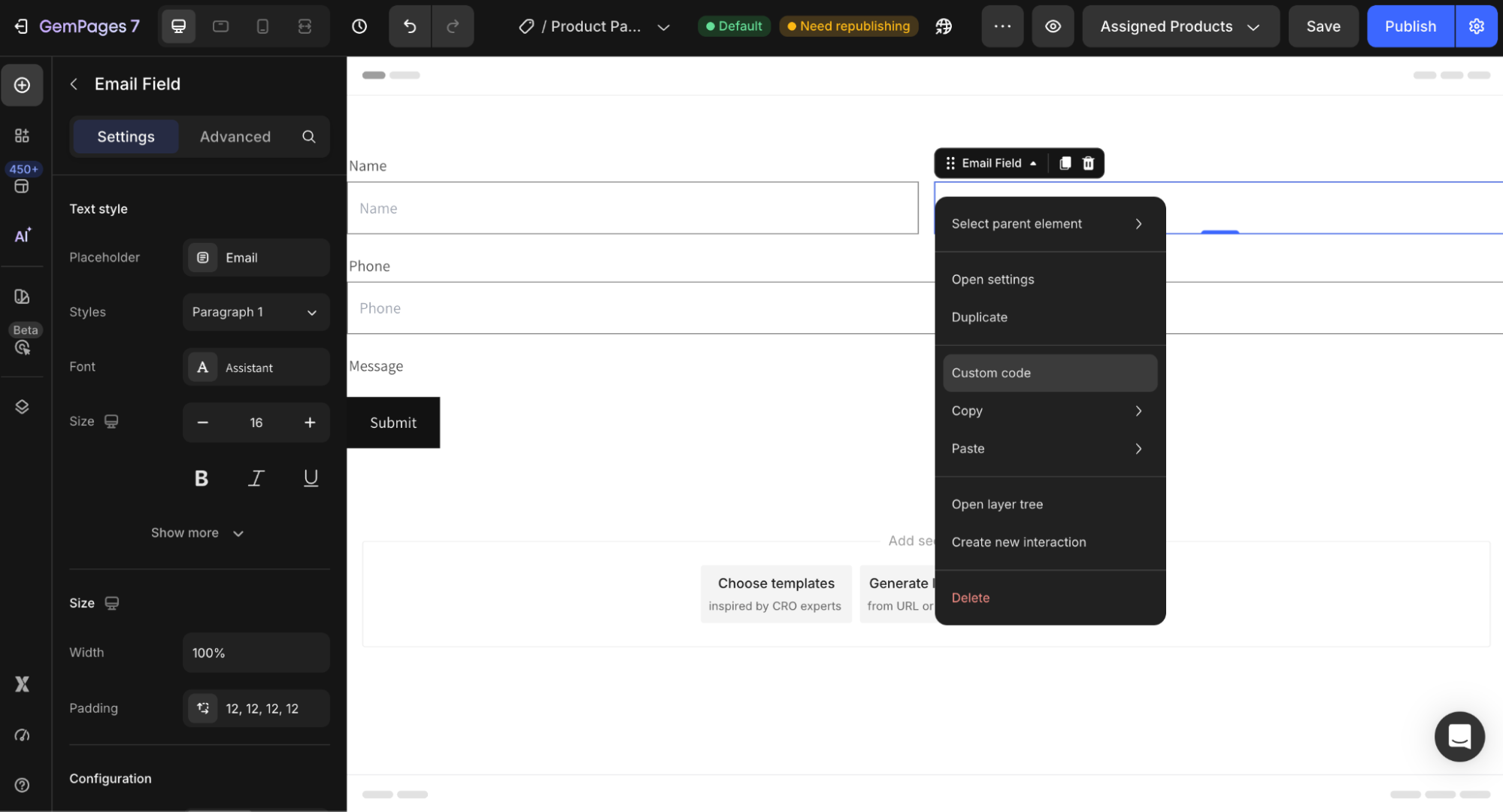
Open your page in the GemPages editor. Click the Email Field element you want to customize. This ensures the custom styling only applies to the selected field.
Step 2: Open the Custom Code Panel
Right-click the selected Email Field element. Then choose: Custom Code. The Custom Code panel will appear.
Step 3: Add the CSS Code
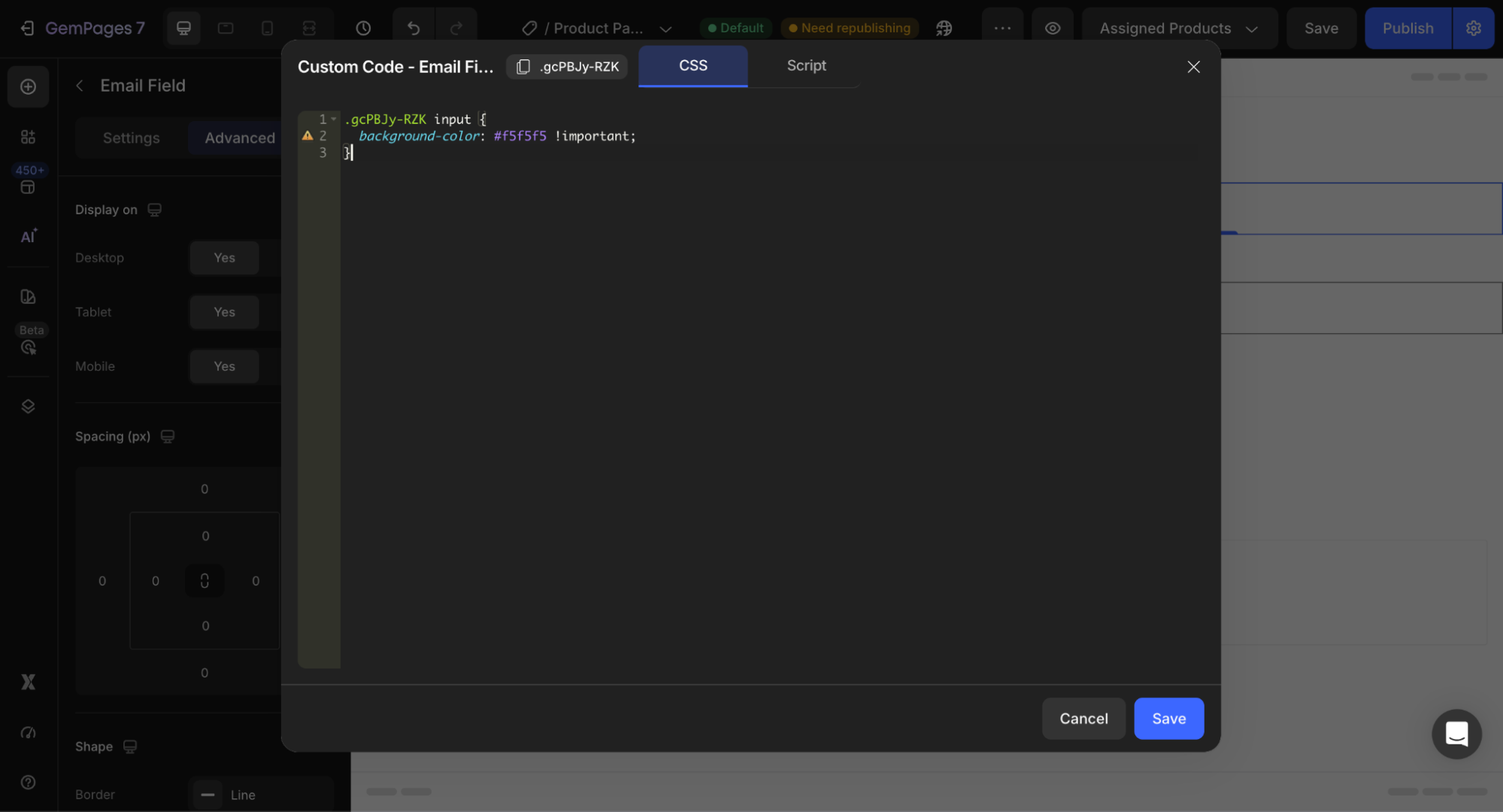
Paste the following code into the Custom Code editor:
ElementClass input {

  background-color: xxxxx !important;

}
Important Notes
1. You must replace ElementClass with the actual class name of your Email Field element.
You can find this class name at the top-left corner of the Custom Code panel.
Example:
.gf-input-123 input {

  background-color: #f5f5f5 !important;

}
2. Replace xxxxx with the color you want to use.
Example:
background-color: #000000 !important;
or
background-color: #f5f5f5 !important;
How to Find a Color Code:
If you don’t already have a color code, you can use free tools like:
- Google Color Picker
- HTML Color Picker
- Coolors
- Adobe Color
These tools let you visually choose colors and instantly copy HEX codes.
Example HEX codes:
- #ffffff → White
- #000000 → Black
- #f3f3f3 → Light gray
- #1a73e8 → Blue
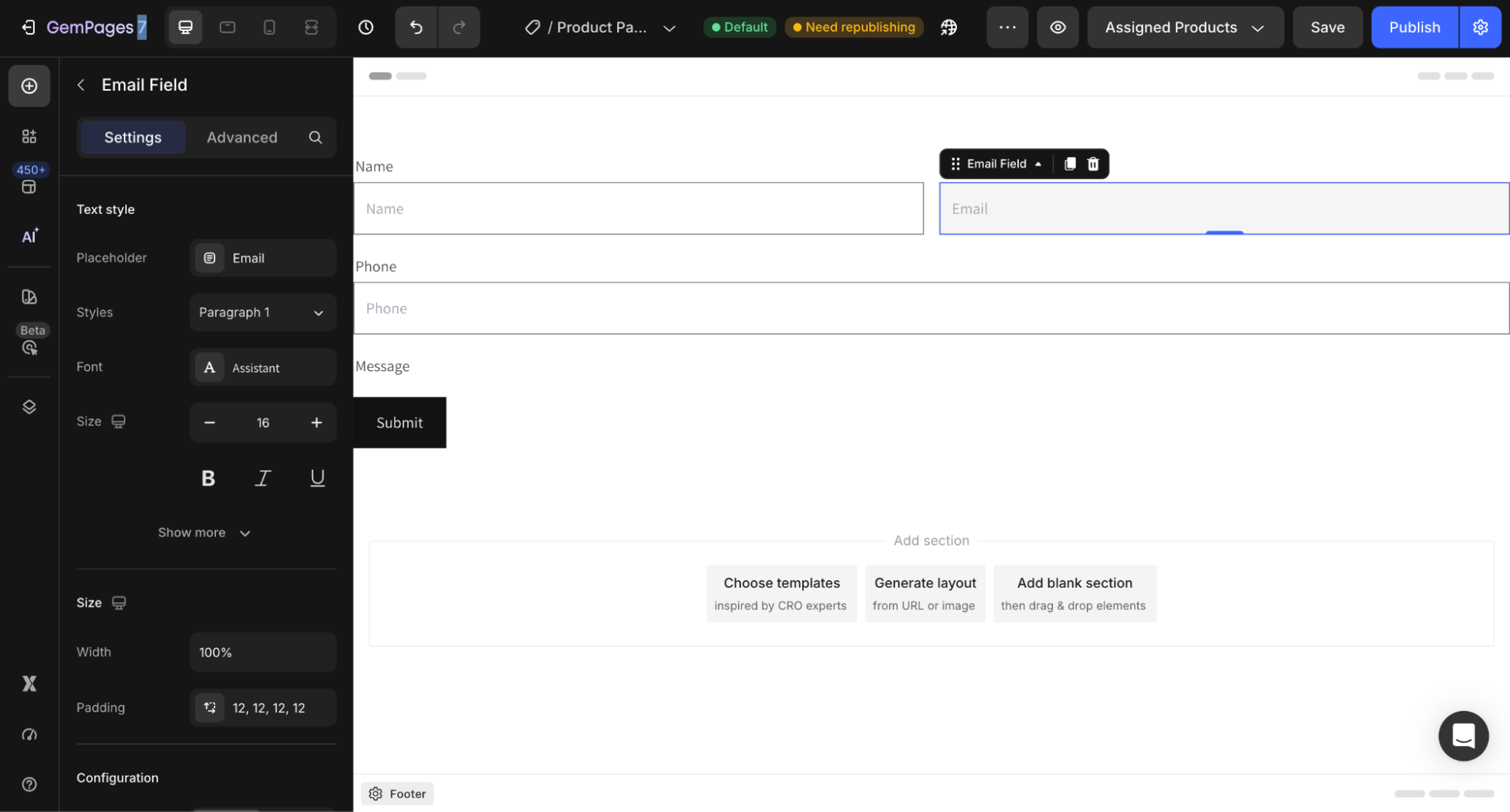
Result:


Thank you for your comments