


A great-looking page on desktop doesn’t always translate perfectly to mobile or tablet. Headings might feel too large on a phone screen, padding that looks balanced on a laptop can feel cramped on a tablet, and buttons may need different sizes depending on the device. That’s why GemPages gives you the ability to customize specific settings for each device individually using the Responsive Settings icon.
What Is the Responsive Settings Icon?
The Responsive Settings icon is a small icon that appears next to certain options in the GemPages settings panel. It allows you to override the default value of a specific setting on a per-device basis, meaning you can have one value on desktop, a different value on tablet, and yet another value on mobile, all for the same element.
This gives you full control over how your page adapts across screen sizes without having to duplicate elements or write custom code.
Why Responsive Settings Matter
Designing responsively is essential for both user experience and SEO. Here’s why using the responsive settings icon is so important:
- Better mobile experience: over half of all online shoppers browse on mobile devices, so your page must look great on small screens.
- Improved conversion rates: properly sized text, buttons, and spacing make it easier for visitors to read, tap, and buy.
- Higher SEO rankings: Google uses mobile-first indexing, meaning a well-optimized mobile version directly impacts your search visibility.
- Cleaner workflow: you can fine-tune one element for all devices in a single place, without duplicating sections.
How to Use the Responsive Settings Icon
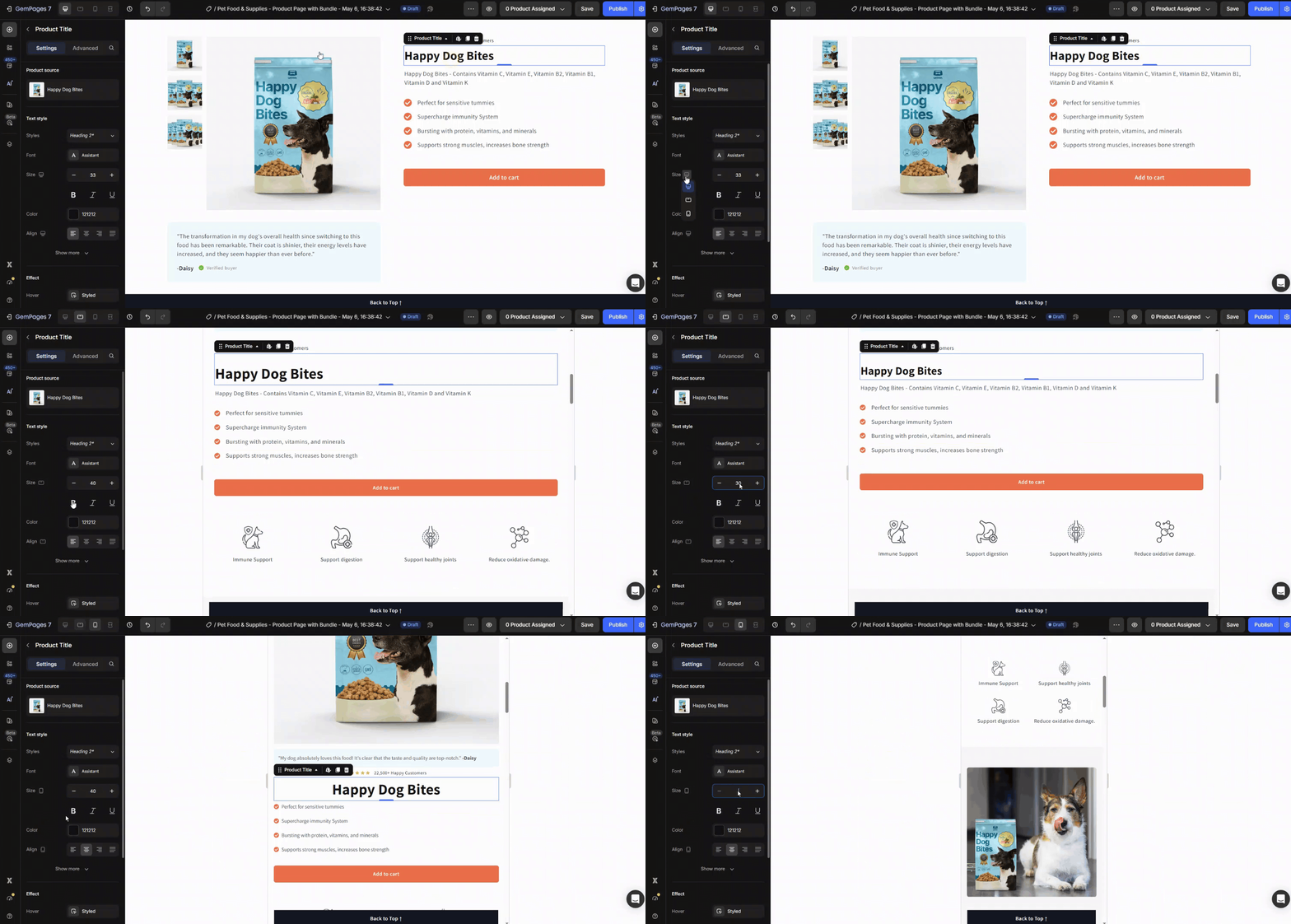
Let’s walk through a real example. Suppose you have a Heading that looks great on desktop but is too large on mobile. Here’s how to fix it using responsive icon:
Step 1: Select Your Element
Click on the heading (or any element) in the editor canvas. The settings panel on the right will display all available options for that element.
Step 2: Locate the Responsive Icon
Scroll through the settings panel and find the option you want to adjust per device — for example, Font Size. You’ll see a small responsive icon next to it.
Step 3: Switch to the Target Device View
Use the device toggle at the top of the editor to switch between Desktop, Tablet, and Mobile views. Choose the device you want to customize first.
Step 4: Click the Responsive Icon
Click the responsive icon next to the setting. This activates the override for the currently selected device, allowing you to enter a value that applies only to that device.
Step 5: Enter the New Value
Enter your desired value (for example, change the font size from 48px on desktop to 28px on mobile). The change will only affect the device view you’re currently in.
Step 6: Repeat for Other Devices
Switch to another device view and repeat the process if needed. Your settings for each device are saved independently.
Step 7: Preview and Publish
Use the device toggle to preview how your page looks across all screen sizes, then click Save or Publish when you’re happy with the result.
Tips for Using Responsive Settings Effectively
To get the most out of the responsive settings icon, follow these best practices:
- Start with desktop, then refine for smaller screens. Most users design desktop-first, but always check tablet and mobile to catch issues early.
- Test on real devices when possible. The editor preview is accurate, but viewing on an actual phone gives you the best sense of the user experience.
- Don’t override every setting. Only customize what truly needs adjusting — too many overrides make your design harder to maintain.
- Watch your tap targets. Buttons and links should be at least 44×44 pixels on mobile to be easy to tap.
- Keep typography readable. Body text should generally stay between 14px and 18px on mobile for comfortable reading.


Thank you for your comments