


Choosing the right color is an important part of keeping your design consistent. In GemPages, the Color Picker tool allows you to pick colors from anywhere on your screen — even from other windows open on the same monitor.
This feature works similarly to tools in design software like Figma, making it easy to match colors across different elements, images, or brand materials.
When Should You Use the Color Picker?
The Color Picker is especially useful when:
- You want to match colors from images
- You need to use brand colors from a logo
- You want consistent colors across your page
- You are copying colors from another website or design file
- You want to avoid manually entering color codes
For example, if you want your Heading text to match the color from a logo image, you can simply pick the color directly instead of guessing the hex code.
How to Use the Color Picker
In this example, we will change the color of a Heading element using the Color Picker.
Step 1: Select the element you want to change color
From the editor canvas:
- Click on the Heading element you want to update
- Make sure the correct element is selected
Once selected, the element settings will appear on the left panel.
Step 2: Open the color settings and select the Color Picker icon
Inside the element settings:
- Find the Color option
- Click to open the color settings
- Click the Color Picker icon
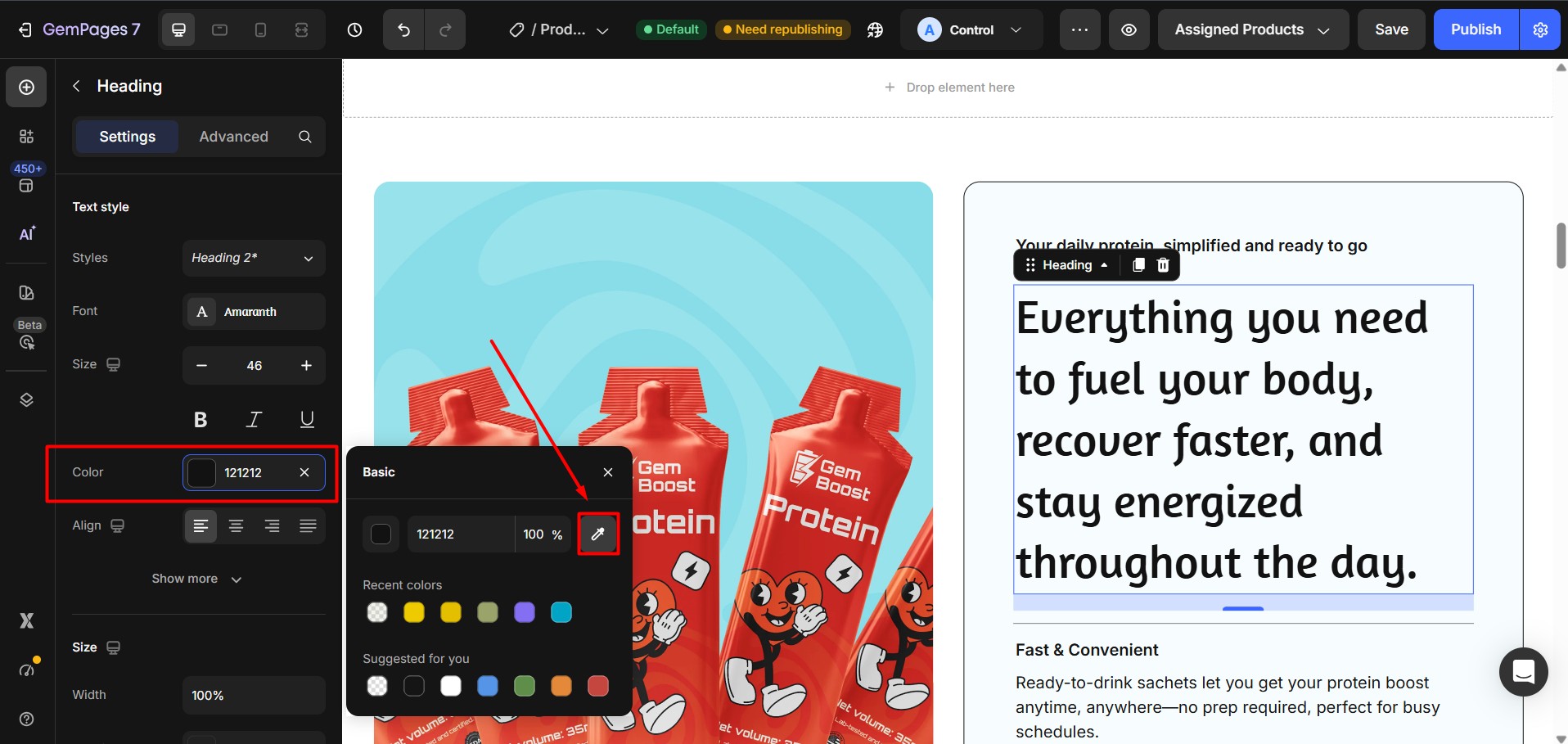
After clicking the icon, your cursor will turn into a color selection tool.
Step 3: Pick a color from anywhere on your screen
Move your cursor to any visible area on your screen.
You can pick colors from:
- Images inside your page
- Logos
- Other browser tabs
- Design files
- Any open window on the same monitor
Click on the color you want to use.
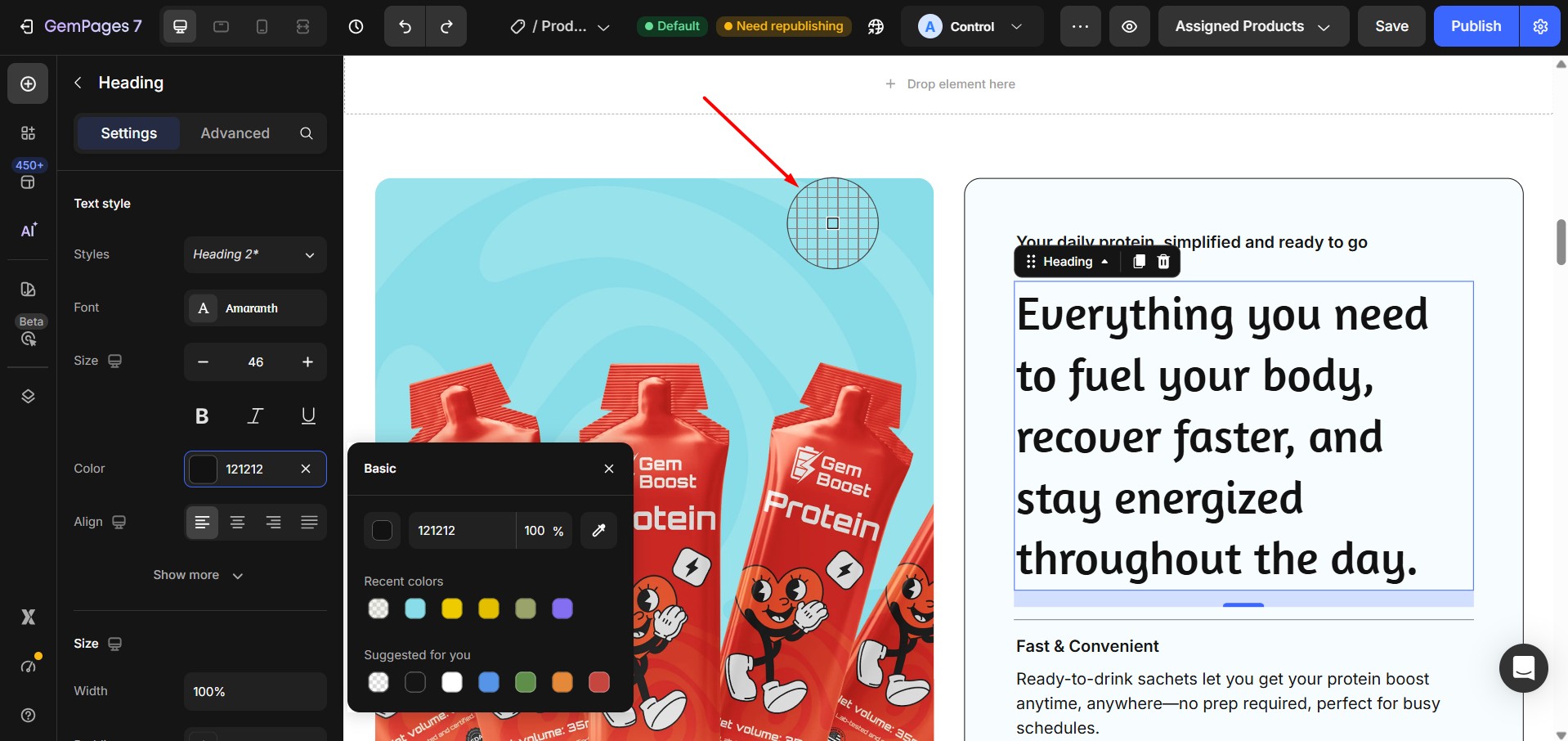
The selected color will immediately be applied to your element.
After selecting the color:
- The new color will be applied automatically
- No additional steps are required
You can continue editing or repeat the process for other elements.


Thank you for your comments