


This article shows you how to use Custom Code to rotate an Image element in GemPages.
About the Image element
The Image element in GemPages allows you to display images anywhere on your page, such as product photos, banners, logos, or promotional graphics.
To learn more about the Image element and its built-in settings, see Image Element.
How to rotate an Image using Custom Code
Step 1: Open the Custom Code panel
In the GemPages editor, locate the Image element that you want to rotate.
Then, right-click the Image element and select Custom Code.
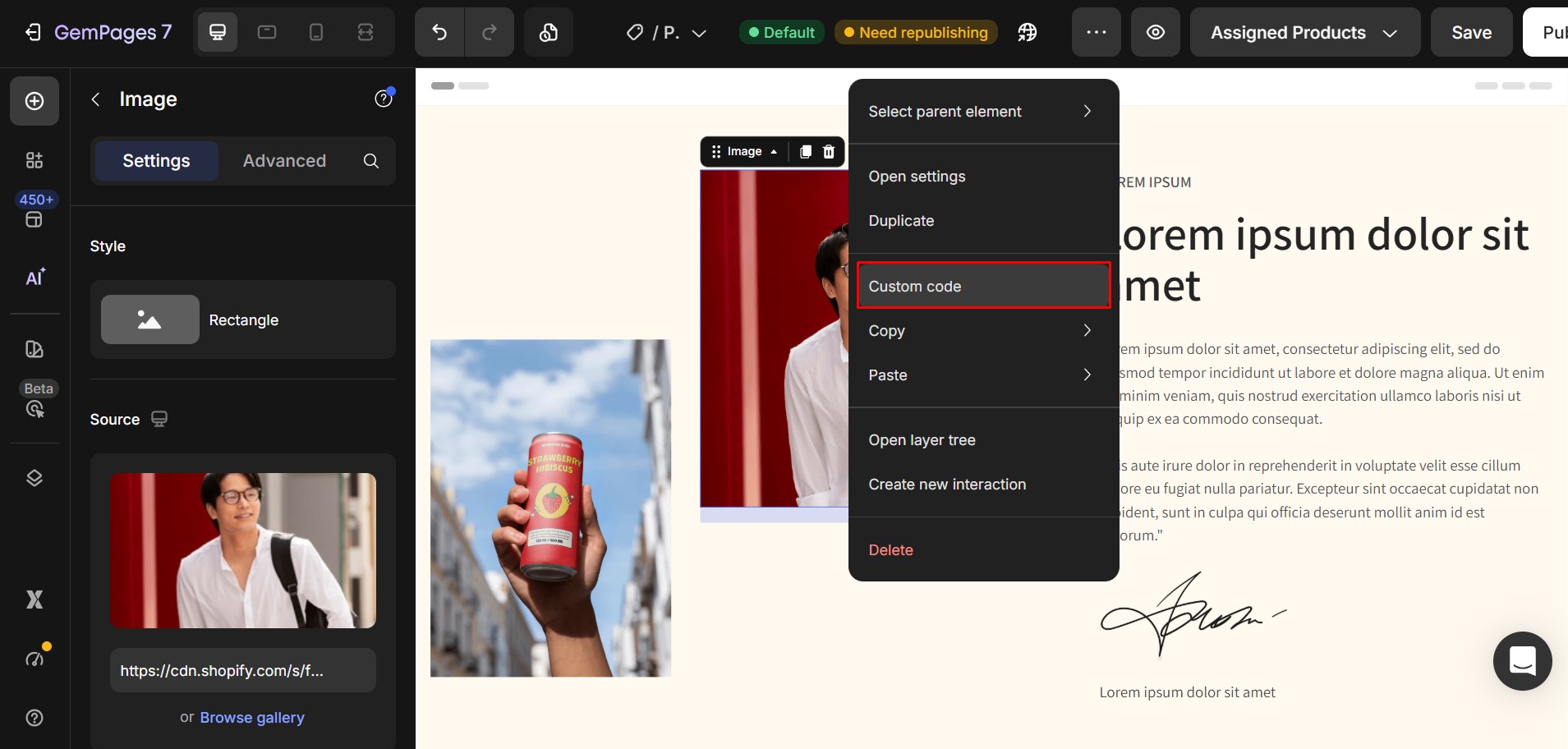
Step 2: Paste the CSS code
Paste the following CSS into the Custom Code box:
img {

  transform: rotate(XXdeg);

}
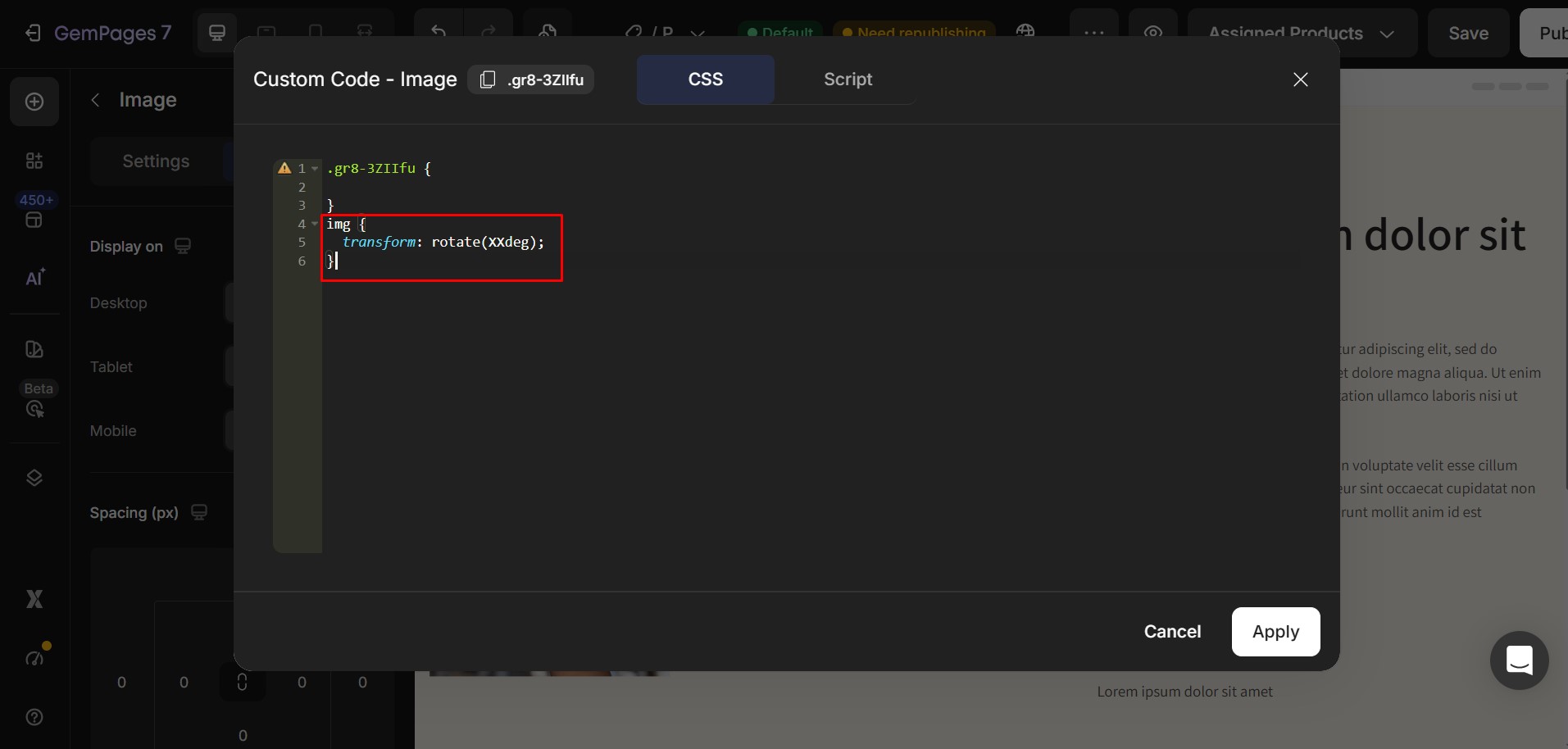
Step 3: Replace the rotation value
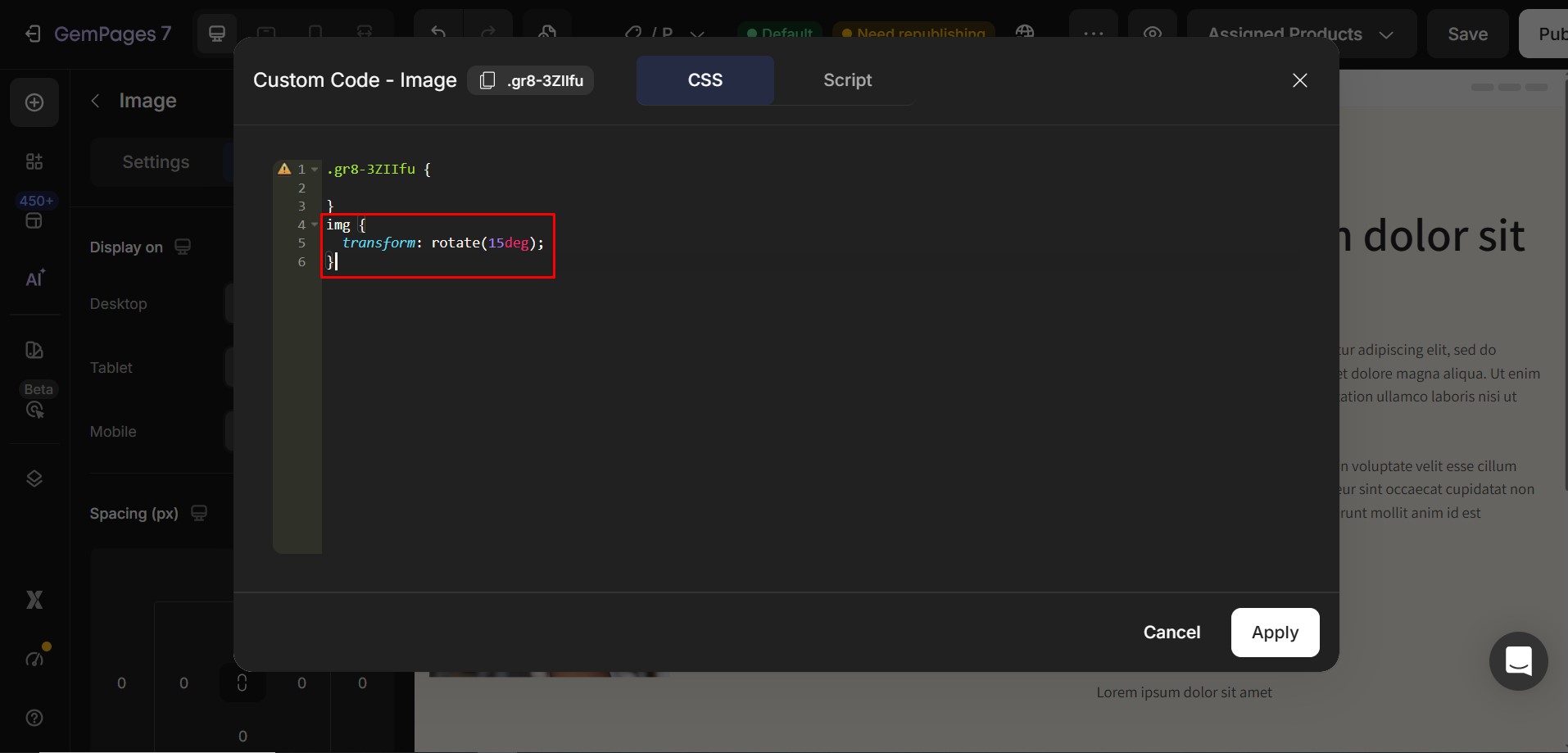
Replace XX with the number of degrees that you want to rotate the image.
For example:
img {

  transform: rotate(15deg);

}
rotates the image 15 degrees clockwise.
Common rotation values:
| Value | Result |
| 15deg | Slight clockwise rotation |
| 30deg | Moderate clockwise rotation |
| 45deg | Strong clockwise rotation |
| 90deg | Quarter turn clockwise |
| 180deg | Upside down |
| -15deg | Slight counterclockwise rotation |
| -45deg | Moderate counterclockwise rotation |
| -90deg | Quarter turn counterclockwise |
Tip: Use positive values to rotate the image clockwise and negative values to rotate it counterclockwise.
Step 4: Apply the changes
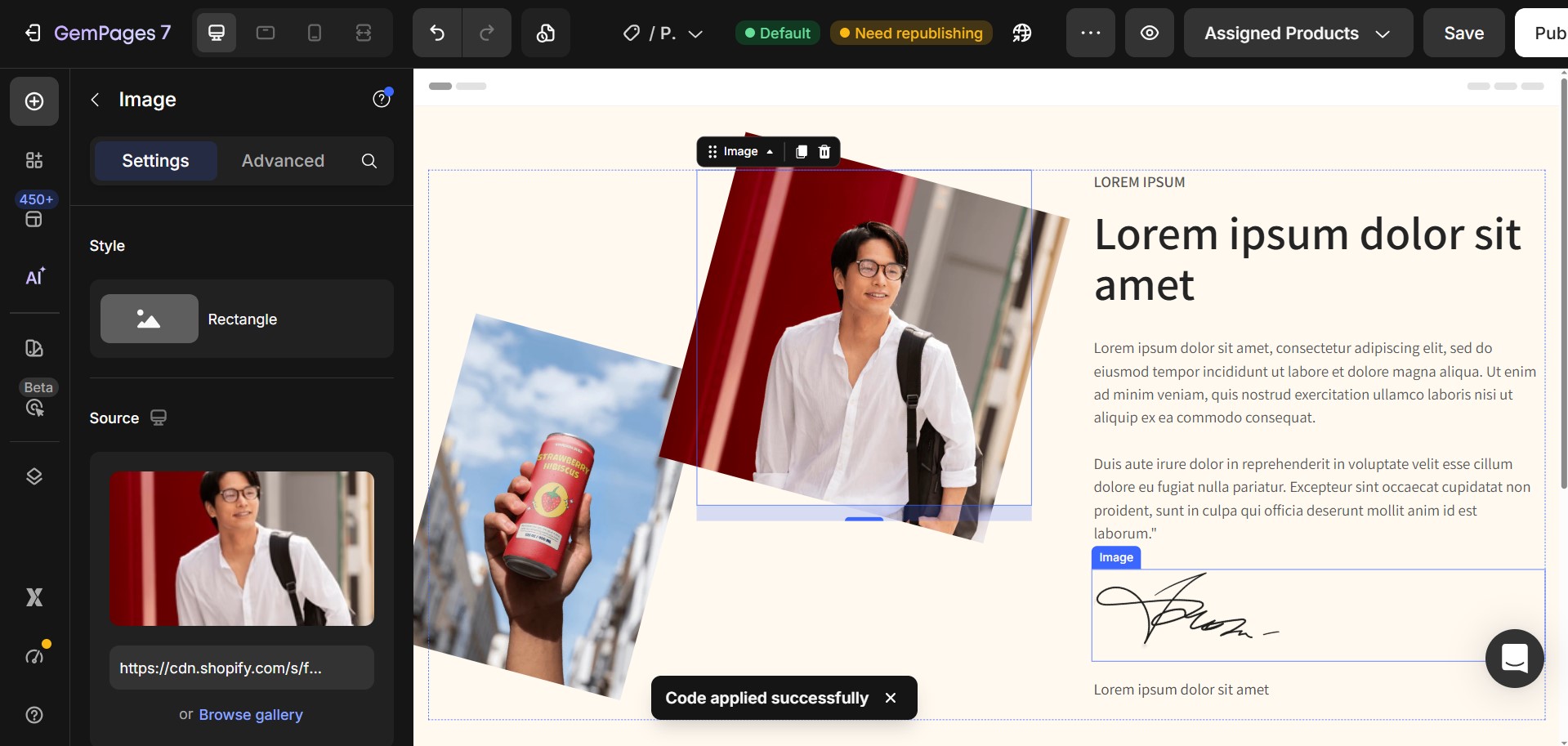
Click Apply to save the Custom Code.
Preview your page to make sure the image is rotated as expected.


Thank you for your comments