


About the Item List element
The Item List element in GemPages lets you display a list of items with icons and text, which is useful for highlighting product benefits, store policies, service features, and more.
If you’re new to this element, you can learn more in our guide here.
By default, the text in an Item List usually keeps the same color, even when customers hover over it. If you want to create a more interactive effect or make important content stand out, you can apply a custom hover color using CSS.
How to Change Item List Text Color on Hover
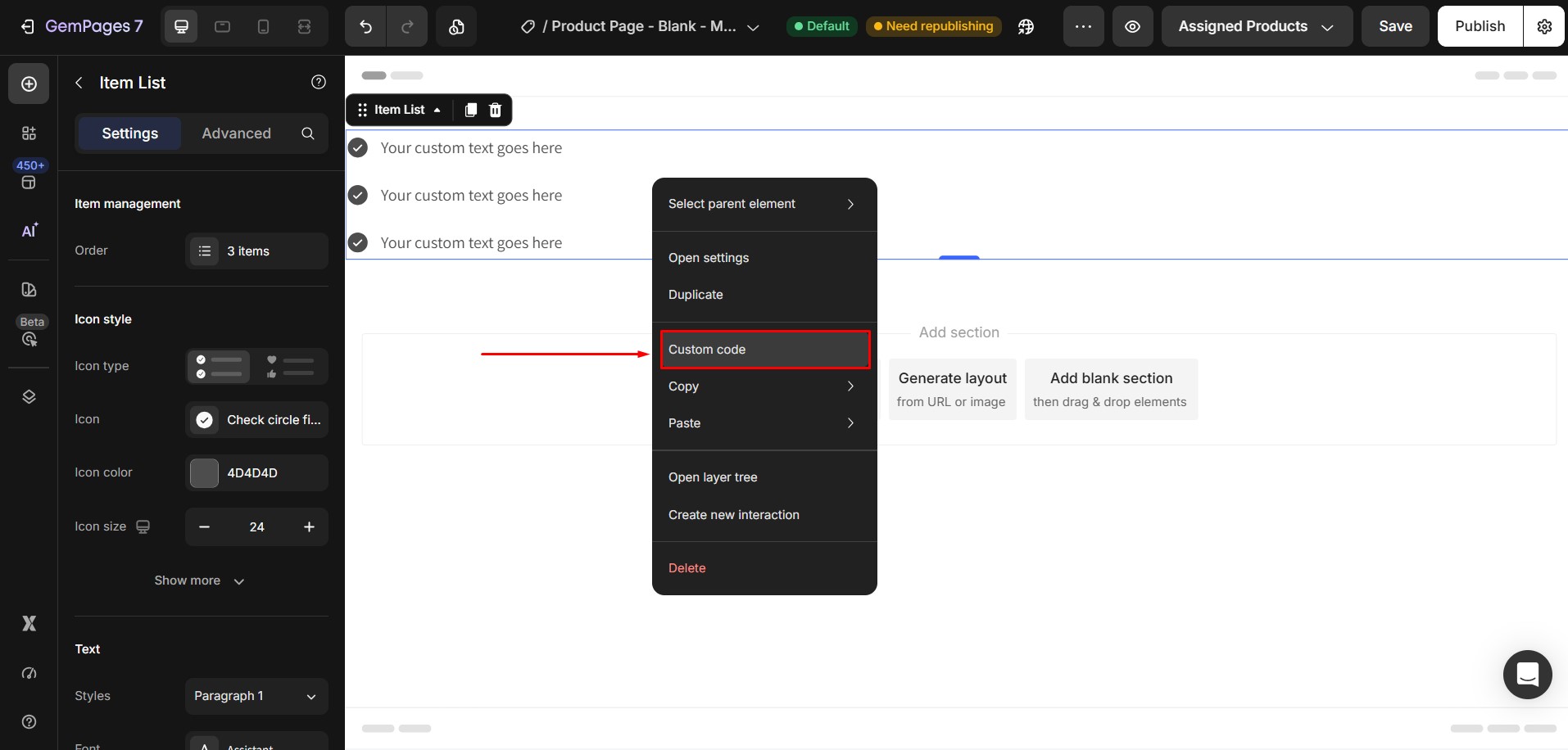
Step 1: Open the Custom Code panel of the Item List element
In the GemPages editor, locate the Item List element that you want to customize.
Then, right-click the Item List element and select Custom Code.
Step 2: Add the hover CSS code
Paste the following CSS code into the Custom Code box:
.gXogrronUE .gp-icon-list-text:hover {

  color: #FF3126;

}
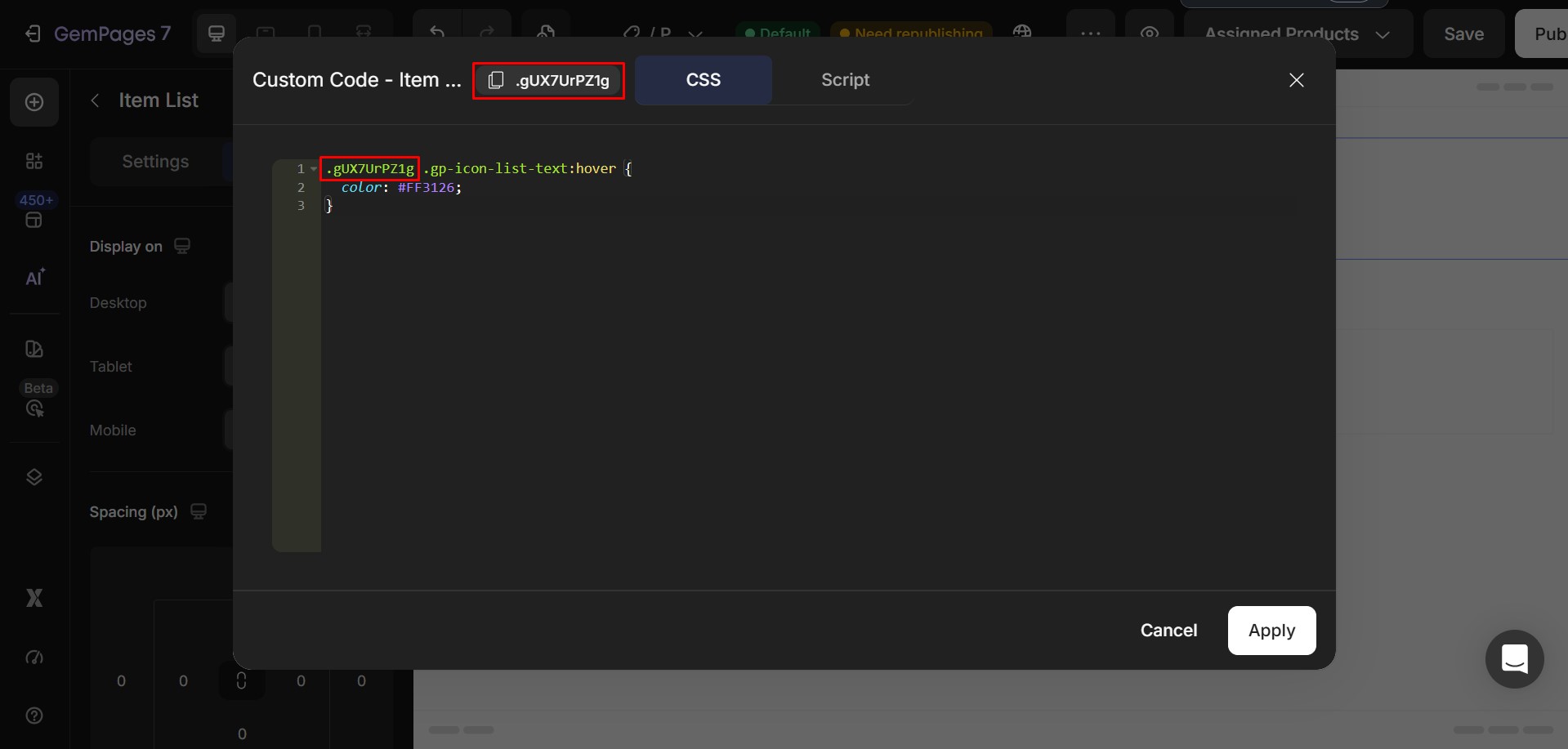
Step 3: Replace the element class with your own class
In the code above, .gXogrronUE is the class selector of the specific Item List element.
You need to replace it with the actual class of your own Item List element.
So the final code should follow this structure:
.your-element-class .gp-icon-list-text:hover {

  color: #FF3126;

}
- Replace your-element-class with the class of your Item List element.
- Replace #FF3126 with any color code you want to use for the hover state.
You can use free color picker tools to find a color code, for example:


Thank you for your comments