


The Countdown Timer element is one of the most popular elements in GemPages for creating urgency and boosting conversions on Shopify landing pages, product pages, and promotional campaigns.
By default, when you drag and drop the Countdown Timer element into your page, the number and text are displayed in two separate lines:
- The number appears on top
- The text label appears below
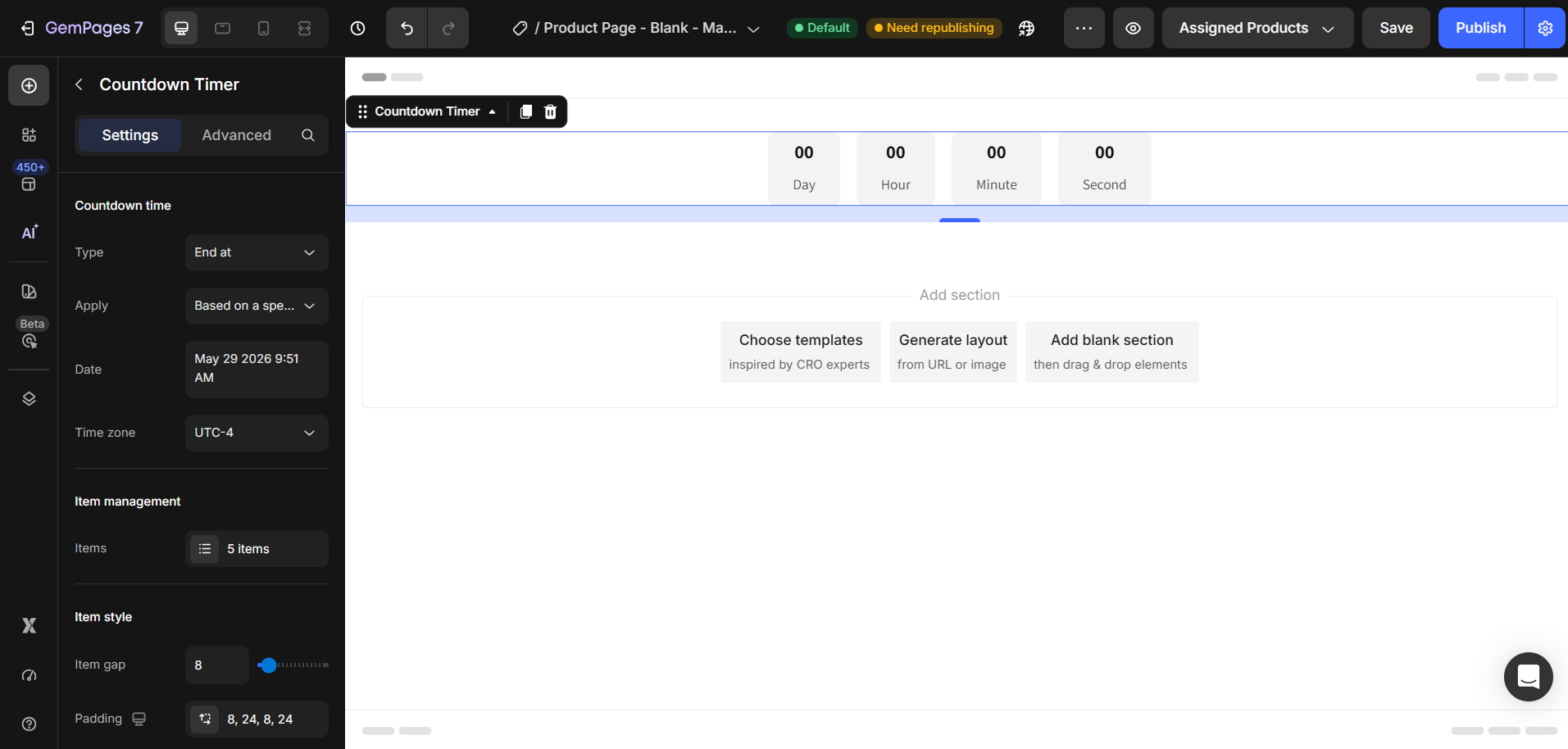
In some cases, you may want the text and number to appear in a single line instead, especially for cleaner layouts, announcement bars, or compact promotional sections.
This article shows you how to display the countdown timer text and number in one line using Custom Code in GemPages.
About the Countdown Timer Element in GemPages
The Countdown Timer element in GemPages helps merchants create time-sensitive campaigns to increase urgency and encourage customers to take action faster.
You can use it for:
- Flash sales
- Product launches
- Limited-time offers
- Holiday campaigns
- Pre-order promotions
How to Show Text and Number in One Line
Step 1: Open the Custom Code editor
In the GemPages editor:
- Select the Countdown Timer element
- Right-click the element
- Choose Custom Code
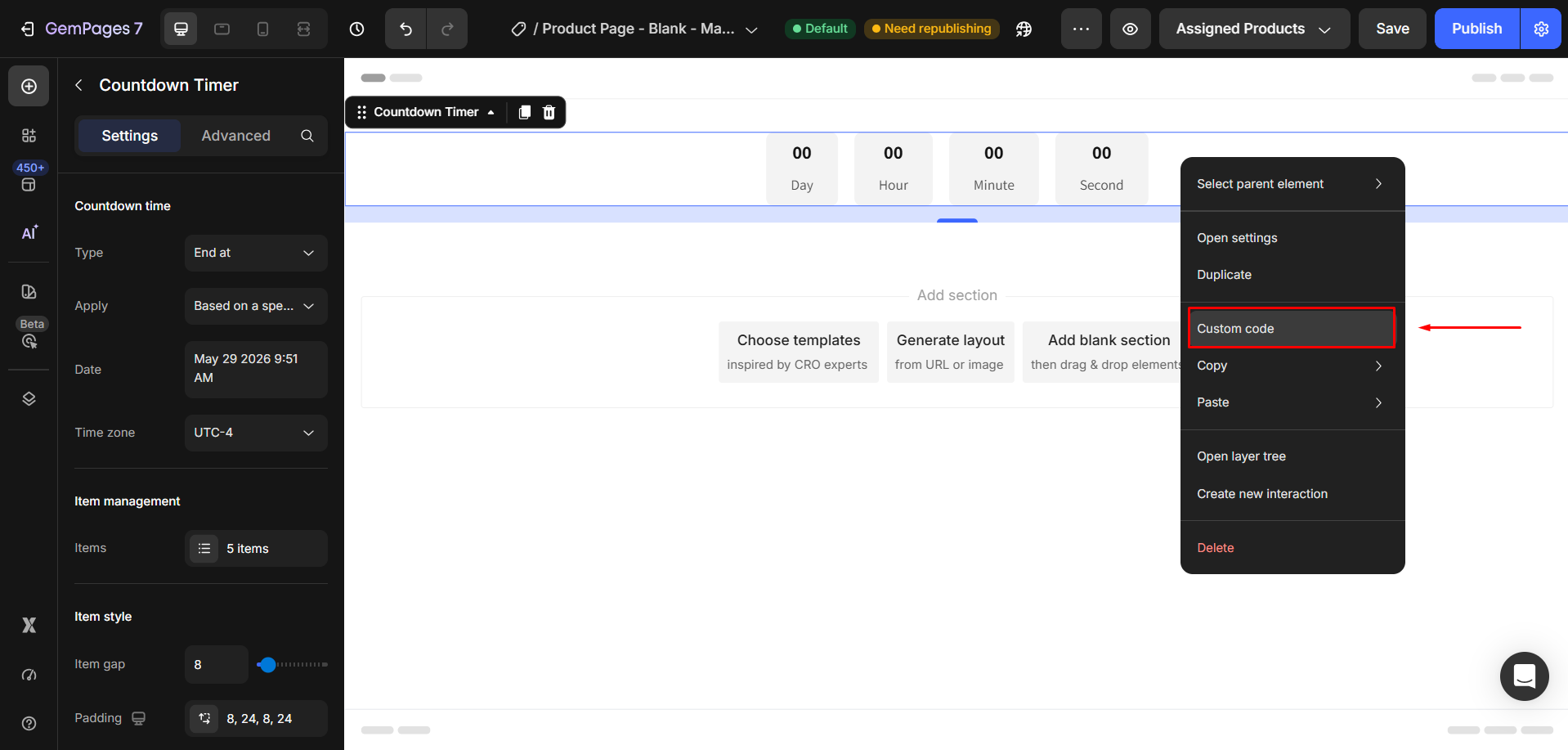
This allows you to add custom CSS specifically for that element without affecting the rest of your page.
Step 2: Add the custom CSS code
Paste the following code into the Custom Code section:
classID div#section-countdown > div{

display: flex;

align-items: center;

gap: 5px;

}
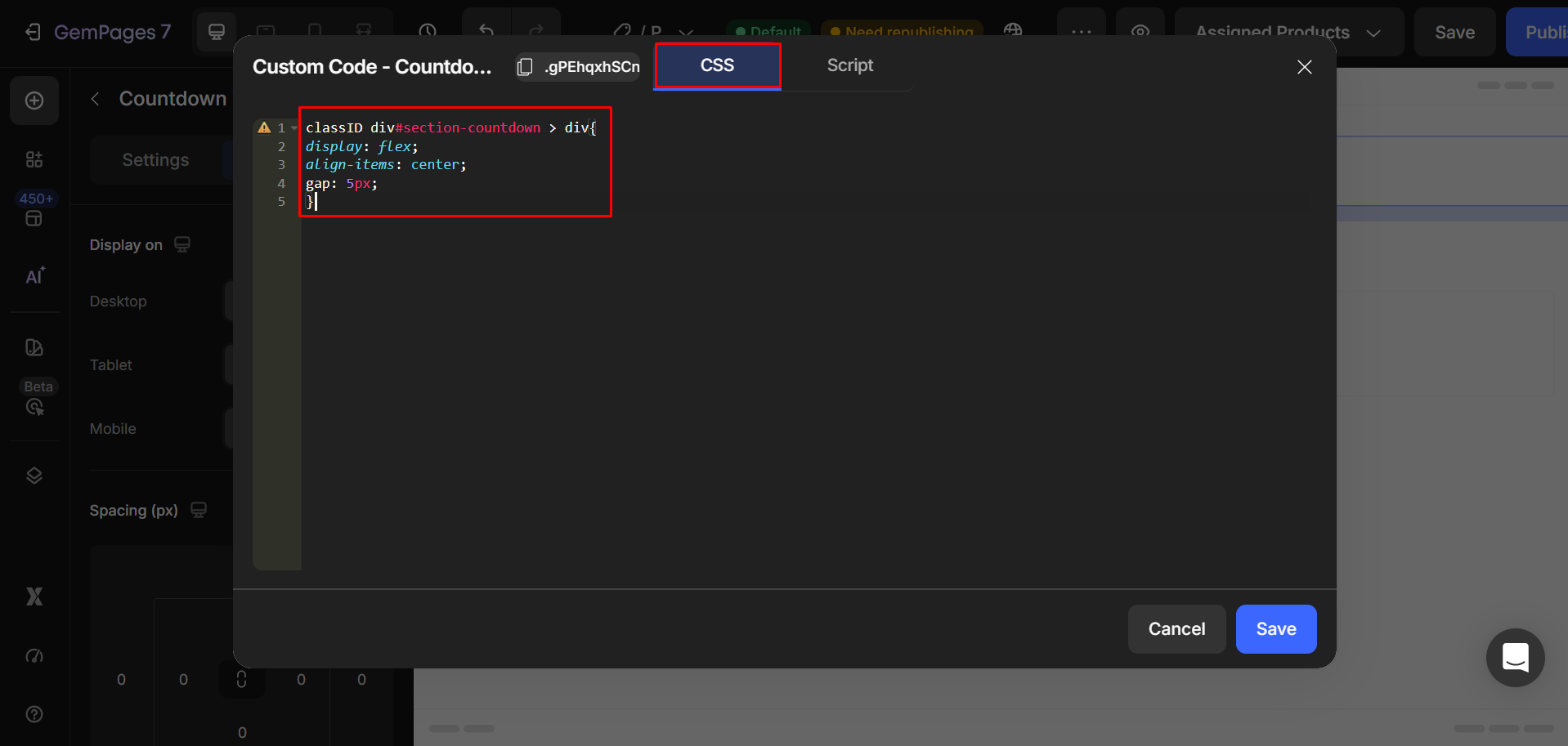
Step 3: Replace the classID
Before saving, make sure to replace:
classID
with the actual Class ID of your Countdown Timer element.
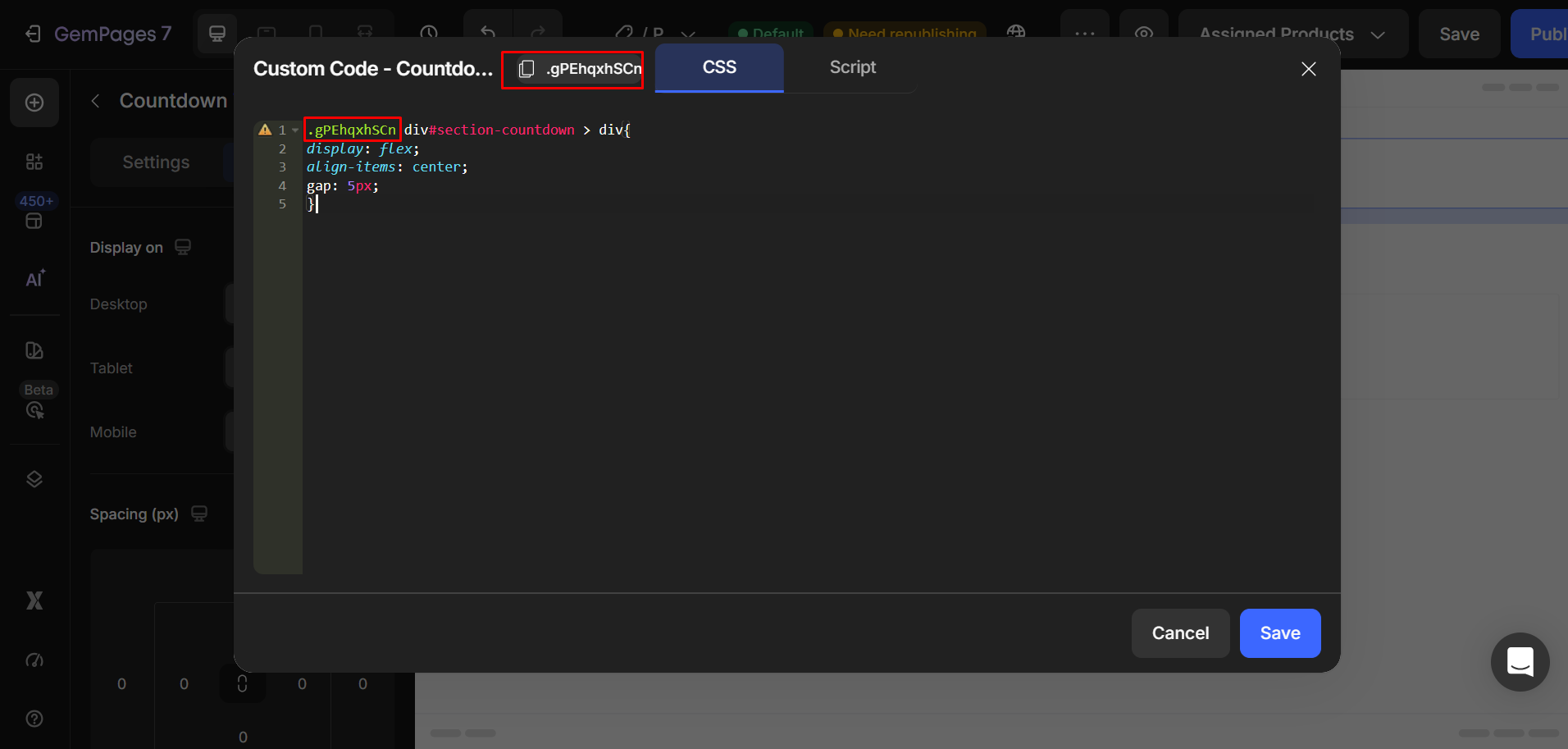
Step 4: Save and Publish.
After applying the code, the countdown number and text label will appear in a single horizontal line instead of stacking vertically. 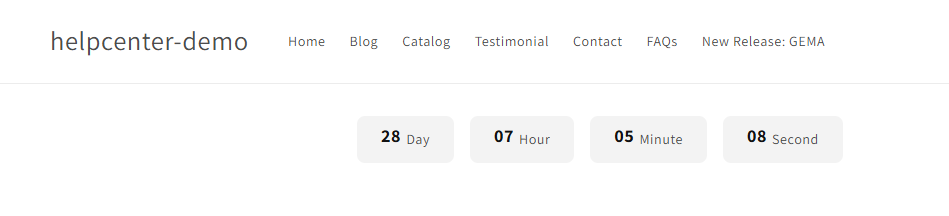


Thank you for your comments