


This article shows you how to add a background color to a Countdown Timer element in GemPages.
There are 2 methods you can use depending on your setup and customization needs:
- Option 1: Add the Countdown Timer inside a Row element and use Row background settings
- Option 2: Add a custom CSS code directly to the Countdown Timer
Option 1: Add Background Color Using a Row Element
This is the easiest and most recommended method if you want to visually style the entire countdown section without using code.
Step 1: Place the Countdown Timer Inside a Row
- Open the GemPages editor.
- Drag a Row element into your layout.
- Drag the Countdown Timer inside the Row.
This allows the Row container to control the background styling.
Step 2: Set the Background Color for the Row
- Click on the Row element.
- Open the Settings panel.
- Go to: Settings → Background
- Choose your preferred background color.
You can also add:
- Solid colors
- Gradient backgrounds
- Background images
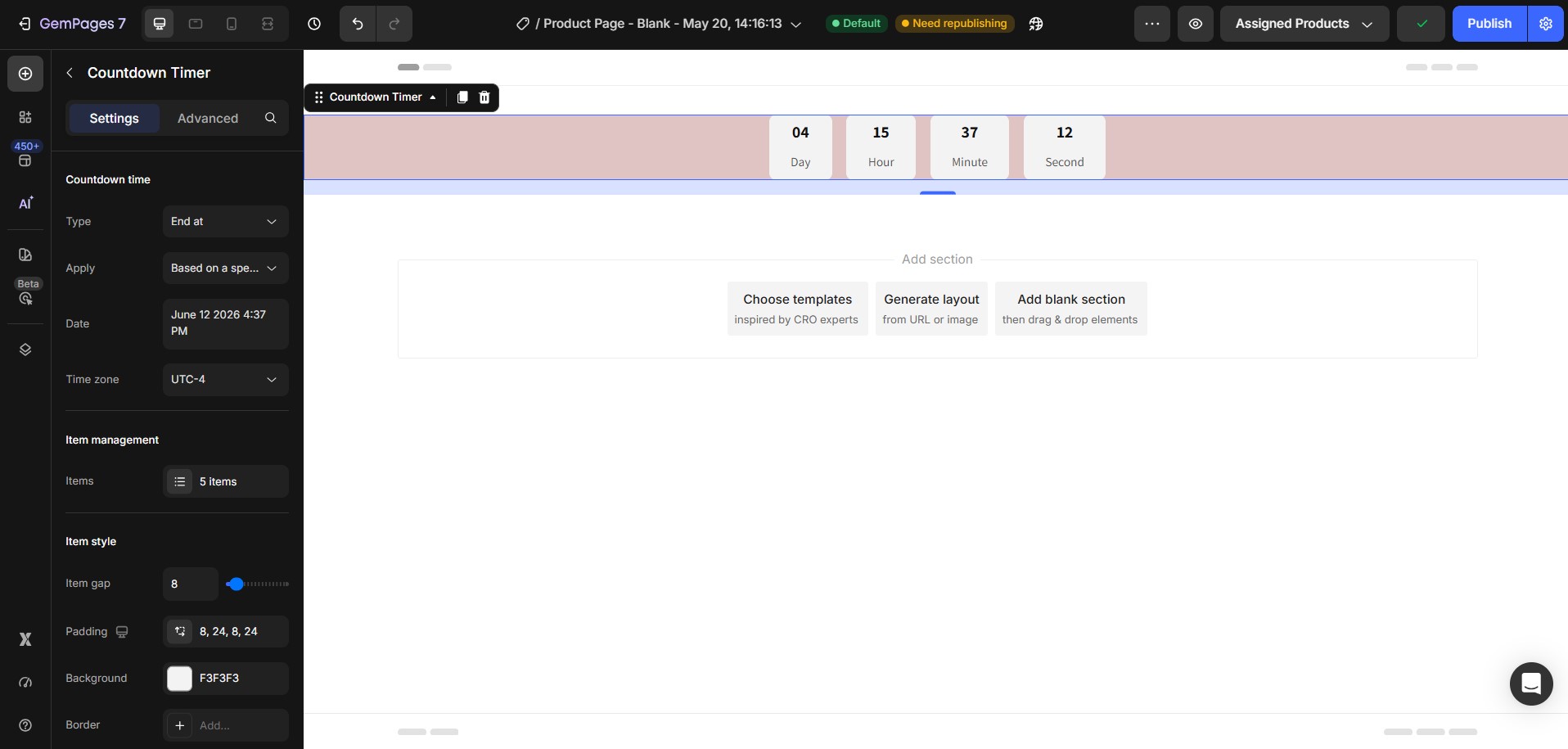 For more details, check this guide: How to set image or background color in GemPages
Option 2: Add Background Color Using Custom CSS
If you want to apply the background directly to the Countdown Timer element itself, you can use custom CSS.
Step 1: Open the Countdown Timer Custom Code Area
- Click on the Countdown Timer element.
- Right-click the element.
- Select Custom Code.
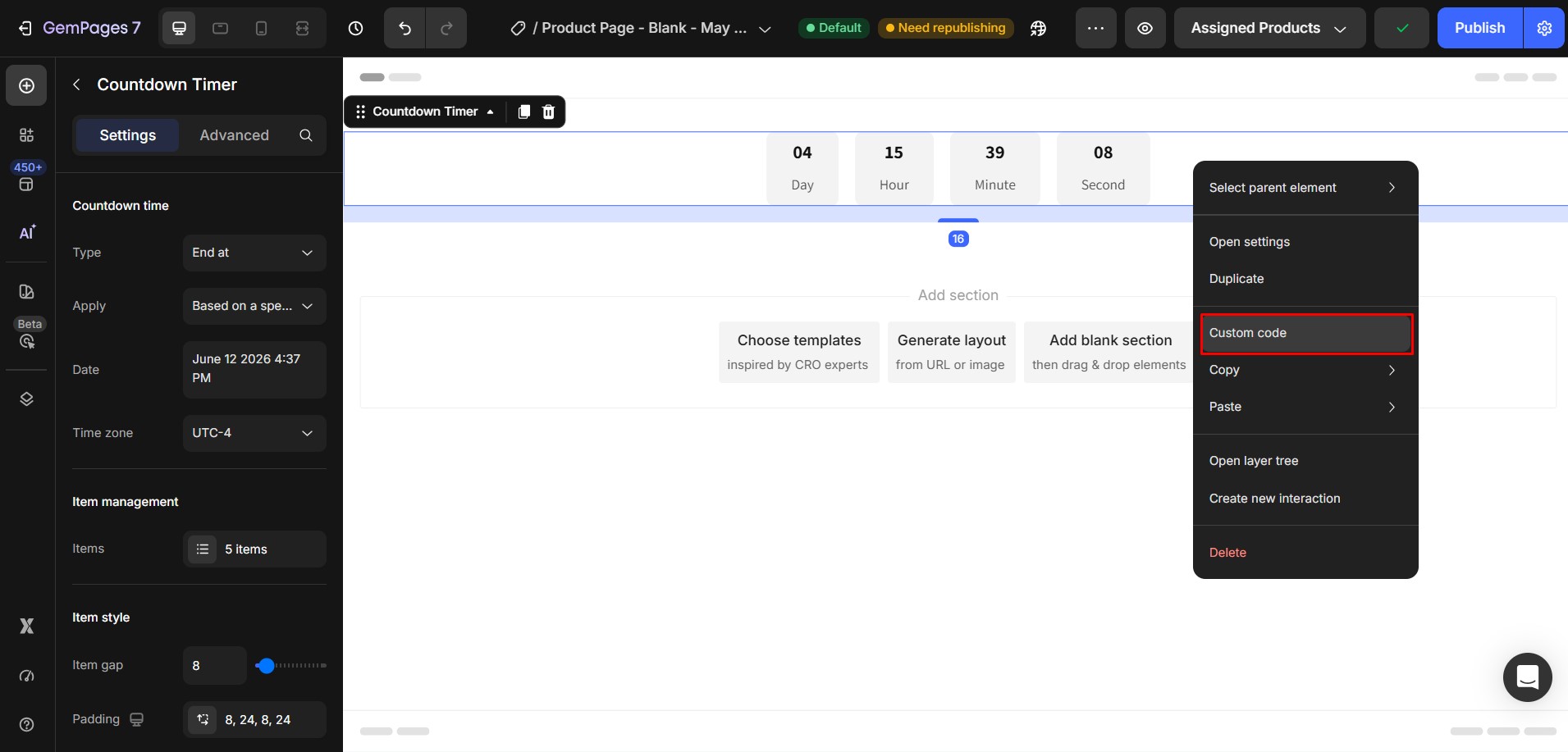
This opens the custom code editor for that element.
Step 2: Add the CSS Code
Paste the following code into the Custom Code area:
.ElementClass {

background: #DFC4C4 !important;

}
Then replace:
- .ElementClass with your actual element class
- #DFC4C4 with your preferred color code
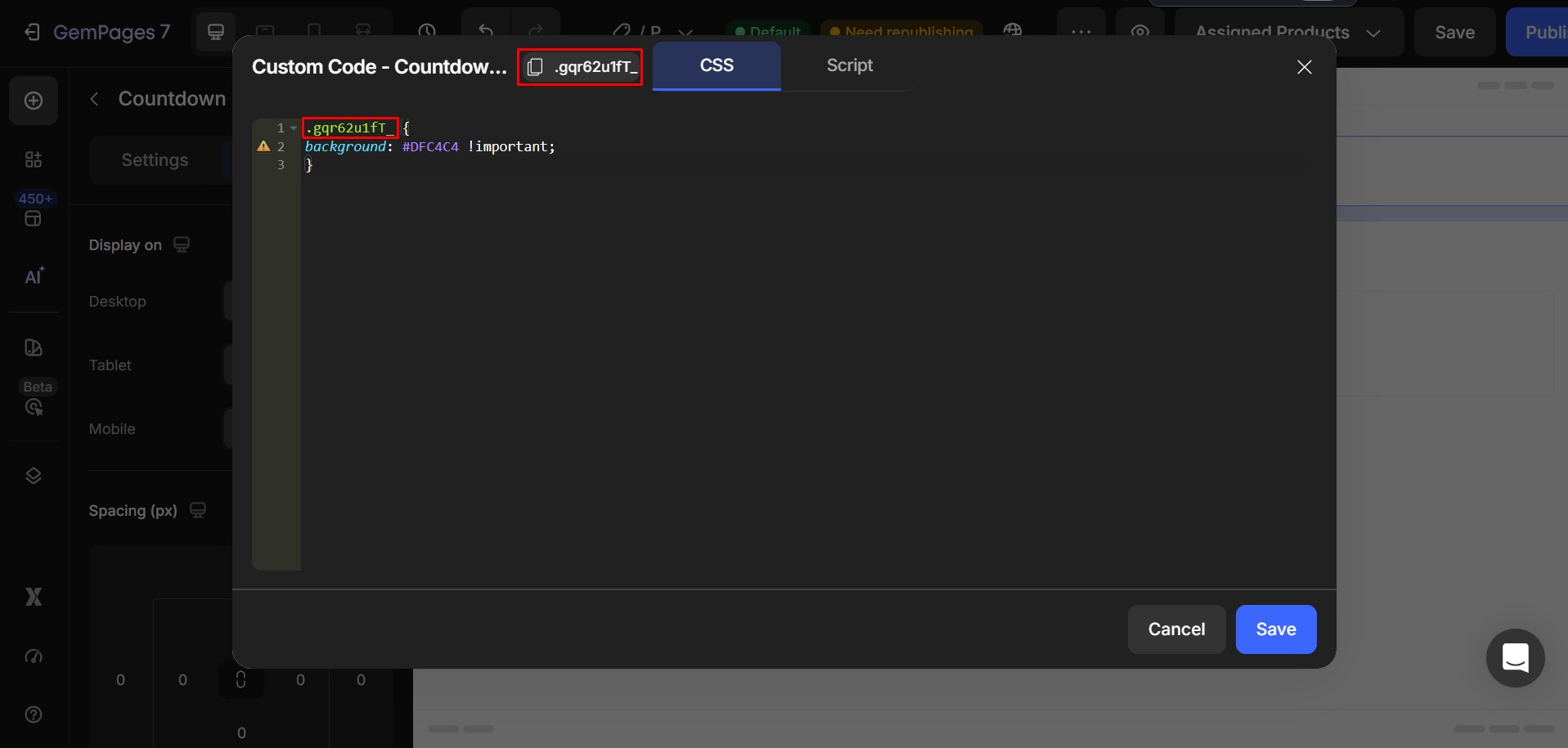
Tip: How to Get a Color Code
GemPages supports standard HEX color codes.
Example:
#000000 → Black
#FFFFFF → White
#FF0000 → Red
#DFC4C4 → Soft pink
You can use these websites to pick and generate color codes:
These tools help you:
- Pick colors visually
- Generate matching palettes
- Copy HEX color codes easily
Step 3: Save and Publish
- Click Save.
- Publish or update your page.
- Preview your page to check the background styling.
Your Countdown Timer should now display with the selected background color.


Thank you for your comments