


Unused sections can accumulate in your theme over time, especially after creating and publishing multiple pages. These leftover files increase theme size, clutter the codebase, and may eventually cause publishing issues when your store approaches Shopify’s theme size limits.
The Delete Unused Sections feature in GemPages helps you quickly identify and remove unused section files directly from the editor. By scanning your theme and listing redundant sections, it makes it easier to maintain a cleaner theme structure, reduce manual maintenance, and avoid common publishing errors.
What Is the Delete Unused Sections Feature?
The Delete Unused Sections feature in GemPages allows you to scan your Shopify theme and identify section files that are no longer used by any page.
Over time, unused sections can remain in the theme after pages are edited, duplicated, or deleted. These unnecessary files increase the overall theme size and may eventually cause issues when publishing updates, especially when your theme approaches Shopify’s size limits.
With the Delete Unused Sections feature, you can:
- Automatically scan the theme for unused section files
- Review important details such as file size and last modified date
- Sort sections to quickly identify large or outdated files
- Select and delete multiple sections safely
By removing unused sections, you can reduce theme file size, prevent publishing errors, and keep your theme easier to manage and maintain.
How to Scan and Delete Unused Sections
Follow the steps below to find and remove unused sections from your theme.
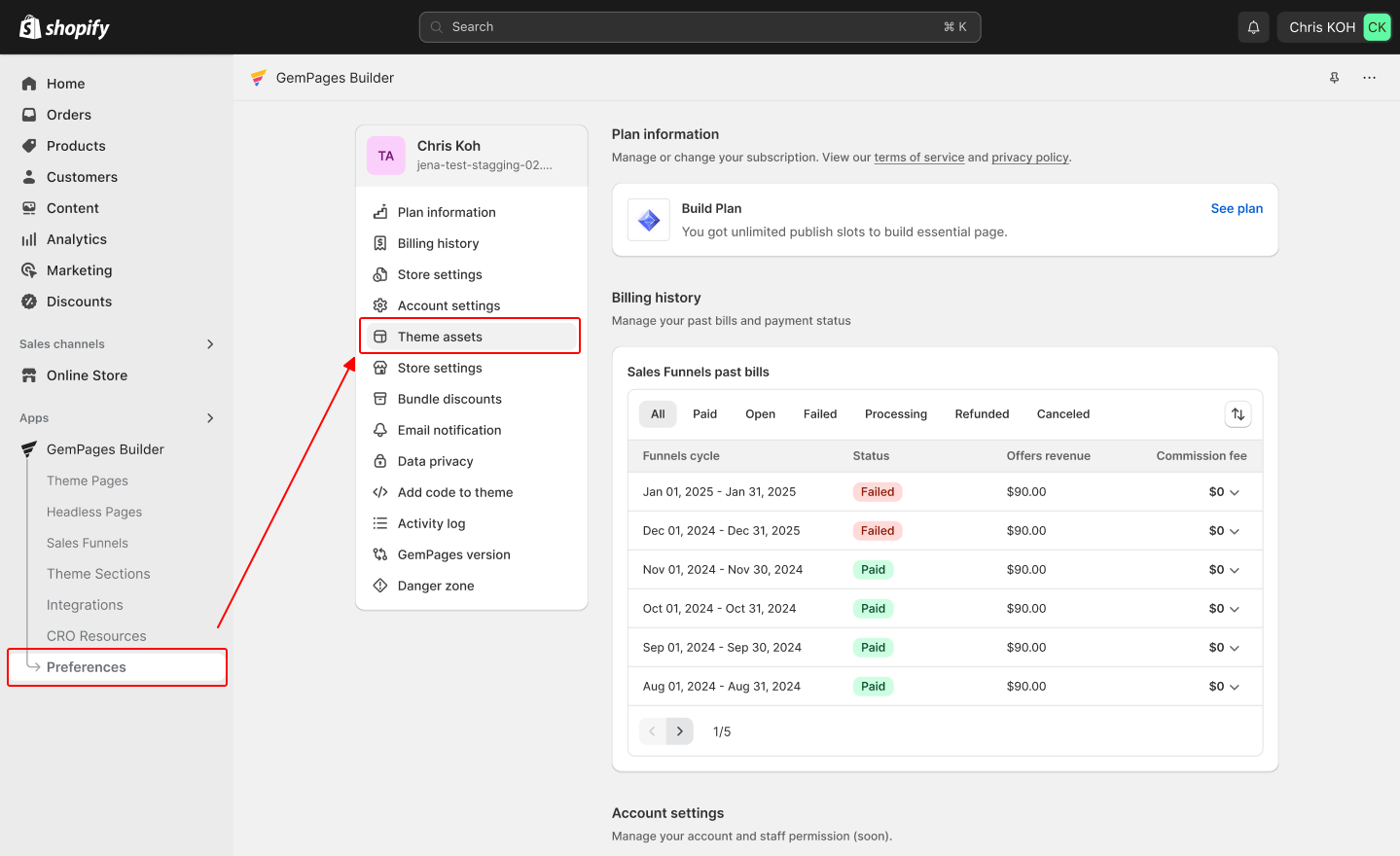
Step 1: Open the GemPages app from your Shopify admin. Click Preferences. Select Theme Assets. The screen will automatically navigate to the Theme Assets section where you can manage theme files.
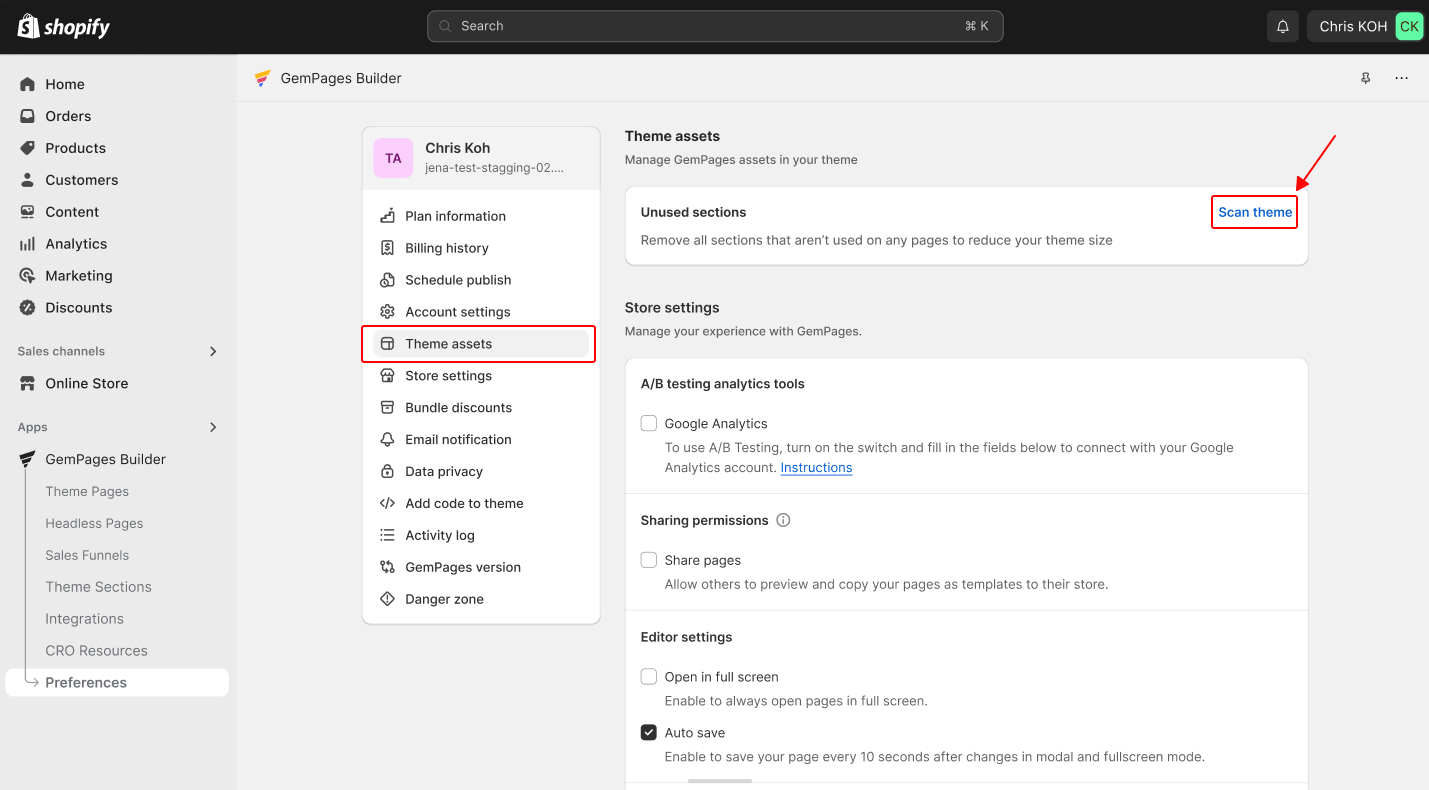
Step 2: Click Scan theme to start scanning for unused section files.
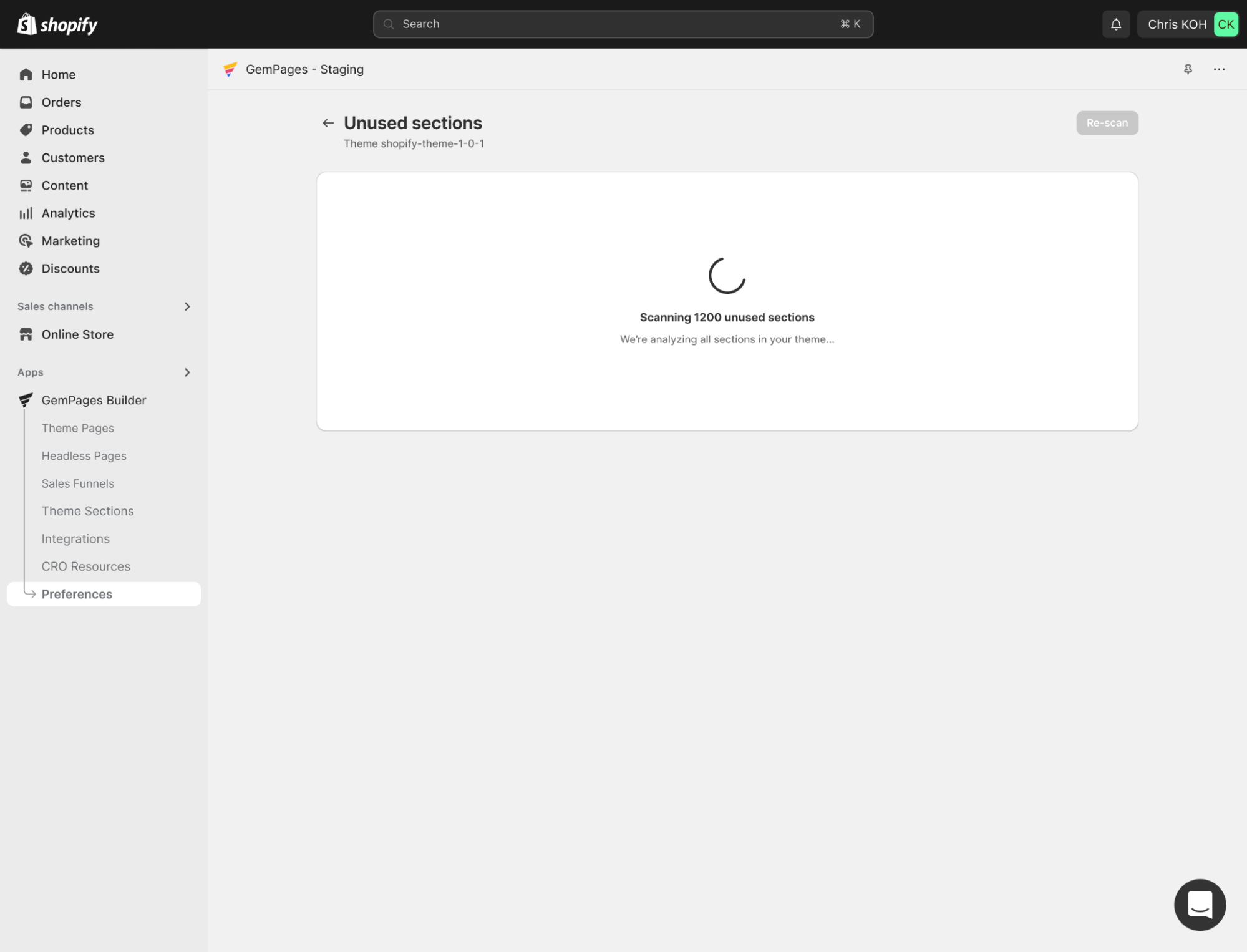
During this process, the system will move to the Loading unused sections screen and begin analyzing your theme.
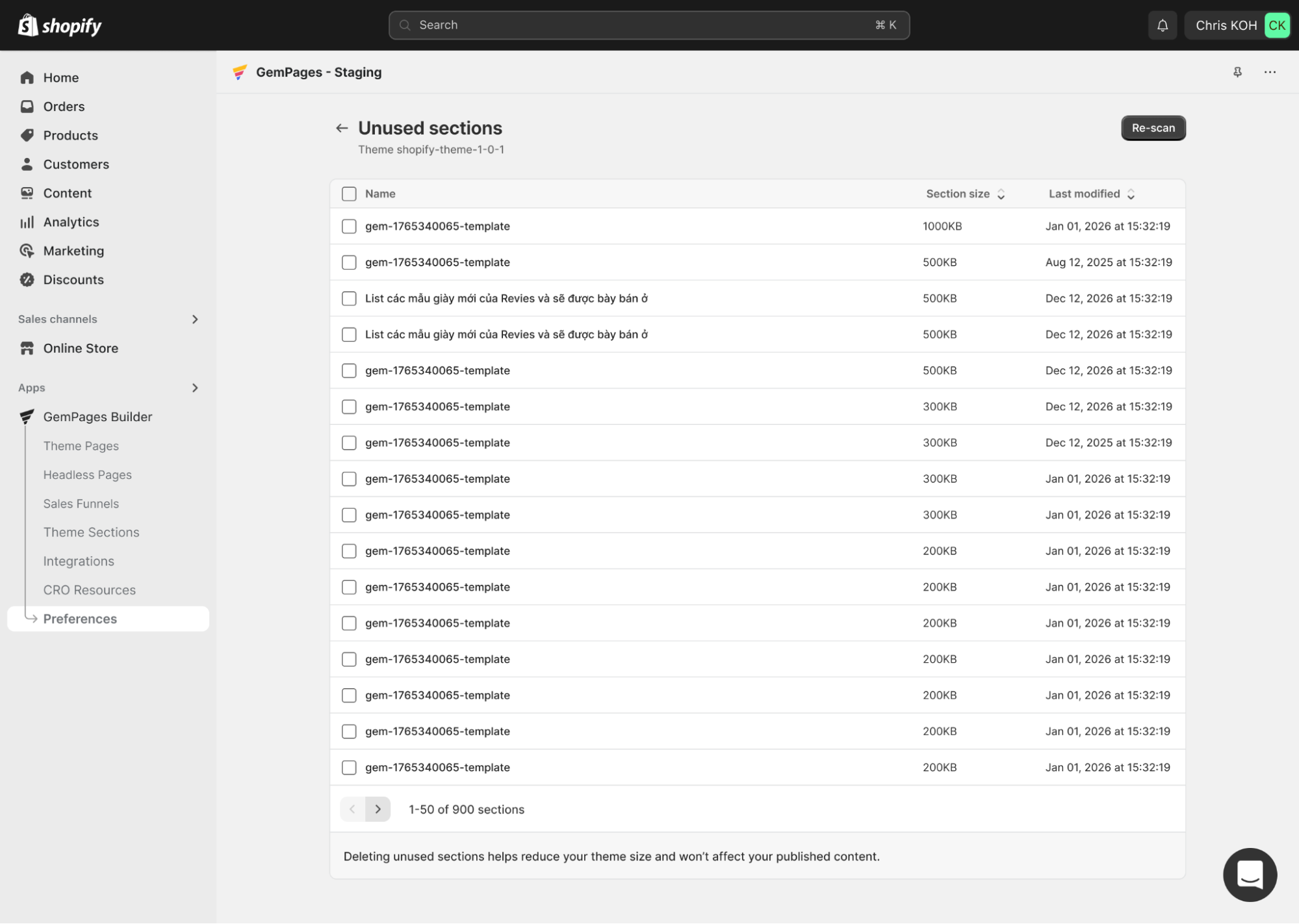
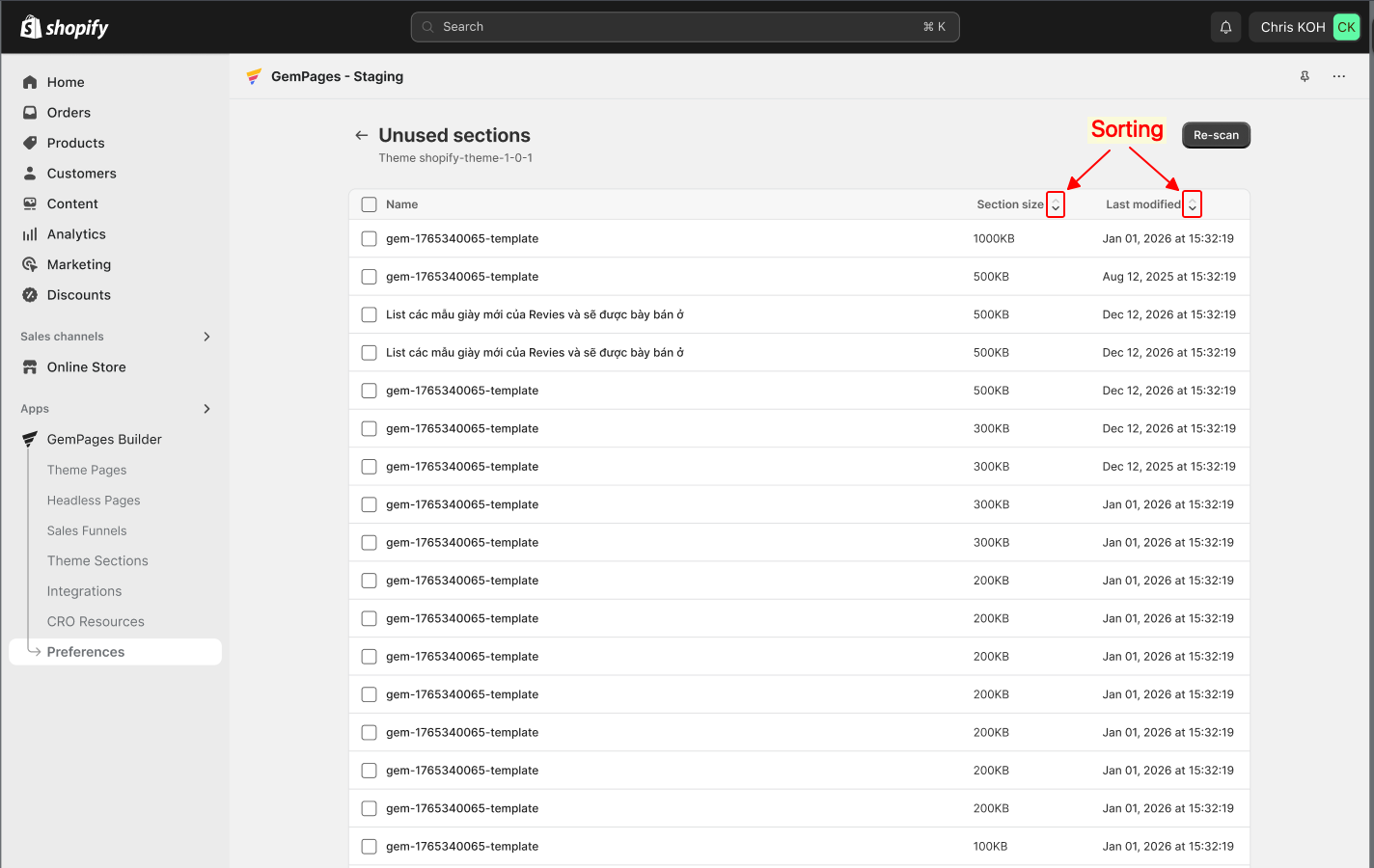
Step 3: After the scan finishes, GemPages will display all detected unused sections in a paginated list (50 items per page).
Sections are organized by file size from largest to smallest by default, helping you quickly identify which files take up the most space.
Each section in the list includes the following information:
- Checkbox: Select one or multiple sections
- Name: The section file name
- Section size: The file size
- Last modified: The last update time of the file
You can change the sorting order to better analyze the files.
Sort by file size
- Default sorting: Largest → Smallest
- Click the Sort button again to reverse the order: Smallest → Largest
Sort by Last Modified
- Hover over the Last modified column to reveal the sort button
- Default sorting: Newest → Oldest
- Click again to reverse the order: Oldest → Newest
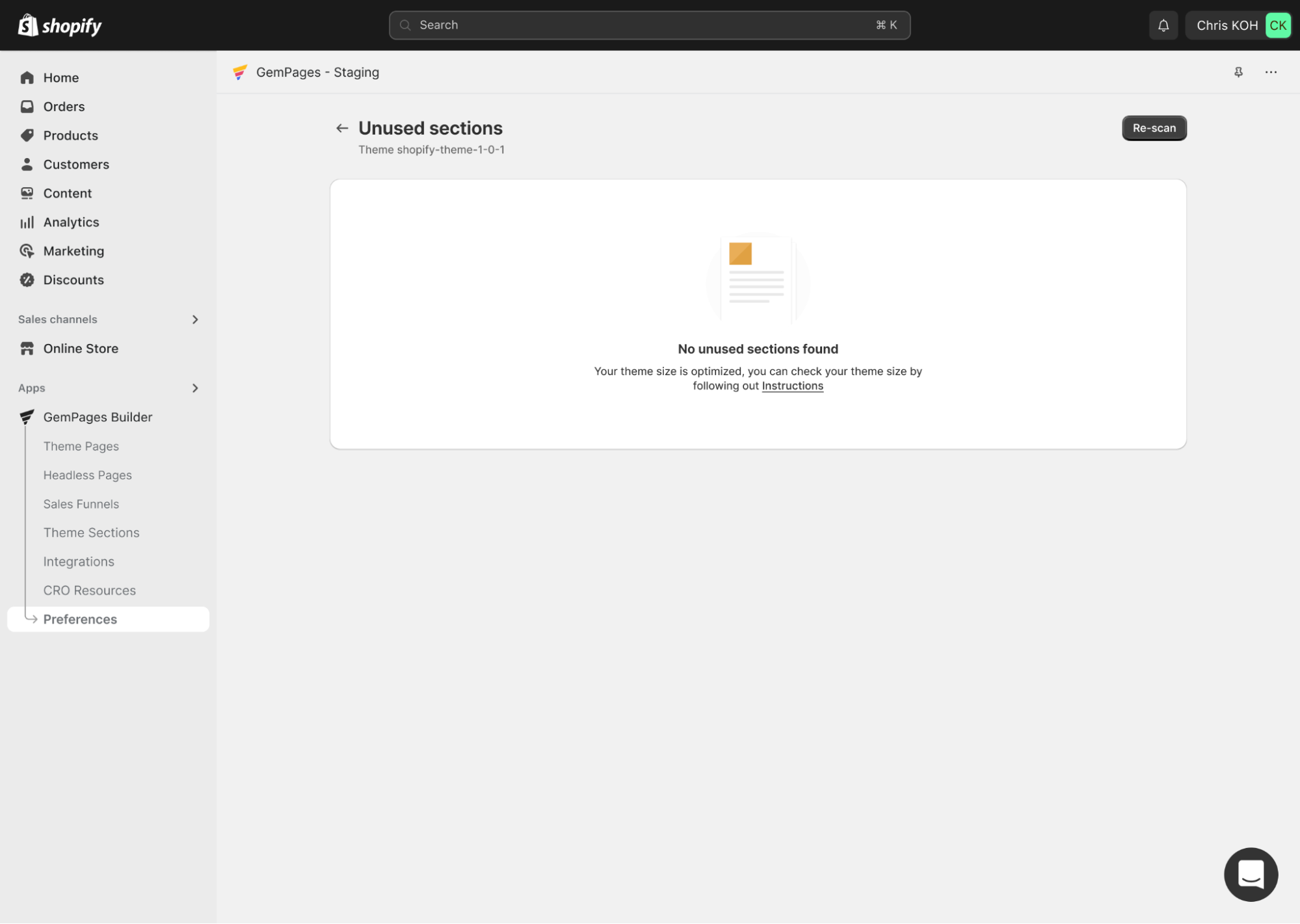
If no unused sections are detected, the system will display the message: “No unused sections found.”
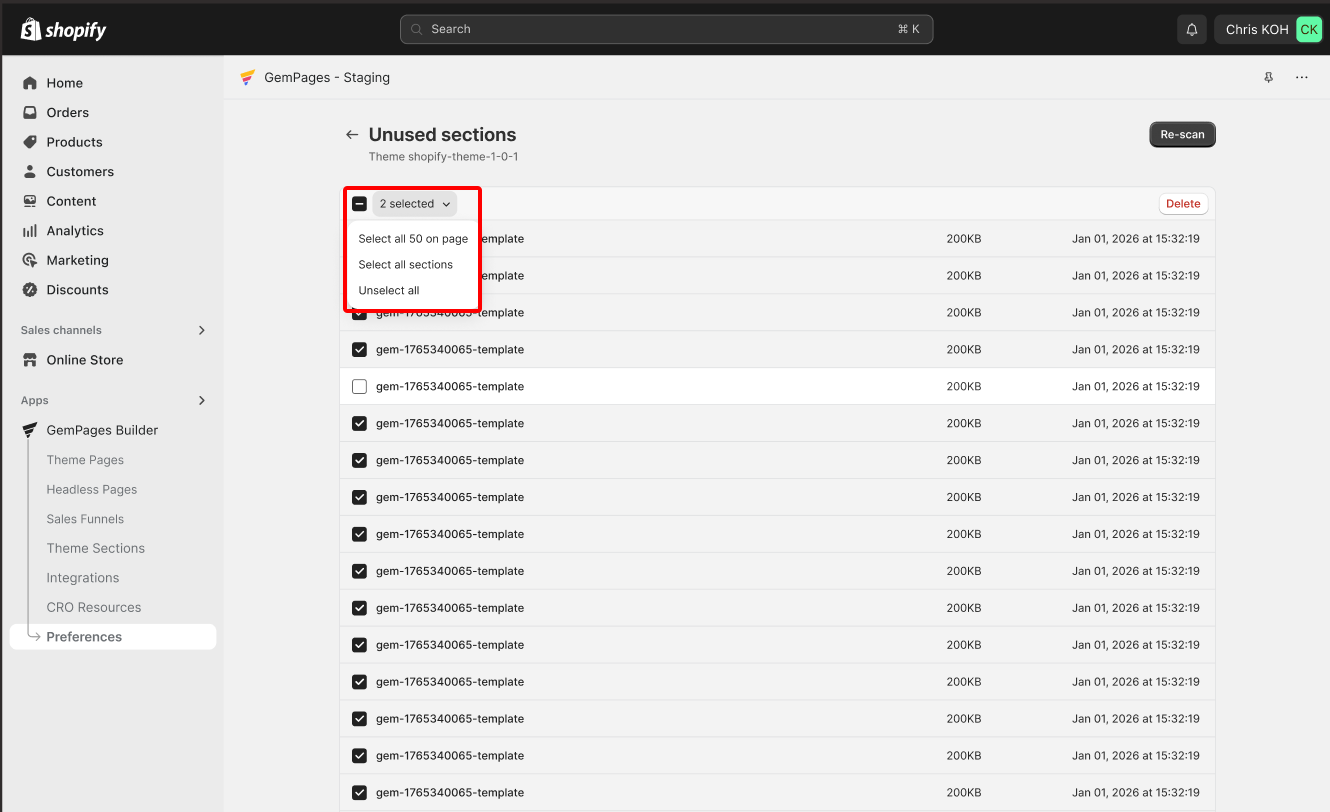
Step 4: Choose the unused sections you want to remove. You can select them in several ways:
- Select individual sections by ticking the checkbox next to each file
- Select all 50 sections on the current page
- Select all sections across all pages
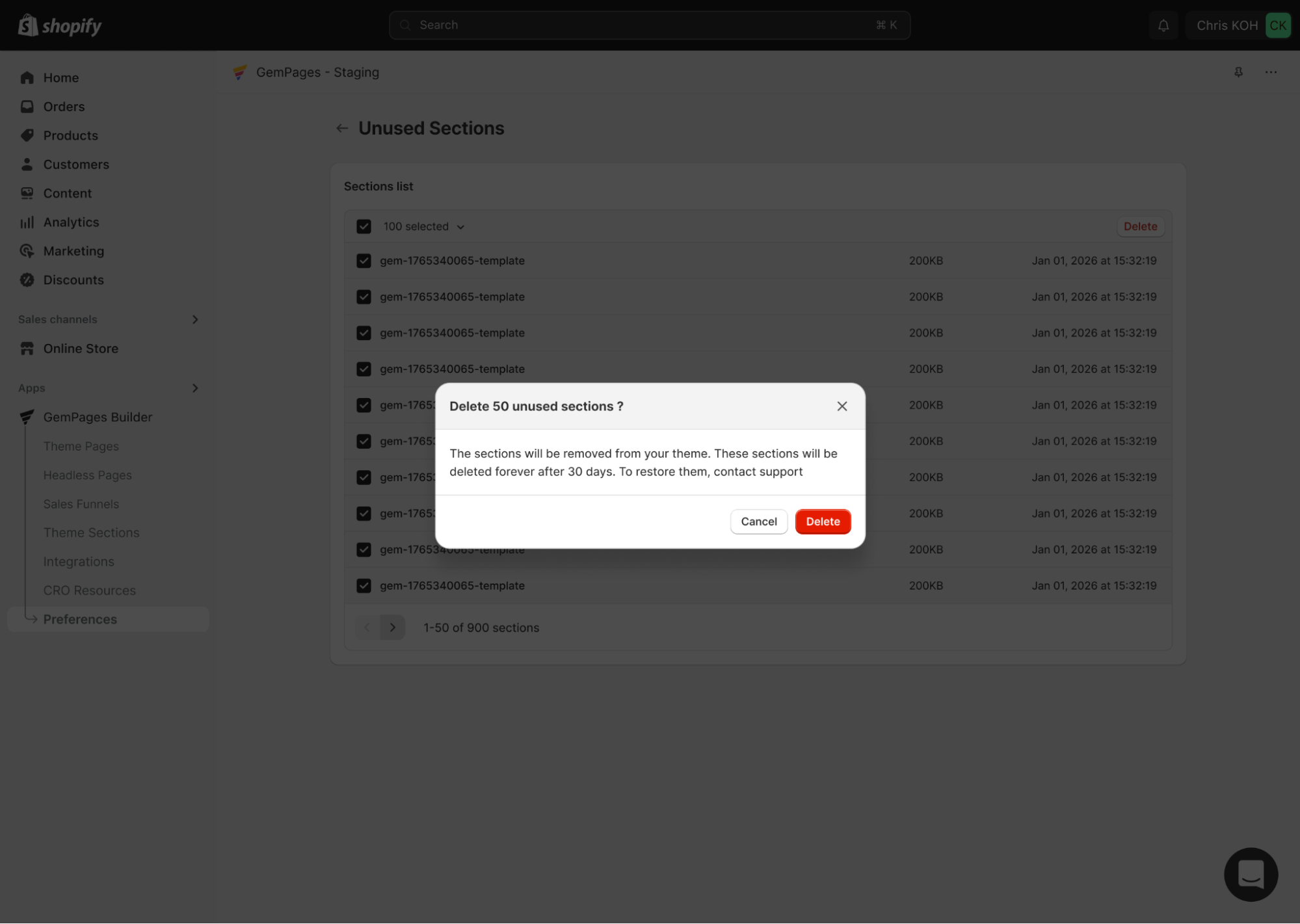
Step 5: After selecting the sections you want to remove, click the Delete button. The system will prepare the deletion action.
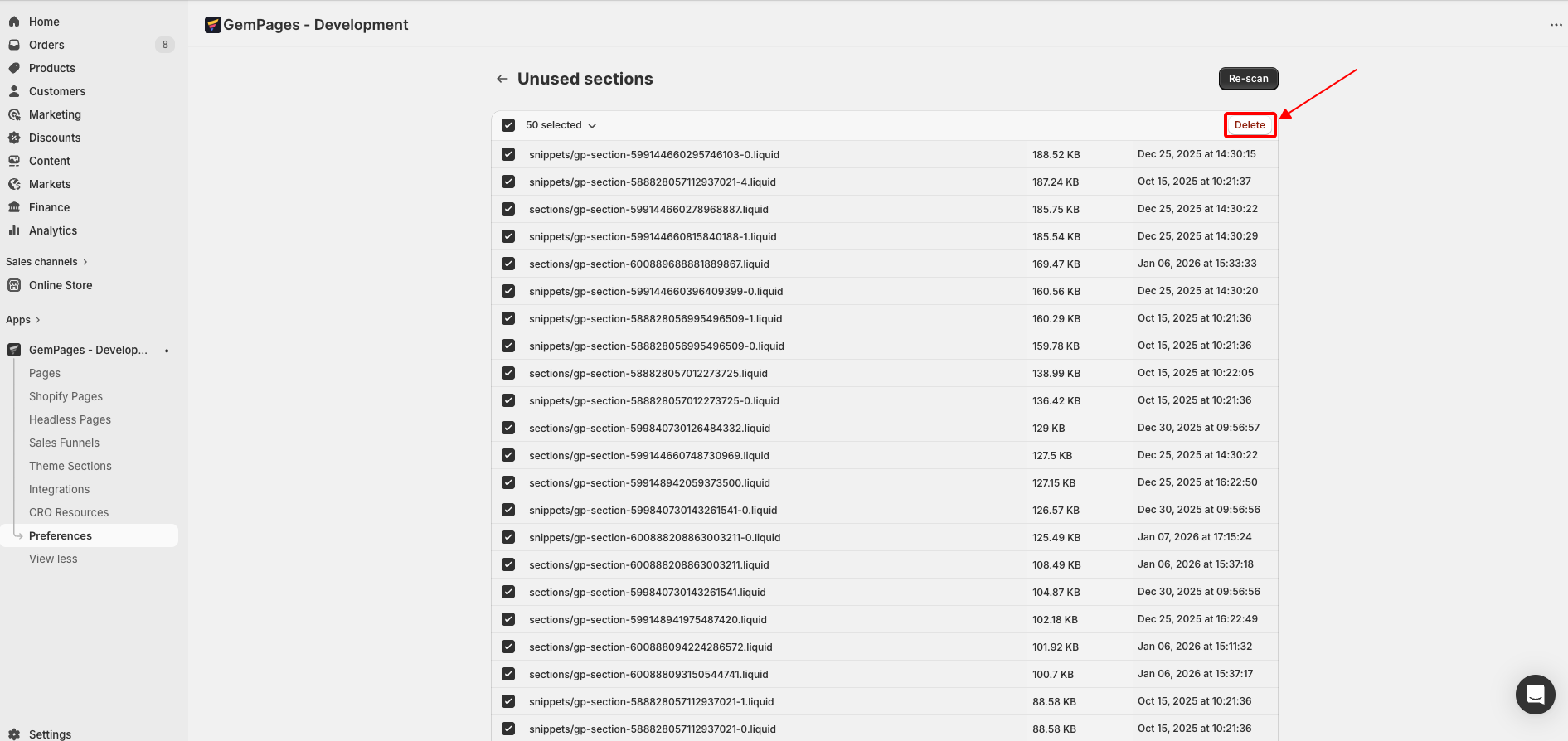
Step 6: A confirmation dialog will appear to prevent accidental deletion. Review the selected sections and click Delete to remove them from the theme.


Thank you for your comments