


This guide walks you through the sales funnel capabilities available through GemPages MCP and how to use them for your Shopify store.
What You’ll Create
GemPages MCP allows you to create and manage Post-purchase Upsell/Downsell Funnels using natural language instead of configuring every setting manually.
With GemPages MCP, you can:
- Create post-purchase funnels: Set up upsell and downsell offers with specific products, discounts, and order triggers.
- Customize triggers and offers: Define conditions based on order value, products, or collections, and configure which products customers will see.
- Manage existing funnels: Rename, edit, duplicate, activate, deactivate, or delete funnels.
- Build multi-step offer sequences: Add follow-up upsells or downsells.
- Review funnel performance: Retrieve metrics such as views, accepted offers, conversion rates, revenue, and average order value (AOV).
- Check funnel health and priority: Identify potential issues, get optimization suggestions, and determine which funnel takes priority for an order.
The AI can also suggest creating a sales funnel when it is relevant to your goals, such as increasing AOV, planning a sales campaign, or publishing a product or conversion-focused page. It only proceeds with funnel creation after you agree.
Before You Start
Before working with sales funnels through GemPages MCP, keep the following in mind:
- Connect GemPages MCP: Make sure you have connected GemPages MCP to your AI assistant, such as Claude or ChatGPT.
- Supported funnel type: GemPages MCP currently supports AOV (Post-purchase Upsell/Downsell) Funnels only.
- Offer page editing: The content and design of offer pages can only be edited in the GemPages Editor, not directly through MCP.
How to Create and Activate a Sales Funnel
1. Create your funnel
To create a post-purchase funnel, describe when the offer should appear, which product you want to promote, and the discount you want to apply.
For example, enter the following prompt:
Use GemPages MCP, on store <store>.myshopify.com, create a post-purchase funnel for every order: offer "Gem Protein" at 20% off. Keep it as a draft.
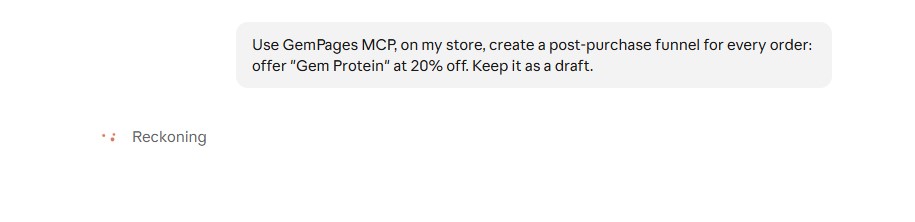
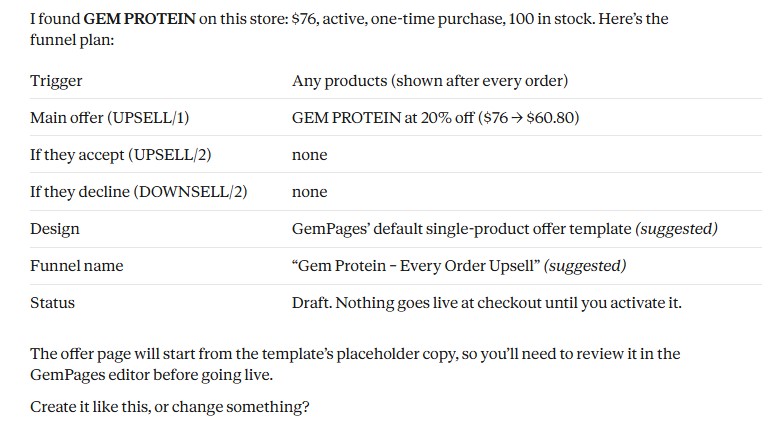
GemPages MCP interprets your request and presents a funnel configuration for review.
For example:
2. Activate your funnel
Review the configuration and confirm it to create the funnel. Once you are satisfied with the setup, you can activate it using another prompt:
Activate the funnel
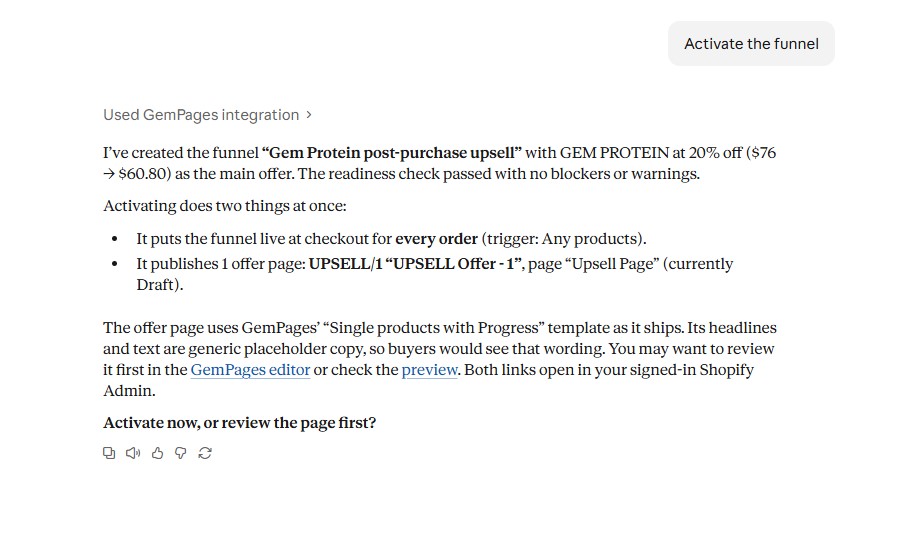
Before activation, the AI identifies the offer pages that will be published and asks for your confirmation.
After you confirm, the funnel becomes Active.
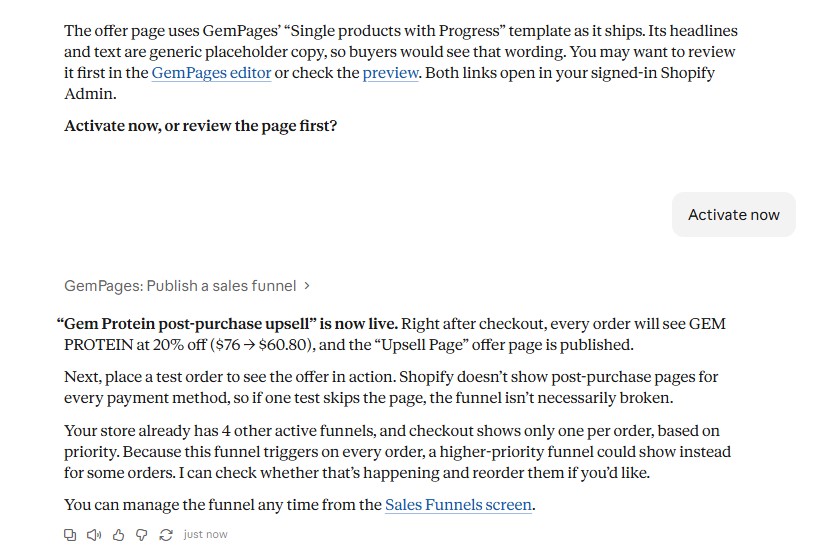
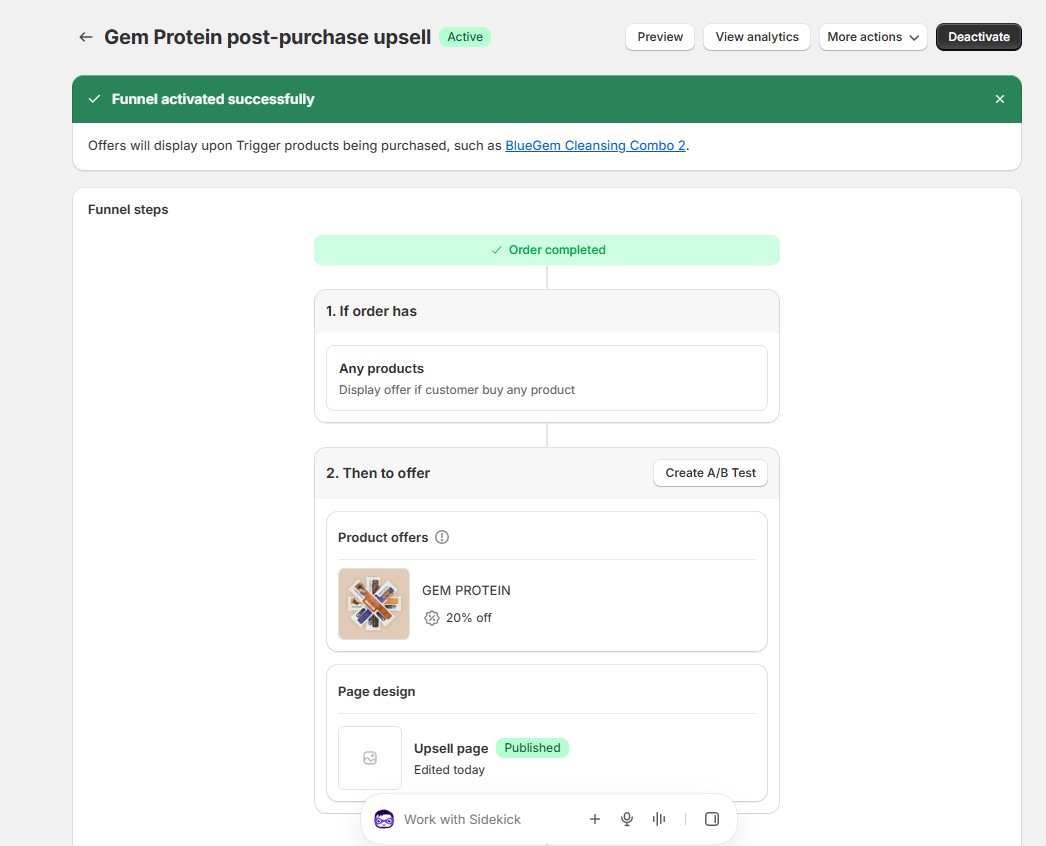
3. Configure custom triggers
You can also specify more detailed conditions to control when a funnel appears.
For example:
Only run funnel "Gem Protein post-purchase upsell" when the order contains “GemPrep'd - Pink Salad" and the order value is greater than $100.
The AI reviews the requested conditions and presents them for confirmation before applying the changes.
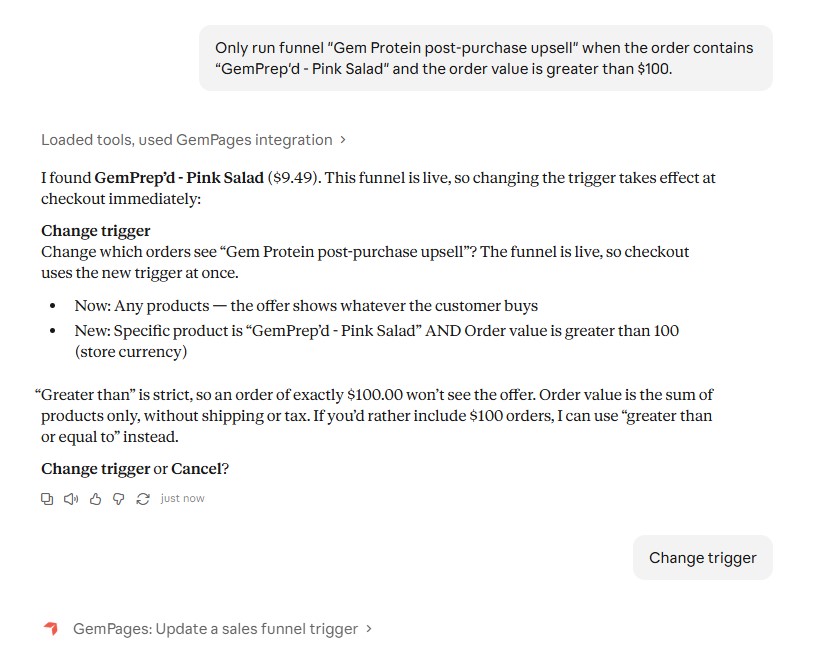
Once confirmed, the conditions are reflected in the funnel’s Custom Triggers configuration.
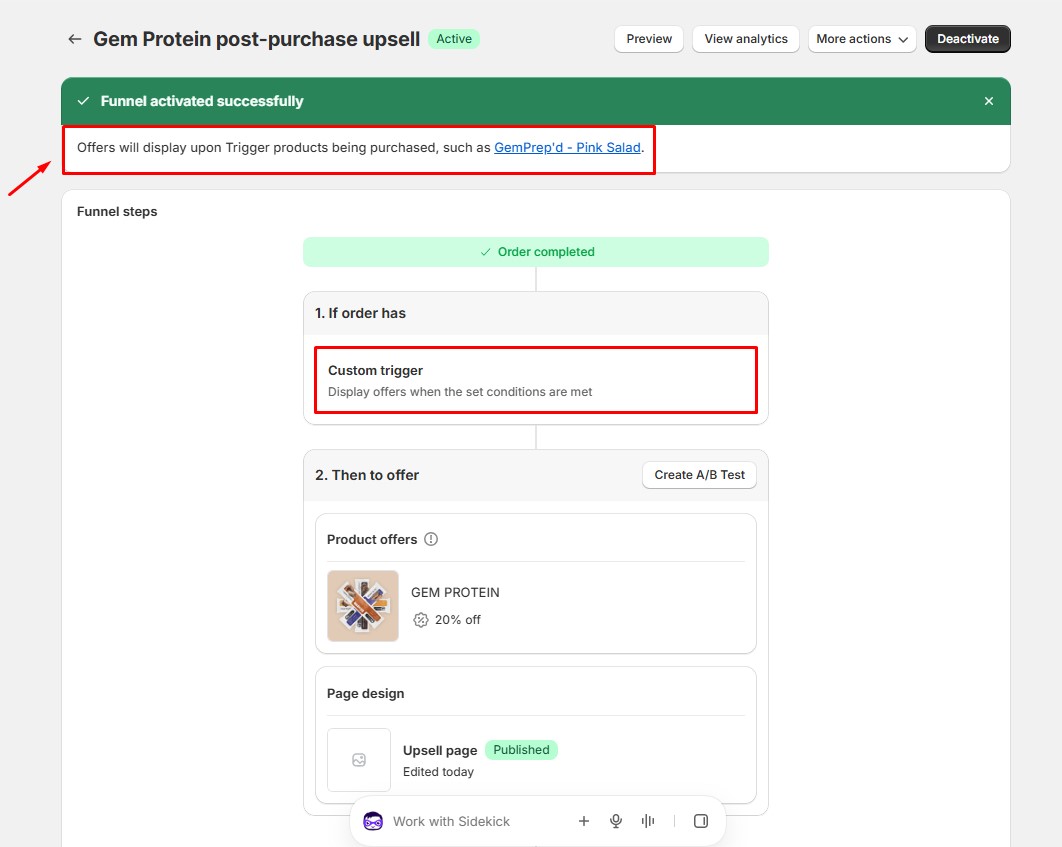
4. Add custom offers and multi-step sequences
Beyond a single upsell, you can create additional offers.
For example:
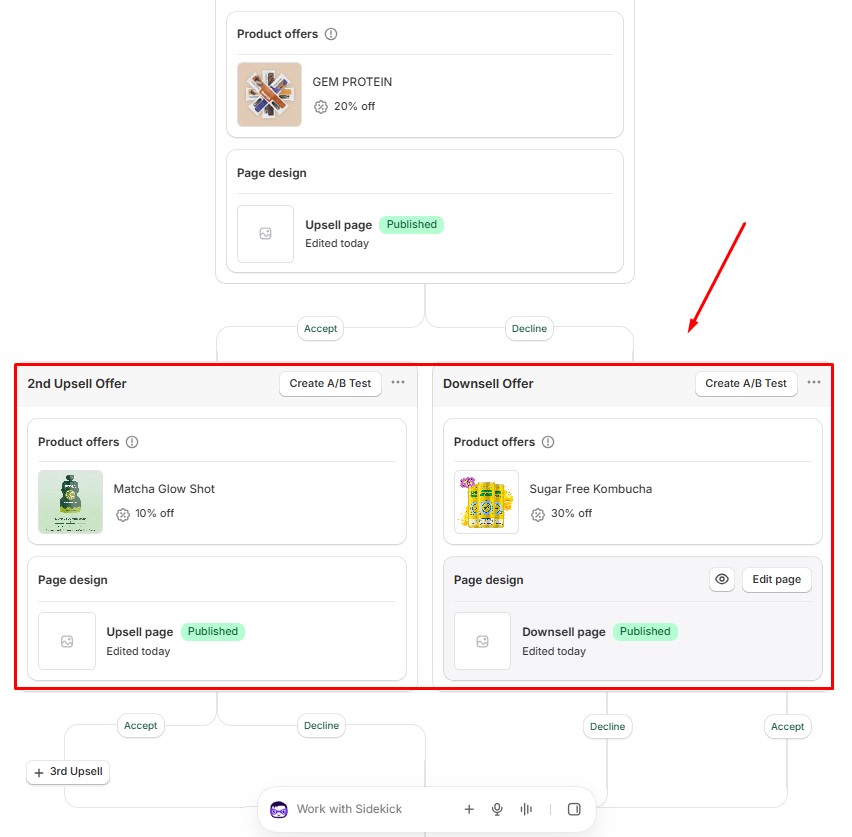
In funnel "Gem Protein post-purchase upsell", if the buyer declines the main offer, offer "Sugar Free Kombucha" at 30% off; if they accept, offer "Matcha Glow Shot" at 10% off.
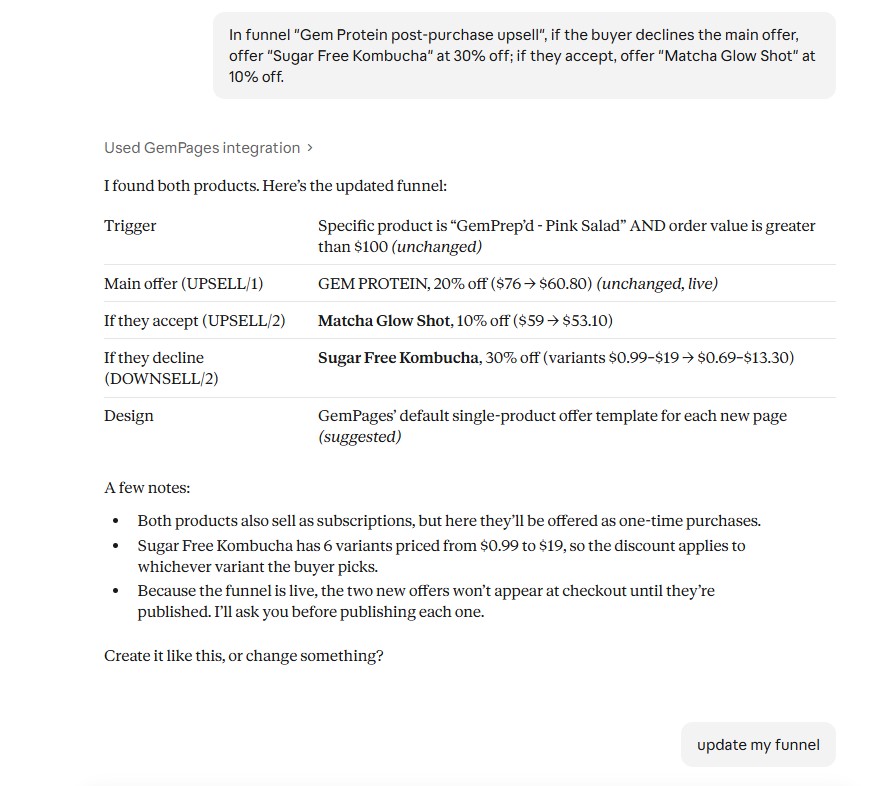
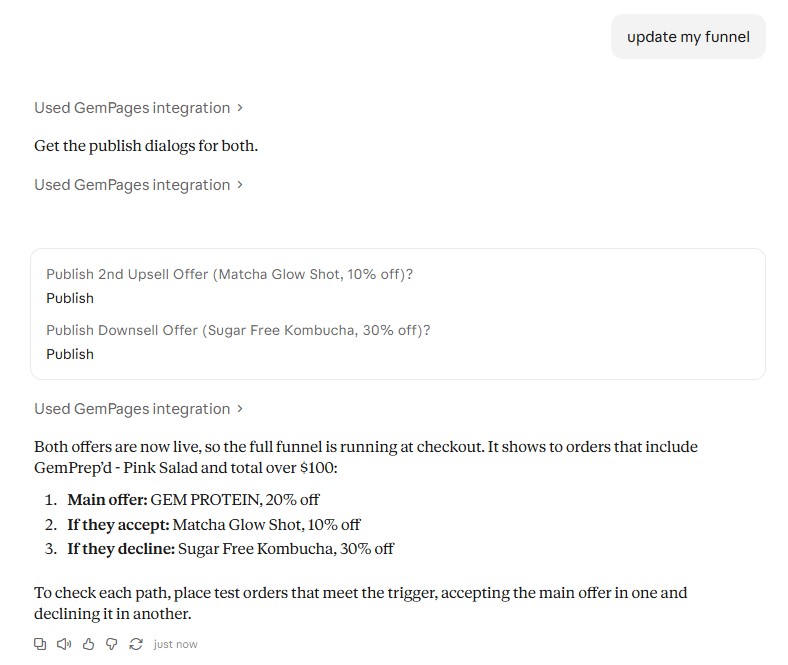
The AI helps configure the corresponding upsell and downsell paths.
How to Manage Existing Sales Funnels
After creating a funnel, you can use GemPages MCP to update its configuration, manage offers, or change its status without manually navigating through each setting.
|
Action |
What You Can Do |
Example Prompt |
Important Notes |
| Rename or update triggers | Rename a funnel or change the conditions that trigger it. |
Rename "Gem Protein post-purchase upsell" to "Black Friday 2026" and only run it for orders containing "Serum". |
Changing the trigger of an Active funnel requires confirmation. Once confirmed, the new trigger takes effect immediately. |
| Update offer products or discounts | Change the products or discounts associated with an existing offer. |
Raise the main offer's discount in "Gem Protein post-purchase upsell" to 25%. |
For Active funnels, the existing offer remains unchanged at checkout until you confirm and publish the update. You can say “Publish it” to proceed with the required confirmation. |
| Duplicate a funnel | Create a copy of an existing funnel with the same trigger and offers. |
Duplicate "Gem Protein post-purchase upsell". |
The copy is named “Copy of Gem Protein post-purchase upsell” and remains in Draft status until activated. |
| Deactivate or delete a funnel | Deactivate an Active funnel or delete a Draft funnel. |
Deactivate "Gem Protein post-purchase upsell". |
Deactivation requires confirmation and stops offers from appearing to new orders. Draft funnels can be deleted after confirmation; Active funnels must be deactivated first. |
| Hide or delete individual offers | Manage individual offers within an existing funnel. |
Hide the second upsell in "Gem Protein post-purchase upsell". |
Confirmation is required. Hiding the second upsell also prevents the third upsell from appearing in that sequence. |
How to View Funnel Analytics and Reports
Once your funnels are running, you can use GemPages MCP to retrieve performance data without manually reviewing each funnel’s analytics.
You can request metrics such as:
- Views: How many times funnel offers were viewed.
- Accepted offers: How many offers customers accepted.
- Conversion rate: The rate at which viewed offers were accepted.
- Revenue: Revenue generated by the funnel.
- Average order value (AOV): The average order value reported for the funnel.
For example, ask:
How did "Gem Protein post-purchase upsell" perform in the last 30 days compared to the 30 days before?
The AI retrieves the available funnel performance metrics for the requested periods, allowing you to compare results.
You can also request billing information, including billing activity for the current month and failed bills, based on the Billing History data.
Analytics and reporting requests are read-only. The AI retrieves information without modifying your funnel configurations.
How to Check Funnel Health and Manage Priority
When you have multiple funnels running, it is useful to understand whether they are configured correctly and which funnel will apply to a particular order.
GemPages MCP helps you review funnel health, identify potential issues, and manage funnel priority.
1. Check funnel health
You can ask:
Is my sales funnel OK?
The AI reviews the funnel configuration, identifies available issues, and suggests potential improvements.
These suggestions are informational. No changes are made unless you explicitly request and confirm them.
2. Identify which funnel applies to an order
If several funnels have overlapping triggers, you can ask which funnel a particular order will encounter.
For example:
Which funnel will an order with the product "Serum" see?
The AI checks the existing funnel configurations and their priority to identify the applicable funnel.
3. Change funnel priority
You can also adjust the order in which funnels are prioritized.
For example:
Move "Gem Protein post-purchase upsell" to the top of the funnel priority list.
The AI requests confirmation before applying the change.
Once confirmed, the updated order is reflected in the Sales Funnels Reorder list.
Review the Results
After creating or updating a sales funnel through GemPages MCP, open your Sales Funnels dashboard to review the results.
Depending on the action you performed, verify that:
- Funnel configuration: The trigger conditions, products, discounts, and offer sequences match your request.
- Funnel status: The funnel is marked Draft or Active as intended.
- Custom triggers and offers: Any custom conditions or product selection rules appear correctly.
- Offer publishing: Changes to Active offer pages have been published when required.
- Funnel priority: The order in the Reorder list reflects your intended priority.
- Analytics: The reported performance metrics correspond to the selected funnel and reporting period.
You can also test the funnel using orders that match and do not match its trigger conditions to verify whether the correct offers appear.
Important: GemPages MCP requires your confirmation before applying changes that affect customers. Creating a Draft does not automatically activate a funnel, and updating an Active offer does not automatically publish the new offer content.


Thank you for your comments