


What Is Auto Backup?
If you accidentally close the Editor tab, reload the page, or your browser crashes before you click Save, you may lose your latest edits and have to make them again.
Auto Backup helps you pick up where you left off. The GemPages Editor automatically keeps a copy of your unsaved page sections in your browser. When you reopen the page, you can restore your work directly in the Editor.
Note:
- Applies to all GemPages v7 plans.
- Only the sections of the page are backed up. Other changes (e.g. page settings) are not included and cannot be recovered from the backup.
- One backup per page. A backup is kept for 14 days.
- The backup is kept in the browser the merchant used. It is not available on another browser or another device.
How Auto Backup Works
1. When you edit a page
When you edit content within a section or add, remove, or move a section, the Editor backs up your changes in the browser about 3 seconds after your last change.
If you switch browser tabs or minimize the browser, the Editor creates the backup right away. This happens in the background while you work.
2. When you reopen a page with unsaved changes
If you closed the tab, reloaded the page, or your browser crashed before you clicked Save, reopen the same page in the GemPages Editor. If a backup is available, a yellow banner appears at the top of the Editor with this message.
Auto backup from [Backup Date] at [Backup Time] found. Download to save unsaved content or restore your backup.
From the banner, you can download, restore, or dismiss the backup.
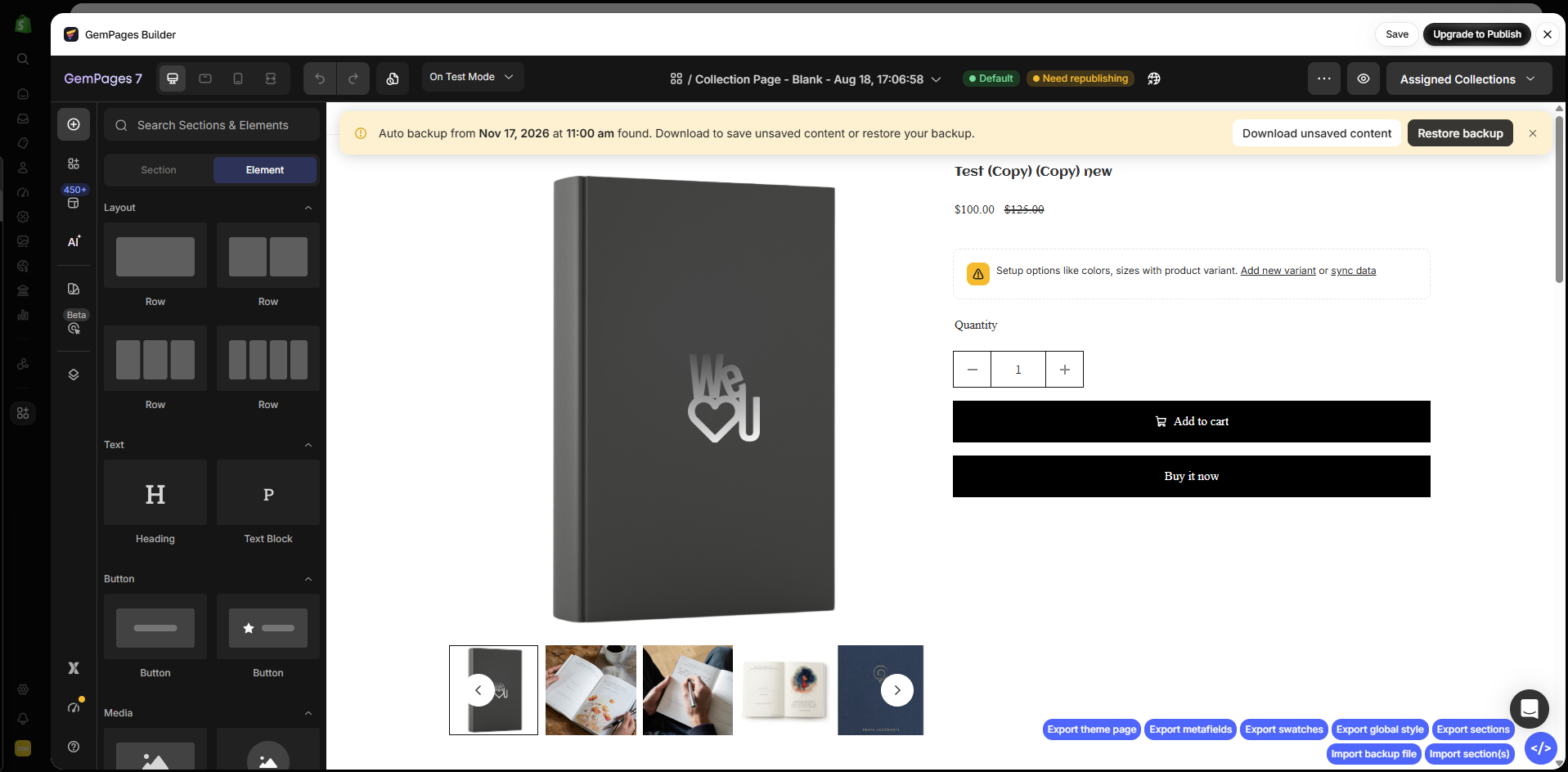
Download unsaved content
Click Download unsaved content to download a file containing the backed-up sections. The banner stays open, and you can still restore the backup afterward. If you need help recovering your sections, you can share the file with GemPages Support.
Restore backup
- Click Restore backup. The Editor replaces the sections currently on screen with the backed-up sections and closes the banner.
- The restored sections appear in the Editor as unsaved changes. Review them, then click Save to keep them.
If you restore a backup by mistake, press Ctrl + Z on Windows or Cmd + Z on Mac to return to the content you had open before restoring.
Dismiss the backup
Click the X on the banner to close it and delete the backup.
Common Problems and Solutions
1. Why don’t I see the backup banner?
Check that you’re opening the same page in the same browser on the same device, and that the backup is less than 14 days old. The backup may also be unavailable if you cleared your browser data, your browser removed stored data, or you edited in a private or incognito window and later closed it. If you were editing when the tab closed or the browser crashed, the Editor may have had too little time to create the backup.
If you see an error banner, such as a lost connection, an expired session, or a failed save, resolve that issue first. The backup banner appears once the error banner clears.
2. Why are some changes missing after I restore?
Auto Backup covers page sections. If you also changed page settings, you’ll need to apply those changes again.
3. Which backup is kept if I edit the same page in two tabs?
GemPages keeps the backup from the tab where you made the most recent change.
4. What if the banner says a newer version was saved?
A newer version of the page was saved on another device. Restoring the backup replaces the sections on screen with the backed-up sections. If you’re unsure which version to keep, click Download unsaved content first. The saved page changes only when you click Save.
5. What if my backup won’t load after a GemPages update?
Some older backups may be incompatible with a newer version of the Editor. Click Download unsaved content and send the file to GemPages Support for help recovering your sections.


Thank you for your comments