


GemPages MCP lets you update existing pages and sections through natural-language instructions without manually adjusting in the GemPages Editor.
You can change content and styling, fix layout issues, create custom designs, rearrange elements, or reuse sections across pages. Simply tell your AI assistant what to change and which page to update. You can also attach a screenshot to explain a visual issue or show the design you want.
This guide covers how to edit your GemPages pages with GemPages MCP.
What You’ll Create
With GemPages MCP, you can make changes to existing pages while keeping the rest of your design intact.
Here are some of the edits you can make:
| Edit Type | What You Can Do |
| Change content | Update headlines, descriptions, button text, and other page copy. |
| Update styling | Change colors, fonts, spacing, and element sizes across a page or within a specific section. |
| Create custom designs | Add visual effects, such as hover animations or customized carousel controls. |
| Fix layout issues | Correct inconsistent element sizes, alignment, and spacing on desktop or mobile. |
| Generate layout variations | Create new section designs using the same text and images as an existing section. |
| Manage blocks and sections | Add, reorder, remove, or restore page elements. |
| Reuse existing sections | Copy sections between GemPages pages without rebuilding them. |
Before You Start
Required: Connect GemPages MCP
Before editing a page, make sure you have connect GemPages MCP to your compatible AI assistant.
If you haven’t connected GemPages MCP yet, follow these guides:
How to Edit Pages and Sections With GemPages MCP Step-by-Step
Step 1: Select the Page and Describe Your Changes
Open your AI assistant with GemPages MCP connected and enter the prompt.
Below are examples of what you can ask GemPages MCP to do.
1. Create Custom Designs
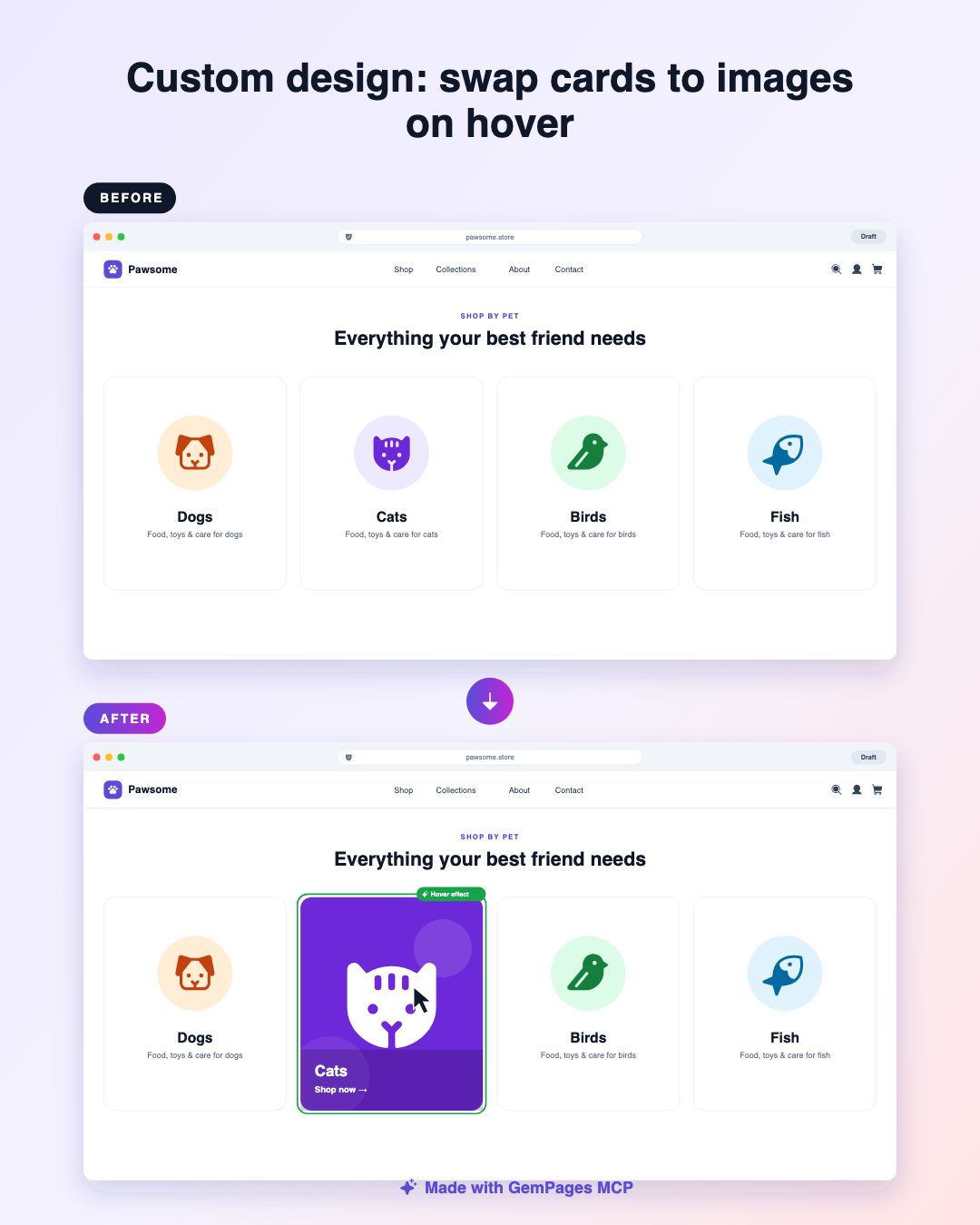
Add custom styling or interactions to existing elements, such as hover effects, card animations, or carousel controls.
For example:
Use GemPages MCP. On [page URL], make these four cards display a different image when visitors hover over them. Keep the other elements unchanged.
You can also request effects such as scaling cards on hover, adding navigation buttons outside a carousel, or creating a looping carousel.
2. Troubleshoot and Fix Layout Issues
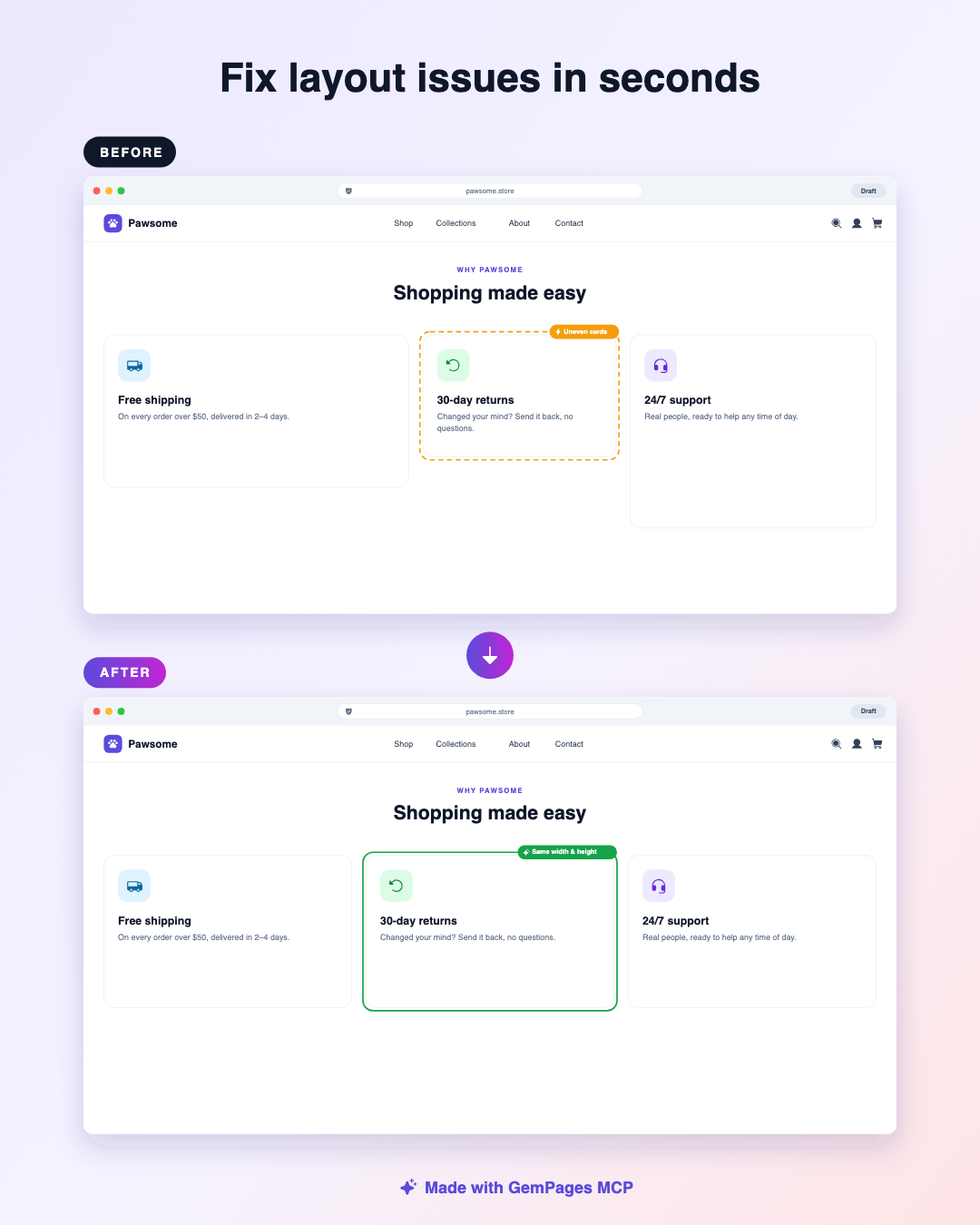
Describe the visual problem or attach a screenshot showing the affected elements.
For example:
Use GemPages MCP. On [page URL], make these three cards the same width and height on both desktop and mobile.
GemPages MCP identifies the relevant elements and adjusts their layout or styling to resolve the issue.
3. Generate New Layouts for an Existing Section
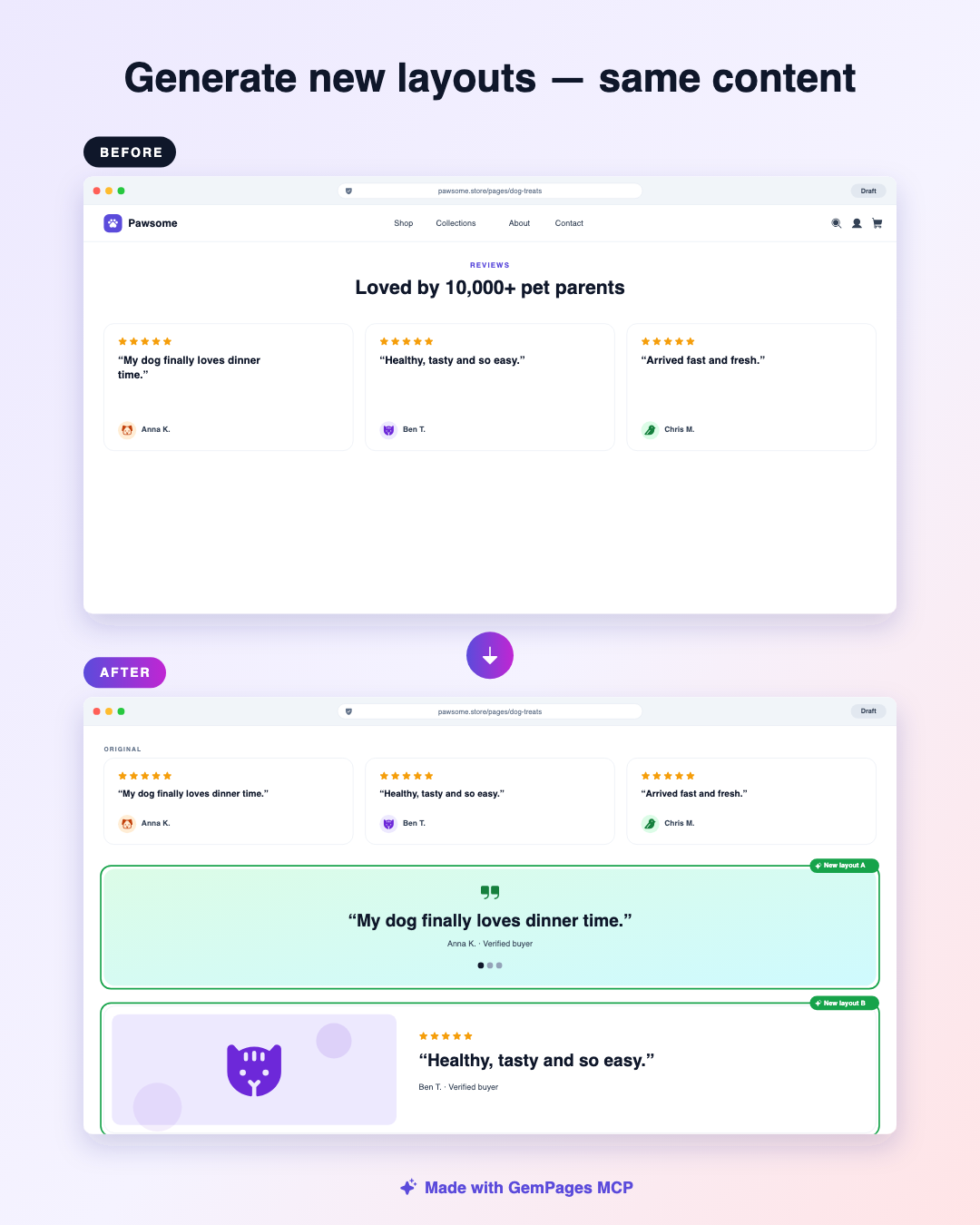
Create alternative designs while keeping the section’s original content.
For example:
Use GemPages MCP. Read the content of the Benefits section on [page URL] and create two new sections with the same text and images but different layouts. Keep the original section unchanged.
You can also describe the designs you want, such as a centered layout, larger product photography, or an accent-color background.
The new layouts are added as separate sections so you can compare them with the original.
4. Change Page Copy
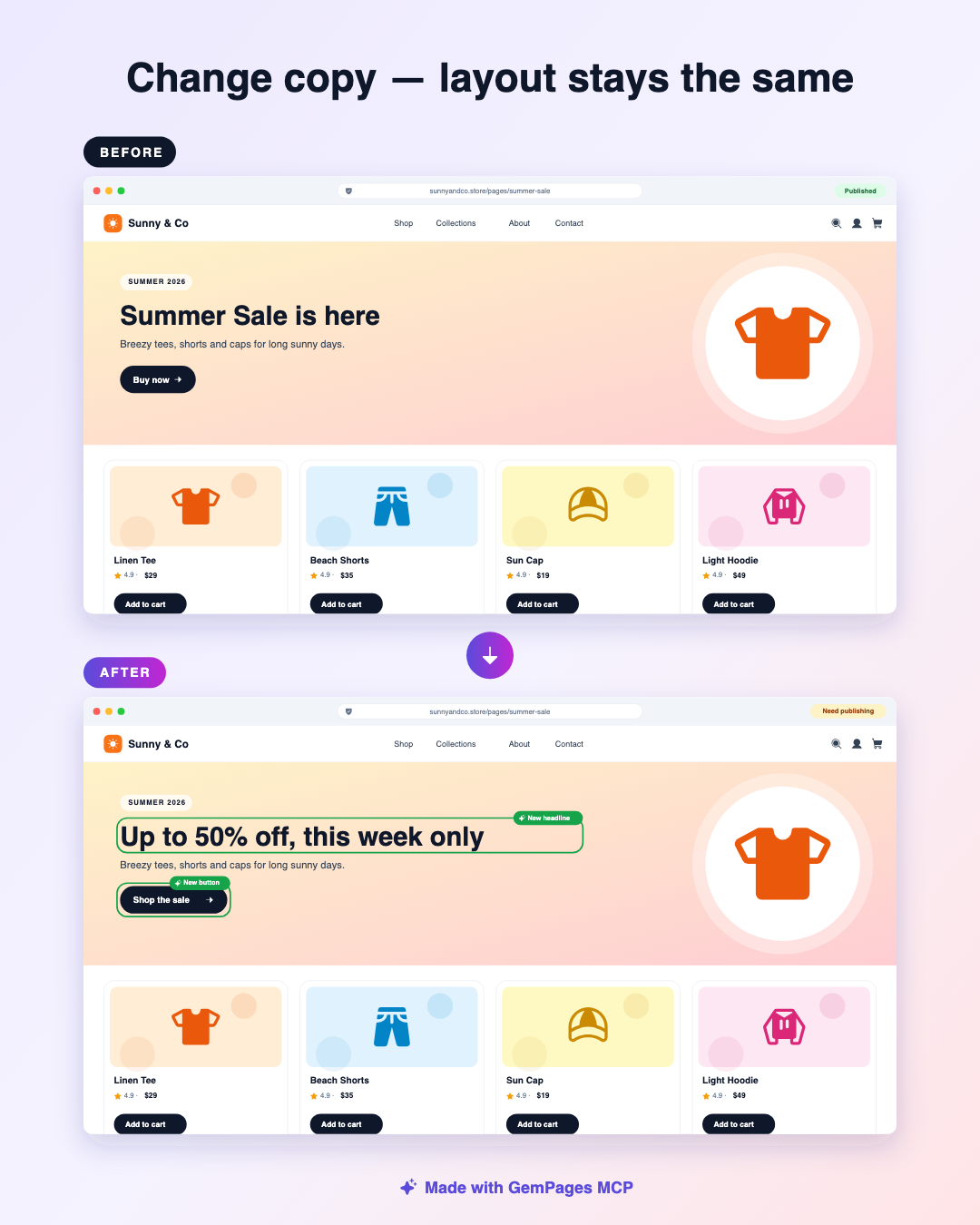
Update specific text without changing the surrounding layout or design.
For example:
Use GemPages MCP. On my Summer Sale landing page, change the hero headline to "Up to 50% off, this week only" and the button text to "Shop the sale".
GemPages MCP identifies the corresponding elements and updates only the requested copy.
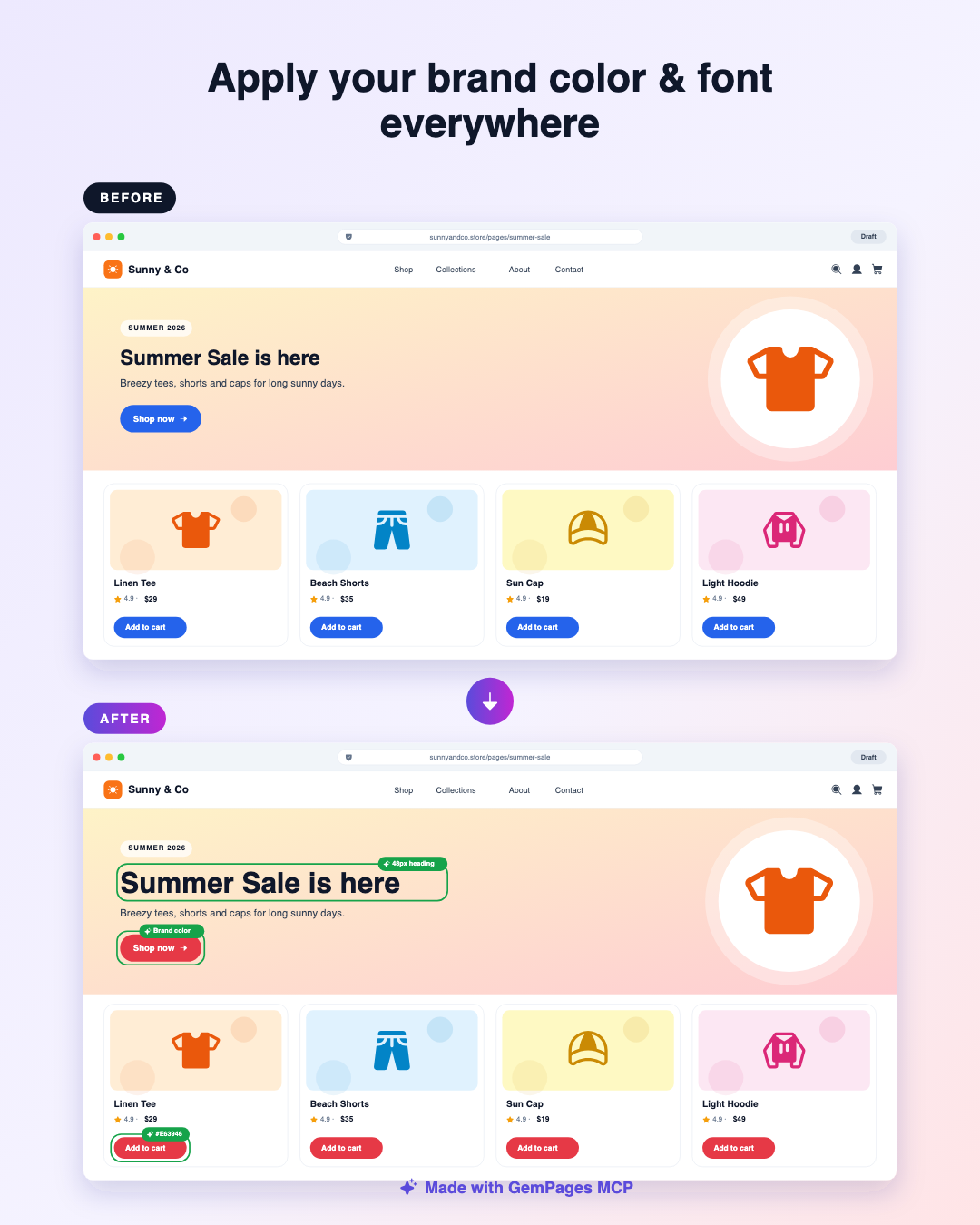
5. Update Brand Colors and Typography
Apply consistent styling changes to one element, a group of elements, or an entire page.
For example:
Use GemPages MCP. On my Summer Sale landing page, change all buttons to #E63946 with white text, and set the hero heading to 48px on desktop only. Keep the mobile heading size unchanged.
This is useful when you need to update multiple matching elements without editing each one individually.
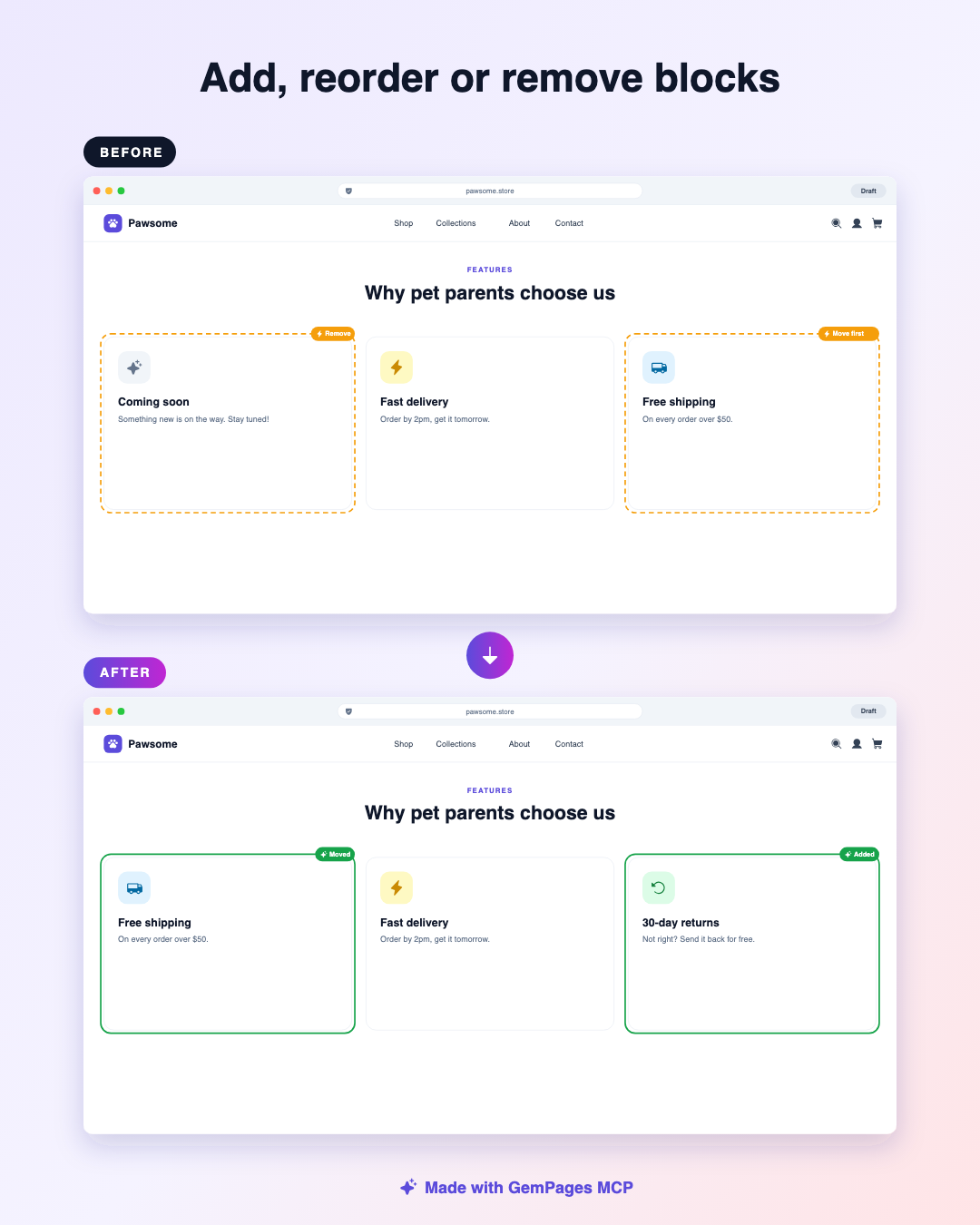
6. Add, Reorder, or Remove Blocks
Manage elements within an existing section while preserving the surrounding design.
For example:
Use GemPages MCP. In the Features section on [page URL], move the "Free shipping" card to the first position, add a fourth card for "30-day returns" matching the existing style, and remove the "Coming soon" card.
GemPages MCP can add new blocks matching existing ones, rearrange their order, or remove unnecessary elements.
If another part of the page depends on an element you’re removing, such as a scroll-to link, popup, or custom code, the AI warns you and asks for confirmation before proceeding.
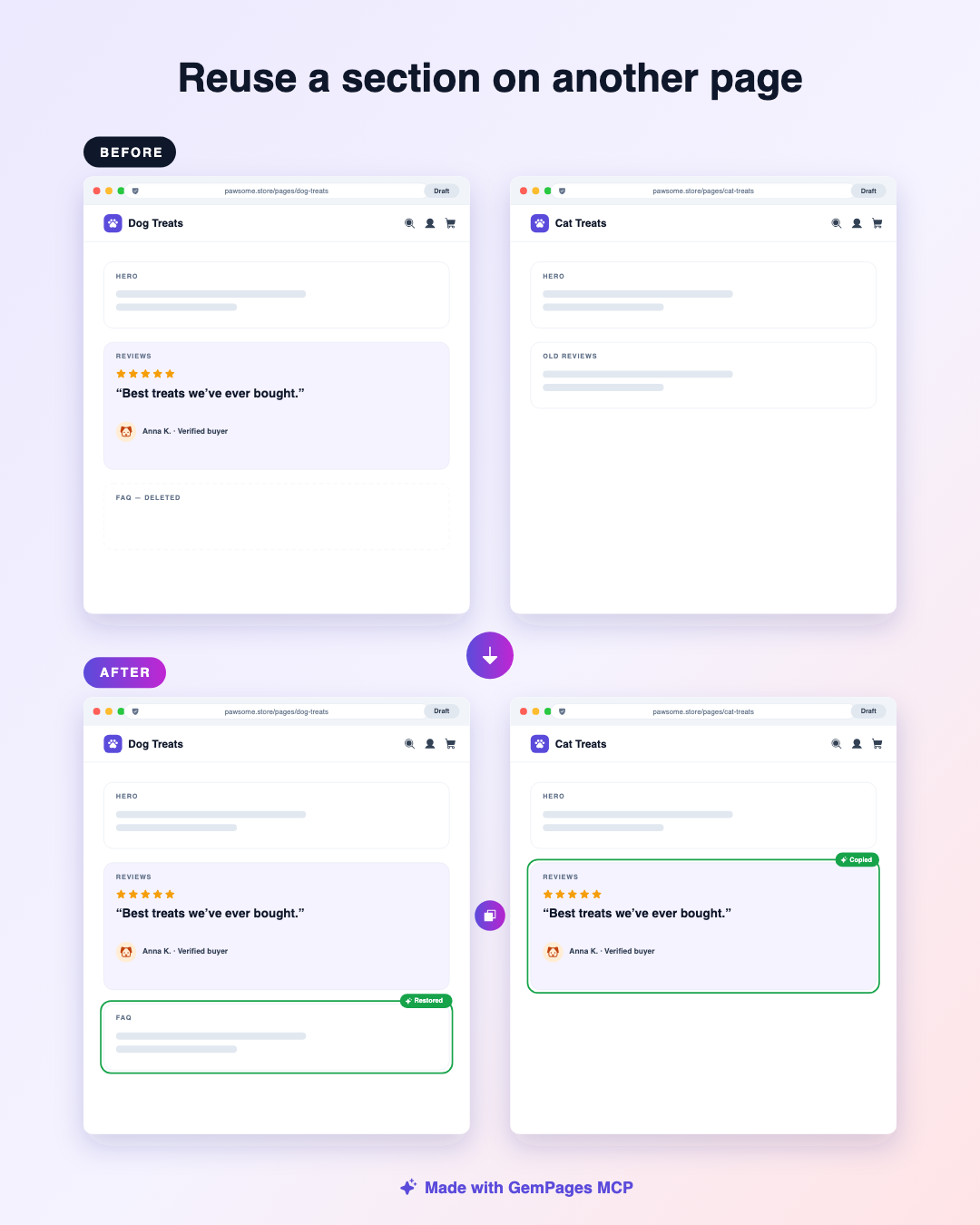
7. Reuse Existing Sections Across Pages
Copy complete sections from one GemPages page to another without rebuilding them.
For example:
Use GemPages MCP. Copy the Reviews section from the Dog Treats page to the Cat Treats page, replacing its existing Reviews section.
The copied section retains the original content and design, while the source page remains unchanged.
You can also ask the AI to restore a previously deleted section:
Use GemPages MCP. Restore the FAQ section I deleted yesterday from the Dog Treats page.
GemPages MCP also checks for existing copies to help prevent duplicate sections.
Step 2: Confirm the Page and Changes
Before editing, GemPages MCP identifies the exact page, section, or elements involved in your request.
If multiple elements match your description, the AI may ask you to clarify which ones to update.
For a published page, you’ll also be asked whether to:
- Edit the existing page: Apply changes to the published page’s editable version. Its status becomes Need publishing until you republish.
- Create a draft copy: Make changes to a separate [AI Copy …] draft while leaving the published page untouched.
The AI also checks the page or section size limits and saves a restore point in Version history before making changes.
Important: If your request involves removing an element referenced elsewhere on the page, GemPages MCP explains the potential impact and waits for your confirmation.
Step 3: Review the Applied Changes
Once the edit is complete, GemPages MCP reports what changed, including relevant desktop and mobile updates.
Open the page in GemPages and compare the result with your original instructions.
Check that the requested elements were updated correctly and unrelated content remains unchanged.
You can continue chatting with your AI assistant for further revisions or make adjustments directly in the GemPages Editor.
If the page has also been modified in the GemPages Editor since the AI last read it, GemPages MCP re-reads the latest page state before applying another edit.
Step 4: Undo, Redo, or Publish Your Changes
If you’re not satisfied with the result, ask the AI to undo its latest edit.
Use GemPages MCP. Undo the last change on my Summer Sale landing page.
To restore the change:
Use GemPages MCP. Redo the last change.
You can also review the saved [AI] … restore point in Version history.
Once you’re satisfied, preview the page and check that everything looks and works as expected.
For a published page, the status remains Need publishing after content or design edits. Republish the page manually when you’re ready for the changes to appear to customers.
Related Use Cases
AI Page Generation From HTML
Create an editable GemPages page from finished HTML produced by a developer, agency, or AI coding tool.
How to Turn HTML Into an Editable GemPages Page
AI Page Generation From an Image
Use a screenshot or design mockup to create an editable section in GemPages.
How to Generate an Editable Design From an Image
Edit Page Settings
Use GemPages MCP to update page names, URLs, SEO metadata, social images, and theme header/footer visibility. Page settings updates take effect immediately without requiring republishing, and changing the URL of a published page requires confirmation.


Thank you for your comments